


Pinned-messages bar
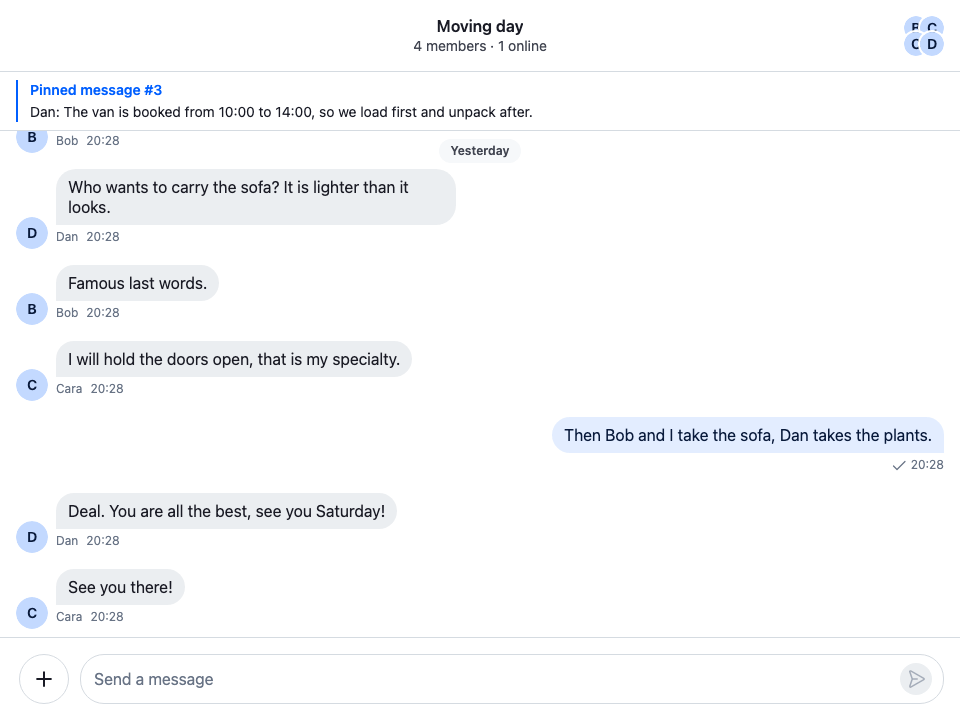
This recipe adds a bar under the channel header that shows the channel's pinned messages and jumps to them.
What you'll build
- A bar under the channel header with the latest pin
- Jumping to the pinned message on click
- Stepping back through older pins, click by click
- A bar that follows new pins and unpins
Preview
Approach: Compose. Choosing where to start explains the approaches.
Starts from: the base app. The page shows only what the recipe adds.
Best practices
- Read the pins from
channel.pinnedMessagesPaginator.state. The paginator keeps itself current, so the bar changes when someone pins or unpins a message, without a request of its own. - Jump with
MessagePaginator.jumpToMessage()onchannel.messagePaginator. It loads the messages around a pin that isn't loaded yet, and the message list scrolls to it and highlights it. - Keep the shown pin by its id, not its position. A new pin then doesn't shift the bar to another message.
- Keep the bar to one line of text, so it doesn't take space from the message list.
Pinned-messages bar
1. The bar
PinnedMessagesBar reads the loaded pins and shows one of them. Until the first click, that's the most recent pin. A click jumps the message list to the shown pin and then shows the one pinned before it. After the oldest, it shows the most recent again. The title numbers the pins from the oldest, as channel.pinnedMessagesPaginator.state.items orders them:
import { useState } from "react";
import type { LocalMessage, PaginatorState } from "stream-chat";
import { useChannel, useStateStore } from "stream-chat-react";
import "./PinnedMessagesBar.css";

const pinnedItemsSelector = ({ items }: PaginatorState<LocalMessage>) => ({
  items,
});

export const PinnedMessagesBar = () => {
  const channel = useChannel();
  const { items = [] } = useStateStore(
    channel.pinnedMessagesPaginator.state,
    pinnedItemsSelector,
  );
  // The pin the bar shows. Until the first click, and when that pin is gone, the most recent one.
  const [shownId, setShownId] = useState<string>();

  if (!items.length) return null;

  // `items` holds the oldest pin first, so the most recent pin is the last item.
  const shownIndex = items.findIndex((message) => message.id === shownId);
  const index = shownIndex === -1 ? items.length - 1 : shownIndex;
  const shown = items[index];

  const jumpToShownPin = () => {
    void channel.messagePaginator.jumpToMessage(shown.id);
    // Next, the pin before it; after the oldest, the most recent again.
    setShownId((items[index - 1] ?? items[items.length - 1]).id);
  };

  return (
    <button
      className="cookbook-pinned-bar"
      onClick={jumpToShownPin}
      type="button"
    >
      <span className="cookbook-pinned-bar__content">
        <span className="cookbook-pinned-bar__title">
          Pinned message{items.length > 1 && ` #${index + 1}`}
        </span>
        <span className="cookbook-pinned-bar__text">
          {shown.user?.name ?? shown.user?.id}: {shown.text}
        </span>
      </span>
    </button>
  );
};@layer stream-overrides {
.cookbook-pinned-bar {
display: block;
width: 100%;
padding: var(--str-chat__spacing-xs) var(--str-chat__spacing-md);
border: 0;
border-bottom: 1px solid var(--str-chat__border-core-default);
background: var(--str-chat__background-core-elevation-1);
color: var(--str-chat__text-primary);
text-align: start;
cursor: pointer;
}
.cookbook-pinned-bar:hover {
background: var(--str-chat__background-utility-hover);
}
.cookbook-pinned-bar__content {
display: flex;
flex-direction: column;
gap: var(--str-chat__spacing-xxxs);
padding-inline-start: var(--str-chat__spacing-sm);
border-inline-start: 2px solid var(--str-chat__accent-primary);
}
.cookbook-pinned-bar__title {
color: var(--str-chat__accent-primary);
font: var(--str-chat__font-caption-emphasis);
}
.cookbook-pinned-bar__text {
overflow: hidden;
font: var(--str-chat__font-caption-default);
text-overflow: ellipsis;
white-space: nowrap;
}
}The selector is declared at module scope and picks only items, so the bar re-renders when the pins change and not on every paginator update. Selector identity explains why.
The rules sit in the stream-overrides layer, so they win over the SDK's own rules once the SDK's stylesheet is in an earlier layer, as Theming → CSS layers sets up. They take their colors, spacing and type from the SDK's tokens, so they follow your theme.
2. Put it under the header
useChannel() reads the channel from the Channel around the bar, so the bar renders inside it. Render it right after ChannelHeader:
import { ChannelHeader } from "stream-chat-react";
import { PinnedMessagesBar } from "./PinnedMessagesBar";

// Rendered where the channel header goes, inside the channel, so the bar sits right under it.
export const ChannelHeaderWithPinnedBar = () => (
  <>
    <ChannelHeader />
    <PinnedMessagesBar />
  </>
);
With ChatView, render ChannelHeaderWithPinnedBar in place of ChannelHeader among the children of ChannelSlot: the slot renders them inside the Channel it opens. Without it, put it inside your Channel, above MessageList.
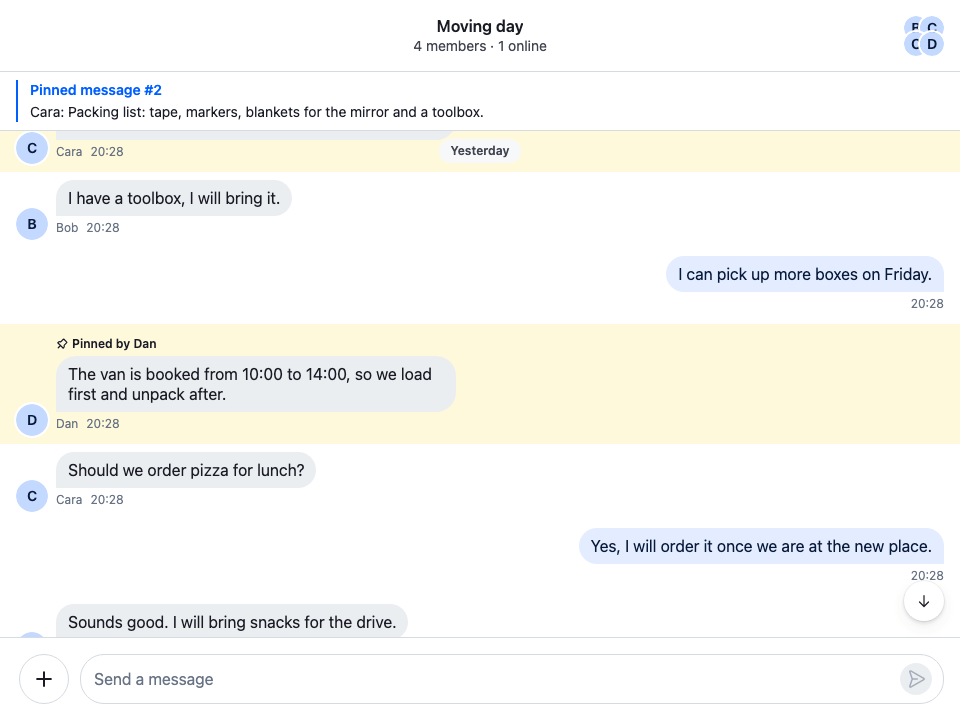
After a click, the list shows the pin the bar showed, highlighted, and the bar shows the pin before it:
After a click on the bar
How it works
Example
A channel has three pinned messages, and the user opens it:
- The channel's watch response carries its pins, and they become the first page of
channel.pinnedMessagesPaginator.channel.pinnedMessagesPaginator.state.itemsholds them, oldest pin first. The bar shows the last one, "Pinned message #3". - The user clicks the bar.
MessagePaginator.jumpToMessage()shows the messages around that pin, loading them if they aren't loaded, and publishes a focus signal inchannel.messagePaginator.messageFocusSignal. MessageListreads the signal, scrolls the message to the middle and highlights it with thestr-chat__message--highlightedclass for three seconds after it's on screen. The scroll-to-latest button shows while the list isn't at the latest message.- The bar now shows "Pinned message #2". Two more clicks jump to #2 and then #1, and the bar goes back to #3.
- Someone unpins #2. The
message.updatedevent removes it fromchannel.pinnedMessagesPaginator.state.items, and the bar, which kept #2 by its id, shows the most recent pin again.
The bar goes through the loaded pins only. The watch response may carry only some of a channel's pins, and channel.pinnedMessagesPaginator.state.hasMoreTail can be false even when the channel has more. For a channel with many pins, call PinnedMessagePaginator.reload() to load a full page, and PinnedMessagePaginator.toTail() to load earlier pins. Pinned messages paginator explains both.
The bar shows a pin, not where pins are in the list. To mark the pinned messages themselves, see the Pin indicator recipe.
Related
- Pinned messages explains how pinning works and the list of a channel's pinned messages.
- Pinned messages paginator lists the state, the loading methods and what updates the list.
- Message paginator lists
MessagePaginator.jumpToMessage(), its options and the focus signal. - Message list UI shows what the list does after a jump.
- Pin indicator changes how a pinned message looks in the list.
- Channel header replaces the header the bar sits under.