


AI chat widget
The AI chat widget is a chat bubble at the bottom right of an app that opens the user's conversation with an AI assistant. It works on top of an app that already has a chat, such as the base app, and on its own, in an app that only wants the assistant.
What you'll build
- A round button that opens the assistant's window
- A small floating window with the conversation
- Status text and replies that stream in
Preview
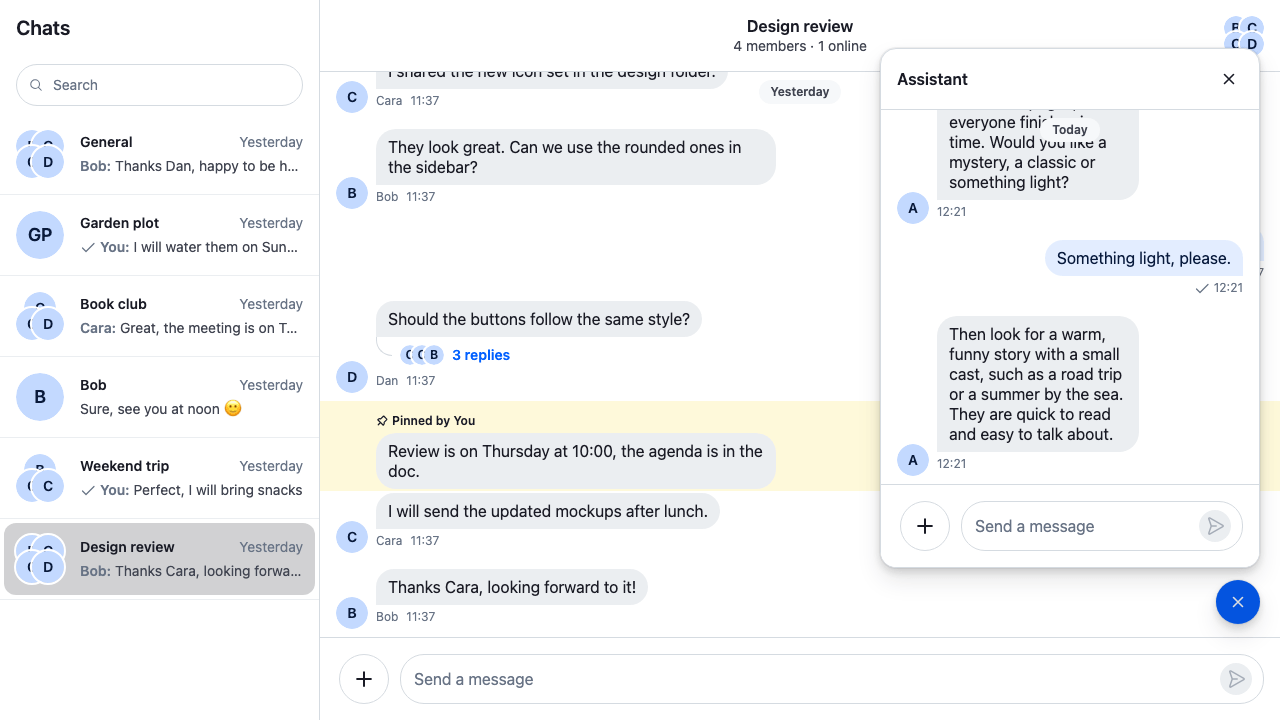
Approach: Compose. Choosing where to start explains the approaches.
Starts from: the base app. The page shows the widget, then how to add it to the base app and to an app without a chat of its own.
The widget only shows the conversation. The assistant's replies come from an AI agent on your backend, which watches the channel, sends each reply as the assistant user, and reports what it's doing with ai_indicator.* events. AI integrations overview explains how the backend drives the reply. The cookbook's demo app is read-only and has no agent, so nothing answers a message sent there.
Best practices
- Give each user one channel with the assistant, created by your backend, and pass the widget its id. The widget watches the channel the first time the window opens, so a user who never opens it costs no request.
- Keep the window non-modal. It's a side conversation the user may read while using the rest of the page, so it has no backdrop and doesn't trap focus: Tab moves out of it as through any other part of the page. It's a
dialogwithoutaria-modal, named by its heading. - Give the launcher
aria-expanded, andaria-controlspointing to the window while it's open. - Move focus into the window when it opens and back to the launcher when it closes. Let Escape close it, but only after a menu, picker or suggestion list inside it has closed.
- Mark the assistant's replies on the backend, and tell
Chathow to recognise them withisMessageAIGenerated, so the message list types them out as they stream in. - In an app with a channel list, keep the assistant's channel out of that list, so the conversation has one place. Keep it out of the app's channel search too, with the same filter in
ChannelSearchSource.filters.
Build the widget
AssistantWidget renders the launcher, and the window while it's open. The window renders Channel with the SDK's MessageList, AIStateIndicator and MessageComposer, so messages, reactions and uploads work as they do in the base app's channel.
useAssistantChannel()gets the channel withclient.channel()and loads it withChannel.watch()the first time the window opens.Channeldoesn't query the channel it's given, so the window shows aLoadingIndicatoruntil the watch resolves, and a short note if it fails. The channel stays loaded when the window closes, so opening it again is instant, and the hook watches another channel whenchannelIdchanges.AIStateIndicatorfromstream-chat-reactfollows the channel's AI state: it shows "Thinking..." and "Generating..." between the list and the composer while the backend reports those states, and nothing otherwise. Streamed answers with a stop button shows the whole streaming flow, with an indicator for every state.MessageComposergetsfocus, so the text input takes focus when the window opens. Focus lands inside thedialog, so a screen reader announces the window's name too.close()moves focus back to the launcher, since the element that had it is gone.closeOnEscapecloses the window on Escape, unless something inside it used the key first.isEscapeForWindow()checks that: the key was pressed in the window or on the launcher, not in a modal the window opened, such as the location picker (SDK modals render in a portal, but React still bubbles their keydown to the widget, and that Escape closes only the modal); the composer marks the event handled when Escape leaves a command; andhasOpenPopup()finds an open menu, picker or suggestion list by its toggle'saria-expandedor the text input'saria-controls. While the window is open, the handler stops every Escape inside the widget from reaching the page, so a page-level shortcut, such as the channel list's search, which focuses its input on any Escape, doesn't take focus away.- The launcher is the SDK's
Button, with theIconMessageBubbleandIconXmarkicons fromuseComponentContextIcons(), so an app that replaces the icon set replaces them here too. .cookbook-assistant-widgetpins the launcher and the window to the bottom right, with the window above the launcher. The window is the widget's own markup, so the CSS positions it freely; it never sets layout on the SDK's classes. 96px from the bottom clears the composer of the base app's channel; on a page without one, set it lower.
import { useEffect, useId, useRef, useState } from "react";
import type { KeyboardEvent } from "react";
import type { Channel as StreamChannel } from "stream-chat";
import {
  AIStateIndicator,
  Button,
  Channel,
  LoadingIndicator,
  MessageComposer,
  MessageList,
  useChatContext,
  useComponentContextIcons,
} from "stream-chat-react";
import "./AssistantWidget.css";

/**
 * Watches the user's channel with the assistant the first time the window opens, and keeps it
 * afterwards, until `channelId` names another channel. A user who never opens the window costs no
 * request.
 */
const useAssistantChannel = (channelId: string, isOpen: boolean) => {
  const { client } = useChatContext();
  const [channel, setChannel] = useState<StreamChannel>();
  const [failed, setFailed] = useState(false);

  useEffect(() => {
    if (!isOpen || channel?.id === channelId) return;
    let cancelled = false;
    setFailed(false);
    client
      .channel("messaging", channelId)
      .watch()
      .then((watched) => !cancelled && setChannel(watched))
      .catch(() => !cancelled && setFailed(true));
    return () => {
      cancelled = true;
    };
  }, [channel, channelId, client, isOpen]);

  return { channel, failed };
};

/**
 * A menu, picker or suggestion list inside the window is open, so Escape closes that first. Their
 * toggles carry `aria-expanded="true"`, and the composer's textarea carries `aria-controls` while
 * its suggestions show.
 */
const hasOpenPopup = (container: HTMLElement | null) =>
  !!container?.querySelector('[aria-expanded="true"], textarea[aria-controls]');

/**
 * The Escape was pressed in the window or on the launcher, and nothing inside the window used it,
 * as the composer does to leave a command. A modal opened from the window renders in a portal, but
 * React still bubbles its keydown here, and that Escape closes only the modal.
 */
const isEscapeForWindow = (
  event: KeyboardEvent,
  container: HTMLElement | null,
  launcher: HTMLElement | null,
) => {
  const target = event.target as Node;
  return (
    (!!container?.contains(target) || !!launcher?.contains(target)) &&
    !event.defaultPrevented &&
    !hasOpenPopup(container)
  );
};

type AssistantWidgetProps = {
  /** The id of the user's `messaging` channel with the assistant. */
  channelId: string;
  /** The window's heading, which also names it for assistive technology. */
  title?: string;
};

/**
 * A launcher button at the bottom right of the page that opens a small, non-modal chat window with
 * the assistant. Escape or the close button closes it and gives focus back to the launcher.
 */
export const AssistantWidget = ({
  channelId,
  title = "Assistant",
}: AssistantWidgetProps) => {
  const { IconMessageBubble, IconXmark } = useComponentContextIcons();
  const [isOpen, setIsOpen] = useState(false);
  const { channel, failed } = useAssistantChannel(channelId, isOpen);
  const launcherRef = useRef<HTMLButtonElement>(null);
  const windowRef = useRef<HTMLElement>(null);
  const windowId = useId();
  const titleId = useId();

  const close = () => {
    setIsOpen(false);
    launcherRef.current?.focus();
  };

  const closeOnEscape = (event: KeyboardEvent) => {
    if (event.key !== "Escape" || !isOpen) return;
    // Escape inside the open widget is the widget's, so handlers on the page don't act on it too,
    // such as the channel list's search, which focuses its input on any Escape.
    event.stopPropagation();
    if (!isEscapeForWindow(event, windowRef.current, launcherRef.current))
      return;
    event.preventDefault();
    close();
  };

  return (
    <div className="cookbook-assistant-widget" onKeyDown={closeOnEscape}>
      <Button
        appearance="solid"
        aria-controls={isOpen ? windowId : undefined}
        aria-expanded={isOpen}
        aria-label={`Chat with ${title}`}
        circular
        className="cookbook-assistant-launcher"
        onClick={() => (isOpen ? close() : setIsOpen(true))}
        ref={launcherRef}
        size="lg"
        variant="primary"
      >
        {isOpen ? <IconXmark /> : <IconMessageBubble />}
      </Button>
      {isOpen && (
        <section
          aria-labelledby={titleId}
          className="cookbook-assistant-window"
          id={windowId}
          ref={windowRef}
          role="dialog"
        >
          <header className="cookbook-assistant-window__header">
            <h2 className="cookbook-assistant-window__title" id={titleId}>
              {title}
            </h2>
            <Button
              appearance="ghost"
              aria-label={`Close ${title}`}
              circular
              onClick={close}
              size="md"
              variant="secondary"
            >
              <IconXmark />
            </Button>
          </header>
          <div className="cookbook-assistant-window__body">
            {channel ? (
              <Channel channel={channel}>
                <MessageList />
                <AIStateIndicator />
                {/* Focus moves to the text input when the window opens. */}
                <MessageComposer focus />
              </Channel>
            ) : failed ? (
              <p className="cookbook-assistant-window__note" role="alert">
                Couldn’t open the conversation. Close the window and try again.
              </p>
            ) : (
              <LoadingIndicator />
            )}
          </div>
        </section>
      )}
    </div>
  );
};@layer stream-overrides {
/*
* Pinned to the bottom right of the page, the window stacked above the launcher. 96px clears a
* composer along the bottom of the page, such as the base app's.
*/
.cookbook-assistant-widget {
position: fixed;
z-index: 10;
inset-block-end: 96px;
inset-inline-end: var(--str-chat__spacing-lg);
display: flex;
flex-direction: column-reverse;
align-items: flex-end;
gap: var(--str-chat__spacing-sm);
}
.cookbook-assistant-launcher {
box-shadow: var(--str-chat__box-shadow-3);
}
/* A compact card, never wider or taller than the page leaves room for. */
.cookbook-assistant-window {
display: flex;
flex-direction: column;
width: min(380px, calc(100vw - 2 * var(--str-chat__spacing-lg)));
height: min(520px, calc(100dvh - 200px));
overflow: hidden;
border: 1px solid var(--str-chat__border-core-default);
border-radius: var(--str-chat__radius-xl);
background: var(--str-chat__background-core-elevation-1);
box-shadow: var(--str-chat__box-shadow-3);
color: var(--str-chat__text-primary);
}
.cookbook-assistant-window__header {
display: flex;
align-items: center;
justify-content: space-between;
gap: var(--str-chat__spacing-sm);
padding: var(--str-chat__spacing-sm) var(--str-chat__spacing-sm)
var(--str-chat__spacing-sm) var(--str-chat__spacing-md);
border-block-end: 1px solid var(--str-chat__border-core-default);
}
.cookbook-assistant-window__title {
margin: 0;
font: var(--str-chat__font-heading-sm);
}
/* The channel fills the space under the header. */
.cookbook-assistant-window__body {
display: flex;
flex: 1;
flex-direction: column;
min-height: 0;
}
.cookbook-assistant-window__note {
margin: 0;
padding: var(--str-chat__spacing-md);
color: var(--str-chat__text-secondary);
font: var(--str-chat__font-body-default);
}
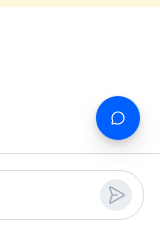
}Closed, the widget is only the launcher, above the channel's send button:
The closed widget's launcher
Recognise the assistant's replies
The backend marks each reply of the assistant with the custom field ai_generated. isMessageAIGenerated() reads it. Passed to Chat, it makes MessageUI render the text of those messages with StreamedMessageText, which types out whatever the text grows by, and leaves out the "Edited" label every streamed update would add. A reply already stored shows in full. SDK integration explains StreamedMessageText, and Mark assistant messages with ai_generated how the backend sets the field.
import type { LocalMessage } from "stream-chat";

declare module "stream-chat" {
  // The field the backend sets on the assistant's replies. Optional, because every message in the
  // app shares this interface.
  interface CustomMessageData {
    ai_generated?: boolean;
  }
}

/** The assistant wrote the message: the backend marks its replies with `ai_generated`. */
export const isMessageAIGenerated = (message: LocalMessage) =>
  !!message.custom?.ai_generated;
Add it to the base app
Render the widget as a child of ChatView, and pass isMessageAIGenerated to Chat. The rest of the base app stays as it is:
// The base app's App, with these changes.
import { AssistantWidget } from "./AssistantWidget";
import { isMessageAIGenerated } from "./isMessageAIGenerated";

// The user's channel with the assistant, which your backend creates.
const assistantChannelId = "YOUR_ASSISTANT_CHANNEL_ID";

// In App:
return (
  <Chat client={client} isMessageAIGenerated={isMessageAIGenerated}>
    <SidePanelProvider>
      <ChatView layouts={layouts} views={{ channels: <ChannelsView /> }}>
        <AssistantWidget channelId={assistantChannelId} />
      </ChatView>
    </SidePanelProvider>
  </Chat>
);ChatView's root carries the str-chat class, so the widget gets the SDK's design tokens from it. The widget doesn't bind its channel into a layout slot, so it stays open while the user switches channels and views.
The base app's channel list shows every messaging channel the user is a member of, so it would list the assistant's channel too. Give the assistant's channel a channel type of its own, created in the Dashboard, and the channel paginator's type: "messaging" filter leaves it out; the widget then calls client.channel() with that type. The cookbook's demo app has only the messaging type, so its channel list leaves the channel out by id instead.
Use it on its own
An app without a chat of its own needs only Chat around the widget. Chat renders no element, and the SDK's design tokens are set on elements with the str-chat class, such as the roots of ChatView and Channel. Without ChatView, wrap the widget in an element with that class, so the launcher and the window's header get the tokens too. Theming explains where the tokens are set.
import { Chat, useCreateChatClient } from "stream-chat-react";
import { AssistantWidget } from "./AssistantWidget";
import { isMessageAIGenerated } from "./isMessageAIGenerated";

const apiKey = "YOUR_API_KEY";
const userId = "YOUR_USER_ID";
const userToken = "YOUR_USER_TOKEN";
// The user's channel with the assistant, which your backend creates.
const assistantChannelId = "YOUR_ASSISTANT_CHANNEL_ID";

/**
 * An app that has no chat of its own, only the widget. Load the SDK's stylesheet in a CSS layer, as
 * the base app's `chat.css` does, so the widget's CSS wins over it.
 */
export const App = () => {
  const client = useCreateChatClient({
    apiKey,
    tokenOrProvider: userToken,
    userData: { id: userId },
  });

  return (
    <>
      <main>{/* Your app's own pages. */}</main>
      {client && (
        <Chat client={client} isMessageAIGenerated={isMessageAIGenerated}>
          {/* The SDK's tokens are set on `.str-chat`; without ChatView, the widget needs one. */}
          <div className="str-chat">
            <AssistantWidget channelId={assistantChannelId} />
          </div>
        </Chat>
      )}
    </>
  );
};
Load the SDK's stylesheet in a CSS layer before the widget's, as the base app's chat.css does, so the widget's rules win over the SDK's.
How it works
Example
The user has a question for the assistant while reading the Design review channel:
- The user clicks the launcher.
AssistantWidgetsetsisOpen, setsaria-expandedtotrueand pointsaria-controlsat the window, and renders the window with aLoadingIndicator. useAssistantChannel()callsChannel.watch()on the assistant's channel. When it resolves, the window rendersChannelwith the message list and the composer, and the text input takes focus.- The user sends a question. The backend's agent posts an empty reply marked
ai_generated, then sendsai_indicator.updatewithAI_STATE_THINKING. The client setschannel.state.aiState, andAIStateIndicatorshows "Thinking...". - The agent writes the answer into the reply a few words at a time. Each update reaches the client as
message.updated, andStreamedMessageTexttypes out the new part. - The agent stores the final text and sends
ai_indicator.clear. The indicator goes away. - The user presses Escape. Nothing inside the window is open, so
closeOnEscapecloses the window, and focus goes back to the launcher.
- The window renders a second
Channelbeside the base app's.Channel.activate()claims are counted, so closing the window doesn't deactivate a channel the layout also shows. - The message actions inside the window are the same as in the rest of the app. Reply in Thread opens the thread in the layout's
threadslot, beside the channel, not in the window; withoutChatView, it does nothing. Turn off replies for the assistant's channel type if your assistant doesn't answer in threads. AI_STATE_EXTERNAL_SOURCESshows no indicator, sinceAIStateIndicatorfromstream-chat-reactcovers thinking and generating only. Streamed answers with a stop button shows every state.
Related
- Streamed answers with a stop button shows a reply as it's generated, with the AI state indicator and Stop.
- AI integrations overview explains the AI states, the
ai_indicator.*events and how the backend streams a reply. - SDK integration explains
StreamedMessageText,AIStateIndicatorand the stop button. - Theming explains the design tokens and CSS layers the widget's CSS uses.
- Workspace with ChatView explains the layout the widget floats over.