


Polls
A poll is a question with options that members of a channel vote on. This page covers creating a poll in the composer, how votes reach every client, and the components that render a poll in a message.
What users get
The user opens the attachment menu and picks Poll. A dialog asks for the question and the options, which they can drag to reorder. They can also allow more than one answer (with a maximum), hide who voted, let others suggest options, and let them add comments. They send, and the poll appears in the channel as a message.
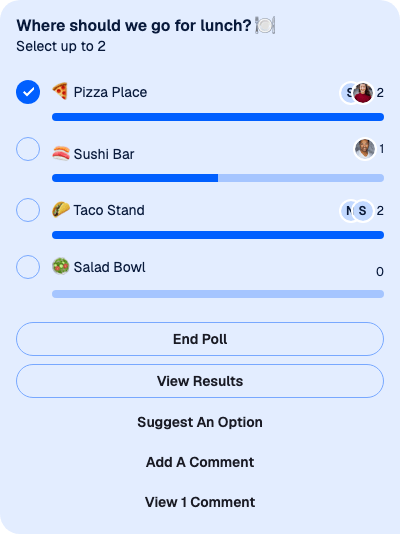
Another member ticks an option. Their vote shows at once, with the count next to each option and the avatars of the latest voters. As the poll's creator, the user sees End Poll. Everyone sees View Results once there are votes, and the actions the user allowed: Suggest an Option, Add a Comment and View Comments, which shows the number of comments (View 1 Comment). A poll with more than five options shows the first five and a button that opens the full list.
How it works across the layers
- State. The composer's
pollComposerholds the poll being created. Once created, the poll is aPollobject kept inclient.polls, one per poll, with its data inpoll.state. The message only refers to it, throughmessage.poll_id. - UI.
AttachmentSelectoropensPollCreationDialog. The defaultMessageUIrendersPollfor every message with a poll, andPollrenders the question, the options and the actions. - Layout. Not involved.
Creating a poll
- Picking Poll in the attachment menu resets
pollComposerand opensPollCreationDialog. Each field writes topollComposer, which validates each field as the user types or leaves it: the question is required, and options can't be empty or repeat each other. The maximum number of votes is kept to a whole number from 2 to 10: other values are corrected as the user types, not reported.PollCreationDialogshows each error under its field, translated by itscode. - The send button is enabled when
pollComposer.canCreatePollis true. - Pressing it creates the poll on the server with
MessageComposer.createPoll(), then sends a message that carries only the poll withMessageComposer.send(). If creating the poll fails, anapi:poll:create:failednotification is published and nothing is sent. Text the user typed stays in the composer for their next message. Creating and sending the poll has the code.
Voting and keeping the poll current
client.polls keeps one Poll for each poll id. It fills from every loaded message that carries a poll, and from new ones as they arrive. Poll events (poll.updated, poll.closed, poll.vote_casted, poll.vote_changed, poll.vote_removed) update the matching Poll, so every message that shows it re-renders.
A vote goes through Poll.castVote(optionId, messageId). It shows in poll.state before the server answers and is undone if the request fails. Poll.removeVote() and Poll.close() work the same way. When the voter has reached max_votes_allowed, Poll.castVote() publishes a notification instead of voting. What's optimistic and what isn't has the details.
poll.state holds the poll's data, such as vote_counts_by_option, and a few values derived from it: ownVotesByOptionId (the current user's votes), ownAnswer (their comment) and maxVotedOptionIds (the leading options). Read it from there, not from message.poll, which is only the copy that came with the message.
Rendering a poll
The poll is the poll item of the bubble content set that <MessageBubbleContent/> renders, as Bubble content shows. That item reads the poll with client.polls.fromState(message.poll_id) and renders <Poll poll={poll} />. Poll provides PollContext and renders PollContent:
PollHeader: the question and how many options can be chosen.PollOptionList: aPollOptionSelectorfor each option, with its vote count, a bar and the latest voters. It shows five options, and a button opensPollOptionsFullList, which lists all of them in a dialog.PollActions: the buttons below the options and the dialogs they open:EndPollAlert,PollResults,SuggestPollOptionForm,AddCommentPromptandPollAnswerList.
Each action shows only when it applies. End Poll is for the poll's creator while the poll is open. Voting and suggesting options need the cast-poll-vote capability and an open poll. View Comments needs query-poll-votes.
Turning it on or off
Polls are on by default. Two sides decide:
- The client:
messageComposer.polls.enabled,trueby default. - The server: the channel type's
pollssetting. Creating a poll also needs the user'ssend-pollcapability.
To turn poll creation off in every composer:
client.config.set({
  messageComposer: { polls: { enabled: false } },
});
Messages that already carry a poll still render it. The attachment menu offers Poll only in channels, not in threads. Configuration lists every setting both sides decide.
Customizing
Replace part of the poll
Six override keys replace parts of the poll UI: PollContent, PollHeader, PollOptionSelector, PollActions, PollCreationDialog and PollCreationDialogControls. A replacement for a part of a sent poll reads the poll from usePollContext() and subscribes to poll.state. The two dialog keys work on the composer's poll instead, through useMessageComposerController(). This header shows the question and the number of votes:
import type { PollState } from "stream-chat";
import {
  Channel,
  MessageComposer,
  MessageList,
  usePollContext,
  useStateStore,
  WithComponents,
} from "stream-chat-react";

const headerSelector = ({ name, vote_count }: PollState) => ({
  name,
  voteCount: vote_count,
});

const PollHeaderWithVotes = () => {
  const { poll } = usePollContext();
  const { name, voteCount } = useStateStore(poll.state, headerSelector);

  return (
    <div className="poll-header">
      <strong>{name}</strong>
      <span>{voteCount} votes</span>
    </div>
  );
};

const overrides = { PollHeader: PollHeaderWithVotes };

export const ChannelWithPollHeader = () => (
  <WithComponents overrides={overrides}>
    <Channel channel={channel}>
      <MessageList />
      <MessageComposer />
    </Channel>
  </WithComponents>
);
Change the poll's layout
Override PollContent and put the SDK's parts in the order you want. PollOptionList takes optionsDisplayCount, the number of options shown before the "more options" button, and PollOptionsFullList, the component that lists all of them:
import { PollActions, PollHeader, PollOptionList } from "stream-chat-react";

export const PollContentWithTenOptions = () => (
  <div className="str-chat__poll">
    <PollHeader />
    <PollOptionList optionsDisplayCount={10} />
    <PollActions />
  </div>
);
Register it with <WithComponents overrides={{ PollContent: PollContentWithTenOptions }}>. Without optionsDisplayCount, PollOptionList shows every option.
Replace the action dialogs
PollActions takes the dialogs it opens as props: AddCommentPrompt, EndPollAlert, PollAnswerList, PollResults and SuggestPollOptionForm. Wrap it to replace one and keep the rest:
import {
  PollActions,
  useModalContext,
  usePollContext,
} from "stream-chat-react";

const ConfirmEndPoll = () => {
  const { poll } = usePollContext();
  const { close } = useModalContext();

  const endPoll = async () => {
    try {
      await poll.close();
      close();
    } catch {
      // The poll stays open. Show the error in the dialog here.
    }
  };

  return (
    <div className="end-poll-alert">
      <p>Nobody can vote after the poll ends.</p>
      <button onClick={endPoll} type="button">
        End the poll
      </button>
      <button onClick={close} type="button">
        Keep it open
      </button>
    </div>
  );
};

export const PollActionsWithCustomEnd = () => (
  <PollActions EndPollAlert={ConfirmEndPoll} />
);
Register it as the PollActions override. The dialog around EndPollAlert stays the SDK's, and useModalContext() closes it.
Create polls from your own UI
PollCreationDialog receives close. A dialog of your own fills messageComposer.pollComposer with PollComposer.updateFields(), then calls MessageComposer.createPoll() and MessageComposer.send(), as Creating a poll describes. Get the composer with useMessageComposerController(), so the dialog works for the composer it was opened from.
Reference
- Poll components:
Poll, its parts andPollContext. - Poll hooks:
usePollContextand the other poll hooks. - MessageComposer API:
pollComposer,createPoll()andsend(). - Configuration tree:
messageComposer.polls. - Attachments and uploads: the attachment menu that opens the poll dialog.