


Search customization
The search bar above the channel list finds channels, people and messages. This recipe changes how it is set up, how it looks and where it sits. How search works across the layers, and what each result does when clicked, is on Search.
What you'll build
- Search bar settings of your own, such as its placeholder
- Compact channel results with name and member count
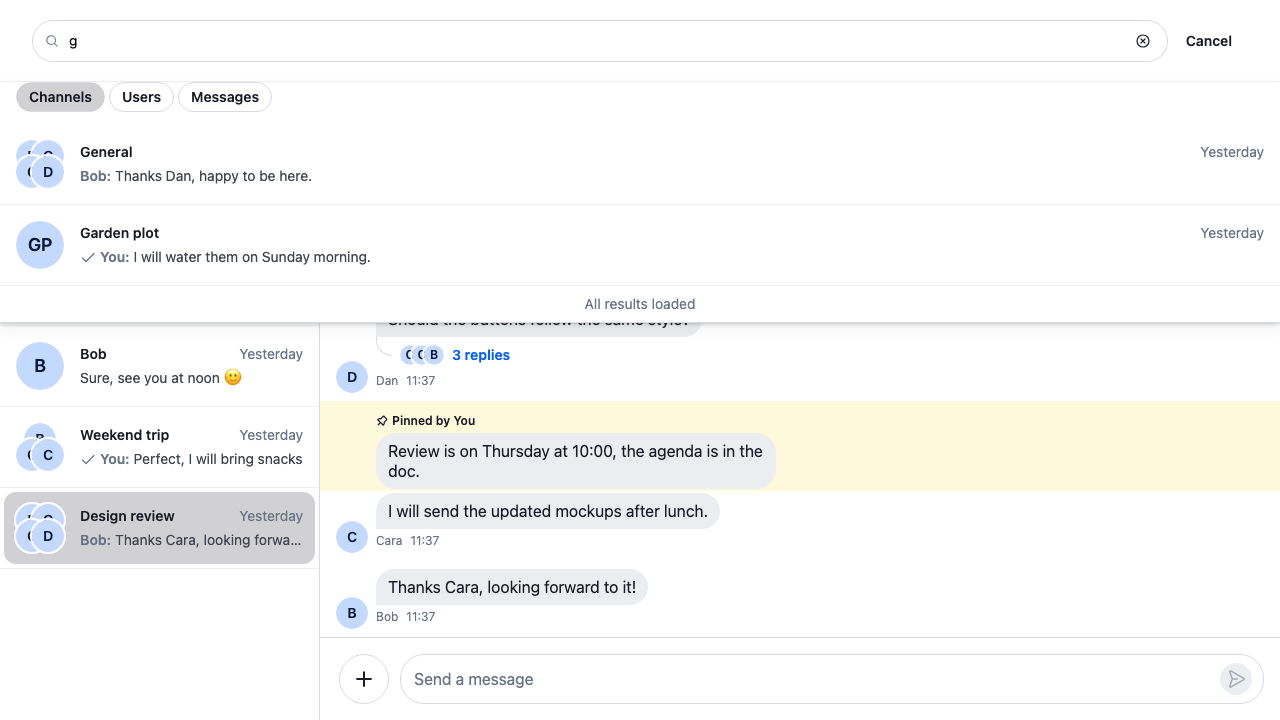
- Search in a top bar instead of the sidebar
Preview
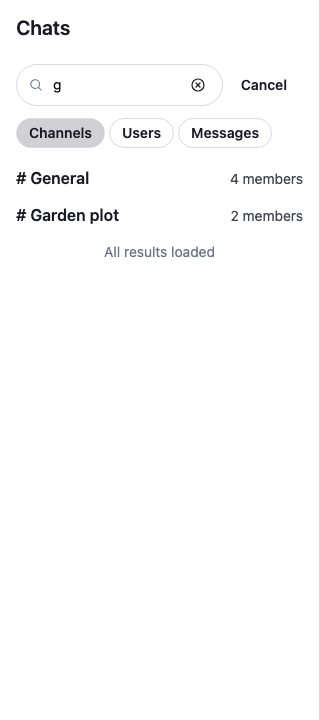
Approach: Replace one part and Compose. Choosing where to start explains the approaches.
Starts from: the base app. The page shows only what the recipe adds.
Best practices
- Override the smallest part you need:
Searchto set its props,SearchSourceResultListto change one source's results,SearchBarorSearchResultsfor the rest. - Start from
DefaultSearchResultItemsand replace one entry, so the other sources keep their default results. - Keep what a result does when clicked. A channel result opens the channel, watches it, and adds it to the channel lists that match it.
- Keep
role="option"on a custom result's button. The arrow keys move between the results that have it.
Configure search through WithComponents
ChannelNavigation renders the channel list header, the search bar and the channel lists. It renders search from the Search key, so to change the search bar's props, set a component on that key that renders Search with them:
import type { PropsWithChildren } from "react";
import { Search, WithComponents } from "stream-chat-react";

const SidebarSearch = () => (
  <Search
    directMessagingChannelType="team"
    exitSearchOnInputBlur
    placeholder="Search teammates, channels and messages"
  />
);

// Declared once, so WithComponents gets the same object on every render.
const overrides = { Search: SidebarSearch };

export const WithSidebarSearch = ({ children }: PropsWithChildren) => (
  <WithComponents overrides={overrides}>{children}</WithComponents>
);
Wrap ChannelNavigation in WithSidebarSearch, or the ChatView that renders it:
<WithSidebarSearch>
  <ChatView layouts={layouts} views={views} />
</WithSidebarSearch>directMessagingChannelTypeis the channel type a user result opens; the default ismessaging.exitSearchOnInputBlurcloses search when focus moves from the input to something outside search, such as a click elsewhere.placeholder,disabledandinputPropsgo to the input.
The key applies only where the SDK renders search. A Search you render yourself takes the props directly, as in Render search outside ChannelList.
Customize search result items
SearchSourceResultList renders the results of one source. Its SearchResultItems prop maps each source's type (channels, users, messages) to the component that renders one result. This list renders channel results as compact rows with the channel's name and member count, and keeps the default user and message results:
import type { PropsWithChildren } from "react";
import type { Channel, ChannelStateData } from "stream-chat";
import {
  DefaultSearchResultItems,
  SearchSourceResultList,
  useChannelDisplayName,
  useChatContext,
  useStateStore,
  useWorkspaceNavigation,
  WithComponents,
} from "stream-chat-react";
import "./CompactChannelResults.css";

const memberCountSelector = ({ memberCount }: ChannelStateData) => ({
  memberCount,
});

const CompactChannelResult = ({ item }: { item: Channel }) => {
  const { channelManager, client } = useChatContext();
  const { openChannel } = useWorkspaceNavigation();
  const name = useChannelDisplayName(item);
  const { memberCount } = useStateStore(item.state, memberCountSelector);

  return (
    <button
      className="cookbook-channel-result"
      onClick={(event) => {
        openChannel(item, { event });
        // Channel search doesn't watch its results, so watch the channel to receive its events.
        item.watch().catch((error: Error) =>
          client.notifications.addError({
            message: "Failed to load the channel",
            options: { originalError: error },
            origin: { emitter: "CompactChannelResult" },
          }),
        );
        // Add the channel to the channel lists whose filters it matches.
        channelManager.ingestChannel(item);
      }}
      role="option"
      type="button"
    >
      <span className="cookbook-channel-result__name"># {name}</span>
      <span className="cookbook-channel-result__members">
        {memberCount} members
      </span>
    </button>
  );
};

const searchResultItems = {
  ...DefaultSearchResultItems,
  channels: CompactChannelResult,
};

const ResultList = () => (
  <SearchSourceResultList SearchResultItems={searchResultItems} />
);

// Declared once, so WithComponents gets the same object on every render.
const overrides = { SearchSourceResultList: ResultList };

export const WithCompactChannelResults = ({ children }: PropsWithChildren) => (
  <WithComponents overrides={overrides}>{children}</WithComponents>
);@layer stream-overrides {
.cookbook-channel-result {
display: flex;
align-items: baseline;
justify-content: space-between;
gap: var(--str-chat__spacing-xs);
width: 100%;
padding: var(--str-chat__spacing-xs) var(--str-chat__spacing-md);
border: 0;
border-radius: var(--str-chat__radius-lg);
background: none;
color: var(--str-chat__text-primary);
font: var(--str-chat__font-body-default);
text-align: start;
cursor: pointer;
}
.cookbook-channel-result:hover {
background: var(--str-chat__background-utility-hover);
}
.cookbook-channel-result__name {
font: var(--str-chat__font-body-emphasis);
}
.cookbook-channel-result__members {
color: var(--str-chat__text-secondary);
font: var(--str-chat__font-caption-default);
}
}The rules sit in the stream-overrides layer, so they win over the SDK's own rules once the SDK's stylesheet is in an earlier layer, as Theming → CSS layers sets up. They take their colors, spacing and type from the SDK's tokens, so they follow your theme. Wrap the part of the app that renders search in WithCompactChannelResults, as with WithSidebarSearch above.
To keep the default result and only add to it, wrap it instead. ChannelSearchResultItem, UserSearchResultItem and MessageSearchResultItem are exported, and each takes onSelect to replace its click. The Search feature page wraps the default user result this way.
Render search outside ChannelList
Search reads the search controller from Chat, so it works anywhere inside Chat. This workspace puts it in a top bar and keeps the channel lists in the sidebar:
import {
  ChannelHeader,
  ChannelLists,
  MessageComposer,
  MessageList,
  Search,
  ThreadHeader,
} from "stream-chat-react";
import { ChannelSlot, ThreadSlot } from "stream-chat-react/slot-layout";
import type { LayoutDescriptor } from "stream-chat-react/slot-layout";
import "./Workspace.css";

export const layouts: LayoutDescriptor[] = [
  { id: "channels", slots: ["channel", "thread"] },
];

export const ChannelsView = () => (
  <div className="cookbook-workspace">
    <header className="cookbook-workspace__top-bar">
      <Search placeholder="Search everything" />
    </header>
    <div className="cookbook-workspace__body">
      <aside className="cookbook-workspace__sidebar">
        <ChannelLists />
      </aside>
      <ChannelSlot slot="channel">
        <ChannelHeader />
        <MessageList />
        <MessageComposer />
      </ChannelSlot>
      <ThreadSlot slot="thread">
        <ThreadHeader />
        <MessageList />
        <MessageComposer />
      </ThreadSlot>
    </div>
  </div>
);@layer stream-overrides {
/* The top bar spans the view. The channel lists, the channel and the thread share the row below it. */
.cookbook-workspace {
display: flex;
flex: 1;
flex-direction: column;
min-width: 0;
min-height: 0;
}
.cookbook-workspace__top-bar {
position: relative;
padding: var(--str-chat__spacing-sm) var(--str-chat__spacing-md);
border-bottom: 1px solid var(--str-chat__border-core-default);
background: var(--str-chat__background-core-elevation-1);
}
.cookbook-workspace__body {
display: flex;
flex: 1;
min-height: 0;
}
.cookbook-workspace__sidebar {
flex: 0 0 var(--str-chat__channel-list-width);
overflow-y: auto;
border-inline-end: 1px solid var(--str-chat__border-core-default);
background: var(--str-chat__background-core-elevation-1);
}
/* The SDK has no variable for the width of a thread beside a channel. */
.cookbook-workspace__body > .str-chat__thread-container {
flex: 0 0 400px;
}
/* The SDK renders the results in the flow under the search bar, with no
dropdown mode; this rule opens them over the content below it. */
.cookbook-workspace__top-bar .str-chat__search-results {
position: absolute;
z-index: 10;
top: 100%;
inset-inline: 0;
max-height: 60vh;
overflow-y: auto;
border-bottom: 1px solid var(--str-chat__border-core-default);
background: var(--str-chat__background-core-elevation-1);
box-shadow: var(--str-chat__box-shadow-2);
}
}Render ChannelsView as the channels view of ChatView:
<ChatView layouts={layouts} views={{ channels: <ChannelsView /> }} />The rules sit in the stream-overrides layer, so they win over the SDK's own rules once the SDK's stylesheet is in an earlier layer, as Theming → CSS layers sets up. They take their colors, spacing and type from the SDK's tokens, so they follow your theme.
ChannelLists renders every list registered on client.channelManager. Unlike ChannelNavigation, it doesn't hide the lists while search is open, so the sidebar stays as it is and the results show in the top bar. The channels view lays out its children in a row, so ChannelsView puts them in a column of its own: the top bar, then a row with the lists, the channel and the thread. The results render inside Search, under its search bar, and the SDK has no setting that opens them as a dropdown, so the CSS positions them over the content below. Workspace with ChatView explains layouts, views and slots.
Results under the top bar
Go lower-level when you need custom data sources
The components above change how search looks. What it searches comes from the SearchController that Chat holds, with one source per kind of result:
- To search fewer kinds of results, or to change a source's filters, pass your own controller to
ChatassearchController. The Search feature page shows how, under "Choosing what to search". - To search your own data, such as projects or documents, write a source as Adding your own source describes, add it to the controller, and map its
typeinSearchResultItemsas above.
How it works
Example
The user types "des" in the sidebar search, with WithCompactChannelResults around the app, and clicks Design review:
Searchpasses the text to the search controller thatChatholds, and the results replace the channel lists in the sidebar.SearchSourceResultListrenders the channel results withCompactChannelResult, which shows each channel's name and member count. The people and message results render with the defaults fromDefaultSearchResultItems.- The user clicks Design review.
WorkspaceNavigation.openChannel()hands the channel to the layout, which decides where it opens. The event is passed on, so ⌘/ctrl-click can open it beside the current one. Channel.watch()watches the channel, since channel search doesn't watch its results. A failed watch publishes an error notification, as the default does.ChannelManager.ingestChannel()adds the channel to the registered channel lists that match it, so it shows in the list without a new query.
Steps 3 to 5 are what the default channel result does, so the compact result opens a channel the same way.
Related
- Search: how search works across the layers, and what each result does when clicked.
- Search sources: the search controller and its sources.
- Search components: the props of
Search,SearchSourceResultListand the result items. - Overriding components: the search keys of
WithComponents. - Workspace with ChatView:
layouts, views and slots. - Search dialog: replaces the search bar with a dialog of your own.
- Preview UI: a custom channel row, which channel results in search use too.