


Custom snackbars
By default, each part of the screen shows one notification at a time and queues the rest. This recipe replaces that with a snackbar stack of your own. How the SDK's lists work is explained in Notifications UI.
What you'll build
- A stack of up to three snackbars at once
- Severity colors, action buttons and a dismiss button
- Auto-dismiss that pauses on hover or focus
- A snackbar stack in every panel and modal
Preview
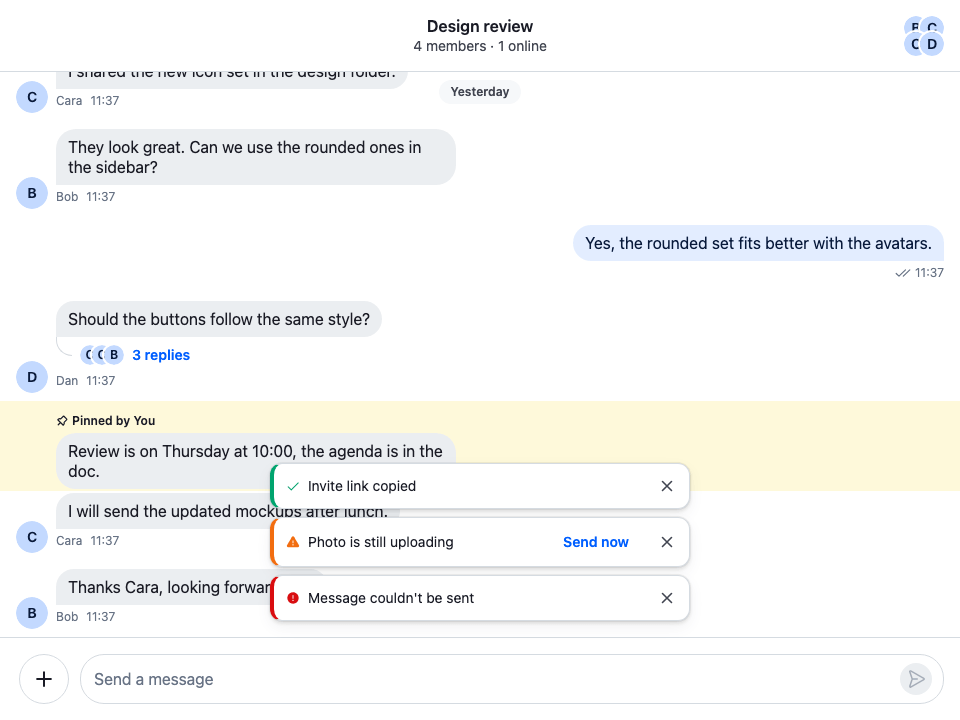
Approach: Replace one part. Choosing where to start explains the approaches.
Starts from: the base app. The page shows only what the recipe adds.
When to use this pattern
- You want several notifications on screen at once, instead of one at a time.
- Your design system has its own snackbar or toast, and notifications should look like it.
To keep the SDK's queue and only change how one notification looks, replace Notification instead, as Replacing the list or a notification shows. To restyle the default one, use its CSS variables.
Implementation
1. Snackbar
Snackbar renders one notification from client.notifications:
- Text. It translates the notification the way the SDK's
Notificationdoes, through thenotificationtranslation topic, so translators registered for atypeapply here too. - Severity.
notification.severitypicks the icon and a modifier class,cookbook-snackbar--<severity>. A notification without a severity is styled asinfo. - Actions. Each entry in
notification.actionsbecomes a button. A click calls the action'shandlerand removes the notification. - Countdown.
client.notificationsdoesn't start a countdown on its own.ensureNotificationTimeout(id)fromuseNotificationApi()starts it when the snackbar mounts. It does nothing when the countdown is already running, or when the notification has no duration, so a notification withduration: 0stays until it's dismissed. - Pause. Hovering or focusing the snackbar calls
client.notifications.clearTimeout(id). The snackbar tracks the pointer and focus separately, and starts a full countdown again only once both have left it, so the user has time to read the text or reach a button. Focus moving between its buttons stays inside it:onBlurchecksrelatedTargetand keeps the countdown paused.
import type { ComponentType, FocusEvent } from "react";
import { useEffect, useRef } from "react";
import type { Notification } from "stream-chat";
import {
  Button,
  IconCheckmark,
  IconExclamationCircleFill,
  IconExclamationTriangleFill,
  IconInfo,
  IconXmark,
  useChatContext,
  useNotificationApi,
  useTranslationContext,
} from "stream-chat-react";
import "./Snackbar.css";

const iconsBySeverity: Record<string, ComponentType> = {
  error: IconExclamationCircleFill,
  info: IconInfo,
  success: IconCheckmark,
  warning: IconExclamationTriangleFill,
};

export const Snackbar = ({ notification }: { notification: Notification }) => {
  const { client } = useChatContext();
  const { t } = useTranslationContext();
  const { ensureNotificationTimeout, removeNotification } =
    useNotificationApi();
  const { actions, id, severity = "info" } = notification;
  const Icon = iconsBySeverity[severity];

  // The countdown starts once the snackbar is on screen. A notification without a duration has
  // none, and stays until it's dismissed.
  useEffect(() => {
    ensureNotificationTimeout(id);
  }, [ensureNotificationTimeout, id]);

  // Hovering or focusing the snackbar stops its countdown. It starts a full one again only once
  // the pointer has left and focus has moved out of the snackbar.
  const hovered = useRef(false);
  const focused = useRef(false);
  const pause = () => client.notifications.clearTimeout(id);
  const resumeUnlessHeld = () => {
    if (!hovered.current && !focused.current) ensureNotificationTimeout(id);
  };
  const handleMouseEnter = () => {
    hovered.current = true;
    pause();
  };
  const handleMouseLeave = () => {
    hovered.current = false;
    resumeUnlessHeld();
  };
  const handleFocus = () => {
    focused.current = true;
    pause();
  };
  // Focus moving between the snackbar's buttons stays inside it.
  const handleBlur = (event: FocusEvent<HTMLDivElement>) => {
    if (event.currentTarget.contains(event.relatedTarget)) return;
    focused.current = false;
    resumeUnlessHeld();
  };

  // The same text the SDK's notifications show: a translator for the type, or the message.
  const message = t("translationBuilderTopic.notification", {
    notification,
    value: notification.message,
  });

  return (
    <div
      className={`cookbook-snackbar cookbook-snackbar--${severity}`}
      onBlur={handleBlur}
      onFocus={handleFocus}
      onMouseEnter={handleMouseEnter}
      onMouseLeave={handleMouseLeave}
    >
      {Icon && (
        <span aria-hidden className="cookbook-snackbar__icon">
          <Icon />
        </span>
      )}
      <span className="cookbook-snackbar__message">{message}</span>
      {actions?.map((action) => (
        <Button
          appearance="ghost"
          className="cookbook-snackbar__action"
          key={action.label}
          onClick={() => {
            action.handler();
            removeNotification(id);
          }}
          size="sm"
          variant="primary"
        >
          {action.label}
        </Button>
      ))}
      <Button
        appearance="ghost"
        aria-label={t(
          "notification.dismissNotification.ariaLabel",
          "Dismiss notification",
        )}
        circular
        className="cookbook-snackbar__dismiss"
        onClick={() => removeNotification(id)}
        size="sm"
        variant="secondary"
      >
        <IconXmark />
      </Button>
    </div>
  );
};@layer stream-overrides {
.cookbook-snackbar {
display: flex;
align-items: center;
gap: var(--str-chat__spacing-xs);
padding: var(--str-chat__spacing-xs) var(--str-chat__spacing-xs)
var(--str-chat__spacing-xs) var(--str-chat__spacing-sm);
border: 1px solid var(--str-chat__border-core-default);
border-inline-start-width: 4px;
border-radius: var(--str-chat__radius-lg);
background: var(--str-chat__background-core-elevation-1);
box-shadow: var(--str-chat__box-shadow-2);
color: var(--str-chat__text-primary);
font: var(--str-chat__font-caption-default);
pointer-events: auto;
animation: cookbook-snackbar-enter 240ms ease-out both;
}
/* Each severity colors the stripe on the leading edge and the icon. */
.cookbook-snackbar--info {
border-inline-start-color: var(--str-chat__accent-primary);
}
.cookbook-snackbar--success {
border-inline-start-color: var(--str-chat__accent-success);
}
.cookbook-snackbar--warning {
border-inline-start-color: var(--str-chat__accent-warning);
}
.cookbook-snackbar--error {
border-inline-start-color: var(--str-chat__accent-error);
}
.cookbook-snackbar__icon {
display: inline-flex;
flex-shrink: 0;
color: var(--str-chat__accent-primary);
}
.cookbook-snackbar--success .cookbook-snackbar__icon {
color: var(--str-chat__accent-success);
}
.cookbook-snackbar--warning .cookbook-snackbar__icon {
color: var(--str-chat__accent-warning);
}
.cookbook-snackbar--error .cookbook-snackbar__icon {
color: var(--str-chat__accent-error);
}
.cookbook-snackbar__message {
flex: 1;
min-width: 0;
}
.cookbook-snackbar__action {
flex-shrink: 0;
font: var(--str-chat__font-caption-emphasis);
/* The label shows as the publisher wrote it. */
text-transform: none;
}
.cookbook-snackbar__dismiss {
flex-shrink: 0;
color: var(--str-chat__text-secondary);
}
@media (prefers-reduced-motion: reduce) {
.cookbook-snackbar {
animation: none;
}
}
@keyframes cookbook-snackbar-enter {
from {
opacity: 0;
transform: translateY(50%);
}
to {
opacity: 1;
transform: none;
}
}
}The snackbar has no live region of its own. Chat renders a NotificationAnnouncer, which reads every new notification to screen readers whether or not anything shows it, so a second region would announce each one twice.
2. Stack
SnackbarStack takes the place of NotificationList, so it receives the same props: the panel it serves, the fallbackPanel for untagged notifications, an optional filter, and verticalAlignment. A modal passes verticalAlignment='top', and the stack adds cookbook-snackbar-stack--top so it floats over the top of the modal. It reads the panel's notifications with useNotifications(), the hook NotificationList reads them with:
applyDisplayFilter: trueappliesChat'snotificationDisplayFilter, so notifications still wait while a modal is open, as Display filter explains.hasSystemNotificationTagdrops system notifications, such as the lost connection. They belong to a banner: see the System notification banner recipe.
It shows the oldest three, and the rest wait. A waiting notification has no snackbar yet, so its countdown doesn't start until it's shown. The filter goes through useCallback, because it becomes part of the hook's subscription, as Selector identity explains:
import type { PropsWithChildren } from "react";
import { useCallback } from "react";
import type { Notification } from "stream-chat";
import {
  hasSystemNotificationTag,
  useNotifications,
  useTranslationContext,
  WithComponents,
} from "stream-chat-react";
import type { NotificationListProps } from "stream-chat-react";
import { Snackbar } from "./Snackbar";
import "./SnackbarStack.css";

// The rest wait their turn, so their countdowns don't run while they're out of sight.
const MAX_VISIBLE = 3;

// Takes the props of the list it replaces, so each panel keeps its own stack, and a modal's stack
// sits at the top, where the modal asks for it.
export const SnackbarStack = ({
  className,
  fallbackPanel,
  filter,
  panel,
  verticalAlignment = "bottom",
}: NotificationListProps) => {
  const { t } = useTranslationContext();
  // System notifications belong to a banner, not a panel.
  const panelFilter = useCallback(
    (notification: Notification) =>
      !hasSystemNotificationTag(notification) &&
      (filter?.(notification) ?? true),
    [filter],
  );
  const notifications = useNotifications({
    applyDisplayFilter: true,
    fallbackPanel,
    filter: panelFilter,
    panel,
  });

  if (!notifications.length) return null;

  return (
    <section
      aria-label={t(
        "notification.list.notifications.ariaLabel",
        "Notifications",
      )}
      className={[
        "cookbook-snackbar-stack",
        verticalAlignment === "top" && "cookbook-snackbar-stack--top",
        className,
      ]
        .filter(Boolean)
        .join(" ")}
    >
      {notifications.slice(0, MAX_VISIBLE).map((notification) => (
        <Snackbar key={notification.id} notification={notification} />
      ))}
    </section>
  );
};

// Declared once, so WithComponents gets the same object on every render.
const overrides = { NotificationList: SnackbarStack };

export const WithSnackbars = ({ children }: PropsWithChildren) => (
  <WithComponents overrides={overrides}>{children}</WithComponents>
);@layer stream-overrides {
/* Floats over the bottom of its panel; only the snackbars themselves take clicks. */
.cookbook-snackbar-stack {
display: flex;
position: absolute;
z-index: 2;
inset-block-end: var(--str-chat__spacing-md);
inset-inline: var(--str-chat__spacing-md);
flex-direction: column;
align-items: center;
gap: var(--str-chat__spacing-xs);
pointer-events: none;
}
/* A modal's stack floats over the top of the modal instead. */
.cookbook-snackbar-stack--top {
inset-block-start: var(--str-chat__spacing-md);
inset-block-end: auto;
}
.cookbook-snackbar-stack > .cookbook-snackbar {
width: min(100%, 420px);
}
}The stack is your own markup, so it positions itself. Each panel's list already renders inside an element the SDK positions: the message list's main panel, the channel navigation, the thread list and each open modal. The stack floats over the bottom of that element, or over the top of a modal, and lets clicks through to the messages around the snackbars.
3. Register the stack
NotificationList is a ComponentContext key, and every panel reads it from there. Wrap ChatView in WithSnackbars, inside Chat:
import type { PropsWithChildren } from "react";
import { Chat } from "stream-chat-react";
import { WithSnackbars } from "./SnackbarStack";

export const App = ({ children }: PropsWithChildren) => (
  <Chat client={client}>
    <WithSnackbars>{children}</WithSnackbars>
  </Chat>
);
Every panel now renders a SnackbarStack: the channel, the thread, the channel list, the thread list and each modal. The notifications the SDK publishes, and your own, show there.
4. Publishing snackbars
Anything in client.notifications reaches a stack. publishSnackbars publishes the three in the screenshot with client.notifications.addSuccess(), client.notifications.addWarning() and client.notifications.addError(). They carry no panel tag, so they go to the channel panel. The warning has an action and duration: 0, so it stays until the user acts on it or dismisses it. The error stays 8 seconds, and the success the default 3 seconds:
import type { StreamChat } from "stream-chat";

/**
 * Publishes one snackbar of each kind the page shows. A notification without a panel tag goes to
 * the `channel` panel, so they stack over the open channel. Returns their ids.
 */
export const publishSnackbars = (client: StreamChat) => [
  client.notifications.addSuccess({
    message: "Invite link copied",
    origin: { emitter: "InviteButton" },
  }),
  client.notifications.addWarning({
    message: "Photo is still uploading",
    origin: { emitter: "SendButton" },
    options: {
      actions: [
        {
          handler: () => console.log("Send without the photo"),
          label: "Send now",
        },
      ],
      // No duration, so it stays until the user acts on it or dismisses it.
      duration: 0,
      type: "app:attachment:upload:pending",
    },
  }),
  client.notifications.addError({
    message: "Message couldn't be sent",
    origin: { emitter: "SendButton" },
    options: { duration: 8000, type: "app:message:send:failed" },
  }),
];
Inside a component, addNotification from useNotificationApi() publishes to the panel the component sits in, or to the panels in targetPanels: see Routing notifications. The default duration of each severity is a client setting, covered in Severity, actions and durations.
How it works
Example
The user copies an invite link, then tries to send a message while a photo is still uploading, and the send fails:
- Three notifications go into
client.notifications.store, none tagged for a panel. The channel's message list rendersSnackbarStackfor thechannelpanel, anduseNotifications()returns all three, oldest first. - Each
Snackbarmounts and callsensureNotificationTimeout(id). The success and the error start their countdowns; the warning hasduration: 0, so it has none. - The user moves the pointer onto the error.
client.notifications.clearTimeout(id)stops its countdown, and the success disappears on its own three seconds after it appeared. - The user clicks Send now on the warning. Its
handlerruns and the snackbar removes the notification. - The pointer leaves the error, which starts a new 8-second countdown. When it ends,
client.notificationsremoves the error, and the stack renders nothing.
The SDK's NotificationList is gone from every panel, so its rules no longer apply: there's no one-at-a-time queue, no minimum display time, and no persistent notification jumping ahead. The stack shows notifications in the order client.notifications.store keeps them. A sortComparator under client.notifications in client.config.set() changes that order.
Related
- Notifications UI: panels, routing, the display filter and translation.
- Publishing notifications:
client.notifications, severities, actions and durations. - Notification hooks:
useNotificationsanduseNotificationApi. - System notification banner: the notifications a stack leaves out.
- ComponentContext: the
NotificationListoverride key.