


Voice agent visuals
A voice assistant needs a face while it talks.
What you'll build
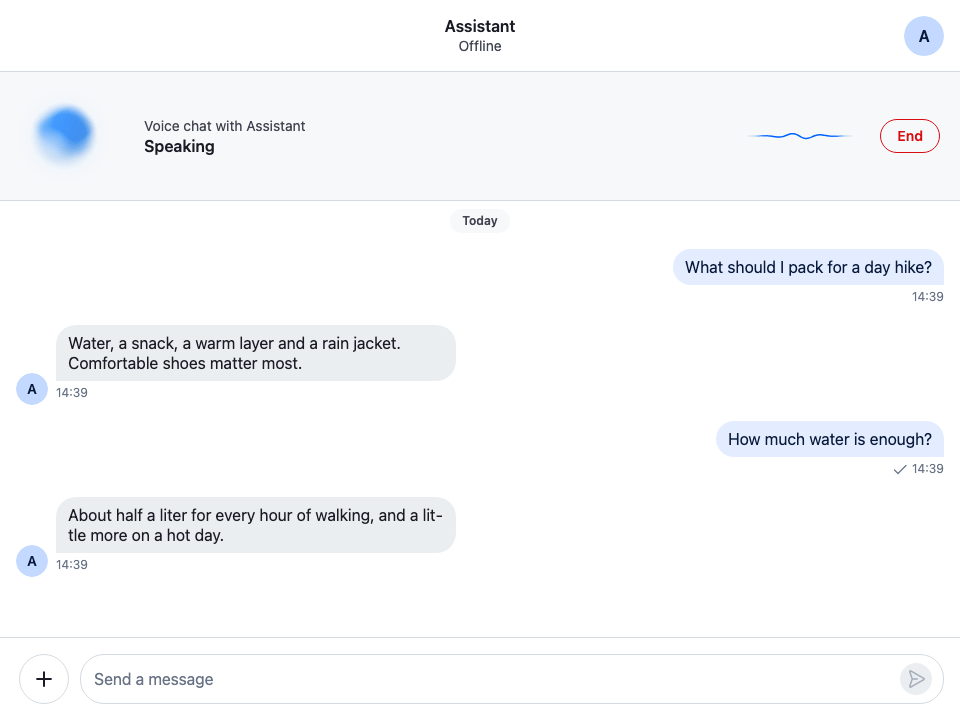
- A voice panel under the channel header
- A glow that moves with the assistant's voice
- A wave that moves with the user's microphone
- A status line for the conversation's state
- The spoken reply written into the channel as it's heard
Preview
Approach: Replace one part and Compose. Choosing where to start explains the approaches.
Starts from: the base app. The page shows only what the recipe adds.
VoiceGlow, VoiceWave, useAudioLevel() and useHeardText() come from stream-chat-react/ai-components. Their props are listed in the SDK's README: VoiceWave and VoiceGlow, useAudioLevel() and useHeardText().
The voice itself comes from your voice backend, which the app connects to, for example a Stream Video call with an AI agent in it, such as one built with Vision Agents on the agent call type. The backend tells the app what the assistant is doing, and the app reads the audio levels from the call's media streams. The cookbook's demo app has no voice backend and no microphone, so its screenshots stand in for them with fixed states and levels.
Best practices
- Let the visuals follow the conversation, not decorate it. Pass the state the voice backend reports, and the level of whoever is talking: the microphone while the user speaks, the assistant's voice while it answers.
- Say the state in words too. The glow and the wave differ by state only in how they move, and a still image or a screen reader can't tell them apart.
- Show the reply as the user hears it. The model writes a reply long before its voice finishes, so a reply shown in full gives away what the user hasn't heard yet.
- Announce only what the user can't hear. A screen-reader user hears the assistant listen, think and speak, so a live announcement on every turn only talks over it. Announce connecting and ready, and say once that the conversation has started. Hide the visuals from assistive technology, so the panel names the state only in its status line.
- Leave motion to the SDK. With
prefers-reduced-motion: reduce,VoiceGlowandVoiceWaveslow down to a crawl and ignore taps.
Load the stylesheet
The AI components have a stylesheet of their own. Load it into the same layer as the SDK's, so the recipe's CSS in stream-overrides wins over both:
/* The base app's chat.css, with this line after the SDK's stylesheet. */
@import "stream-chat-react/dist/css/ai-components.css" layer(stream);
The AI integrations overview's Usage shows how to load it.
Describe the voice session
VoiceSession is what the panel and the messages need from a voice conversation, and what the app's voice backend fills in. VoiceSessionProvider puts it in context, so the channel header and the message text can read it with useVoiceSession().
import { createContext, useContext } from "react";
import type {
  HeardTextFunction,
  VoiceAgentState,
} from "stream-chat-react/ai-components";

/**
 * A live voice conversation with the assistant, as the app's voice backend reports it. The
 * conversation is also written into a channel: what the user says, and the assistant's replies.
 */
export type VoiceSession = {
  /** The channel the conversation is written into. */
  channelId: string;
  /** What the assistant is doing: idle, connecting, listening, thinking or speaking. */
  state: VoiceAgentState;
  /** The level of the user's microphone, from 0 to 1, for example from `useAudioLevel()`. */
  micLevel: () => number | null;
  /** The level of the assistant's voice, from 0 to 1, for example from `useAudioLevel()`. */
  agentLevel: () => number | null;
  /** The reply the assistant is speaking: its message, and how much of it the user has heard. */
  reply?: { messageId: string; heard: HeardTextFunction; generating: boolean };
  /** Ends the conversation. */
  end: () => void;
};

const VoiceSessionContext = createContext<VoiceSession | undefined>(undefined);

/** Makes the app's voice session available to the channel header and the message text. */
export const VoiceSessionProvider = VoiceSessionContext.Provider;

/** The voice session, or `undefined` while there is none. */
export const useVoiceSession = () => useContext(VoiceSessionContext);
How a real app fills each field:
session.state: the voice backend says what the assistant is doing, and the app maps it to one of the five statesVoiceGlowandVoiceWavetake:idle,connecting,listening,thinkingandspeaking. With Stream Video, the agent participant'sisSpeakingtells when it is speaking; the rest comes from your agent.session.micLevelandsession.agentLevel: pass aMediaStreamtouseAudioLevel()fromstream-chat-react/ai-components. It returns a getter that measures the stream's level when it's called, from 0 to 1, so nothing re-renders as the level changes. With Stream Video, the user's stream ismediaStreamfromuseMicrophoneState(), and the agent's is the agent participant'saudioStream. Access to the Microphone's MediaStream and Participant state explain both. A plain WebRTC app passes theMediaStreamfromnavigator.mediaDevices.getUserMedia()and the remote track's stream the same way.session.reply: point it at the reply as soon as its message appears in the channel, before its audio starts, so the reply never shows in full first.session.reply.heard: how many characters of the reply the user has heard by a given time, counted in Unicode code points (Array.from(text).length), nottext.length. A voice backend that sends the timing of the words it speaks lets the app count them. Until the audio of the reply starts, return{ chars: 0, done: false }.session.end: leaves the call and closes the session.
Show the assistant and the microphone
VoiceAgentPanel renders the session as a strip: VoiceGlow for the assistant, a status line, VoiceWave for the user's microphone, and an End button. The panel is a section named by its visible "Voice chat with Assistant" line.
VoiceGlowtakessession.state, and, while the assistant speaks,session.agentLevelas itsaudioLevel. Without a level, it animates speech on its own.VoiceWaveis the user's microphone:listeningwithsession.micLevelwhile the user talks,idleotherwise.- The status line shows the state in words. Both visuals pass
aria-hidden, which hides them, with the name the SDK gives them such as "Voice agent: Speaking", from assistive technology, so the panel says the state only once. - End ends the session, which removes the panel and its button, so it first finds the channel's composer and then moves focus there.
- Both visuals have no size of their own and draw in the middle of their box: the glow's globe about half as wide as the box, the wave's string about 84% as wide as the box's shorter side. The CSS gives each a 128px square.
- Each visual's root carries
data-statewith the state it shows. The states differ only in motion, so an app that wants them to look different can style them, for example by setting--str-chat__ai-voice-coloron.cookbook-voice-panel__glow[data-state="thinking"]. The visuals read that color about once a second, so the change follows within a second; the components'colorsprop takes effect at once. Their color is--str-chat__ai-voice-color, which follows the theme's accent, and--str-chat__ai-voice-backdroptells them the panel's background, so they pick the light look.
import { useId } from "react";
import type { MouseEvent } from "react";
import { Button } from "stream-chat-react";
import { VoiceGlow, VoiceWave } from "stream-chat-react/ai-components";
import type { VoiceAgentState } from "stream-chat-react/ai-components";
import type { VoiceSession } from "./VoiceSession";
import "./VoiceAgentPanel.css";

/** What the status line shows in each state. */
const statusLabels: Record<VoiceAgentState, string> = {
  connecting: "Connecting…",
  idle: "Ready",
  listening: "Listening",
  speaking: "Speaking",
  thinking: "Thinking…",
};

/** The user is talking, so the microphone's level moves the wave. */
const isUserTalking = (state: VoiceAgentState) => state === "listening";

/** The assistant is talking, so its voice's level moves the glow. */
const isAgentTalking = (state: VoiceAgentState) => state === "speaking";

/**
 * A call-like strip under the channel header while a voice conversation runs: the assistant as a
 * glow that moves with its state and voice, a status line, the user's microphone as a wave, and a
 * button that ends the conversation.
 */
export const VoiceAgentPanel = ({ session }: { session: VoiceSession }) => {
  const { agentLevel, end, micLevel, state } = session;
  const nameId = useId();

  // The panel and its button go away when the conversation ends, so focus moves to the composer.
  const handleEnd = (event: MouseEvent<HTMLButtonElement>) => {
    const composer = event.currentTarget
      .closest(".str-chat__channel")
      ?.querySelector("textarea");
    end();
    composer?.focus();
  };

  return (
    <section aria-labelledby={nameId} className="cookbook-voice-panel">
      {/* Both visuals are hidden from screen readers: the status line says the state in words. */}
      <VoiceGlow
        aria-hidden="true"
        audioLevel={isAgentTalking(state) ? agentLevel : undefined}
        className="cookbook-voice-panel__glow"
        state={state}
      />
      <div className="cookbook-voice-panel__text">
        <p className="cookbook-voice-panel__name" id={nameId}>
          Voice chat with Assistant
        </p>
        <p className="cookbook-voice-panel__status">{statusLabels[state]}</p>
      </div>
      <VoiceWave
        aria-hidden="true"
        audioLevel={isUserTalking(state) ? micLevel : undefined}
        className="cookbook-voice-panel__wave"
        state={isUserTalking(state) ? "listening" : "idle"}
      />
      <Button
        appearance="outline"
        aria-label="End voice chat"
        onClick={handleEnd}
        size="sm"
        variant="danger"
      >
        End
      </Button>
    </section>
  );
};@layer stream-overrides {
/* A strip under the channel header: the glow, the status, the microphone's wave and End. */
.cookbook-voice-panel {
/* What the glow and the wave sit on, so they pick their light or dark look from it. */
--str-chat__ai-voice-backdrop: var(
--str-chat__background-core-surface-subtle
);
display: flex;
align-items: center;
gap: var(--str-chat__spacing-md);
padding-inline-end: var(--str-chat__spacing-lg);
border-block-end: 1px solid var(--str-chat__border-core-default);
background: var(--str-chat__background-core-surface-subtle);
}
/*
* Both draw in the middle of their box: the glow's globe about half as wide as the box, the
* wave's string about 84% as wide as its shorter side.
*/
.cookbook-voice-panel__glow,
.cookbook-voice-panel__wave {
flex: none;
width: 128px;
height: 128px;
}
.cookbook-voice-panel__text {
flex: 1;
min-width: 0;
}
.cookbook-voice-panel__name {
margin: 0;
color: var(--str-chat__text-secondary);
font: var(--str-chat__font-caption-default);
}
.cookbook-voice-panel__status {
margin: 0;
color: var(--str-chat__text-primary);
font: var(--str-chat__font-heading-sm);
}
/* Read by screen readers only: the panel shows the state on screen. */
.cookbook-voice-announcement {
position: absolute;
width: 1px;
height: 1px;
overflow: hidden;
clip-path: inset(50%);
white-space: nowrap;
}
}While the user talks, the wave follows the microphone, and the glow shows that the assistant is listening:
While the user talks

Once the user stops, the assistant works on its answer, and the wave settles:
While the assistant thinks

Put the panel under the channel header
VoiceChannelHeader renders the SDK's ChannelHeader, and the panel under it in the channel the conversation is written into. Other channels keep the plain header.
It also holds the role="status" region screen readers hear, hidden on screen. It stays mounted, empty while there is no session, so its first words, "Connecting to the assistant…", are announced. Listening, thinking and speaking share one sentence, "Voice chat started…", so it's announced once, when the conversation starts, and the user hears every turn from the voice itself. The region follows the session rather than the open channel, so switching channels doesn't announce it again. Connecting and ready make no sound, so they get words of their own.
import type { Channel } from "stream-chat";
import { ChannelHeader, useChannel } from "stream-chat-react";
import type { VoiceAgentState } from "stream-chat-react/ai-components";
import { VoiceAgentPanel } from "./VoiceAgentPanel";
import { useVoiceSession } from "./VoiceSession";
import type { VoiceSession } from "./VoiceSession";

/** The voice conversation is written into this channel. */
const isSessionChannel = (
  session: VoiceSession | undefined,
  channel: Channel,
): session is VoiceSession => session?.channelId === channel.id;

const inConversation =
  "Voice chat started. Talk, and the assistant answers out loud.";

/**
 * What a screen reader announces in each state. Listening, thinking and speaking can be heard, so
 * they share one sentence: it's announced once, when the conversation starts, and not on every
 * turn. Only the states with no sound get their own words.
 */
const announcements: Record<VoiceAgentState, string> = {
  connecting: "Connecting to the assistant…",
  idle: "Voice chat ready",
  listening: inConversation,
  speaking: inConversation,
  thinking: inConversation,
};

/** The SDK's channel header, with the voice panel under it in the conversation's channel. */
export const VoiceChannelHeader = () => {
  const channel = useChannel();
  const session = useVoiceSession();
  const inSession = isSessionChannel(session, channel);

  return (
    <>
      <ChannelHeader />
      {inSession && <VoiceAgentPanel session={session} />}
      {/* Mounted, and empty, before the session starts, so its first words are announced. It
          follows the session, not the open channel: the voice is heard in every channel. */}
      <p className="cookbook-voice-announcement" role="status">
        {session ? announcements[session.state] : ""}
      </p>
    </>
  );
};
Reveal the reply as the user hears it
The backend writes the assistant's reply into the channel as the model generates it, marked with message.custom.ai_generated, as Streamed answers with a stop button shows. isMessageAIGenerated() reads the mark, and, passed to Chat, makes MessageUI render the reply's text with the StreamedMessageText slot:
import type { LocalMessage } from "stream-chat";

declare module "stream-chat" {
  // The field the backend sets on the assistant's replies. Optional, because every message in the
  // app shares this interface.
  interface CustomMessageData {
    ai_generated?: boolean;
  }
}

/** The assistant wrote the message: the backend marks its replies with `ai_generated`. */
export const isMessageAIGenerated = (message: LocalMessage) =>
  !!message.custom?.ai_generated;
SpokenMessageText fills that slot. For the reply the assistant is speaking, it passes the text and session.reply.heard to useHeardText(), which returns heardText, the part the user has heard, and renders it with the SDK's MessageText. The hook samples heard on every animation frame until the speech is done, never moves the reveal backwards, and shows the whole text once session.reply.heard reports done and session.reply.generating is false. Every other reply renders with the SDK's StreamedMessageText.
import type { LocalMessage } from "stream-chat";
import {
  MessageText,
  StreamedMessageText,
  useMessageContext,
} from "stream-chat-react";
import type { StreamedMessageTextProps } from "stream-chat-react";
import { useHeardText } from "stream-chat-react/ai-components";
import { useVoiceSession } from "./VoiceSession";
import type { VoiceSession } from "./VoiceSession";

type Reply = NonNullable<VoiceSession["reply"]>;

/** The assistant is speaking this message right now. */
const isSpokenNow = (
  reply: VoiceSession["reply"],
  message: LocalMessage,
): reply is Reply => reply?.messageId === message.id;

/** The reply's text, revealed as far as the user has heard it. */
const HeardText = ({
  message,
  renderText,
  reply,
}: StreamedMessageTextProps & { message: LocalMessage; reply: Reply }) => {
  const { heardText } = useHeardText({
    generating: reply.generating,
    heard: reply.heard,
    text: message.text ?? "",
  });
  return (
    <MessageText
      message={{ ...message, text: heardText }}
      renderText={renderText}
    />
  );
};

/**
 * Fills the `StreamedMessageText` slot, which `MessageUI` renders for the assistant's replies.
 * The model writes a reply far ahead of the voice that speaks it, so the reply being spoken shows
 * only what the user has heard. Every other reply streams in as usual.
 */
export const SpokenMessageText = (props: StreamedMessageTextProps) => {
  const { message: messageFromContext } = useMessageContext();
  const message = props.message ?? messageFromContext;
  const reply = useVoiceSession()?.reply;

  if (!isSpokenNow(reply, message)) return <StreamedMessageText {...props} />;
  return <HeardText {...props} message={message} reply={reply} />;
};
WithVoiceAgent puts it in its slot with WithComponents:
import type { PropsWithChildren } from "react";
import { WithComponents } from "stream-chat-react";
import { SpokenMessageText } from "./SpokenMessageText";

// Declared once, so WithComponents gets the same object on every render.
const overrides = { StreamedMessageText: SpokenMessageText };

/**
 * The assistant's replies, revealed at the pace of its voice while it speaks them. `MessageUI`
 * renders the `StreamedMessageText` slot for every message `Chat`'s `isMessageAIGenerated`
 * returns `true` for.
 */
export const WithVoiceAgent = ({ children }: PropsWithChildren) => (
  <WithComponents overrides={overrides}>{children}</WithComponents>
);
Add it to the base app
Provide the session from your voice backend above ChatView, wrap ChatView in WithVoiceAgent, pass isMessageAIGenerated to Chat, and render VoiceChannelHeader in place of ChannelHeader. The rest of the base app stays as it is:
// The base app's App, with these changes.
import { isMessageAIGenerated } from "./isMessageAIGenerated";
import { VoiceChannelHeader } from "./VoiceChannelHeader";
import { VoiceSessionProvider } from "./VoiceSession";
import { WithVoiceAgent } from "./WithVoiceAgent";

// In ChannelsView, in place of <ChannelHeader />:
<VoiceChannelHeader />;

// In App, with `voiceSession` from your voice backend, or undefined while there is none:
return (
  <Chat client={client} isMessageAIGenerated={isMessageAIGenerated}>
    <SidePanelProvider>
      <VoiceSessionProvider value={voiceSession}>
        <WithVoiceAgent>
          <ChatView layouts={layouts} views={{ channels: <ChannelsView /> }} />
        </WithVoiceAgent>
      </VoiceSessionProvider>
    </SidePanelProvider>
  </Chat>
);
How it works
Example
The user asks the assistant how much water to take on a day hike:
- The user starts talking. The voice backend reports
listening, the status line says "Listening", and the wave moves withsession.micLevel, the level of the user's microphone. - The user stops. The backend writes what the user said into the channel and reports
thinking. The glow turns slowly, and the wave settles. - The model writes the reply into the channel, marked with
message.custom.ai_generated, and the voice starts reading it. The backend reportsspeaking, and the glow swells withsession.agentLevel, the level of the assistant's voice. SpokenMessageTextshows the reply as far assession.reply.heardsays the user has heard it: first "About half a liter for every hour of walking, and a little more on a hot day.", then the rest.- When the voice is done,
session.reply.heardreportsdone, and the whole reply shows. The backend reportslisteningagain for the user's next question.
VoiceGlowandVoiceWavereadaudioLevelonce a frame, and redraw without re-rendering React. Feed it at 15 Hz or more for them to move with the words.- The animation runs only while a visual is on screen and the tab is visible.
VoiceGlowdraws with WebGL, and falls back to CSS where WebGL isn't available. - A change of state eases from one motion into the next. The colors never change with the state.
- A reply loaded from history, or one the session isn't speaking, renders in full: only
session.reply.messageIdis paced. - The channel list's preview isn't paced, so it can show a reply's text before the user has heard it.
Related
- Streamed answers with a stop button types out the assistant's written answers and shows its state in the message list.
- AI chat widget opens a conversation with the assistant in a floating window.
- AI integrations overview introduces
stream-chat-react/ai-componentsand how the backend marks and streams replies. - The AI components' README lists the props of
VoiceWave,VoiceGlow,useAudioLevel()anduseHeardText(). - SDK integration explains the
StreamedMessageTextslot. - Overriding components explains the
WithComponentsslots.