


Voice agent visuals
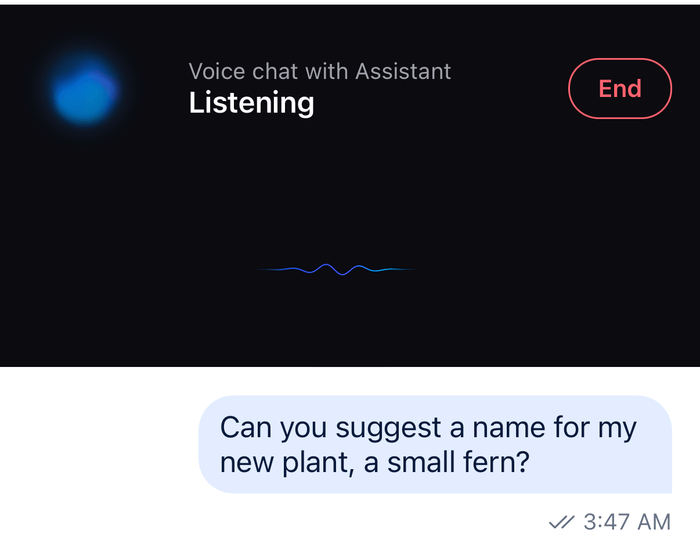
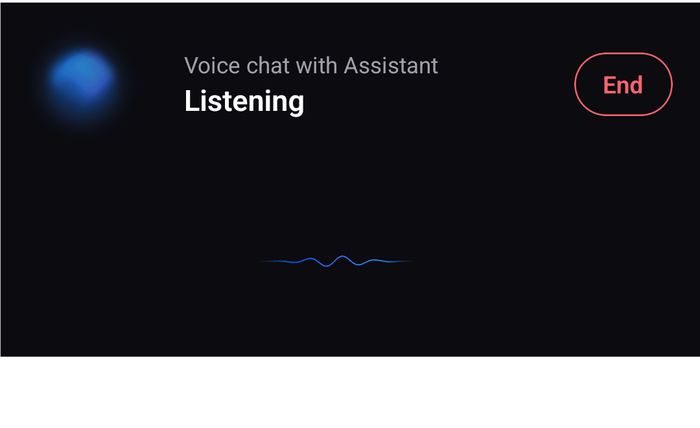
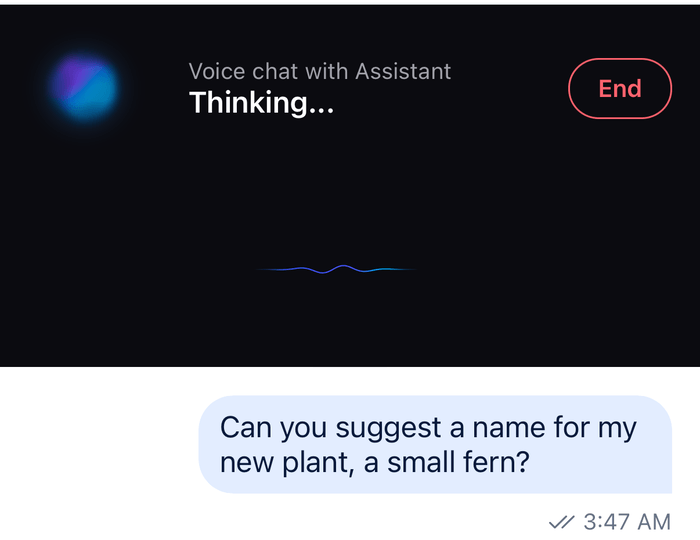
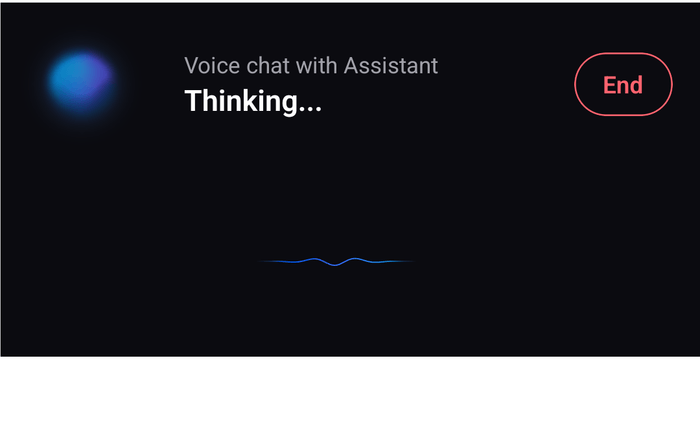
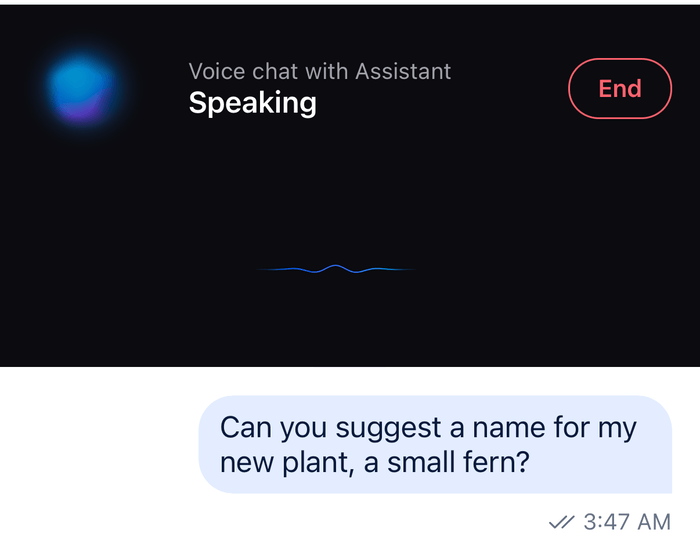
A voice assistant needs a face while it talks. This UI cookbook puts a panel above the message list of the assistant's channel while a voice conversation runs: a glow that moves with the assistant's voice, a status line for what the assistant is doing, a wave that moves with the user's microphone, and an End button. VoiceGlow and VoiceWave come from the AI components' entry point, and AI integrations overview lists their props. With Expo, import from stream-chat-expo and stream-chat-expo/ai-components instead of the stream-chat-react-native ones used here.
The voice itself comes from your voice backend, which the app connects to, for example a Stream Video call with an AI agent in it. The backend tells the app what the assistant is doing, and the app reads the audio levels from the call. This UI cookbook shows the part the SDK provides, the visuals, and the small interface they need from your voice code.
What you'll build
- the interface a voice session needs
- a panel with a glow, a status line, a wave and an End button
- the panel above the message list
Approach: Compose. Choosing where to start explains the approaches.
Best practices
- Let the visuals follow the conversation, not decorate it. Pass the state the voice backend reports, and the level of whoever is talking: the microphone while the user speaks, the assistant's voice while it answers.
- Say the state in words too. The glow and the wave differ by state only in how they move, and a still image or a screen reader can't tell them apart.
- Announce only what the user can't hear. A screen reader user hears the assistant listen, think and speak, so an announcement on every turn only talks over it. Announce connecting and ready, and say once that the conversation has started. Hide the visuals from assistive technology, so the panel names the state only in its status line.
- Pass levels as Reanimated shared values. The visuals read them once a frame on the UI thread, so a level that changes many times a second re-renders nothing.
- Wrap the visuals in
StreamThemefrom the AI components, and setvoiceVisualization.backdropColorto the color they sit on, so they draw for a light or a dark background. Without it, they follow the system color scheme. - Leave motion to the SDK. With Reduce Motion on iOS, or animations off on Android,
VoiceGlowandVoiceWaveslow to a crawl and ignore taps. - Unmount the visuals when the conversation ends. A visualization keeps animating while it is mounted, even when scrolled off screen.
Install what the visuals need
The visuals are drawn with Skia, which the AI components' entry point lists as a peer dependency, together with victory-native for charts. Usage lists what to install, including the Babel plugin the entry point needs.
Describe the voice session
VoiceSession is what the panel needs from a voice conversation, and what your voice code fills in. VoiceSessionProvider puts it in context, so a screen can read it with useVoiceSession() and show the panel while there is a session.
import { createContext, useContext } from "react";
import type { SharedValue } from "react-native-reanimated";
import type { VoiceAgentState } from "stream-chat-react-native/ai-components";

/** A live voice conversation with the assistant, as the app's voice backend reports it. */
export type VoiceSession = {
  /** What the assistant is doing: idle, connecting, listening, thinking or speaking. */
  state: VoiceAgentState;
  /** The level of the user's microphone, from 0 to 1, or `null` while there is no level. */
  micLevel: SharedValue<number | null>;
  /** The level of the assistant's voice, from 0 to 1, or `null` while there is no level. */
  agentLevel: SharedValue<number | null>;
  /** Ends the conversation. */
  end: () => void;
};

const VoiceSessionContext = createContext<VoiceSession | undefined>(undefined);

/** Makes the app's voice session available to the screen that shows the panel. */
export const VoiceSessionProvider = VoiceSessionContext.Provider;

/** The voice session, or `undefined` while there is none. */
export const useVoiceSession = () => useContext(VoiceSessionContext);
How a real app fills each field:
statefollows what the voice backend says the assistant is doing. The app maps it to one of the five statesVoiceGlowandVoiceWavetake:idle,connecting,listening,thinkingandspeaking. With Stream Video, the agent participant's speaking state tells when it is speaking, and the rest comes from your agent.micLevelcan come from the dictation hook. When the app captures the user's speech with the AI components'useDictation()hook or theSpeechToTextButton,useDictationAudioLevel()returns the shared value. It holds the microphone's level while dictation listens, andnullotherwise. For any other capture, use the hook below.agentLevelis a shared value of your own that your code writes the assistant's level into, for example the agent participant's audio level from Stream Video.endleaves the call and closes the session.
useAudioLevel() turns a source of levels into the shared value the visuals take. It writes each level into the value without rendering, and resets it to null when the source goes away, which lets the visual animate speech on its own:
import { useEffect } from "react";
import { useSharedValue } from "react-native-reanimated";

/**
 * A shared value that follows a source of audio levels from 0 to 1. `subscribe` calls `onLevel`
 * for every level and returns a function that stops it. Pass a function that doesn't change
 * between renders, such as one declared at module scope or wrapped in `useCallback()`.
 */
export const useAudioLevel = (
  subscribe: (onLevel: (level: number) => void) => () => void,
) => {
  const level = useSharedValue<number | null>(null);

  useEffect(() => {
    const unsubscribe = subscribe((next) => {
      level.value = next;
    });
    return () => {
      unsubscribe();
      level.value = null;
    };
  }, [level, subscribe]);

  return level;
};
Show the assistant and the microphone
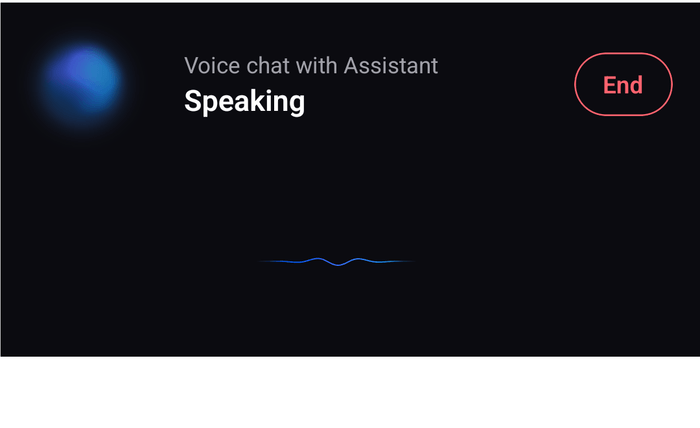
VoiceAgentPanel renders the session as a strip: VoiceGlow for the assistant, a status line, an End button, and VoiceWave for the user's microphone under them.
VoiceGlowtakessession.state, and, while the assistant speaks,session.agentLevelas itsaudioLevel. Without a level, it animates speech on its own.VoiceWaveis the user's microphone:listeningwithsession.micLevelwhile the user talks,idleotherwise.- The status line shows the state in words. Both visuals are hidden from assistive technology with
accessibilityElementsHiddenandimportantForAccessibility="no-hide-descendants", since each would otherwise be an image named "Voice agent" whose value is the state, so the panel names the state only once. useAnnounceOnStateChange()announces what the user can't hear. Listening, thinking and speaking share one sentence, which the hook announces once, when the conversation starts, because it skips a message that repeats the last one. Connecting and ready have their own words. It announces only when SDK accessibility is on, as Accessibility describes.- Neither visual has a size of its own. Each draws in the middle of the view it is given, sized by the view's shorter side: the glow's globe is about half as wide as that side, and the wave's string about 80% as wide. The glow gets a square. In a box wider than it is tall, the wave's string stays about 80% of the box's height wide.
colorstakes one to five colors, which flow through the shape. The panel is dark, andStreamThemegets its color asvoiceVisualization.backdropColor, so the visuals draw for a dark background. Theming explains both keys.
import { Pressable, StyleSheet, Text, View } from "react-native";
import { useAnnounceOnStateChange } from "stream-chat-react-native";
import {
  StreamTheme,
  VoiceGlow,
  VoiceWave,
} from "stream-chat-react-native/ai-components";
import type {
  DeepPartial,
  Theme,
  VoiceAgentState,
} from "stream-chat-react-native/ai-components";
import type { VoiceSession } from "./VoiceSession";

const BACKDROP = "#0b0b10";
const COLORS = ["#005fff", "#7b5cff", "#00c2ff"];

// Declared once, because StreamTheme merges the theme again whenever it gets a new style.
const visualTheme: DeepPartial<Theme> = {
  voiceVisualization: { backdropColor: BACKDROP },
};

/** What the status line shows in each state. */
const statusLabels: Record<VoiceAgentState, string> = {
  connecting: "Connecting...",
  idle: "Ready",
  listening: "Listening",
  speaking: "Speaking",
  thinking: "Thinking...",
};

const inConversation =
  "Voice chat started. Talk, and the assistant answers out loud.";

/**
 * What a screen reader announces in each state. Listening, thinking and speaking can be heard, so
 * they share one sentence: it is announced once, when the conversation starts, and not on every
 * turn. Only the states with no sound get their own words.
 */
const announcements: Record<VoiceAgentState, string> = {
  connecting: "Connecting to the assistant",
  idle: "Voice chat ready",
  listening: inConversation,
  speaking: inConversation,
  thinking: inConversation,
};

/** The visuals say the state in motion only, so assistive technology skips them. */
const hiddenFromAssistiveTechnology = {
  accessibilityElementsHidden: true,
  importantForAccessibility: "no-hide-descendants",
} as const;

/**
 * A call-like strip above the message list while a voice conversation runs: the assistant as a
 * glow that moves with its state and voice, a status line, a button that ends the conversation,
 * and the user's microphone as a wave.
 */
export const VoiceAgentPanel = ({ session }: { session: VoiceSession }) => {
  const { agentLevel, end, micLevel, state } = session;
  useAnnounceOnStateChange(announcements[state]);

  const isUserTalking = state === "listening";
  const isAgentTalking = state === "speaking";

  return (
    <StreamTheme style={visualTheme}>
      <View style={styles.panel}>
        <View style={styles.row}>
          <VoiceGlow
            {...hiddenFromAssistiveTechnology}
            audioLevel={isAgentTalking ? agentLevel : undefined}
            colors={COLORS}
            state={state}
            style={styles.glow}
          />
          <View style={styles.text}>
            <Text style={styles.name}>Voice chat with Assistant</Text>
            <Text style={styles.status}>{statusLabels[state]}</Text>
          </View>
          <Pressable
            accessibilityLabel="End voice chat"
            accessibilityRole="button"
            onPress={end}
            style={styles.end}
          >
            <Text style={styles.endText}>End</Text>
          </Pressable>
        </View>
        <VoiceWave
          {...hiddenFromAssistiveTechnology}
          audioLevel={isUserTalking ? micLevel : undefined}
          colors={COLORS}
          state={isUserTalking ? "listening" : "idle"}
          style={styles.wave}
        />
      </View>
    </StreamTheme>
  );
};

const styles = StyleSheet.create({
  end: {
    borderColor: "#ff636e",
    borderRadius: 999,
    borderWidth: 1,
    paddingHorizontal: 16,
    paddingVertical: 8,
  },
  endText: { color: "#ff636e", fontWeight: "600" },
  glow: { height: 96, width: 96 },
  name: { color: "#a1a1aa", fontSize: 13 },
  panel: { backgroundColor: BACKDROP, paddingEnd: 16 },
  row: { alignItems: "center", flexDirection: "row", gap: 12 },
  status: { color: "#ffffff", fontSize: 17, fontWeight: "600" },
  text: { flex: 1 },
  wave: { alignSelf: "center", height: 112, width: 112 },
});
While the user talks, the wave follows the microphone, and the glow shows that the assistant is listening. Once the user stops, the assistant works on its answer, and the wave settles. When the assistant speaks, the glow swells with agentLevel.
Put the panel above the messages
The channel screen renders the panel above the message list while there is a session, and nothing otherwise. The panel is a child of Channel, so the rest of the screen keeps its layout:
import type { Channel as StreamChannel } from "stream-chat";
import {
  Channel,
  MessageComposer,
  MessageList,
} from "stream-chat-react-native";
import { VoiceAgentPanel } from "./VoiceAgentPanel";
import { useVoiceSession } from "./VoiceSession";

/** The assistant's channel, with the voice panel above the messages during a voice conversation. */
export const VoiceChannelScreen = ({ channel }: { channel: StreamChannel }) => {
  const session = useVoiceSession();

  return (
    <Channel channel={channel}>
      {session ? <VoiceAgentPanel session={session} /> : null}
      <MessageList />
      <MessageComposer />
    </Channel>
  );
};
Provide the session from your voice code above the screen. VoiceSessionProvider takes the session, or undefined while there is none. This host stands in for a voice backend, so the panel runs without one: it steps through the states every three seconds, and feeds agentLevel random levels 15 times a second. Replace the stand-ins with the state and the levels from your call:
import { useEffect, useMemo, useState } from "react";
import type { PropsWithChildren } from "react";
import { useDictationAudioLevel } from "stream-chat-react-native/ai-components";
import type { VoiceAgentState } from "stream-chat-react-native/ai-components";
import { useAudioLevel } from "./useAudioLevel";
import { VoiceSessionProvider } from "./VoiceSession";

const states: VoiceAgentState[] = [
  "connecting",
  "listening",
  "thinking",
  "speaking",
];

// Stands in for the assistant's audio level from your call: a new level 15 times a second.
const subscribeToAgentLevel = (onLevel: (level: number) => void) => {
  const interval = setInterval(() => onLevel(0.2 + 0.8 * Math.random()), 66);
  return () => clearInterval(interval);
};

export const VoiceSessionHost = ({ children }: PropsWithChildren) => {
  const [step, setStep] = useState(0);
  const [isActive, setIsActive] = useState(true);
  // The microphone's level while dictation listens, and null otherwise.
  const micLevel = useDictationAudioLevel();
  const agentLevel = useAudioLevel(subscribeToAgentLevel);

  useEffect(() => {
    const interval = setInterval(() => setStep((current) => current + 1), 3000);
    return () => clearInterval(interval);
  }, []);

  const state = states[step % states.length];
  const session = useMemo(
    () =>
      isActive
        ? { agentLevel, end: () => setIsActive(false), micLevel, state }
        : undefined,
    [agentLevel, isActive, micLevel, state],
  );

  return (
    <VoiceSessionProvider value={session}>{children}</VoiceSessionProvider>
  );
}; |  |
 |  |
 |  |
How it works
Example
The user asks the assistant how much water to take on a day hike:
- The user starts talking. The voice backend reports
listening, the status line says "Listening", and the wave moves withsession.micLevel, the level of the user's microphone. - The user stops. The backend reports
thinking. The glow turns slowly, and the wave settles. - The voice starts reading the reply. The backend reports
speaking, and the glow swells withsession.agentLevel, the level of the assistant's voice. - When the voice is done, the backend reports
listeningagain for the user's next question. - The user presses End.
session.end()closes the session,VoiceChannelScreenstops rendering the panel, and the visuals stop animating.
VoiceGlowandVoiceWavereadaudioLevelonce a frame on the UI thread, and redraw without rendering React. Feed it at 15 Hz or more for them to move with the words.- A change of state eases from one motion into the next. The colors never change with the state.
- Tapping the glow's globe or the wave's string bounces it and sends out a ripple. Touches are only observed, never claimed, so a
Pressablearound a visual still gets its press. - The glow is drawn by a Skia shader on the GPU, and keeps animating while it is mounted. It pauses only while the app is in the background.
Read more
- AI integrations overview: the props, states and accessibility of
VoiceWaveandVoiceGlow, anduseDictationAudioLevel(). - SDK integration: driving the glow with the channel's AI state.
- Theming:
voiceVisualization.colorsandbackdropColorin the AI components' theme. - Streamed answers with a stop button: the assistant's written answers and its state in the message list.
- AI chat widget: the conversation with the assistant in a modal opened from any screen.
- Accessibility: the announcer the panel uses.