


Streamed answers with a stop button
An assistant's answer can take a while to write. This UI cookbook shows the answer as it is written, says what the assistant is doing in a line under the message list, and puts a Stop button of your own in the composer where the send button was. The SDK types the answer out and swaps the send button for Stop by itself; how the AI state, the stop button and the typed-out text work is on SDK integration.
The answers come from an AI agent on your backend, which watches the channel and writes as the assistant user. For each answer it:
- Posts an empty answer marked
ai_generated. - Sends
ai_indicator.updatewithai_stateset toAI_STATE_THINKING, for example withChannel.updateAIState(). While a tool call runs, it sendsAI_STATE_EXTERNAL_SOURCES, and with the first words,AI_STATE_GENERATING. - Writes the answer into the message a few words at a time. Each update reaches the app as
message.updated. - Stores the final text and sends
ai_indicator.clear, for example withChannel.clearAIIndicator(). If the answer fails, it sendsAI_STATE_ERRORinstead. - Stops writing when the app sends
ai_indicator.stop, stores the text it has, and sendsai_indicator.clear.
Drive the AI indicator from events and Let users stop the response explain each step.
What you'll build
- a check that recognizes the assistant's replies
- a status line for what the assistant is doing
- a Stop button in the composer
Approach: Replace one part and Compose. Choosing where to start explains the approaches.
Best practices
- Let the SDK type out the answer. The message bubble renders an AI-generated message with
StreamingMessageView, which types out whatever the text grows by, and shows a stored answer in full. - Say what the assistant is doing, in words, where the answer appears. A spinner alone doesn't tell thinking from checking sources.
- Keep Stop where the send button was, so the user finds it without looking, and give it an accessible label, since it shows only an icon.
- Don't make the growing text a live region, because a screen reader would read every update. Announce the state changes instead, and that the answer is finished.
- Show Stop only while it can stop something. The default composer shows it for thinking and generating, and the send button comes back when the answer ends.
Recognize the assistant's replies
The backend marks each of the assistant's replies with the custom field ai_generated, which the client puts under message.custom. isMessageAIGenerated reads it. Passed to Chat, it makes every message list render the text of those messages with StreamingMessageView, and leaves out the "Edited" label that every streamed update would add. Mark assistant messages with ai_generated shows how the backend sets the field, and SDK integration explains how the message bubble uses it.
import type { LocalMessage } from "stream-chat";

declare module "stream-chat" {
  // The field the backend sets on the assistant's replies. Optional, because every message in the
  // app shares this interface.
  interface CustomMessageData {
    ai_generated?: boolean;
  }
}

/** The assistant wrote the message: the backend marks its replies with `ai_generated`. */
export const isMessageAIGenerated = (message: LocalMessage) =>
  !!message.custom?.ai_generated;
The function is declared at module scope, so Chat gets the same one on every render.
Show what the assistant is doing
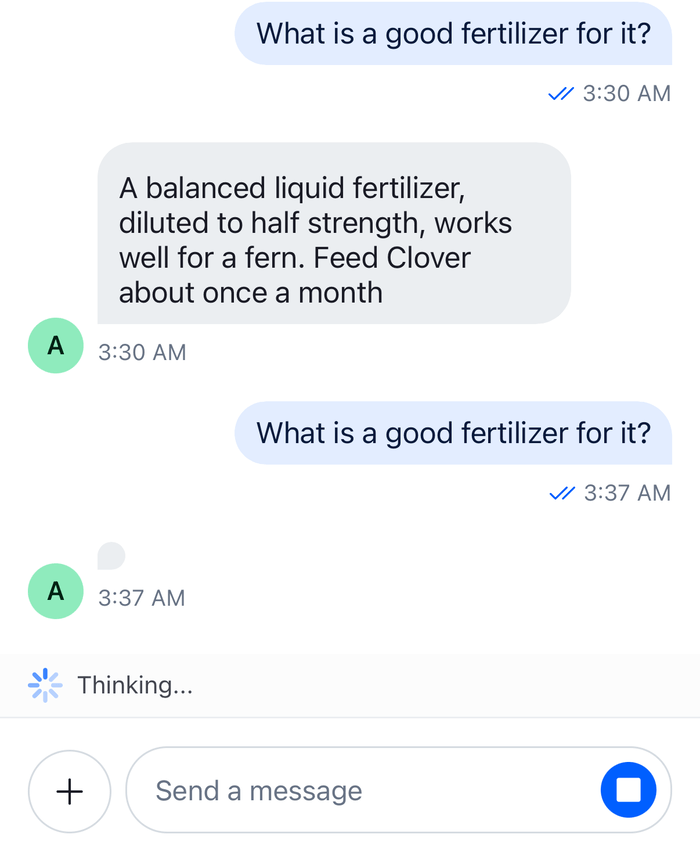
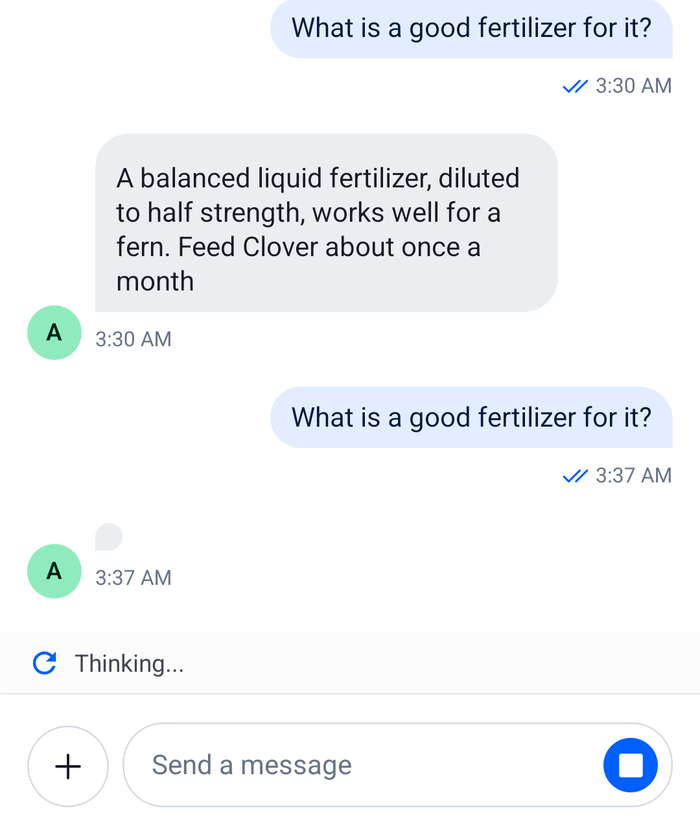
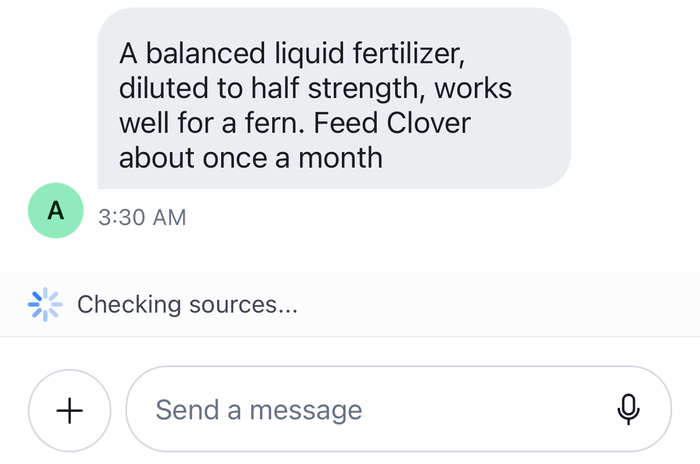
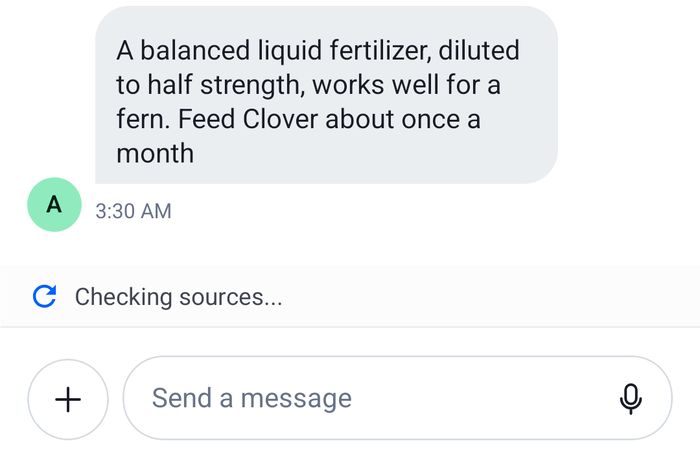
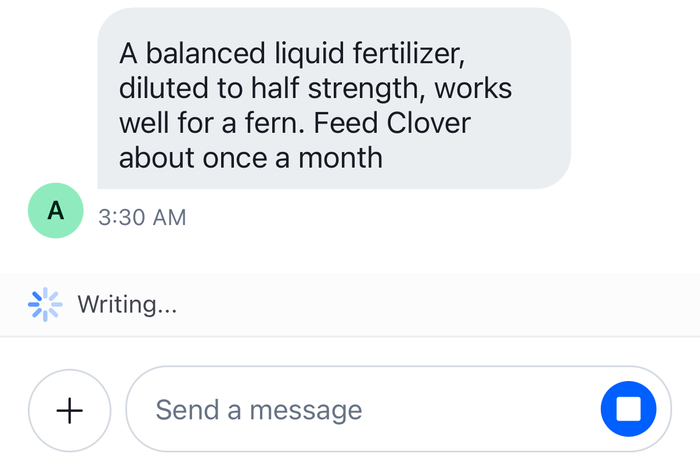
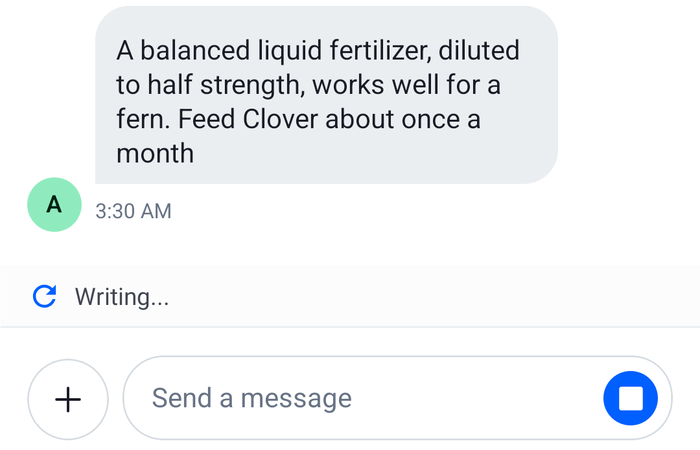
AITypingIndicatorView shows only "Thinking..." and "Generating...". AssistantStatus reads the channel's AI state with useAIState() and shows a line for each state the assistant works in, including checking sources and a failed answer. While the assistant is idle, or the user stopped the answer, it renders nothing.
No SDK component renders the line, so it is a child of Channel, between the message list and the composer. The line sits just above where the user types, and stays in view while the user scrolls the messages.
useAnswerAnnouncements() tells a screen reader how the answer goes without reading every streamed word: that the assistant started answering, and that the answer is finished, stopped or failed. It uses useAccessibilityAnnouncer(), which does nothing unless SDK accessibility is on, as Accessibility describes. The message list itself isn't a live region, so the user reads the finished answer like any other message.
import { useEffect, useRef } from "react";
import { AIStates } from "stream-chat";
import type { AIState } from "stream-chat";
import { useAccessibilityAnnouncer } from "stream-chat-react-native";

/** The assistant is working on an answer: thinking, checking sources or writing it. */
const isAnswering = (aiState: AIState) =>
  aiState === AIStates.Thinking ||
  aiState === AIStates.ExternalSources ||
  aiState === AIStates.Generating;

/** What to say when an answer ends in each state that isn't answering. */
const endings: Partial<Record<AIState, string>> = {
  [AIStates.Error]: "The assistant couldn't finish the answer",
  [AIStates.Idle]: "The assistant finished answering",
  [AIStates.Stop]: "Answer stopped",
};

/**
 * Announces that an answer started, and how it ended. Each change is announced once, and an
 * ending only after an answer, so a channel that opens on an earlier error stays quiet.
 */
export const useAnswerAnnouncements = (aiState: AIState) => {
  const announce = useAccessibilityAnnouncer();
  // Starts idle, so opening the channel in the middle of an answer announces it too.
  const previousState = useRef<AIState>(AIStates.Idle);

  useEffect(() => {
    if (previousState.current === aiState) return;
    const wasAnswering = isAnswering(previousState.current);
    previousState.current = aiState;

    if (isAnswering(aiState)) {
      if (!wasAnswering) announce("The assistant is answering");
    } else if (wasAnswering) {
      const ending = endings[aiState];
      if (ending) announce(ending);
    }
  }, [aiState, announce]);
};
The line takes its colors from the theme, so it follows the light and dark schemes and a custom theme:
import { useMemo } from "react";
import { ActivityIndicator, StyleSheet, Text, View } from "react-native";
import { AIStates } from "stream-chat";
import type { AIState } from "stream-chat";
import { useAIState, useChannel, useTheme } from "stream-chat-react-native";
import { useAnswerAnnouncements } from "./useAnswerAnnouncements";

/** What the status line says in each state that shows it. */
const labels: Partial<Record<AIState, string>> = {
  [AIStates.Error]: "Couldn't finish the answer",
  [AIStates.ExternalSources]: "Checking sources...",
  [AIStates.Generating]: "Writing...",
  [AIStates.Thinking]: "Thinking...",
};

/**
 * The assistant's state under the message list: a spinner and a line of text while it works, the
 * text alone after an error, and nothing otherwise. Render it inside `Channel`.
 */
export const AssistantStatus = () => {
  const channel = useChannel();
  const { aiState } = useAIState(channel);
  const {
    theme: { semantics },
  } = useTheme();
  useAnswerAnnouncements(aiState);

  const styles = useMemo(
    () =>
      StyleSheet.create({
        container: {
          alignItems: "center",
          flexDirection: "row",
          gap: 8,
          paddingHorizontal: 16,
          paddingVertical: 8,
        },
        error: { color: semantics.accentError },
        text: { color: semantics.textSecondary, fontSize: 14 },
      }),
    [semantics],
  );

  const label = labels[aiState];
  if (!label) return null;
  const isError = aiState === AIStates.Error;

  return (
    <View style={styles.container}>
      {!isError && (
        <ActivityIndicator color={semantics.accentPrimary} size="small" />
      )}
      <Text style={[styles.text, isError && styles.error]}>{label}</Text>
    </View>
  );
}; |  |
 |  |
The line isn't a live region, so a screen reader doesn't read it out on every change. The user hears "The assistant is answering" once when the answer starts, and the ending when it finishes.
Replace the send button with Stop
While channel.state.aiState is AI_STATE_THINKING or AI_STATE_GENERATING, the default composer renders its StopMessageStreamingButton in place of the send button, and passes it an onPress that calls Channel.stopAIResponse(). That sends ai_indicator.stop to the channel, and the client sets the state to AI_STATE_STOP. The backend stops writing when it gets the event.
The default button draws the Stop icon in an outline, and has no accessible label. StopButton fills the key with the SDK's Button, the size of the send button, with the Stop icon from the components context and the label "Stop the answer". Because it is the same button the send button uses, the composer keeps its layout when the two swap.
import { Button, useComponentsContext } from "stream-chat-react-native";
import type { StopMessageStreamingButtonProps } from "stream-chat-react-native";

/**
 * Fills the composer's `StopMessageStreamingButton` key, which shows in place of the send button
 * while the assistant is thinking or writing. Its `onPress` stops the answer.
 */
export const StopButton = ({ onPress }: StopMessageStreamingButtonProps) => {
  const { icons } = useComponentsContext();

  return (
    <Button
      accessibilityLabel="Stop the answer"
      iconOnly
      LeadingIcon={icons.Stop}
      onPress={onPress}
      size="sm"
      type="solid"
      variant="primary"
    />
  );
}; |  |
The composer shows the button only for thinking and generating. While the state is AI_STATE_EXTERNAL_SOURCES, the send button stays, and the status line reads "Checking sources..." without a Stop button. StopMessageStreamingButton lists the other cases in which it doesn't show.
Add it to your app
WithStreamedAnswers puts the button in its key with WithComponents. The overrides are read once, when WithComponents mounts, so they are declared at module scope:
import type { PropsWithChildren } from "react";
import { WithComponents } from "stream-chat-react-native";
import { StopButton } from "./StopButton";

// Declared once, so WithComponents gets the same object on every render.
const overrides = { StopMessageStreamingButton: StopButton };

/** A Stop button of your own in place of the send button while the assistant answers. */
export const WithStreamedAnswers = ({ children }: PropsWithChildren) => (
  <WithComponents overrides={overrides}>{children}</WithComponents>
);
The channel screen renders AssistantStatus between the list and the composer. Channel watches the channel when it mounts, so the screen needs no request of its own:
import { useMemo } from "react";
import {
  Channel,
  MessageComposer,
  MessageList,
  useChatContext,
} from "stream-chat-react-native";
import { AssistantStatus } from "./AssistantStatus";
import { WithStreamedAnswers } from "./WithStreamedAnswers";

/** The conversation with the assistant, which your backend creates for the user. */
export const AssistantChannelScreen = ({
  channelId,
}: {
  channelId: string;
}) => {
  const { client } = useChatContext();
  const channel = useMemo(
    () => client.channel("messaging", channelId),
    [channelId, client],
  );

  return (
    <WithStreamedAnswers>
      <Channel channel={channel}>
        <MessageList />
        <AssistantStatus />
        <MessageComposer />
      </Channel>
    </WithStreamedAnswers>
  );
};
Pass isMessageAIGenerated to Chat, where the rest of your app stays as it is:
import type { PropsWithChildren } from "react";
import type { StreamChat } from "stream-chat";
import { Chat, OverlayProvider } from "stream-chat-react-native";
import { isMessageAIGenerated } from "./isMessageAIGenerated";

export const App = ({
  children,
  client,
}: PropsWithChildren<{ client: StreamChat }>) => (
  <OverlayProvider>
    <Chat client={client} isMessageAIGenerated={isMessageAIGenerated}>
      {children}
    </Chat>
  </OverlayProvider>
);
How it works
Example
The user asks the assistant which vegetables are easy for a first season:
- The backend posts an empty answer, marked
ai_generated, and the message list renders it withStreamingMessageView. - The backend sends
ai_indicator.updatewithAI_STATE_THINKING. The client setschannel.state.aiState,AssistantStatusshows a spinner and "Thinking...",useAnswerAnnouncements()announces "The assistant is answering", and the composer showsStopButtonin place of the send button. With the first words, the backend sendsAI_STATE_GENERATING, and the line reads "Writing...". - Each
message.updatedgrows the answer's text, andStreamingMessageViewtypes out the new part. - The backend stores the final text and sends
ai_indicator.clear.channel.state.aiStategoes back toAI_STATE_IDLE, the status line goes away, the send button comes back, and the user hears "The assistant finished answering". - Had the user pressed Stop in step 3,
Channel.stopAIResponse()would have sentai_indicator.stop. The state becomesAI_STATE_STOP, the send button comes back, and the user hears "Answer stopped". The backend stops writing, stores what it has, and sendsai_indicator.clear.
ai_indicator.*events are only delivered live. A user who opens the channel in the middle of an answer sees the status line from the next event on, and the answer's text from the nextmessage.updated.- The client sets the state back to idle when the connection closes or drops, so a missed
ai_indicator.cleardoesn't leave the line on screen. AI_STATE_ERRORstays until the next answer starts, so "Couldn't finish the answer" stays under the list until then.AI_STATE_STOPlasts until the backend'sai_indicator.clear, and shows no status line.
Read more
- AI integrations overview: the AI states, the
ai_indicator.*events and how the backend streams an answer. - SDK integration:
StreamingMessageView,AITypingIndicatorViewand the stop button, and the AI composer as a replacement for the default one. - AI hooks:
useAIState()anduseStreamingMessage(). - Overriding components: the
WithComponentskeys. - AI chat widget: the conversation with the assistant in a modal opened from any screen.