















System notification banner
A system notification is about the whole app, not one screen: "Waiting for network...", or "Maintenance in 10 minutes". It carries the system tag, and no NotificationList shows it. The SDK publishes no system notifications. It shows the connection status in its own bars at the top of the message list and the channel list, as Connection status explains. This UI cookbook renders system notifications as a bar at the top of the app, with an icon per severity and an animation as it comes and goes. It then publishes the connection status as a system notification, so the bar shows it on every screen in place of the SDK's bars, and publishes a notice of the app's own. System notifications explains the hooks this UI cookbook uses.
Best practices
- Render the bar inside
Chat, next to the navigator, so it shows on every screen.useSystemNotificationsanduseNotificationApireadclient.notificationsthroughChat. - Add the top safe area inset to the bar's padding, from
useSafeAreaInsets(), so the status bar and the notch don't cover its text. - Declare a
filteryou pass touseSystemNotificationsat module scope. The hook builds its selector from the filter, so an inline one resubscribes on every render. - Start the countdown of the notification the bar shows. A notification's duration counts down only after
startNotificationTimeout(id), which aNotificationListcalls for the ones it shows and nothing calls for system notifications. - Keep the connection logic in the hooks the SDK's bars use,
useNetworkConnectionStateSelectoranduseSettledWSConnectionHealth, so the bar shows the same states at the same moments.
Implementation
1. The banner
useSystemNotifications() returns the system notifications in the order client.notifications keeps them, oldest first by default. The banner shows the first. A notification with an action makes the whole bar a button:
import { useEffect } from "react";
import { ActivityIndicator, Pressable, StyleSheet, Text } from "react-native";
import Animated, { FadeInUp, FadeOutUp } from "react-native-reanimated";
import { useSafeAreaInsets } from "react-native-safe-area-context";
import type { Notification } from "stream-chat";
import {
  useComponentsContext,
  useNotificationApi,
  useSystemNotifications,
  useTheme,
} from "stream-chat-react-native";

const BannerIcon = ({ notification }: { notification: Notification }) => {
  const { icons } = useComponentsContext();
  const {
    theme: { semantics },
  } = useTheme();

  switch (notification.severity) {
    case "error":
      return (
        <icons.ExclamationCircle size={16} stroke={semantics.accentError} />
      );
    case "warning":
      return <icons.Warning size={16} stroke={semantics.accentWarning} />;
    case "success":
      return <icons.Check size={16} stroke={semantics.accentSuccess} />;
    case "info":
      return <icons.InfoTooltip size={16} stroke={semantics.textPrimary} />;
    case "loading":
      return <ActivityIndicator color={semantics.textPrimary} size="small" />;
    default:
      return null;
  }
};

export const SystemNotificationBanner = () => {
  const [notification] = useSystemNotifications();
  const { startNotificationTimeout } = useNotificationApi();
  const { top } = useSafeAreaInsets();
  const {
    theme: { semantics },
  } = useTheme();

  // A notification with a duration goes away once it has been on screen that long.
  useEffect(() => {
    if (notification) startNotificationTimeout(notification.id);
  }, [notification, startNotificationTimeout]);

  if (!notification) return null;

  const action = notification.actions?.[0];

  return (
    <Animated.View
      entering={FadeInUp}
      exiting={FadeOutUp}
      // A new notification enters as the previous one leaves.
      key={notification.id}
      style={[
        styles.container,
        {
          backgroundColor: semantics.backgroundCoreSurfaceDefault,
          paddingTop: top + 8,
        },
      ]}
    >
      <Pressable
        accessibilityLiveRegion="polite"
        accessibilityRole={action ? "button" : "summary"}
        disabled={!action}
        onPress={action?.handler}
        style={styles.content}
      >
        <BannerIcon notification={notification} />
        <Text
          numberOfLines={1}
          style={[styles.message, { color: semantics.textPrimary }]}
        >
          {notification.message}
        </Text>
      </Pressable>
    </Animated.View>
  );
};

const styles = StyleSheet.create({
  container: {
    left: 0,
    paddingBottom: 8,
    paddingHorizontal: 12,
    position: "absolute",
    right: 0,
    top: 0,
  },
  content: {
    alignItems: "center",
    flexDirection: "row",
    gap: 8,
    justifyContent: "center",
  },
  message: { flexShrink: 1, fontSize: 12, fontWeight: "600" },
});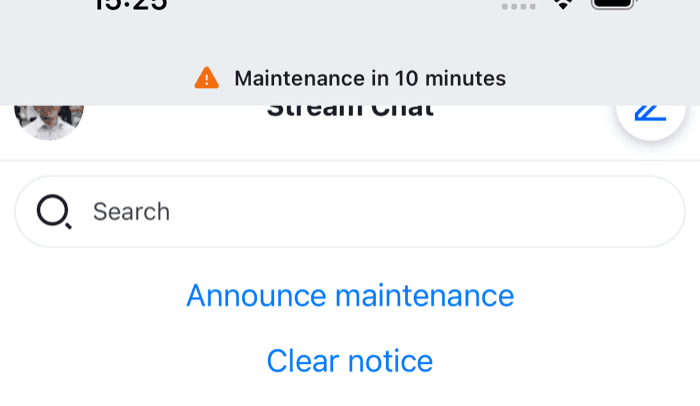 | 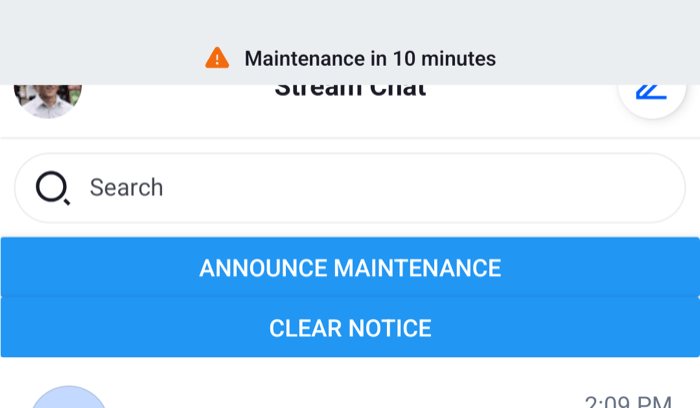 |
While it shows, the bar lies over the top of the screen: the status bar area and the top of the navigator's header. The screens under it keep their layout, so nothing jumps when it comes and goes.
The icons come from useComponentsContext(), so icons you replace with WithComponents show here too. entering and exiting are Reanimated layout animations. When the notification is removed, the component renders nothing and Reanimated plays FadeOutUp before the bar leaves the screen.
To show only some system notifications, pass a module-scope filter. To show several at once, map over the array.
2. Publishing the connection status
This component publishes a system notification while the client can't reach Stream, and removes it when the connection is back. It reads the same two facts as the SDK's bars: whether the device has a network, and whether the connection to Stream is up, with drops shorter than offlineNotificationDisplayDelayMs, five seconds by default, ignored. It renders nothing:
import { useEffect } from "react";
import type { NetworkConnectionState } from "stream-chat";
import {
  useNetworkConnectionStateSelector,
  useNotificationApi,
  useSettledWSConnectionHealth,
  useTranslationContext,
} from "stream-chat-react-native";

const isOnlineSelector = ({ isOnline }: NetworkConnectionState) => ({
  isOnline,
});

export const ConnectionNotifier = () => {
  const { addSystemNotification, removeNotification } = useNotificationApi();
  const { t } = useTranslationContext();
  const { isOnline } =
    useNetworkConnectionStateSelector(isOnlineSelector) ?? {};
  const isConnected = useSettledWSConnectionHealth();

  // `=== false`: `undefined` means the network status isn't known yet.
  const message =
    isOnline === false
      ? t("common.waitingForNetwork.text", "Waiting for network...")
      : !isConnected
        ? t("common.reconnecting.text", "Reconnecting...")
        : undefined;

  useEffect(() => {
    if (!message) return;

    const id = addSystemNotification({
      message,
      options: { severity: "loading", type: "app:connection:lost" },
      origin: { emitter: "ConnectionNotifier" },
    });

    return () => removeNotification(id);
  }, [addSystemNotification, message, removeNotification]);

  return null;
};
The texts are the SDK's own translation keys, so a language you register for the SDK translates them too. A loading notification has no duration, so it stays until the effect's cleanup removes it: when the connection is back, or when the message changes from "Waiting for network..." to "Reconnecting...". Connection status explains the two hooks.
3. Mount inside Chat
Render the banner and the notifier inside Chat, after the navigator, in a view that fills the screen. The overrides hide the SDK's two connection bars, which would repeat the banner:
import type { PropsWithChildren } from "react";
import { StyleSheet, View } from "react-native";
import type { StreamChat } from "stream-chat";
import { Chat, WithComponents } from "stream-chat-react-native";
import type { ComponentOverrides } from "stream-chat-react-native";
import { ConnectionNotifier } from "./ConnectionNotifier";
import { SystemNotificationBanner } from "./SystemNotificationBanner";

// Declared once: WithComponents reads its overrides when it mounts.
const overrides: ComponentOverrides = {
  ChannelListHeaderNetworkDownIndicator: () => null,
  NetworkDownIndicator: () => null,
};

export const ChatWithBanner = ({
  children,
  client,
}: PropsWithChildren<{ client: StreamChat }>) => (
  <WithComponents overrides={overrides}>
    <Chat client={client}>
      <View style={styles.container}>
        {children}
        <ConnectionNotifier />
        <SystemNotificationBanner />
      </View>
    </Chat>
  </WithComponents>
);

const styles = StyleSheet.create({
  container: { flex: 1 },
});
Use ChatWithBanner in place of Chat, inside OverlayProvider, with your NavigationContainer as its child, as on Navigation. The banner comes after the navigator, so it's drawn above the screens.
Publishing your own system notifications
addSystemNotification from useNotificationApi() publishes one, anywhere inside Chat. It adds the system tag and no target tags, so the banner shows it and no NotificationList does. It takes the same payload as addNotification, without the target and targetPanels options, and returns the notification's id:
import { useRef } from "react";
import { Button, View } from "react-native";
import { useNotificationApi } from "stream-chat-react-native";

export const MaintenanceNotice = () => {
  const { addSystemNotification, removeNotification } = useNotificationApi();
  const notificationId = useRef<string | null>(null);

  const show = () => {
    notificationId.current = addSystemNotification({
      message: "Maintenance in 10 minutes",
      // A duration of 0 keeps it until it's removed.
      options: {
        duration: 0,
        severity: "warning",
        type: "app:maintenance:upcoming",
      },
      origin: { emitter: "MaintenanceNotice" },
    });
  };

  const hide = () => {
    if (notificationId.current) removeNotification(notificationId.current);
    notificationId.current = null;
  };

  return (
    <View>
      <Button onPress={show} title="Announce maintenance" />
      <Button onPress={hide} title="Clear notice" />
    </View>
  );
};
Without a duration, the severity's default applies: three seconds for error, warning, info and success, counted from when the banner starts it. tags you pass are added to the system tag. message is shown as it is, so translate it before you publish it. While the connection notification is up too, the banner shows whichever was published first.
Read more
- Displaying notifications: the notification lists, routing and translating notifications.
- Snackbar: restyling the notifications the lists show.
- Connection status: the states behind the connection notification, and what screen readers hear.