















Sending, editing and deleting
What users get
A message appears in the list the moment the user sends it, marked as sending, and settles when the server answers. Users can edit and delete their own messages, and resend one that failed.
- Sending. The message shows at once with a clock icon, which turns into a check when the server confirms it. Two checks mean it was delivered, and two checks in the accent color mean someone read it.
- Failed messages. A message whose request failed stays in the list with an error icon. Tapping it opens the message menu, which offers Resend.
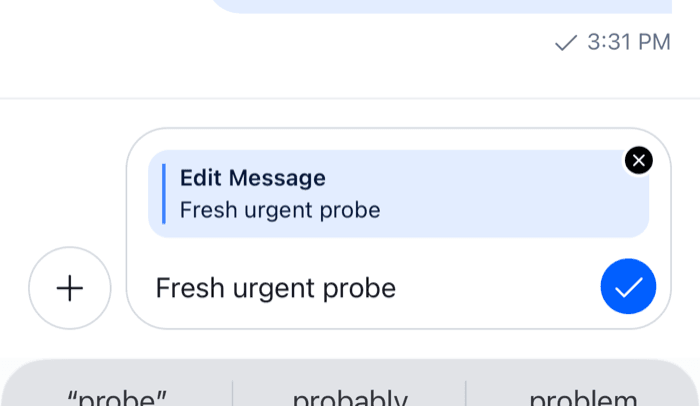
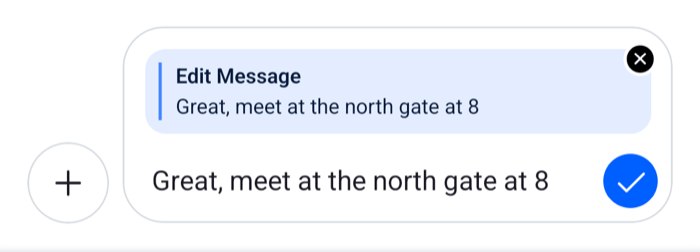
- Editing. Edit Message in the message menu shows an "Edit Message" preview above the input and a checkmark in place of the send button. The close button on the preview cancels the edit. Whatever the user was typing before comes back to the input when the edit ends, because the edit happens in a composer of its own. An edited message shows "Edited" in its footer.
- Deleting. Delete Message asks for confirmation in a native alert, then shows "Message deleted" in place of the message and a "Message deleted" notification.
- Bounced messages. A message that moderation bounced shows in an error style. Tapping it opens an alert to send it anyway, edit it, or delete it.
The message menu opens on a long press. See Message actions.
 |  |
How it works across the layers
The work happens in the state layer: the composer builds the message, and the message operations of the channel or thread change the message list and send the request. The components ask for each step and render the result.
Sending
The user types "Hello" in the channel "Design" and presses the send button:
- The
MessageComposercomponent callssendMessagefromMessageInputContext, which calls the state layer'sMessageComposer.send()on the composer thatuseMessageComposer()returns:channel.messageComposer, orthread.messageComposerinside aThread. - The composer builds the message from its text, attachments, mentions and quoted message, and clears itself before the request goes out. The user can start typing the next message right away.
channel.messageOperations.send()adds "Hello" to the message list with statussending. It sends the request through thesendMessageRequesthandler when one is registered, and through the default request otherwise.- When the server answers, its copy replaces the local one with status
received. Every list that shows the message updates. - If the request fails, the message stays in the list with status
failed, and the composer publishes an error notification.
MessageComposer.send() doesn't throw when the request fails. It resolves to one of three results (a composition middleware that throws still rejects it):
'sent': the message went out.'nothing-to-send': there was nothing to send, or a middleware stopped the send.MessageComposerputs the text back into the input.'failed': the request failed. The composer is already empty, and the message is in the list asfailed.
When the user lacks the send-links capability and the text contains a link, sendMessage shows a "Links are disabled" alert and sends nothing.
The statuses and the request handlers are explained on Message operations, and what the composer does on Message composer.
Resending
Resend calls retrySendMessage from useMessageOperations(), which calls MessageOperations.retry({ localMessage }) on the open thread, or on the channel outside a thread. The message goes back to sending.
A failed send is kept for 5 minutes (up to 100 messages), so a retry sends exactly what failed. After that, the retry rebuilds the request from the message.
A failed edit also offers Resend. It sends the message again rather than repeating the edit, so to retry an edit, edit the message again.
Editing
Edit Message calls setEditingState(message) from useMessageComposerAPIContext(). The provider that Channel and Thread render creates an edit composer for the message, or reuses the one in client.messageComposerCache, and starts it from the message. While the edit lasts, useMessageComposer() returns the edit composer, so the input, the preview and the buttons work on it. The channel's or thread's own composer keeps what the user had typed.
Pressing the checkmark calls MessageComposer.update() instead of MessageComposer.send(). MessageOperations.update() shows the new text at once and marks the message edited. If the request fails, the edit is kept and the message is marked failed. Like MessageComposer.send(), MessageComposer.update() doesn't throw when the request fails, and resolves to the same three results. A bounced message is the exception: saving its edit sends it again as a new message, with MessageComposer.send().
Saving the edit empties the edit composer, which ends the edit. The close button on the preview calls clearEditingState(), which ends it without saving. Either way, the input shows the channel's or thread's composer again. See Message composer for the composer's side.
Deleting
Delete Message opens a confirmation alert. Confirming calls deleteMessage(message) from useMessageOperations(), which calls MessageOperations.delete({ localMessage, options }) on the thread when the message is a reply loaded there, and on the channel otherwise. The message shows as deleted at once. If the server rejects the request, the message comes back and an error notification shows.
A message whose send failed exists only on the device, so deleting it removes it from the list without a request.
MessageOperations.delete() takes two options:
hard: trueremoves the message from the list instead of marking it deleted.delete_for_me: truedeletes it for the current user only.
The default menu deletes for everyone. The action set also has a deleteForMeMessage action, which the default list leaves out; see Message actions.
What each operation does before and after the server answers is on What's optimistic and what isn't.
Bounced messages
When moderation bounces a message, the server returns it with type error and the moderation action bounce. The message list shows it in an error style. Tapping or long-pressing it renders MessageBounce, which opens an alert with three choices:
- Send Anyway resends it with
MessageOperations.retry(). - Edit Message starts an edit, as the Edit action does.
- Delete Message removes the message from the message lists and the offline database, without a request.
What renders each part
| Part | Component | Reads |
|---|---|---|
| The input and the send button | MessageComposer, SendButton |
the channel's, thread's or edit composer |
| The preview above the input while editing | Reply, with mode='edit' |
composer.editedMessage |
| Sending, sent, delivered and read icons | MessageStatus, in MessageFooter |
the message's status and channel.messageReceiptsTracker |
| "Edited" | MessageFooter |
message.message_text_updated_at |
| The error icon | MessageError |
message.type === 'error' or status failed |
| A deleted message | MessageDeleted |
message.type === 'deleted' |
| The bounce alert | MessageBounce |
the message from useMessageContext() |
| Edit, Delete and Resend | MessageActionList, with the actions from messageActions |
the user's capabilities and the message state |
MessageFooter shows the timestamp, the status and "Edited" on the last message of each group, and on any message that hasn't reached the server yet. The status shows on the user's own messages.
Turning it on or off
Sending, editing and deleting are always available. The user's capabilities in the channel decide who can use them:
| Action | Capability |
|---|---|
| Send a message | send-message |
| Edit a message | update-own-message or update-any-message |
| Delete a message | delete-own-message or delete-any-message |
The message actions follow these capabilities: Edit Message and Delete Message appear only when the user may use them. Polls and messages with a Giphy or Imgur attachment can't be edited.
A failed message has a short menu:
- Resend, on the user's own message;
- Edit Message and Delete Message, when the user has the capability.
A bounced message has no menu: its choices are in the bounce alert.
Without send-message, for example in a frozen channel, MessageComposer renders SendMessageDisallowedIndicator ("You can't send messages in this channel") instead of the input, unless a message is being edited. To show something else, replace SendMessageDisallowedIndicator through WithComponents.
To take actions away from users who have the capability, pass overrideOwnCapabilities to Channel and Thread, for example overrideOwnCapabilities={{ deleteOwnMessage: false }}. It changes what the UI offers, not what the server allows.
Customizing
Changing the request
Register a request handler in client.config to change how a message is sent, edited or deleted. A handler receives the default request, so it can wrap it. This one records every sent message:
client.config.set({
  channel: {
    requestHandlers: {
      sendMessageRequest: async (params, defaultRequest) => {
        const response = await defaultRequest(params);
        analytics.track("message_sent", { cid: params.localMessage.cid });
        return response;
      },
    },
  },
});
The handlers for editing and deleting are updateMessageRequest and deleteMessageRequest, and retrySendMessageRequest handles resends. Threads use their channel's handlers. See Message operations.
Changing the actions
Edit, Delete and Resend are items of the message action list. To remove, replace or add actions, see Message actions and Actions.
To run your own code when an action runs, pass handleEdit, handleDelete, handleDeleteForMe or handleRetry to Channel and Thread. They're called with the message before the default action, and don't replace it.
Replacing the bounce alert
MessageBounce is an override key. It renders while the bounce choices are open, and receives setIsBounceDialogOpen to close them. This one offers editing and deleting only:
import { useEffect } from "react";
import { Alert } from "react-native";
import type { MessageBounceProps } from "stream-chat-react-native";
import {
  useMessageComposerAPIContext,
  useMessageContext,
  useMessageOperations,
  WithComponents,
} from "stream-chat-react-native";

const BounceAlert = ({ setIsBounceDialogOpen }: MessageBounceProps) => {
  const { message } = useMessageContext();
  const { removeMessage } = useMessageOperations();
  const { setEditingState } = useMessageComposerAPIContext();

  useEffect(() => {
    Alert.alert(
      "Message not sent",
      "It breaks the community guidelines.",
      [
        {
          onPress: () => {
            setEditingState(message);
            setIsBounceDialogOpen(false);
          },
          text: "Edit",
        },
        {
          onPress: async () => {
            await removeMessage(message);
            setIsBounceDialogOpen(false);
          },
          style: "destructive",
          text: "Delete",
        },
      ],
      { cancelable: true, onDismiss: () => setIsBounceDialogOpen(false) },
    );
  }, [message, removeMessage, setEditingState, setIsBounceDialogOpen]);

  return null;
};

export const App = () => (
  <WithComponents overrides={{ MessageBounce: BounceAlert }}>
    {/* the rest of the app */}
  </WithComponents>
);
Call setIsBounceDialogOpen(false) on every way out, including a dismissed alert, so the next tap opens the choices again.
MessageDeleted, MessageError, MessageFooter, MessageStatus, Reply and SendButton are override keys too. See Overriding components.
Reference
- State: Message composer, Message operations, What's optimistic and what isn't, and the MessageComposer API.
- UI: Message composer UI and Message list UI.
- Props: Channel, MessageComposer, Composer UI components, Message UI components and MessageContext.
- Hooks: Composer hooks and Message hooks.