















Channel lists
A channel list is the screen of conversations a user picks from. This page covers what users can do in it, which state backs it, and what each row action calls. How the list renders and which parts you can replace is on Channel list UI. How lists load and stay current is on Channel list paginators.
What users get
The user opens the app and sees their channels, the latest activity first. Each row shows the channel's avatar and name, the time and a preview of the latest message, and a badge with the number of unread messages. A pin icon marks a channel they pinned, and a mute icon a channel they muted. Scrolling down loads more channels, pulling the list down refreshes it, and tapping a row opens the channel.
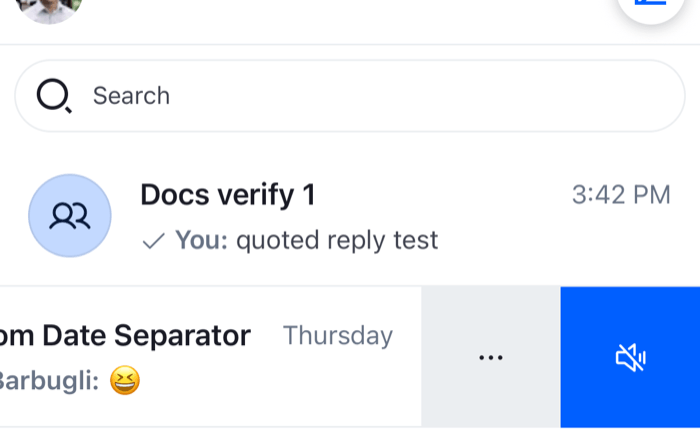
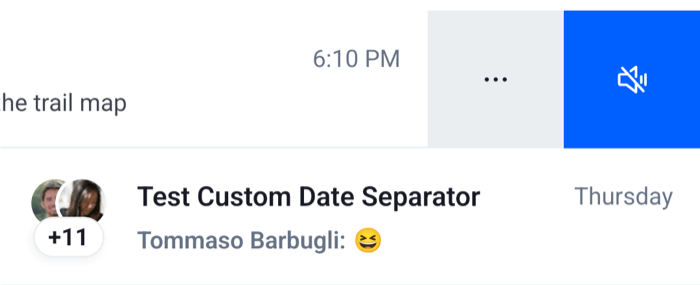
When the user swipes a row toward the start, two buttons appear. One mutes the channel, and "more" opens a bottom sheet with the channel's avatar and name, and the actions Pin and Leave. In a direct message channel the sheet also has Mute User and Block User, and when the user created the channel it has Delete. Leaving, deleting and blocking ask them to confirm first. Each action confirms its result with a notification, such as "Channel pinned".
The list keeps up as things change. When a message arrives, its channel moves to the top of a list sorted by the latest message. When the user pins a channel, a list sorted on pinned_at moves it to the top. When they archive one, a list that leaves archived channels out drops it, and a list of archived channels picks it up.
 |  |
How it works across the layers
State: the lists and their channels
A list is a ChannelPaginator: a query with filters and a sort order, and the channels it has loaded. The app creates it and registers it on client.channelManager. The manager keeps every registered list current as events arrive, and decides which list holds a channel that matches several. Channel list paginators explains both.
Each row is a Channel object, the same one the open channel and the rest of the app use. The row shows what the channel's stores hold, so a change made anywhere shows in the row too.
Three things about a channel belong to the current user alone: whether they archived it, pinned it or muted it.
- Archived and pinned are dates on the user's membership,
archived_atandpinned_at. A list can filter onarchivedandpinnedand sort onpinned_at, and the client applies the same filters and sort when they change. - Muted is the channel's
muteStatus. A muted channel's new messages don't count as unread.
What channels and threads hold has the fields and the events that change them.
UI: the list and its rows
<ChannelList paginator={paginator} onSelect={onSelect} /> renders one paginator. It loads the first page when the paginator has none, and the next page when the user scrolls near the end. It also starts the channel manager's event subscriptions, which every mounted list shares. The SDK has no component that renders every registered list, so render one ChannelList per paginator, as Several lists shows.
Each row reads its own channel's stores, so a row re-renders only when its channel changes. The unread badge is hidden while the channel is muted. Channel list UI lists what each part of a row reads.
The list holds no selection and doesn't navigate. Tapping a row calls onSelect(channel), and your navigator shows the channel. Without onSelect, tapping a row does nothing. See Navigation.
The row actions
The row actions are channel action items. The SDK builds them with buildDefaultChannelActionItems, and each item has a placement that decides where it shows: in the swipe row, in the bottom sheet that "more" opens, or in both. Each one calls a method of the row's channel or of the client:
| Action | Where | What it calls | Shown when |
|---|---|---|---|
| Mute, Unmute | Swipe row | Channel.mute(), Channel.unmute() |
Always |
| Pin, Unpin | Sheet | Channel.pin(), Channel.unpin() |
Always |
| Mute User, Unmute User | Sheet | client.moderation.mute({ target_ids }), client.moderation.unmute({ target_ids }) for the other member |
A direct message channel |
| Block User, Unblock User | Sheet | Asks to confirm a block, then client.blockUser(userId) or client.unblockUser(userId) for the other member |
A direct message channel |
| Leave | Sheet | Asks to confirm, then Channel.removeMembers({ members: [client.userId] }) |
Always |
| Delete | Sheet | Asks to confirm, then Channel.delete() |
The user created the channel |
A direct message channel is one with exactly one member besides the current user. The labels read "Chat" in a direct message channel and "Group" in other channels, such as "Mute Chat" and "Leave Group". The items don't check the user's capabilities: a user without leave-channel sees Leave, and the request fails with an error notification.
None of these actions changes the row before the server answers. The row and the lists change when the server's response or event arrives:
- Mute.
notification.channel_mutes_updatedupdates the channel'smuteStatus. The row shows the mute icon and hides the unread badge, and lists filtered onmutedmove the channel. - Pin.
member.updatedupdates the user's membership. Lists filtered onpinned, or sorted onpinned_at, move the channel. - Block.
client.blockedUsersadds the user when the response arrives, and the item reads Unblock User. - Leave and delete.
notification.removed_from_channelandchannel.deletedremove the channel from every list.
Each action reports its result through the notification list of the channel list: "Channel muted", "Channel pinned", "Left channel", "User blocked" or "Channel deleted", or an error such as "Failed to leave channel". What's optimistic and what isn't lists which state changes wait for the server.
Block User here blocks the other member with client.blockUser(), as the message menu and channel details do. It doesn't ban them from the channel. Flagging, muting, blocking and bans explains the difference.
Archiving
The rows have no Archive action, but the state layer has one. Channel.archive() and Channel.unarchive() set and clear the user's archived_at, and useChannelActions(channel) returns archive and unarchive handlers that also publish a notification. Like pinning, the lists move the channel when member.updated arrives. Which channels a list shows adds an Archive action to the sheet.
Hiding a channel
The rows have no Hide action either. Channel.hide() hides the channel for the current user until a new message arrives in it, and Channel.show() shows it again. Channel.hide({ clear_history: true }) also clears the channel's history for the user.
A hidden channel leaves every list whose filters don't mention hidden, when the server's channel.hidden event arrives. It comes back on channel.visible.
Turning it on or off
A channel list shows wherever you render ChannelList. It shows the channels that match its paginator's filters, so scope them to the user, for example with members: { $in: [userId] }. Without such a filter, the list can show channels the user isn't a member of.
swipeActionsEnabled={false} turns swiping off, and the rows then have no actions:
<ChannelList
  onSelect={onSelect}
  paginator={paginator}
  swipeActionsEnabled={false}
/>
The server decides what each action is allowed to do, from the user's roles and the channel type's permissions. Pin, archive and mute change the user's own settings, so membership is enough. Leaving needs leave-channel and deleting needs delete-channel. Change permissions on the server; see Permissions reference.
Customizing
Which channels a list shows, and in what order
The paginator's filters and sort decide this. This screen shows an inbox with pinned channels on top, and switches to a second list with the archived channels. It also adds Archive and Unarchive to the bottom sheet:
import { useEffect, useMemo, useState } from "react";
import { Button, StyleSheet, View } from "react-native";
import { ChannelPaginator } from "stream-chat";
import type { Channel, ChannelFilters, SortParamRequest } from "stream-chat";
import {
  asDynamicKey,
  ChannelList,
  useChatContext,
} from "stream-chat-react-native";
import type {
  ChannelActionItem,
  GetChannelActionItems,
} from "stream-chat-react-native";

const userId = "YOUR_USER_ID";

// Pinned channels first, the most recently pinned on top, then the latest message first.
const sort: SortParamRequest[] = [
  { direction: -1, field: "pinned_at" },
  { direction: -1, field: "last_message_at" },
];

const inboxFilters: ChannelFilters = {
  archived: false,
  members: { $in: [userId] },
};
const archiveFilters: ChannelFilters = {
  archived: true,
  members: { $in: [userId] },
};

// Declared at module scope, so the list doesn't rebuild its items on every render.
const getChannelActionItems: GetChannelActionItems = ({
  context,
  defaultItems,
}) => {
  const { actions, icons, isArchived, t } = context;

  const archive: ChannelActionItem = {
    action: isArchived ? actions.unarchive : actions.archive,
    Icon: icons.Folder,
    id: "archive",
    label: isArchived
      ? t(asDynamicKey("myApp.channel.unarchive.label"), "Unarchive")
      : t(asDynamicKey("myApp.channel.archive.label"), "Archive"),
    placement: "sheet",
    type: "standard",
  };

  return [...defaultItems, archive];
};

export const ChannelsScreen = ({
  onSelect,
}: {
  onSelect: (channel: Channel) => void;
}) => {
  const { client } = useChatContext();
  const [showArchive, setShowArchive] = useState(false);

  const [inbox, archive] = useMemo(
    () => [
      new ChannelPaginator({
        client,
        filters: inboxFilters,
        id: "inbox",
        sort,
      }),
      new ChannelPaginator({
        client,
        filters: archiveFilters,
        id: "archive",
        sort,
      }),
    ],
    [client],
  );

  // Both lists are registered, so both stay current while the other one is on screen.
  useEffect(() => {
    client.channelManager.insertPaginator({ paginator: inbox });
    client.channelManager.insertPaginator({ paginator: archive });
    return () => {
      client.channelManager.removePaginator(inbox);
      client.channelManager.removePaginator(archive);
      inbox.dispose();
      archive.dispose();
    };
  }, [archive, client, inbox]);

  return (
    <View style={styles.container}>
      <Button
        onPress={() => setShowArchive((value) => !value)}
        title={showArchive ? "Show inbox" : "Show archived"}
      />
      <ChannelList
        getChannelActionItems={getChannelActionItems}
        onSelect={onSelect}
        paginator={showArchive ? archive : inbox}
      />
    </View>
  );
};

const styles = StyleSheet.create({
  container: { flex: 1 },
});
When the user archives a channel from the inbox, member.updated arrives, and the channel moves to the archive list. When they pin one, it moves to the top of its list.
A list whose filters or sort change has to load again from the first page; see Changing filters or sort. The Pinning and archiving UI cookbook builds pin and archive controls into a custom row.
What a row looks like
Replace the row, its parts or its message line through WithComponents. Channel list UI lists the override keys and has an example, and the Preview UI UI cookbook builds a custom row.
The row actions
getChannelActionItems on ChannelList receives the default items and returns the list to show. Filter an item out by id, change its placement to move it between the swipe row and the sheet, or add your own, as the sample above does. Channel actions explains the items and the hooks behind them, and the Custom channel actions UI cookbook builds more.
Where a channel opens
Your navigator decides, in onSelect. Moving between channels, threads and messages covers every way a channel opens.
Reference
- ChannelList: the
ChannelListprops. - Channel preview: the row components and their props.
- ChannelsContext: the context below
ChannelList. - ComponentsContext: the override keys, including
ChannelPreviewandChannelDetailsBottomSheet. - Channel manager and ChannelPaginator: the state APIs.
- Channel preview hooks: hooks such as
useChannelPreviewDisplayName. - Channel and thread hooks: hooks such as
useChannelMembershipState. - Loading data hooks: hooks for reading a paginator's state.