















Custom reactions
The SDK's reactions are emoji, offered in a quick row when the message menu opens and shown above the bubble. This UI cookbook gives an app a reaction set of its own, drawn as images: it defines the set, shows it under the message as tappable chips, replaces the picker in the message menu with a grid, and replaces the sheet that lists who reacted. The reactions themselves, the props that change their position, style and behavior, and the default components are explained in Reactions.
Best practices
- Keep the set small and familiar, and mark only a few as
isMain, because they share one row in the message menu. - Keep the types the server already stores. A message shows only the reaction types in
supportedReactions, so a type you drop disappears from every message that has it. - Pass the same
supportedReactionstoChannelandThread. - Run a reaction picked in the message menu with
scheduleActionOnClose, after the menu has closed, as the SDK's picker does. - Declare the set, the overrides and the sort of the reactions you load at module scope.
The reaction set
supportedReactions on Channel and Thread is an array of ReactionData: the type stored on the server, an Icon component, and isMain for the reactions of the quick row. The Icon receives IconProps, with the size it should draw at in size. Here the icons are images, and the types are the SDK's default types, so the reactions users already gave keep showing:
import { Image } from "react-native";
import type { IconProps, ReactionData } from "stream-chat-react-native";

const imageIcon = (uri: string) => {
  const ImageIcon = ({ size = 16 }: IconProps) => (
    <Image source={{ uri }} style={{ height: size, width: size }} />
  );
  return ImageIcon;
};

export const supportedReactions: ReactionData[] = [
  {
    Icon: imageIcon("https://example.com/reactions/like.png"),
    isMain: true,
    type: "like",
  },
  {
    Icon: imageIcon("https://example.com/reactions/love.png"),
    isMain: true,
    type: "love",
  },
  {
    Icon: imageIcon("https://example.com/reactions/haha.png"),
    isMain: true,
    type: "haha",
  },
  {
    Icon: imageIcon("https://example.com/reactions/wow.png"),
    isMain: true,
    type: "wow",
  },
  {
    Icon: imageIcon("https://example.com/reactions/sad.png"),
    isMain: true,
    type: "sad",
  },
  { Icon: imageIcon("https://example.com/reactions/party.png"), type: "party" },
];
The five isMain reactions fill the quick row in the message menu. party is offered only where the picker shows the whole set, as the grid below does. A message renders every type in the list, in the order the types were first used on it. Bundle the images with the app, with require(), rather than loading them from the network as here: an icon renders in every message with reactions.
The emoji sheet
The + button at the end of the quick row opens a sheet with the SDK's full emoji set, about 150 emoji. The same set opens from the button in the sheet that lists who reacted. Both always offer the whole set, whatever supportedReactions holds, and a reaction picked there has the emoji's code points as its type, such as U+1F525. With the default supportedReactions, which is reactionData, every one of those types is in the list. With a list of your own, an emoji picked there is saved, but no message shows it.
Either add the emoji to your list, so they render:
// `reactionData` is the SDK's default list, exported from `stream-chat-react-native`.
const withEmoji: ReactionData[] = [
  ...supportedReactions,
  ...reactionData.filter((reaction) => !reaction.isMain),
];
or replace the picker with one that has no + button, as the next sections do. The sheet that lists who reacted keeps its button unless you replace MessageUserReactions too.
Reactions under the message
reactionListPosition="bottom" moves the reactions under the bubble, and the ReactionListBottom key renders them. This one renders a chip per reaction type with its count, and makes a tap toggle the user's reaction:
import { StyleSheet, Text, View } from "react-native";
import {
  ReactionListItemWrapper,
  useMessageContext,
  useMessagesContext,
  useOwnCapabilitiesContext,
} from "stream-chat-react-native";
import type { ComponentOverrides } from "stream-chat-react-native";

const ReactionChips = () => {
  const {
    handleReaction,
    onLongPress,
    onPress,
    preventPress,
    reactions,
    showReactionsOverlay,
  } = useMessageContext();
  const { supportedReactions } = useMessagesContext();
  const { sendReaction } = useOwnCapabilitiesContext();

  if (!reactions.length) return null;

  return (
    <View style={styles.row}>
      {reactions.map((reaction) => {
        const Icon = supportedReactions?.find(
          ({ type }) => type === reaction.type,
        )?.Icon;
        if (!Icon) return null;

        return (
          <ReactionListItemWrapper
            accessibilityLabel={`${reaction.type}, ${reaction.count ?? 0}`}
            disabled={preventPress}
            key={reaction.type}
            onLongPress={(event) =>
              onLongPress({
                additionalInfo: { reactionType: reaction.type },
                defaultHandler: () => showReactionsOverlay(reaction.type),
                emitter: "reactionList",
                event,
              })
            }
            onPress={(event) =>
              onPress({
                additionalInfo: { reactionType: reaction.type },
                defaultHandler: () => {
                  if (sendReaction) void handleReaction?.(reaction.type);
                },
                emitter: "reactionList",
                event,
              })
            }
            selected={reaction.own}
          >
            <Icon size={16} />
            <Text style={styles.count}>{reaction.count}</Text>
          </ReactionListItemWrapper>
        );
      })}
    </View>
  );
};

export const reactionListOverrides: ComponentOverrides = {
  ReactionListBottom: ReactionChips,
};

const styles = StyleSheet.create({
  count: { fontSize: 12, marginLeft: 4 },
  row: { flexDirection: "row", flexWrap: "wrap", gap: 4, marginTop: 2 },
});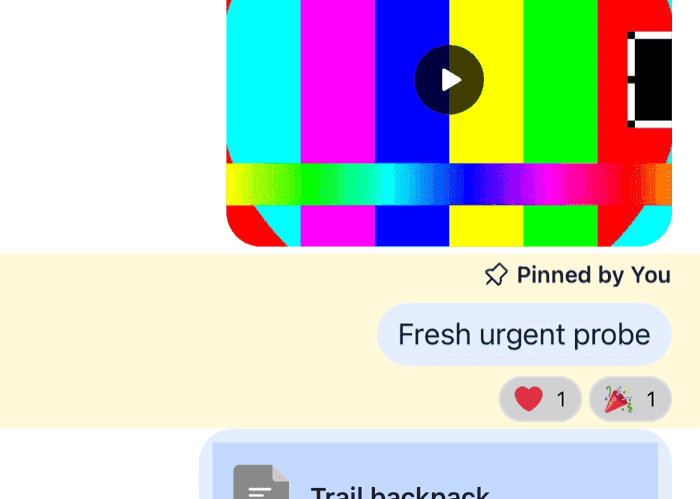 | 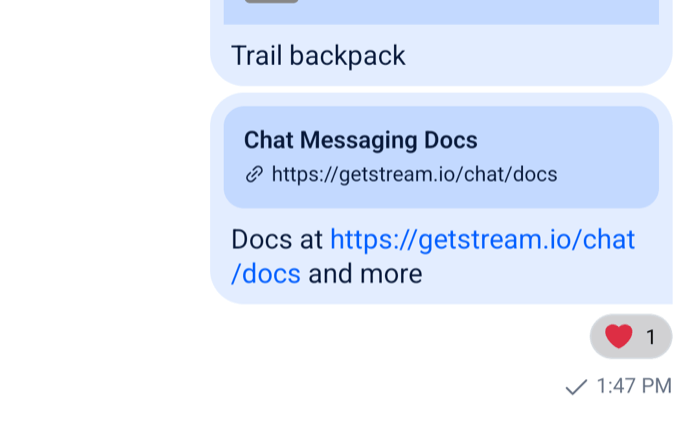 |
reactionsinMessageContextholds one summary per reaction type on the message that is insupportedReactions, with itscountandown, whether the current user gave it.ReactionListItemWrapperis the pill the default chips use.selectedhighlights the user's own reactions.- The taps go through
onPressandonLongPressfrom the context, with thereactionListemitter, as the default chips' do. A tap runsdefaultHandler, which toggles the reaction throughhandleReaction, and a long press opens the sheet of who reacted with that type.onPressMessageandonLongPressMessageonChannelstill see both first. handleReactionisundefinedon a message that failed to send, and users without thesend-reactioncapability can't react, so a tap does nothing for either.preventPressistruewhile the message shows in its menu.
A picker of your own
The reactions above the message in its menu are the MessageReactionPicker key. It receives dismissOverlay, which closes the menu, and handleReaction, which is undefined when the user can't react. This one shows the whole set as a grid, and no + button:
import { Pressable, StyleSheet, View } from "react-native";
import {
  scheduleActionOnClose,
  useMessageContext,
  useMessagesContext,
  useTheme,
} from "stream-chat-react-native";
import type {
  ComponentOverrides,
  MessageReactionPickerProps,
} from "stream-chat-react-native";

const ReactionGrid = ({
  dismissOverlay,
  handleReaction,
}: MessageReactionPickerProps) => {
  const { supportedReactions } = useMessagesContext();
  const { message } = useMessageContext();
  const {
    theme: { semantics },
  } = useTheme();

  if (!handleReaction || !supportedReactions?.length) return null;

  const ownTypes = new Set(
    message.own_reactions?.map((reaction) => reaction.type),
  );

  return (
    <View
      style={[
        styles.grid,
        { backgroundColor: semantics.backgroundCoreElevation2 },
      ]}
    >
      {supportedReactions.map(({ Icon, type }) => (
        <Pressable
          accessibilityLabel={type}
          accessibilityRole="button"
          accessibilityState={{ selected: ownTypes.has(type) }}
          key={type}
          onPress={() => {
            dismissOverlay();
            scheduleActionOnClose(() => handleReaction(type));
          }}
          style={[
            styles.item,
            ownTypes.has(type) && {
              backgroundColor: semantics.backgroundUtilitySelected,
            },
          ]}
        >
          <Icon size={28} />
        </Pressable>
      ))}
    </View>
  );
};

export const pickerOverrides: ComponentOverrides = {
  MessageReactionPicker: ReactionGrid,
};

const styles = StyleSheet.create({
  grid: {
    borderRadius: 16,
    flexDirection: "row",
    flexWrap: "wrap",
    marginVertical: 8,
    maxWidth: 280,
    padding: 4,
  },
  item: { borderRadius: 12, padding: 6 },
});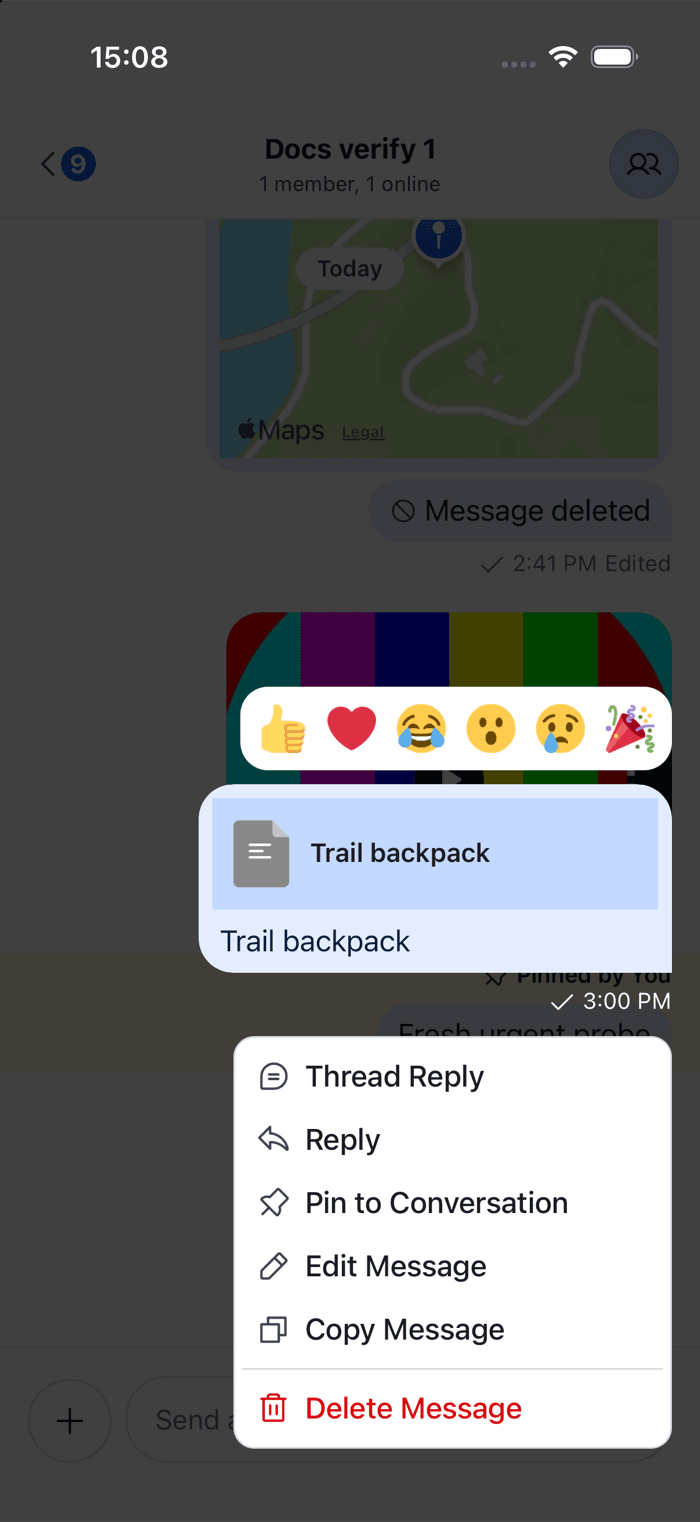 | 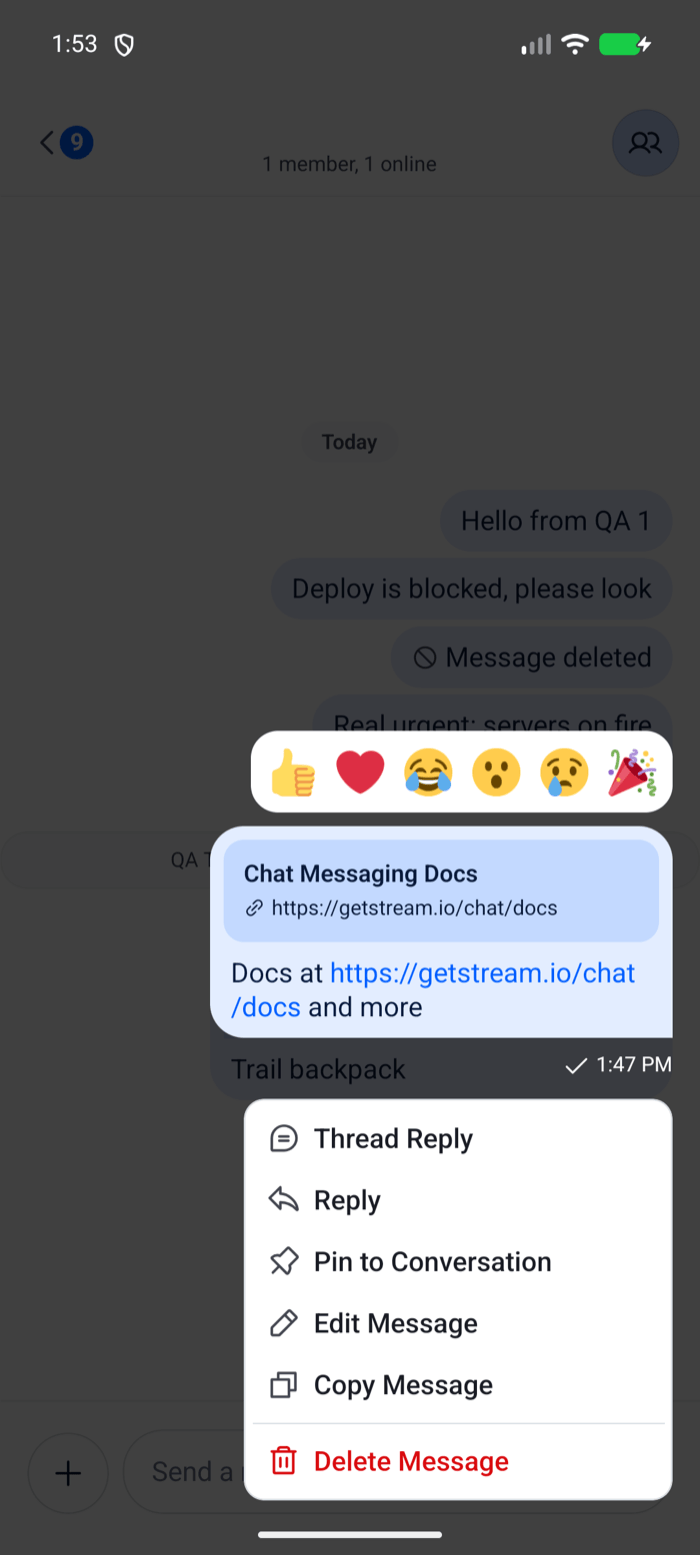 |
dismissOverlay() starts closing the menu, and scheduleActionOnClose() sends the reaction once it has closed. A reaction changes the message at once, and the change would otherwise land under the closing animation. handleReaction is the handler the default picker gets. It runs selectReaction from Channel when you pass one. Otherwise it calls handleReaction from Channel, then adds the reaction, or removes it when the user already gave it.
Who reacted
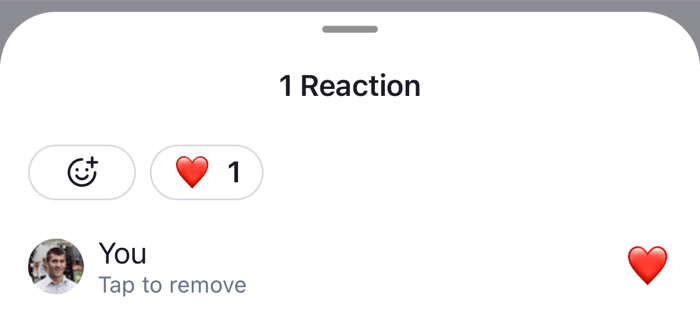
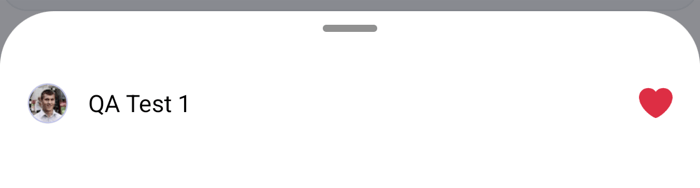
Tapping the reactions of a message opens a sheet that lists who reacted, the MessageUserReactions key. It receives the message, and the reaction type the user tapped as selectedReaction, or undefined for all types. useFetchReactions loads the reactions page by page, and keeps the list up to date with reaction events while the sheet is open:
import { StyleSheet, Text, View } from "react-native";
import { FlatList } from "react-native-gesture-handler";
import type { ReactionResponse, SortParamRequest } from "stream-chat";
import {
  useFetchReactions,
  useMessagesContext,
  UserAvatar,
} from "stream-chat-react-native";
import type {
  ComponentOverrides,
  MessageUserReactionsProps,
} from "stream-chat-react-native";

// Newest first. Declared once: a new array on every render loads the list again.
const sort: SortParamRequest[] = [{ direction: -1, field: "created_at" }];

const WhoReacted = ({
  message,
  selectedReaction,
}: MessageUserReactionsProps) => {
  const { supportedReactions } = useMessagesContext();
  const { loadNextPage, reactions } = useFetchReactions({
    message,
    reactionType: selectedReaction,
    sort,
  });

  const renderItem = ({ item }: { item: ReactionResponse }) => {
    const Icon = supportedReactions?.find(
      ({ type }) => type === item.type,
    )?.Icon;

    return (
      <View style={styles.row}>
        {item.user ? <UserAvatar size="sm" user={item.user} /> : null}
        <Text style={styles.name}>{item.user?.name ?? item.user_id}</Text>
        {Icon ? <Icon size={20} /> : null}
      </View>
    );
  };

  return (
    <FlatList
      contentContainerStyle={styles.list}
      data={reactions}
      keyExtractor={(item: ReactionResponse) => `${item.user_id}-${item.type}`}
      onEndReached={loadNextPage}
      renderItem={renderItem}
    />
  );
};

export const whoReactedOverrides: ComponentOverrides = {
  MessageUserReactions: WhoReacted,
};

const styles = StyleSheet.create({
  list: { padding: 16 },
  name: { flex: 1 },
  row: {
    alignItems: "center",
    flexDirection: "row",
    gap: 12,
    paddingVertical: 6,
  },
}); |  |
useFetchReactionsloads 25 reactions a page withclient.queryReactionsAndHydrate(). WithreactionType, it loads only that type.loadNextPageloads the next page, and does nothing after the last one.sortmust be the same array on every render. A new array makes the hook load the list again, and the reload renders the sheet again, so an inline array loads it over and over.- The sheet the SDK opens around it is a
BottomSheetModal, so the list needs a scroll view that works inside it. This sample usesFlatListfromreact-native-gesture-handler. The default usesStreamBottomSheetModalFlatList, which the SDK exports and which scrolls only while the sheet is at its top snap point. - This sheet has no button to add a reaction, so it also leaves out the full emoji set.
Complete example
The overrides above go together on one WithComponents, and the set on Channel and Thread:
import type {
  Channel as StreamChannel,
  Thread as StreamThread,
} from "stream-chat";
import {
  Channel,
  MessageComposer,
  MessageList,
  Thread,
  WithComponents,
} from "stream-chat-react-native";
import type {
  ComponentOverrides,
  ReactionData,
} from "stream-chat-react-native";

type ScreenProps = {
  overrides: ComponentOverrides;
  supportedReactions: ReactionData[];
};

export const ChannelScreen = ({
  channel,
  overrides,
  supportedReactions,
}: ScreenProps & { channel: StreamChannel }) => (
  <WithComponents overrides={overrides}>
    <Channel
      channel={channel}
      reactionListPosition="bottom"
      supportedReactions={supportedReactions}
    >
      <MessageList />
      <MessageComposer />
    </Channel>
  </WithComponents>
);

export const ThreadScreen = ({
  overrides,
  supportedReactions,
  thread,
}: ScreenProps & { thread: StreamThread }) => (
  <WithComponents overrides={overrides}>
    <Thread
      reactionListPosition="bottom"
      supportedReactions={supportedReactions}
      thread={thread}
    >
      <MessageList />
      <MessageComposer />
    </Thread>
  </WithComponents>
);
Pass them one object, declared once at module scope, that merges the overrides from the sections above:
const overrides: ComponentOverrides = {
  ...reactionListOverrides,
  ...pickerOverrides,
  ...whoReactedOverrides,
};
Read more
- Reactions: one reaction per user, changing what a reaction does, and the default components.
- Overlays and bottom sheets: the message menu and the sheets.
- Custom message: a double tap that adds a reaction.