















Reactions
What users get
Users react to a message with an emoji, and see who reacted with what. A reaction shows on the message at once, for everyone viewing it.
- Adding a reaction. A long press on a message opens the message menu, with a row of quick reactions above the message: like, haha, love, wow and sad by default. A + button at the end of the row opens a bottom sheet with the full emoji set. Picking a reaction the user already gave removes it.
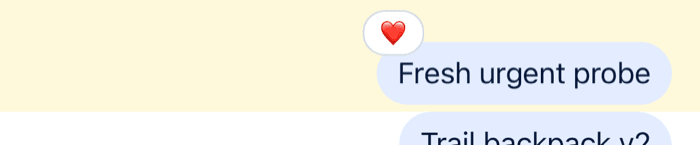
- Reactions on the message. The reactions sit above the message bubble. By default they're clustered into one pill that shows up to four reaction types, followed by the number of further types when there are more; the segmented style shows one chip per reaction type, with its count.
- Who reacted. Tapping the reactions opens a bottom sheet that lists the users who reacted, filtered by reaction type. Tapping one reaction type opens it filtered to that type. The sheet has its own button to add a reaction.
 |  |
How it works across the layers
State
A message carries its reactions in three fields:
reaction_groups: one summary per reaction type, with the count and when it was first and last used;latest_reactions: the most recent reactions, with their users;own_reactions: the current user's reactions.
The state layer applies reaction.new, reaction.updated and reaction.deleted events to the message, wherever it's shown: the channel's list, a thread, or a thread's parent message.
The message operations of a channel or a thread change reactions optimistically:
MessageOperations.addReaction({ messageId, reaction, options })adds the reaction to the message, then sends the request. Withoptions: { enforce_unique: true }, the new reaction replaces the user's other reactions on the message.MessageOperations.deleteReaction({ messageId, type })removes the user's reaction of that type, then sends the request.
When the server answers, its copy of the message replaces the local one. If the request fails, the change is undone, unless the request was queued to be sent later. With offline support, a reaction made while offline is queued and sent after the next reconnect. See Message operations.
UI
The user picks the thumbs-up reaction (like) on Ben's message:
MessageReactionPickercloses the menu and callshandleReaction("like")from the message context.- The handler calls
handleReactionfromChannel's props first, when you pass one. Then it checksown_reactions. The user hasn't reacted withlikeyet, so it adds the reaction; had they, it would remove it. - The reaction goes through
messageOperationsof the thread, when the message is a reply loaded in the open thread, and of the channel otherwise.enforce_uniquefollows theenforceUniqueReactionprop. The message updates in the list at once. ReactionListTopre-renders from the message'sreaction_groupsandown_reactions, and marks the user's reaction as theirs.
| Part | Component |
|---|---|
| The quick reactions in the message menu | MessageReactionPicker |
| The emoji sheet behind + | EmojiViewerButton, inside MessageReactionPicker |
| The reactions on a message | ReactionListTop or ReactionListBottom, with ReactionListClustered and ReactionListItem |
| The bottom sheet that lists who reacted | MessageUserReactions, with MessageUserReactionsItem and MessageUserReactionsAvatar |
| The reactions that are offered and shown | supportedReactions on Channel and Thread |
The bottom sheet loads the users with client.queryReactionsAndHydrate(), 25 at a time, the newest first.
A message shows only the reaction types listed in supportedReactions. A reaction of any other type still counts on the server, but no list renders it. By default, supportedReactions is reactionData: the five quick reactions, and every emoji of the + sheet, each with its Unicode code points as its type, such as U+1F525.
Turning it on or off
Reactions are always available. The send-reaction capability decides who can add them: without it, the message menu shows no reaction row. The server derives the capability from the user's role and the channel type's settings, which include reactions.
Reactions on a message show whatever the capability. To hide reactions in your UI, pass overrideOwnCapabilities={{ sendReaction: false }} to Channel and Thread, and replace ReactionListTop (or ReactionListBottom, depending on reactionListPosition) with a component that renders nothing.
Customizing
The reactions on offer
supportedReactions on Channel and Thread lists the reactions. Each item has a type, the reaction type stored on the server, and an Icon. Items with isMain: true make the quick row in the message menu. The others are only rendered on messages:
import { Text } from "react-native";
import type { Channel as StreamChannel } from "stream-chat";
import type { IconProps, ReactionData } from "stream-chat-react-native";
import {
  Channel,
  MessageComposer,
  MessageList,
} from "stream-chat-react-native";

const emojiIcon = (emoji: string) => {
  const EmojiIcon = ({ size = 12 }: IconProps) => (
    <Text style={{ fontSize: size }}>{emoji}</Text>
  );
  return EmojiIcon;
};

const supportedReactions: ReactionData[] = [
  { Icon: emojiIcon("\u{2B06}\u{FE0F}"), isMain: true, type: "arrow_up" },
  { Icon: emojiIcon("\u{2B07}\u{FE0F}"), isMain: true, type: "arrow_down" },
  { Icon: emojiIcon("\u{1F525}"), type: "fire" },
];

export const VotingChannel = ({ channel }: { channel: StreamChannel }) => (
  <Channel channel={channel} supportedReactions={supportedReactions}>
    <MessageList />
    <MessageComposer />
  </Channel>
);
The + sheet always offers the SDK's full emoji set, whatever supportedReactions holds, and a reaction picked there has a type such as U+1F44D. With a custom list, add the types you want to show, or replace MessageReactionPicker with a picker that has no + button:
import { View } from "react-native";
import type { MessageReactionPickerProps } from "stream-chat-react-native";
import {
  MessageReactionPickerList,
  scheduleActionOnClose,
  useOwnCapabilitiesContext,
  WithComponents,
} from "stream-chat-react-native";

const QuickReactionsOnly = ({
  dismissOverlay,
  handleReaction,
}: MessageReactionPickerProps) => {
  const { sendReaction } = useOwnCapabilitiesContext();

  if (!sendReaction) return null;

  return (
    <View style={{ flexDirection: "row" }}>
      <MessageReactionPickerList
        onSelectReaction={(type) => {
          dismissOverlay?.();
          if (handleReaction) scheduleActionOnClose(() => handleReaction(type));
        }}
      />
    </View>
  );
};

export const App = () => (
  <WithComponents overrides={{ MessageReactionPicker: QuickReactionsOnly }}>
    {/* the rest of the app */}
  </WithComponents>
);
scheduleActionOnClose runs the reaction once the menu has closed, as the default picker does.
Style and position
reactionListType on Channel and Thread is "clustered" (the default) or "segmented", and reactionListPosition is "top" (the default) or "bottom":
<Channel channel={channel} reactionListPosition="bottom" reactionListType="segmented">Segmented reactions at the top show at most four chips and a counter for the rest. At the bottom, every reaction type shows.
The reaction types are in the order they were first used on the message.
One reaction per user
enforceUniqueReaction on Channel and Thread makes a new reaction replace the user's previous one on the message:
<Channel channel={channel} enforceUniqueReaction>Changing what a reaction does
handleReaction on Channel and Thread runs with the message and the reaction type before the default handler, for example to record analytics. selectReaction replaces the handler: it takes the message and returns the function that receives the reaction type. It covers the quick reactions, the + sheet and the bottom sheet. This one adds reactions but never removes them:
import { useCallback } from "react";
import type { LocalMessage, Channel as StreamChannel } from "stream-chat";
import {
  Channel,
  MessageComposer,
  MessageList,
} from "stream-chat-react-native";

export const ChannelWithPermanentReactions = ({
  channel,
}: {
  channel: StreamChannel;
}) => {
  const selectReaction = useCallback(
    (message: LocalMessage) => async (type: string) => {
      const alreadyReacted = message.own_reactions?.some(
        (reaction) => reaction.type === type,
      );
      if (alreadyReacted) return;
      await channel.messageOperations.addReaction({
        messageId: message.id,
        reaction: { type },
      });
    },
    [channel],
  );

  return (
    <Channel channel={channel} selectReaction={selectReaction}>
      <MessageList />
      <MessageComposer />
    </Channel>
  );
};
This handler sends through the channel, which suits a channel's list. In a thread, use thread.messageOperations for replies loaded there.
Toggling a reaction with a tap
Tapping a reaction on a message opens the bottom sheet of who reacted. To toggle the reaction instead, intercept the reactionList emitter in onPressMessage:
import type { Channel as StreamChannel } from "stream-chat";
import {
  Channel,
  MessageComposer,
  MessageList,
} from "stream-chat-react-native";

export const ChannelWithTapToReact = ({
  channel,
}: {
  channel: StreamChannel;
}) => (
  <Channel
    channel={channel}
    onPressMessage={({
      actionHandlers,
      additionalInfo,
      defaultHandler,
      emitter,
    }) => {
      if (emitter === "reactionList" && additionalInfo?.reactionType) {
        void actionHandlers?.toggleReaction(additionalInfo.reactionType);
        return;
      }
      defaultHandler?.();
    }}
  >
    <MessageList />
    <MessageComposer />
  </Channel>
);
The clustered pill and the "+N" chip pass no reactionType, so they keep opening the sheet.
The reactions bottom sheet
MessageUserReactions is an override key. It receives the message and the selectedReaction type, undefined for all types. MessageUserReactionsItem renders one user's row and MessageUserReactionsAvatar its avatar; both are override keys. useFetchReactions({ message, reactionType, sort }) loads the users who reacted, for a sheet of your own.
MessageReactionPicker, ReactionListTop, ReactionListBottom, ReactionListClustered, ReactionListItem and ReactionListCountItem are override keys too. ReactionListItemWrapper is also a key, but setting it has no effect, because the reaction lists render the default directly. See Overriding components and the Custom reactions UI cookbook.
Reference
- State: Message operations and What's optimistic and what isn't.
- UI: Message list UI, Overlays and bottom sheets and Overriding components.
- Props: Reaction components, Channel, MessagesContext and MessageContext.
- Hooks: Message hooks.