















Custom navigation items
The navigation section of channel details has three rows: Pinned Messages, Photos & Videos and Files. Each opens its list in a full-screen modal. This UI cookbook adds a row of your own that opens a link, hides a row, and changes the order of the rows. To open the default rows as screens of your navigator instead, see the Custom navigation UI cookbook.
Best practices
- Start from
defaultItemsand add, filter or reorder rows. Rows you leave alone keep opening their modal. - Give every row you add an
onPress. Only the three default sections have a modal, so a row of your own without one opens an empty modal. - Give each row a unique
section. It's the row's key, and the default rows usepinned-messages,photos-and-videosandfiles. - Pass
getNavigationItemsthrough an override ofChannelDetailsNavigationSection.ChannelDetailsrenders the section without props. - Read what the rows need, such as the channel and the icons, through hooks in the override. The function's
contextholds onlyt.
Add a row that opens a link
A row is a ChannelDetailsNavigationItem: an Icon that receives IconProps, a label, a section and an optional onPress. This row opens the project wiki of the channel, whose URL the app keeps in the channel's custom data:
import { useCallback } from "react";
import { Linking } from "react-native";
import {
  asDynamicKey,
  ChannelDetailsNavigationSection,
  useChannelDetailsContext,
  useComponentsContext,
} from "stream-chat-react-native";
import type {
  ChannelDetailsNavigationSectionProps,
  GetChannelDetailsNavigationItems,
} from "stream-chat-react-native";

declare module "stream-chat" {
  interface CustomChannelData {
    wiki_url?: string;
  }
}

export const NavigationSection = (
  props: ChannelDetailsNavigationSectionProps,
) => {
  const { channel } = useChannelDetailsContext();
  const { icons } = useComponentsContext();
  const wikiUrl = channel.data?.custom?.wiki_url;

  const getNavigationItems = useCallback<GetChannelDetailsNavigationItems>(
    ({ context, defaultItems }) => {
      if (!wikiUrl) return defaultItems;

      return [
        ...defaultItems,
        {
          Icon: icons.Link,
          label: context.t(
            asDynamicKey("myApp.channelDetails.wiki.label"),
            "Project Wiki",
          ),
          onPress: () => void Linking.openURL(wikiUrl),
          section: "project-wiki",
        },
      ];
    },
    [icons.Link, wikiUrl],
  );

  return (
    <ChannelDetailsNavigationSection
      {...props}
      getNavigationItems={getNavigationItems}
    />
  );
};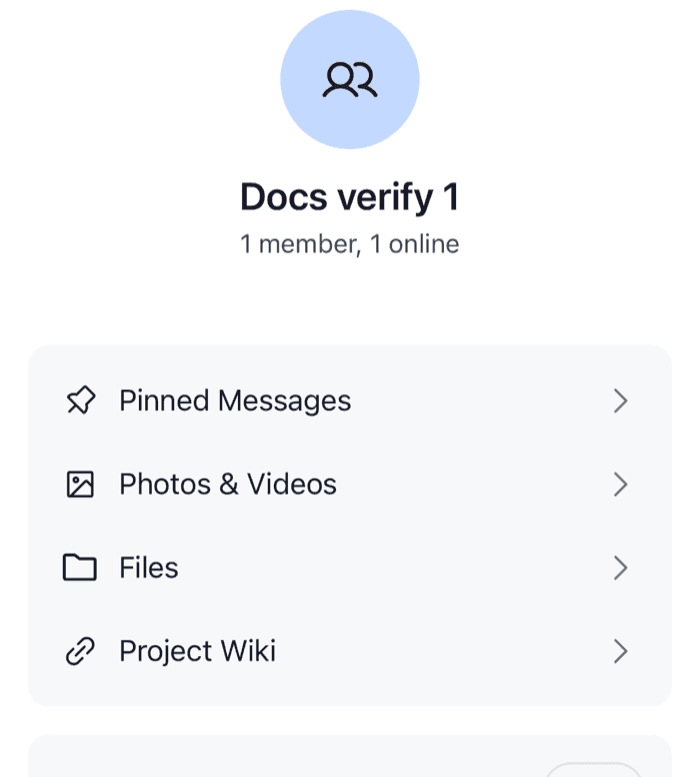 | 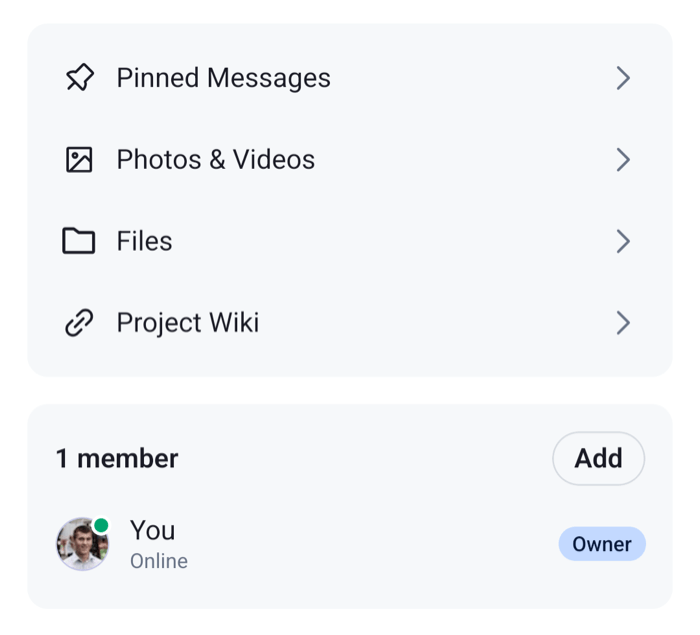 |
Channels without a wiki URL show the default rows only. The custom field lives under channel.data.custom, and the declare module block types it; see Custom data types. icons comes from useComponentsContext(), so the row uses your icon override for Link when you register one, as the default rows do for theirs. Any component that receives IconProps works as an Icon.
The section builds its rows again when getNavigationItems changes, so useCallback keeps it stable between renders. channel.data is read while rendering here, so the row appears once the section renders with the channel's data.
Register it
Register the override with WithComponents inside ChannelDetailsContextProvider, and declare the overrides once:
import type { Channel as StreamChannel } from "stream-chat";
import {
  ChannelDetails,
  ChannelDetailsContextProvider,
  WithComponents,
} from "stream-chat-react-native";
import type { ComponentOverrides } from "stream-chat-react-native";
import { NavigationSection } from "./NavigationSection";

const overrides: ComponentOverrides = {
  ChannelDetailsNavigationSection: NavigationSection,
};

export const ChannelDetailsScreen = ({
  channel,
  onBack,
}: {
  channel: StreamChannel;
  onBack: () => void;
}) => (
  <ChannelDetailsContextProvider channel={channel}>
    <WithComponents overrides={overrides}>
      <ChannelDetails onBack={onBack} />
    </WithComponents>
  </ChannelDetailsContextProvider>
);
ChannelDetailsScreen takes the channel and the back handler from the screen that renders it, such as the screen on Channel UI.
Hide a row
Filter defaultItems by section. This one leaves out Pinned Messages:
import type { GetChannelDetailsNavigationItems } from "stream-chat-react-native";

export const getNavigationItems: GetChannelDetailsNavigationItems = ({
  defaultItems,
}) => defaultItems.filter(({ section }) => section !== "pinned-messages");
A function that needs nothing from the component can be declared at module scope, like this one, and passed to the section in the override. Return an empty list to hide the whole section's rows. The section's card still renders, empty.
Change the order
The section renders the rows in the order the function returns them. This one puts Files first:
import type { GetChannelDetailsNavigationItems } from "stream-chat-react-native";

export const getNavigationItems: GetChannelDetailsNavigationItems = ({
  defaultItems,
}) => [
  ...defaultItems.filter(({ section }) => section === "files"),
  ...defaultItems.filter(({ section }) => section !== "files"),
];
Change a row's label
The modal of a default row shows the row's label in its header, so a changed label changes both. Keep the section, which decides what the modal shows:
import { asDynamicKey } from "stream-chat-react-native";
import type { GetChannelDetailsNavigationItems } from "stream-chat-react-native";

export const getNavigationItems: GetChannelDetailsNavigationItems = ({
  context,
  defaultItems,
}) =>
  defaultItems.map((item) =>
    item.section === "photos-and-videos"
      ? {
          ...item,
          label: context.t(
            asDynamicKey("myApp.channelDetails.media.label"),
            "Media",
          ),
        }
      : item,
  );
The default labels are translation keys of the SDK, such as channelDetails.navigation.photosAndVideos.label. To change the wording in every language, override the key in your translations instead; see Localization.