















Custom composer
This UI cookbook builds a composer with a layout of its own: the previews on top, the text input across the full width under them, and a row below with the attach button at the start and the send button at the end. It replaces only the layout. The composer object, sending, uploads, suggestions, commands, drafts and voice recording keep working as before. Then it replaces two single parts, the send button and the attach button. Which parts the default composer has and what each one reads is explained in Message composer UI.
Best practices
- Replace the
Inputkey and keep renderingMessageComposer.MessageComposerpicks the composer of the channel, the thread or the message being edited, renders the poll dialog and the voice recording lock, and showsSendMessageDisallowedIndicatorwhen the user can't send.Inputreplaces only the row inside it. - Build the layout from the default parts. Each one reads the composer from
useMessageComposer(), so the same layout works in a channel, in a thread and while editing. - Read the parts from
useComponentsContext(). Overrides registered for them, such as aSendButtonof your own, then apply inside your layout too. - Keep
InputView. It renders the command chip, the text input, and in a thread the also-send-to-channel checkbox. - Keep
MessageInputTrailingViewfor the send button. It shows the stop button while an AI is generating, a checkmark while editing or with a command active, the cooldown timer in slow mode, and the record button when the composer is empty. - Replace a single part, such as
SendButton, when only that part changes. - Test the layout with a quoted message, attachments, a link, a command, a voice recording, in a thread and while editing.
Build the layout
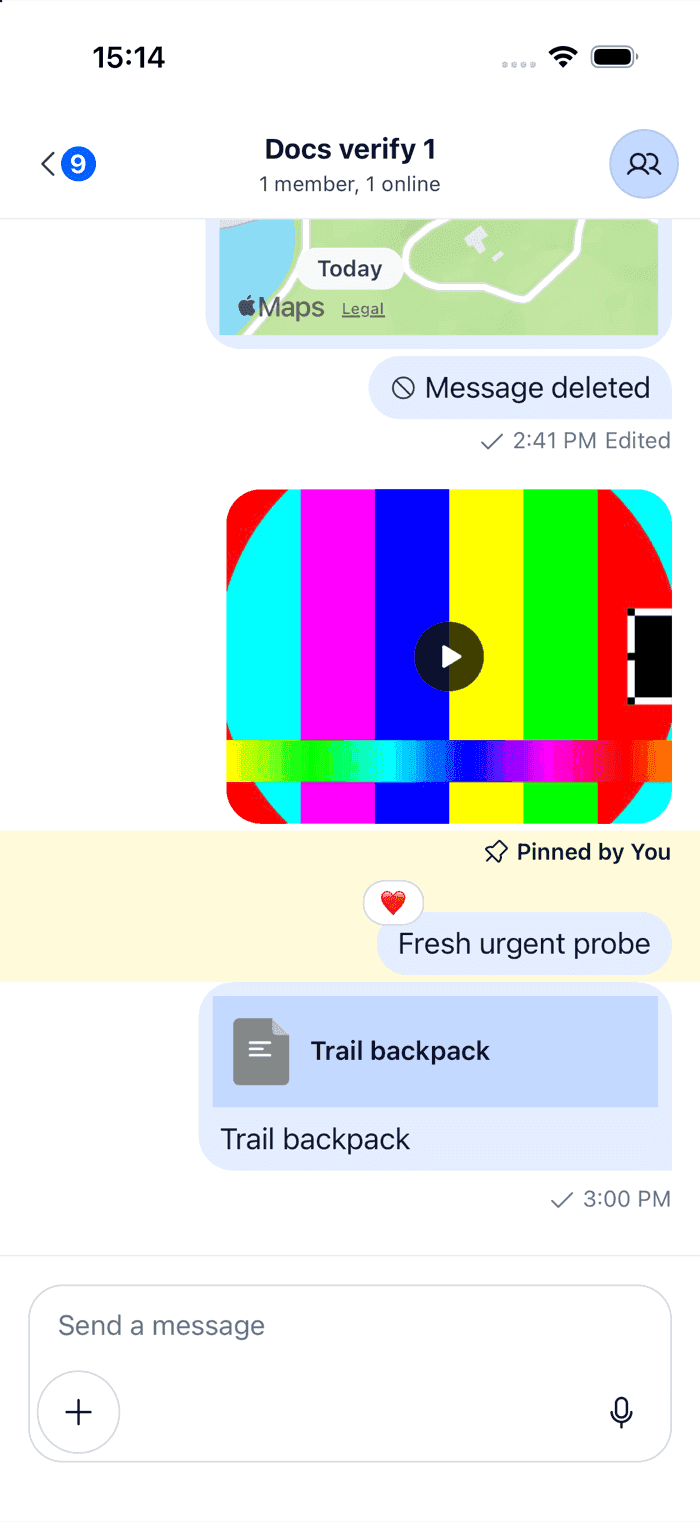
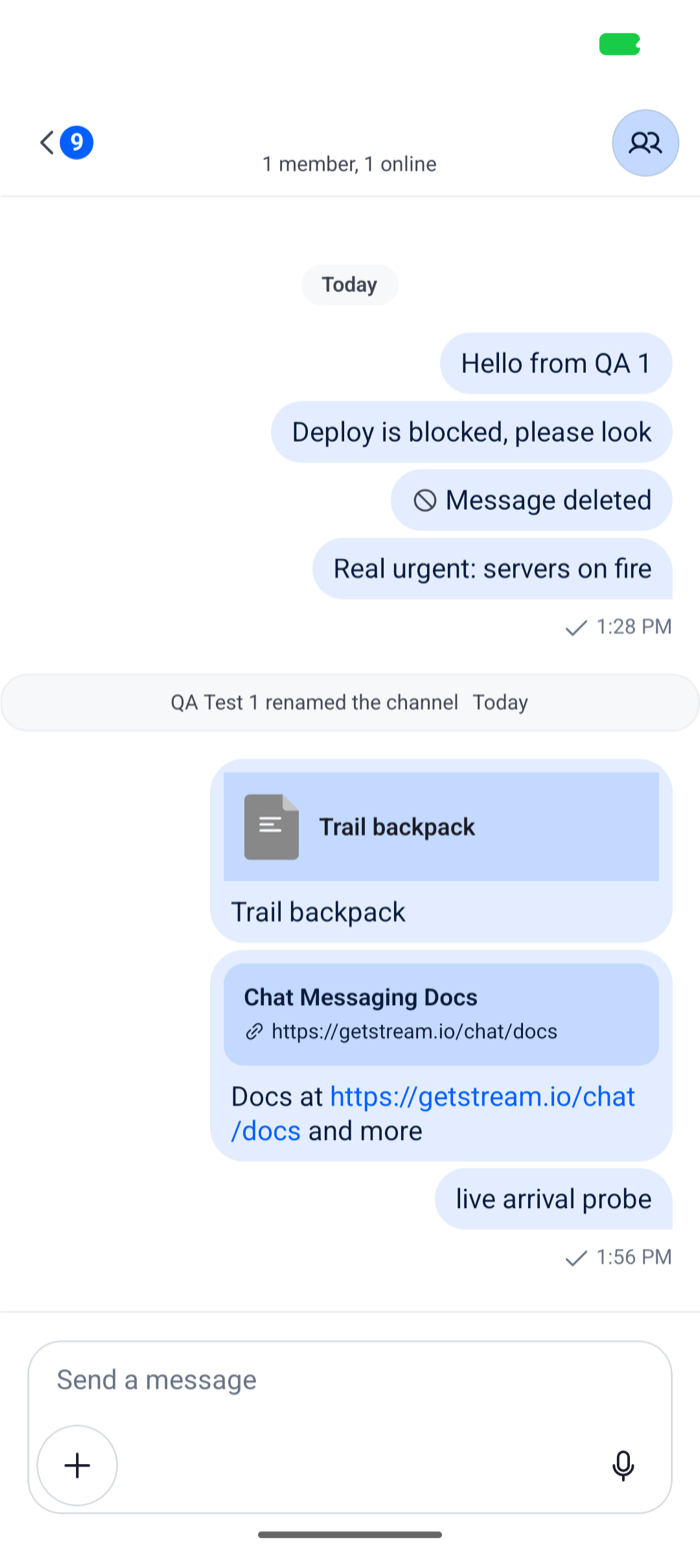
Input has no default. When you set it, MessageComposer renders it in place of its row, the leading view, the input box and the trailing view, and passes it additionalTextInputProps and getUsers. The layout below uses the same parts as the default row, stacked:
import { StyleSheet, View } from "react-native";
import type { TextInputProps } from "react-native";
import {
  useComponentsContext,
  useMessageInputContext,
  useStateStore,
  useTheme,
} from "stream-chat-react-native";
import type { MessageInputContextValue } from "stream-chat-react-native";

type RecorderState = ReturnType<
  MessageInputContextValue["audioRecorderManager"]["state"]["getLatestValue"]
>;

const recorderSelector = ({ micLocked, status }: RecorderState) => ({
  micLocked,
  status,
});

export const StackedComposerInput = ({
  additionalTextInputProps,
}: {
  additionalTextInputProps?: TextInputProps;
}) => {
  const {
    AudioRecorder,
    AudioRecordingInProgress,
    AudioRecordingPreview,
    InputView,
    MessageComposerLeadingView,
    MessageInputHeaderView,
    MessageInputTrailingView,
  } = useComponentsContext();
  const { audioRecorderManager } = useMessageInputContext();
  const { micLocked, status } = useStateStore(
    audioRecorderManager.state,
    recorderSelector,
  );
  const {
    theme: { semantics },
  } = useTheme();

  return (
    <View
      style={[
        styles.box,
        {
          backgroundColor: semantics.backgroundCoreElevation1,
          borderColor: semantics.borderCoreDefault,
        },
      ]}
    >
      {status === "stopped" ? (
        <AudioRecordingPreview />
      ) : micLocked ? (
        <AudioRecordingInProgress />
      ) : null}
      <MessageInputHeaderView />
      <View style={styles.input}>
        {status === "idle" ? (
          <InputView {...additionalTextInputProps} />
        ) : (
          <AudioRecorder />
        )}
      </View>
      <View style={styles.buttons}>
        <MessageComposerLeadingView />
        <MessageInputTrailingView />
      </View>
    </View>
  );
};

const styles = StyleSheet.create({
  box: { borderRadius: 20, borderWidth: 1, overflow: "hidden" },
  buttons: {
    alignItems: "center",
    flexDirection: "row",
    justifyContent: "space-between",
    padding: 4,
  },
  input: { flexDirection: "row" },
}); |  |
Here is what each part does:
MessageInputHeaderViewshows what the message carries: the message being edited, the quoted message, the attachments with their upload progress, and the link previews. Each preview renders only when the composer has something for it.InputViewshows the command chip, the text input, and in a thread the also-send-to-channel checkbox.additionalTextInputPropsfromChannelorThreadgoes to theTextInputthrough it.MessageComposerLeadingViewshows the attach button. It hides the button while a command is active, when the user can't upload files, and while a voice recording runs.MessageInputTrailingViewshows one control: the stop button, the checkmark, the cooldown timer, the record button or the send button.
The recording parts take the input's place only with audioRecordingEnabled on Channel or Thread. While the user holds the record button, AudioRecorder replaces the input. A locked recording shows AudioRecordingInProgress, and a stopped one AudioRecordingPreview, as in the default row. The selector reads the recorder's store, which useMessageInputContext() returns as audioRecorderManager. The SDK doesn't export the type of its state, so the sample derives it.
The theme keys of the default input box, such as messageComposer.inputBoxWrapper, style views this layout doesn't render. Style the layout's own views, as the sample does with the theme's semantics.
Register it
Register the layout under the Input key, around the composers it applies to. Declare the overrides once, so WithComponents gets the same object on every render:
import type { Channel as StreamChannel } from "stream-chat";
import {
  Channel,
  MessageComposer,
  MessageList,
  WithComponents,
} from "stream-chat-react-native";
import type { ComponentOverrides } from "stream-chat-react-native";
import { StackedComposerInput } from "./StackedComposerInput";

const overrides: ComponentOverrides = { Input: StackedComposerInput };

export const ChannelScreen = ({ channel }: { channel: StreamChannel }) => (
  <WithComponents overrides={overrides}>
    <Channel channel={channel}>
      <MessageList />
      <MessageComposer />
    </Channel>
  </WithComponents>
);
A Thread on its own screen needs the same WithComponents around it, or put WithComponents once around your navigator. Overriding components explains where overrides apply.
Replace the send button
To change one control and keep the default layout, replace only its key. SendButton receives disabled, which is true while the composer has nothing to send, and sends with sendMessage from useMessageInputContext(). sendMessage saves the edit while a message is being edited, and sends a new message otherwise:
import { Pressable, StyleSheet, Text } from "react-native";
import { useMessageInputContext, useTheme } from "stream-chat-react-native";
import type {
  ComponentOverrides,
  SendButtonProps,
} from "stream-chat-react-native";

const TextSendButton = ({ disabled }: SendButtonProps) => {
  const { sendMessage } = useMessageInputContext();
  const {
    theme: { semantics },
  } = useTheme();

  return (
    <Pressable
      accessibilityRole="button"
      accessibilityState={{ disabled }}
      disabled={disabled}
      onPress={sendMessage}
      style={styles.button}
    >
      <Text
        style={[
          styles.label,
          {
            color: disabled ? semantics.textTertiary : semantics.accentPrimary,
          },
        ]}
      >
        Send
      </Text>
    </Pressable>
  );
};

export const sendButtonOverrides: ComponentOverrides = {
  SendButton: TextSendButton,
};

const styles = StyleSheet.create({
  button: { paddingHorizontal: 12, paddingVertical: 8 },
  label: { fontSize: 16, fontWeight: "600" },
});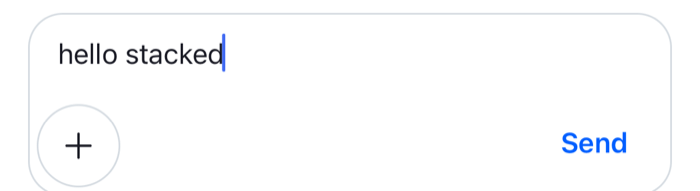 | 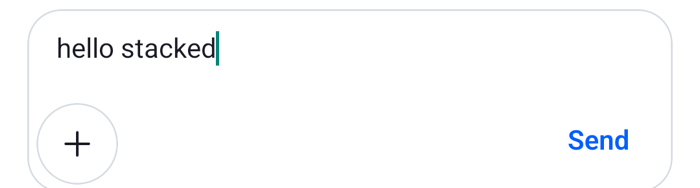 |
Register sendButtonOverrides with WithComponents, or put SendButton: TextSendButton in the same object as Input. The layout above reads MessageInputTrailingView, which renders the SendButton override, so the two work together.
Open the system pickers from the attach button
By default the attach button opens the attachment picker, a bottom sheet with the photo grid. This attach button opens a menu that goes straight to the system pickers instead. useMessageInputContext() has a function for each, and each one uploads what the user picks into the composer:
import { Alert, Platform } from "react-native";
import type { AlertButton } from "react-native";
import { AttachButton, useMessageInputContext } from "stream-chat-react-native";
import type {
  AttachButtonProps,
  ComponentOverrides,
} from "stream-chat-react-native";

const SystemPickerAttachButton = (props: AttachButtonProps) => {
  const { pickAndUploadImageFromNativePicker, pickFile, takeAndUploadImage } =
    useMessageInputContext();

  const openMenu = () => {
    const buttons: AlertButton[] = [
      {
        onPress: () => void pickAndUploadImageFromNativePicker(),
        text: "Photos",
      },
      { onPress: () => void takeAndUploadImage(), text: "Camera" },
      { onPress: () => void pickFile(), text: "Files" },
    ];
    // Android dismisses the alert with a tap outside it, and shows three buttons at most.
    if (Platform.OS === "ios")
      buttons.push({ style: "cancel", text: "Cancel" });

    Alert.alert("Add an attachment", undefined, buttons, { cancelable: true });
  };

  return <AttachButton {...props} handleOnPress={openMenu} />;
};

export const attachButtonOverrides: ComponentOverrides = {
  AttachButton: SystemPickerAttachButton,
};
handleOnPress runs instead of opening the attachment picker. The three functions call the image picker, camera and document picker handlers, so the app needs the packages behind them: react-native-image-picker and @react-native-documents/picker with React Native CLI, or expo-image-picker and expo-document-picker with Expo. Entry points and native handlers lists the package of each handler. Each function checks the free upload slots first and shows an alert when the message has the most files it can carry. pickFile logs a message and does nothing without a document picker.
With this button, users can't reach the attachment picker's poll and commands buttons. Commands still open after / in the input.
Related
- To change the previews of images, videos, files and voice recordings above the input, see the Attachment previews UI cookbook.
- To upload attachments to your own storage or compress them first, see the File compression UI cookbook.
- To change how a message is sent, register a send request handler, as Message operations shows.
- To change the suggestions after
@,/and:, see the Custom suggestions UI cookbook.