















Attachments and uploads
Attachments are the files, images and videos a message carries. This page covers how a user adds them with the attachment picker, how they're uploaded, and how the message list and the image gallery show them.
What users get
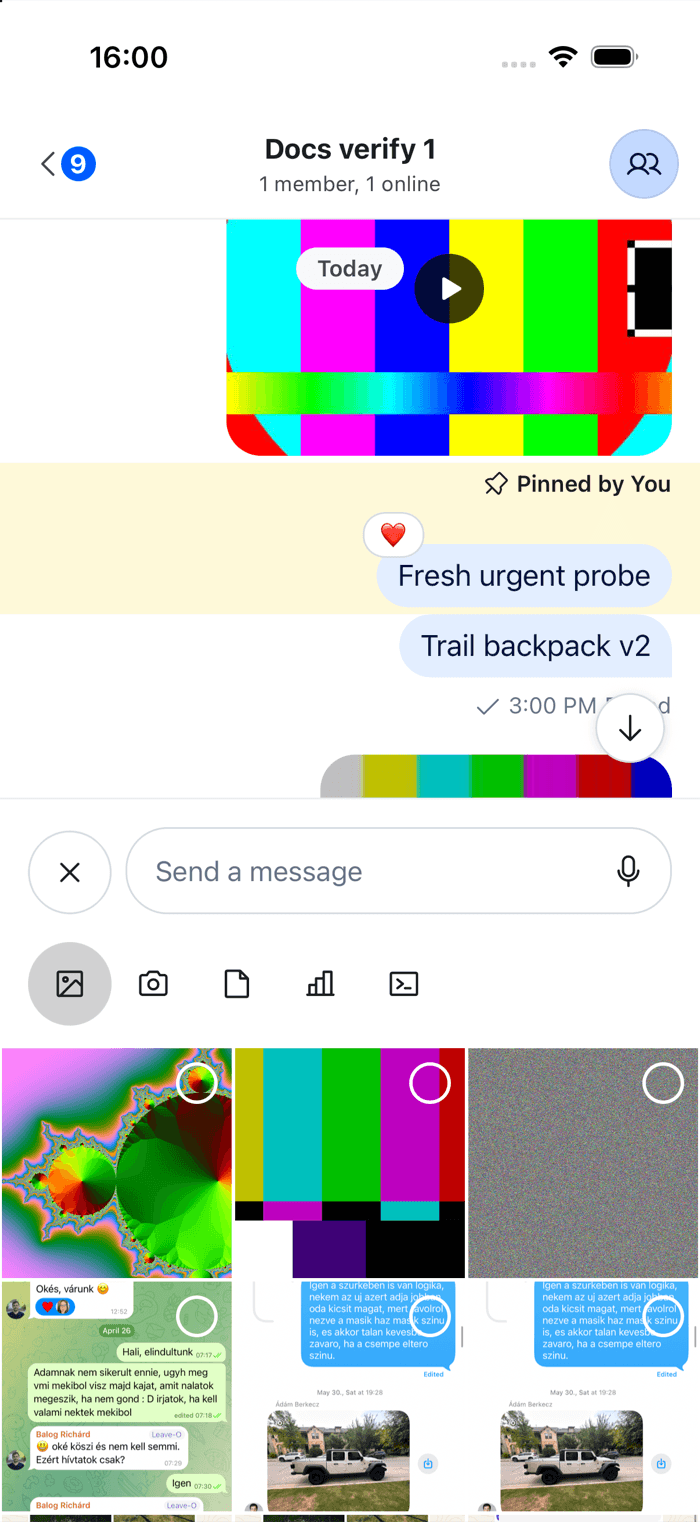
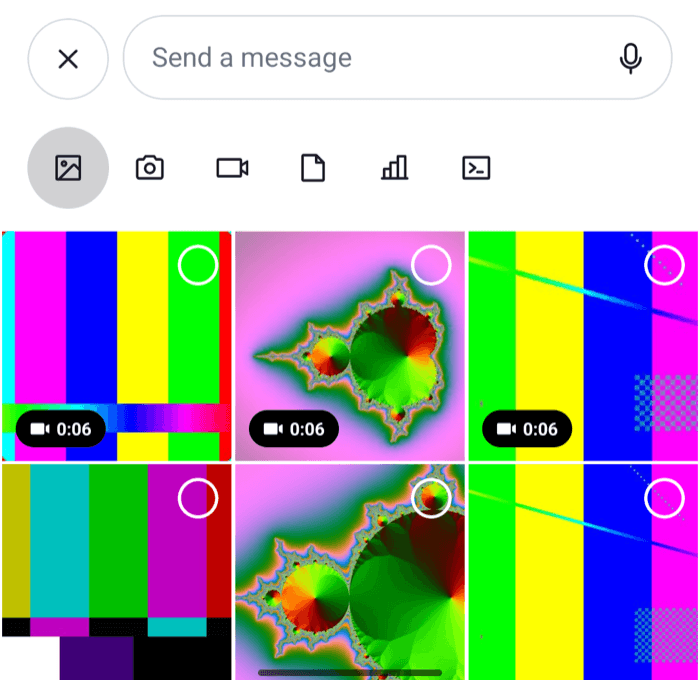
The user taps the + button before the input. The keyboard closes and the attachment picker slides up under the composer, with a grid of their recent photos and videos and a row of sources above it: photos, the camera, files, a poll and commands. They tap two photos. Each one is marked with its number and shows above the input at once, with its upload progress. They switch to files, and the system file picker opens. They pick a PDF, remove one of the photos with its remove button, and send.
In the message list, the photo shows in the message's gallery, and the PDF as a row with its icon and name. Tapping the photo opens it in a full-screen gallery, where they can swipe through the message's other images and videos and zoom in. With the sharing packages installed, they can share them too. Tapping the PDF opens its URL. A video shows as a thumbnail with a play indicator, and plays in the gallery.
A file whose upload fails shows a retry button on its preview. A file the app's upload settings refuse isn't uploaded. It's removed from the composer, and a notification says "Attachment upload blocked due to size limit", or "due to unsupported file type".
 |  |
How it works across the layers
- State. Each composer has an attachment manager,
messageComposer.attachmentManager. Its store holds the attachments of the message being written, each with an upload state:pending,uploading,finished,failedorblocked. Sending puts the finished uploads into the message. - UI. In the composer, the attach button opens the attachment picker, its sources call the device's pickers, and
AttachmentUploadPreviewListshows the files and their progress. In the message list,Gallery,FileAttachmentGroupandAttachmentrender what a message carries, andOverlayProviderrenders the image gallery. - Layout. The attachment picker is a bottom sheet inside the screen, under the composer, so its height and the screen's insets matter. See Keyboard and insets.
Adding and uploading a file
Example
Take the user's PDF:
- The file picker returns a
FileReferencefor each file: itsuri,name,type(the MIME type) andsize. When the picker gives no type, the SDK guesses it from the file name. - An image is compressed first when
compressImageQualityis set onChannelorThreadand the picker reported the image's width and height. Other files keep their ownuri. - The SDK calls
AttachmentManager.uploadFiles([file]). Files beyondattachments.maxNumberOfFilesPerMessage(10 by default) are left out, and when no slot is free, an alert says "Maximum number of files reached" instead. - The pre-upload middleware checks the file against the app's upload settings: allowed and blocked file types, and the size limit. A refused file is
blocked, and avalidation:attachment:upload:blockednotification is published. The SDK then removes it from the composer. - The file uploads through
doUploadRequest, to Stream's CDN by default or with your own upload function. Its state isuploading, withlocalMetadata.uploadProgressfrom 0 to 100. - The post-upload middleware sets the attachment's URL and thumbnail from the response. A failed upload becomes
failed, and anapi:attachment:upload:failednotification is published. - On send, the composition middleware adds the finished attachments to the message. By default the message can't be sent while an upload is running. Sending with pending uploads, which
Chatturns on withenableOfflineSupport, lets it go out at once.
The upload states, the custom upload function and the limits are explained on Message composer. The upload middleware and their ids are on Composer middleware.
In the composer
The attach button, AttachButton, opens and closes the attachment picker. It shows when at least one picker is available and the user has the upload-file capability, and it's hidden while a command is active. handleAttachButtonPress on Channel or Thread replaces what it does.
The picker's selection bar, AttachmentPickerSelectionBar, has a button for each source:
| Button | Shows when | Opens |
|---|---|---|
| Photos | hasImagePicker, true when an image picker or media library is installed |
The built-in grid of the device's photos and videos, or the system image picker |
| Camera | hasCameraPicker, true when an image picker is installed |
The camera. On Android, a second button records a video. |
| Files | hasFilePicker, true when a document picker is installed |
The system file picker |
| Poll | Polls are on, the user can send polls, and it isn't a thread | The poll creation dialog. See Polls. |
| Commands | hasCommands, true when the channel has commands |
The list of commands. See Commands and Giphy. |
Below the bar, AttachmentPickerContent shows the selected source. With a media library installed (@react-native-camera-roll/camera-roll or expo-media-library), Photos shows a grid that loads numberOfAttachmentImagesToLoadPerCall (25) items at a time, in numberOfAttachmentPickerImageColumns (3) columns. Tapping an item uploads it, and tapping it again removes it from the composer. When the user gave iOS access to some photos only, the grid starts with an "Add more" cell. When access was denied, the picker shows a button that opens the settings.
Without a media library, disableAttachmentPicker is true by default. The sheet then shows only the selection bar, and the photo, camera and file buttons open the system pickers directly. Installation lists the package behind each source.
AttachmentUploadPreviewList shows the attachments above the input: images, videos and files in a row that scrolls sideways, and voice recordings, and audio files when an audio package is installed, in rows of their own above it. Each preview has a remove button, which cancels a running upload. While an upload runs, the preview shows its progress, and after a failure, a retry button. With pending uploads on, the previews show neither, and the progress shows on the message once it's sent. A picked video previews with the thumbnail its picker generated.
Message composer UI shows where each part sits and which store it reads.
In the message list
Message sorts a message's attachments into groups, and messageContentOrder on Channel sets the order the groups render in:
| Group | Holds | Rendered by |
|---|---|---|
gallery |
Images, and videos when a video player is installed | Gallery, with up to four thumbnails and "+N" over the last when there are more |
files |
Files, audio files, voice recordings, and videos when no video player is installed | FileAttachmentGroup, which renders each one with Attachment |
attachments |
Everything else: Giphy, link previews, attachment types of your own | Attachment, one per attachment |
Attachment picks a component by the attachment's type:
| Attachment | Rendered by |
|---|---|
| A Giphy or Imgur | Giphy |
A link preview: has og_scrape_url or title_link |
UrlPreview, or URLPreviewCompact with urlPreviewType="compact" |
| An audio file or a voice recording | AudioAttachment when an audio package is installed, FileAttachment otherwise |
| A file | FileAttachment, with FilePreview and FileAttachmentIcon |
| Anything else | UnsupportedAttachment |
Attachments of the attachments group render only when the message carries no file, image or playable video. A message with a photo and a link preview shows the photo and the text, and the link stays a link in the text.
Tapping a gallery thumbnail opens the image gallery that OverlayProvider renders, on that item, with the message's other images and videos to swipe through. Videos play in it with react-native-video or expo-video. autoPlayVideo on OverlayProvider starts a video when the gallery shows it. Its header, footer and grid are described on Overlays and bottom sheets.
Turning it on or off
Attachments are on by default. Two sides decide whether a user can upload:
- The client:
messageComposer.attachments.enabled,trueby default. - The server: the channel type's
uploadssetting, and the user'supload-filecapability.
To turn uploads off in every composer:
client.config.set({
  messageComposer: { attachments: { enabled: false } },
});
With attachments.customCdn: true, files go to storage Stream doesn't host, so the server's uploads setting and the upload-file capability don't apply, and attachments.enabled decides alone. Configuration lists every setting both sides decide.
attachmentManager.isUploadEnabled combines all of it with the free slots left in the message, and AttachmentManager.uploadFiles() refuses files while it's false. The attach button reads only the upload-file capability and which pickers are installed, so with attachments.enabled: false or the uploads setting off, it still shows, and the files the user picks aren't added. To hide it too, pass hasCameraPicker={false}, hasFilePicker={false} and hasImagePicker={false} to Channel and Thread.
On the UI side, each source turns off on its own: hasCameraPicker, hasFilePicker, hasImagePicker and hasCommands on Channel and Thread hide their buttons. shouldRenderAttachmentPicker={false} leaves the whole picker out, but the attach button still shows, so hide it or give it a handleAttachButtonPress.
Customizing
Limit what users can attach
maxNumberOfFilesPerMessage caps the number of attachments per message:
client.config.set({
  messageComposer: {
    attachments: { maxNumberOfFilesPerMessage: 5 },
  },
});
attachments.acceptedFiles is a list for a picker to offer, and the SDK's pickers don't read it. To refuse a file whatever its source, add a pre-upload middleware. This one blocks videos larger than 50 MB, so the built-in notification is published and the SDK removes the video from the composer:
import type { AttachmentPreUploadMiddleware, StreamChat } from "stream-chat";

const MAX_VIDEO_BYTES = 50 * 1024 * 1024;

const videoSizeLimit: AttachmentPreUploadMiddleware = {
  id: "my-app/video-size-limit",
  handlers: {
    prepare: ({ forward, next, state }) => {
      const { attachment } = state;
      const { file } = attachment.localMetadata;
      if (!file.type.startsWith("video/") || file.size <= MAX_VIDEO_BYTES) {
        return forward();
      }

      return next({
        ...state,
        attachment: {
          ...attachment,
          localMetadata: {
            ...attachment.localMetadata,
            uploadPermissionCheck: {
              reason: "size_limit",
              uploadBlocked: true,
            },
            uploadState: "blocked",
          },
        },
      });
    },
  },
};

export const setUpComposers = (client: StreamChat) =>
  client.config.setSetupFunction("messageComposer", ({ composer }) => {
    const { preUploadMiddlewareExecutor } = composer.attachmentManager;

    preUploadMiddlewareExecutor.insert({
      middleware: [videoSizeLimit],
      position: {
        after:
          "stream-io/attachment-manager-middleware/file-upload-config-check",
      },
      unique: true,
    });

    return () => preUploadMiddlewareExecutor.remove(videoSizeLimit.id);
  });
There's one setup function per kind of object, so add this to your app's composer setup function if it has one. Composer middleware explains positions, unique and the teardown.
Compress files before upload
Stream accepts files up to 100 MB unless the app sets a lower limit. Images are compressed before upload when you set compressImageQuality, from 0 to 1, on Channel and Thread. Without it, images from the library upload as they are, and the camera applies its own default: 0.8 on iOS with react-native-image-picker, and none otherwise.
For videos and other files, compress them in your own upload function, then hand the result to the default upload. This one compresses videos with react-native-compressor, which you install yourself:
import { Video } from "react-native-compressor";
import { isFileReference } from "stream-chat";
import type { StreamChat, UploadRequestFn } from "stream-chat";

export const setUpComposers = (client: StreamChat) =>
  client.config.setSetupFunction("messageComposer", ({ composer }) => {
    const { attachmentManager } = composer;

    const compressAndUpload: UploadRequestFn = async (file, options) => {
      if (!isFileReference(file) || !file.type.startsWith("video/")) {
        return attachmentManager.doDefaultUploadRequest(file, options);
      }

      let { uri } = file;
      try {
        uri = await Video.compress(file.uri, { compressionMethod: "auto" });
      } catch {
        // Upload the original file.
      }

      return attachmentManager.doDefaultUploadRequest(
        { ...file, uri },
        options,
      );
    };

    composer.updateConfig({
      attachments: { doUploadRequest: compressAndUpload },
    });
  });
AttachmentManager.doDefaultUploadRequest() uploads to Stream's CDN, so customCdn stays false. The function runs for every upload of the composer, voice recordings included, and the preview shows the upload as running while the video compresses. Keep the file's name and type, and fall back to the original file when compression fails, as the example does, so the upload still goes through. The size limit is checked before the upload function runs, against the size the picker reported, so a file over the limit is blocked before it can be compressed.
Upload to your own storage
Register your own upload function as attachments.doUploadRequest, and set customCdn: true when the files never reach Stream. Message composer has the example.
Upload through the native uploader
stream-chat-react-native and stream-chat-expo ship a native multipart uploader. With useNativeMultipartUpload on Chat, uploads to Stream's CDN go through it instead of the client's HTTP adapter, and other requests are unchanged. It reports upload progress where the default adapter reports it unevenly, which happens most on Android.
import type { PropsWithChildren } from "react";
import type { StreamChat } from "stream-chat";
import { Chat, OverlayProvider } from "stream-chat-react-native";

export const App = ({
  children,
  client,
}: PropsWithChildren<{ client: StreamChat }>) => (
  <OverlayProvider>
    <Chat client={client} useNativeMultipartUpload>
      {children}
    </Chat>
  </OverlayProvider>
);
Setting the prop back to false doesn't remove the uploader from that client. A custom doUploadRequest that doesn't call the default upload doesn't use it.
Change the attachment picker
AttachmentPickerSelectionBar is an override key, and the SDK exports each of its buttons: MediaPickerButton, CameraPickerButton, FilePickerButton, PollPickerButton and CommandsPickerButton. Each button renders only when its source is available. This bar leaves out polls and commands:
import { StyleSheet, View } from "react-native";
import type { Channel as StreamChannel } from "stream-chat";
import {
  CameraPickerButton,
  Channel,
  FilePickerButton,
  MediaPickerButton,
  MessageComposer,
  MessageList,
  useTheme,
  WithComponents,
} from "stream-chat-react-native";
import type { ComponentOverrides } from "stream-chat-react-native";

const MediaOnlySelectionBar = () => {
  const {
    theme: { semantics },
  } = useTheme();

  return (
    <View
      style={[
        styles.bar,
        { backgroundColor: semantics.backgroundCoreElevation1 },
      ]}
    >
      <MediaPickerButton />
      <CameraPickerButton />
      <FilePickerButton />
    </View>
  );
};

const overrides: ComponentOverrides = {
  AttachmentPickerSelectionBar: MediaOnlySelectionBar,
};

export const ChannelScreen = ({ channel }: { channel: StreamChannel }) => (
  <WithComponents overrides={overrides}>
    <Channel channel={channel}>
      <MessageList />
      <MessageComposer />
    </Channel>
  </WithComponents>
);

const styles = StyleSheet.create({
  bar: {
    alignItems: "center",
    flexDirection: "row",
    paddingBottom: 8,
    paddingHorizontal: 12,
  },
});
To add a source of your own, render an AttachmentTypePickerButton in the bar that selects it with attachmentPickerStore.setSelectedPicker("my-source"), from useAttachmentPickerContext(), and override AttachmentPickerContent to render your content when useAttachmentPickerState().selectedPicker is "my-source", and the SDK's AttachmentPickerContent otherwise. The Location sharing UI cookbook adds a location source this way.
attachmentPickerBottomSheetHeight sets the height of the sheet, and the picker's other props are in the Attachment picker reference.
Change how attachments render
Each component in the tables above is an override key: Gallery, FileAttachmentGroup, Attachment, Giphy, UrlPreview, URLPreviewCompact, AudioAttachment, FileAttachment, FilePreview, FileAttachmentIcon, VideoThumbnail and UnsupportedAttachment. Here, attachments of a type of your own, product, get a card, and every other attachment renders as before. Wrapping Attachment keeps the SDK's component for the rest. A product attachment is in the attachments group, so it renders only in a message without files, images or videos:
import { Image, StyleSheet, Text, View } from "react-native";
import { Attachment } from "stream-chat-react-native";
import type {
  AttachmentProps,
  ComponentOverrides,
} from "stream-chat-react-native";

const AttachmentWithProducts = (props: AttachmentProps) => {
  const { attachment } = props;
  if (attachment?.type !== "product") {
    return <Attachment {...props} />;
  }

  return (
    <View style={styles.card}>
      {attachment.image_url ? (
        <Image source={{ uri: attachment.image_url }} style={styles.image} />
      ) : null}
      <Text style={styles.title}>{attachment.title}</Text>
    </View>
  );
};

// Pass to `WithComponents`, declared once at module scope.
export const overrides: ComponentOverrides = {
  Attachment: AttachmentWithProducts,
};

const styles = StyleSheet.create({
  card: { padding: 8, width: 240 },
  image: { aspectRatio: 1, borderRadius: 8, width: "100%" },
  title: { fontWeight: "600", marginTop: 4 },
});
The data of an attachment type of your own goes under attachment.custom. The Custom attachments UI cookbook builds one from the composer to the message list. To replace the previews in the composer, override ImageAttachmentUploadPreview, VideoAttachmentUploadPreview, FileAttachmentUploadPreview or AudioAttachmentUploadPreview, or the whole AttachmentUploadPreviewList. Overriding components explains how overrides apply.
Change what a tap does
Tapping a file opens its URL, and tapping a thumbnail opens the gallery. onPressMessage on Channel and Thread receives every tap on a message, with the part that was tapped as emitter and the SDK's own action as defaultHandler. This one opens files in a viewer of your own, and leaves the rest as they are:
import type { Channel as StreamChannel } from "stream-chat";
import {
  Channel,
  MessageComposer,
  MessageList,
} from "stream-chat-react-native";
import type { ChannelProps } from "stream-chat-react-native";

type ChannelScreenProps = {
  channel: StreamChannel;
  openFileViewer: (url: string) => void;
};

export const ChannelScreen = ({
  channel,
  openFileViewer,
}: ChannelScreenProps) => {
  const onPressMessage: NonNullable<ChannelProps["onPressMessage"]> = (
    payload,
  ) => {
    if (
      payload.emitter === "fileAttachment" &&
      payload.additionalInfo?.attachment
    ) {
      const { asset_url } = payload.additionalInfo.attachment;
      if (asset_url) {
        openFileViewer(asset_url);
        return;
      }
    }
    payload.defaultHandler?.();
  };

  return (
    <Channel channel={channel} onPressMessage={onPressMessage}>
      <MessageList />
      <MessageComposer />
    </Channel>
  );
};
The gallery's emitter is gallery, with the thumbnail in additionalInfo, and a link preview's is urlPreview, with its URL.
Reference
- Attachments:
Attachment,Gallery,FileAttachmentand the other renderers. - Attachment picker: the picker's props, buttons and
AttachmentPickerContext. - Composer UI components: the upload previews and their indicators.
- Image gallery: the gallery's parts and
ImageGalleryContext. - MessageComposer API: the attachment manager's methods and store.
- Configuration tree: every
messageComposer.attachmentssetting. - Composer hooks:
useAttachmentManagerStateand the other composer hooks. - Sending with pending uploads, Voice recordings and audio playback, Link previews and Location sharing: the attachments with features of their own.