















Custom attachments
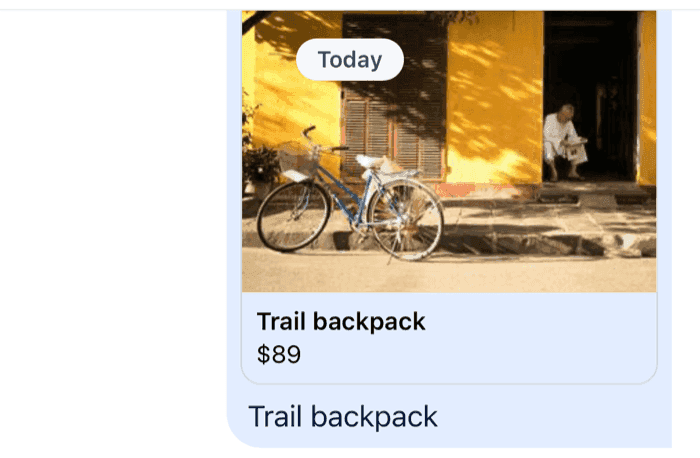
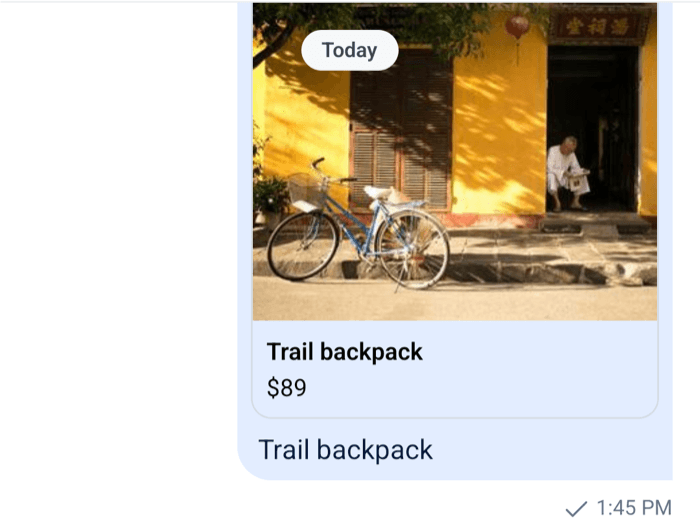
A message can carry attachments of a type of your own, with any data you need to render them. This UI cookbook adds product cards to a shopping app's chat. The user picks a product above the composer, the composer adds a product attachment to the message it sends, and the message list renders the attachment as a card that opens the product when tapped. How the SDK renders its own attachment types is explained in Attachments and uploads.
Best practices
- Give the attachment a
typeof your own, and keep it stable. Other clients and older app versions render types they don't know as an unsupported attachment. - Put your own data under
attachment.custom, typed by extendingCustomAttachmentData. - Store everything the card shows on the attachment, so rendering it needs no request.
- Leave
og_scrape_urlandtitle_linkoff the attachment. With either one, the SDK renders it as a link preview. - Add the attachment in a composition middleware, so it's part of both the message the server receives and the one the list shows right away.
- Wrap
Attachmentrather than replacing it, so every other attachment keeps the SDK's rendering.
The attachment's data
An attachment has a few fields the SDK knows, such as type, title and image_url, and a custom object for everything else. Declare your fields on CustomAttachmentData, and the data the composer keeps while the user picks a product on CustomMessageComposerData:
import "stream-chat";

declare module "stream-chat" {
  interface CustomAttachmentData {
    price?: string;
    product_id?: string;
  }

  interface CustomMessageComposerData {
    product?: {
      id: string;
      imageUrl: string;
      name: string;
      price: string;
    };
  }
}
A product attachment then looks like this:
const attachment: Attachment = {
  custom: { price: "$129", product_id: "sku-42" },
  image_url: "https://example.com/products/sku-42.jpg",
  title: "Trail running shoes",
  type: "product",
};
CustomAttachmentData already declares mime_type and file_size, which the SDK's file attachments use, and your fields add to them. Data conventions explains where custom data lives.
Adding it to the message
The composer's own attachments are the files the user uploads. A product isn't an upload, so a composition middleware adds it when the message is composed. The product waits in the composer's custom data until then. That data is never sent, and the composer clears it after each send:
import type {
  Attachment,
  MessageComposer,
  MessageComposerMiddlewareState,
  MessageCompositionMiddleware,
  MiddlewareHandlerParams,
  StreamChat,
} from "stream-chat";

const createProductMiddleware = (
  composer: MessageComposer,
): MessageCompositionMiddleware => ({
  id: "my-app/product-attachment",
  handlers: {
    compose: ({
      forward,
      next,
      state,
    }: MiddlewareHandlerParams<MessageComposerMiddlewareState>) => {
      const { product } = composer.customDataManager.customComposerData;
      if (!product) return forward();

      const attachment: Attachment = {
        custom: { price: product.price, product_id: product.id },
        image_url: product.imageUrl,
        title: product.name,
        type: "product",
      };

      return next({
        ...state,
        localMessage: {
          ...state.localMessage,
          attachments: [...(state.localMessage.attachments ?? []), attachment],
        },
        message: {
          ...state.message,
          attachments: [...(state.message.attachments ?? []), attachment],
        },
      });
    },
  },
});

export const registerProductAttachments = (client: StreamChat) => {
  client.config.setSetupFunction("messageComposer", ({ composer }) => {
    const middleware = createProductMiddleware(composer);

    composer.compositionMiddlewareExecutor.insert({
      middleware: [middleware],
      position: { after: "stream-io/message-composer-middleware/attachments" },
      unique: true,
    });

    return () => composer.compositionMiddlewareExecutor.remove(middleware.id);
  });
};
Call registerProductAttachments(client) once, right after you create the client.
- The setup function runs for every composer: the channel's, a thread's, and the one that edits a message. It inserts the middleware after the SDK's attachments middleware.
- When the user sends, the chain builds two copies of the message:
localMessage, which the list shows at once, andmessage, which the server receives. The middleware adds the product to both. - A composer without a product forwards the state unchanged.
A key has one setup function, so put any other composer setup in this one. Composer middleware explains the chain and the ids.
Picking a product
The picker sits above the composer. It reads the product from the composer's custom data, so it shows the one waiting to be sent, and clears when the message goes:
import { Pressable, ScrollView, StyleSheet, Text, View } from "react-native";
import type { CustomDataManagerState } from "stream-chat";
import { useMessageComposer, useStateStore } from "stream-chat-react-native";

type Product = NonNullable<CustomDataManagerState["custom"]["product"]>;

const productSelector = ({ custom }: CustomDataManagerState) => ({
  product: custom.product,
});

export const ProductPicker = ({ products }: { products: Product[] }) => {
  const messageComposer = useMessageComposer();
  const { product } = useStateStore(
    messageComposer.customDataManager.state,
    productSelector,
  );

  if (product) {
    return (
      <View style={styles.bar}>
        <Text style={styles.selected}>Sharing {product.name}</Text>
        <Pressable
          accessibilityRole="button"
          onPress={() =>
            messageComposer.customDataManager.setCustomData({
              product: undefined,
            })
          }
        >
          <Text>Remove</Text>
        </Pressable>
      </View>
    );
  }

  return (
    <ScrollView contentContainerStyle={styles.bar} horizontal>
      {products.map((item) => (
        <Pressable
          accessibilityRole="button"
          key={item.id}
          onPress={() => {
            messageComposer.customDataManager.setCustomData({ product: item });
            // The composer sends nothing while its text and uploads are empty.
            if (messageComposer.textComposer.textIsEmpty) {
              messageComposer.textComposer.setText(item.name);
            }
          }}
          style={styles.chip}
        >
          <Text>{item.name}</Text>
        </Pressable>
      ))}
    </ScrollView>
  );
};

const styles = StyleSheet.create({
  bar: { alignItems: "center", flexDirection: "row", gap: 8, padding: 8 },
  chip: {
    borderRadius: 16,
    borderWidth: 1,
    paddingHorizontal: 12,
    paddingVertical: 6,
  },
  selected: { flex: 1, fontWeight: "600" },
});
Render it inside Channel, between the list and the composer. useMessageComposer() returns the composer of the Channel or Thread it's in:
<Channel channel={channel}>
  <MessageList />
  <ProductPicker products={products} />
  <MessageComposer />
</Channel>
The composer's validation discards a message whose text is empty and that has no attachments, quote, poll or location in the composer. The product isn't in the composer's attachments, so the picker puts the product's name in an empty input. The user can change the text before sending.
Rendering it in the message list
Message sorts a message's attachments into groups. A product attachment is neither a file nor an image, so it goes into the attachments group, which MessageContent renders with the Attachment key, one attachment at a time. The SDK's Attachment renders a type it doesn't know with UnsupportedAttachment. A wrapper renders the card for products, and the SDK's Attachment for everything else:
import {
  Image,
  Linking,
  Pressable,
  StyleSheet,
  Text,
  View,
} from "react-native";
import {
  Attachment,
  useMessageContext,
  useTheme,
} from "stream-chat-react-native";
import type {
  AttachmentProps,
  ComponentOverrides,
} from "stream-chat-react-native";

const ProductAttachment = (props: AttachmentProps) => {
  const { attachment } = props;
  const { onLongPress, onPress, preventPress } = useMessageContext();
  const {
    theme: { semantics },
  } = useTheme();

  if (attachment?.type !== "product") return <Attachment {...props} />;

  const productId = attachment.custom.product_id;
  const openProduct = () => {
    if (productId) void Linking.openURL(`myshop://products/${productId}`);
  };

  return (
    <Pressable
      accessibilityRole="button"
      disabled={preventPress}
      onLongPress={(event) =>
        onLongPress({
          additionalInfo: { attachment },
          emitter: "messageContent",
          event,
        })
      }
      onPress={(event) =>
        onPress({
          additionalInfo: { attachment },
          defaultHandler: openProduct,
          emitter: "messageContent",
          event,
        })
      }
      style={[styles.card, { borderColor: semantics.borderCoreDefault }]}
    >
      {attachment.image_url ? (
        <Image source={{ uri: attachment.image_url }} style={styles.image} />
      ) : null}
      <View style={styles.details}>
        <Text numberOfLines={2} style={styles.title}>
          {attachment.title}
        </Text>
        {attachment.custom.price ? (
          <Text>{attachment.custom.price}</Text>
        ) : null}
      </View>
    </Pressable>
  );
};

// Declared once, at module scope.
export const attachmentOverrides: ComponentOverrides = {
  Attachment: ProductAttachment,
};

const styles = StyleSheet.create({
  card: { borderRadius: 12, borderWidth: 1, overflow: "hidden", width: 240 },
  details: { gap: 2, padding: 8 },
  image: { aspectRatio: 1, width: "100%" },
  title: { fontWeight: "600" },
}); |  |
- The card calls
onPressandonLongPressfromMessageContext, as the SDK's attachments do. A long press opens the message menu. A tap runsdefaultHandler, unlessonPressMessageonChannelhandles it first: the payload carries the attachment inadditionalInfo. preventPressistruewhile the message is shown in its menu, so the card doesn't open a product from there.- The
attachmentsgroup renders only in a message without files, images or playable videos. A message with a photo and a product shows the photo and the text.
The image here is React Native's Image. To render it with the same component as the SDK's images, for example a caching one, read ImageComponent from useComponentsContext().
Updating a card
The message list re-renders a message when its updated_at changes, which every update from the server does. A message changed in the local state without a new updated_at re-renders only when a field the list compares changes, and for attachments it compares their type, and the image URLs of images. To include your own fields, pass isAttachmentEqual to Channel and Thread:
import type { Attachment } from "stream-chat";

const isAttachmentEqual = (prev: Attachment, next: Attachment) =>
  prev.custom?.price === next.custom?.price;
It returns whether two versions of an attachment render the same. Declare it at module scope.
Complete example
import {
  Image,
  Linking,
  Pressable,
  ScrollView,
  StyleSheet,
  Text,
  View,
} from "react-native";
import type {
  Attachment as StreamAttachment,
  Channel as StreamChannel,
  CustomDataManagerState,
} from "stream-chat";
import {
  Attachment,
  Channel,
  MessageComposer,
  MessageList,
  useMessageComposer,
  useMessageContext,
  useStateStore,
  useTheme,
  WithComponents,
} from "stream-chat-react-native";
import type {
  AttachmentProps,
  ComponentOverrides,
} from "stream-chat-react-native";

declare module "stream-chat" {
  interface CustomAttachmentData {
    price?: string;
    product_id?: string;
  }

  interface CustomMessageComposerData {
    product?: {
      id: string;
      imageUrl: string;
      name: string;
      price: string;
    };
  }
}

type Product = NonNullable<CustomDataManagerState["custom"]["product"]>;

const productSelector = ({ custom }: CustomDataManagerState) => ({
  product: custom.product,
});

const ProductPicker = ({ products }: { products: Product[] }) => {
  const messageComposer = useMessageComposer();
  const { product } = useStateStore(
    messageComposer.customDataManager.state,
    productSelector,
  );

  if (product) {
    return (
      <View style={styles.bar}>
        <Text style={styles.selected}>Sharing {product.name}</Text>
        <Pressable
          accessibilityRole="button"
          onPress={() =>
            messageComposer.customDataManager.setCustomData({
              product: undefined,
            })
          }
        >
          <Text>Remove</Text>
        </Pressable>
      </View>
    );
  }

  return (
    <ScrollView contentContainerStyle={styles.bar} horizontal>
      {products.map((item) => (
        <Pressable
          accessibilityRole="button"
          key={item.id}
          onPress={() => {
            messageComposer.customDataManager.setCustomData({ product: item });
            // The composer sends nothing while its text and uploads are empty.
            if (messageComposer.textComposer.textIsEmpty) {
              messageComposer.textComposer.setText(item.name);
            }
          }}
          style={styles.chip}
        >
          <Text>{item.name}</Text>
        </Pressable>
      ))}
    </ScrollView>
  );
};

const ProductAttachment = (props: AttachmentProps) => {
  const { attachment } = props;
  const { onLongPress, onPress, preventPress } = useMessageContext();
  const {
    theme: { semantics },
  } = useTheme();

  if (attachment?.type !== "product") return <Attachment {...props} />;

  const productId = attachment.custom.product_id;
  const openProduct = () => {
    if (productId) void Linking.openURL(`myshop://products/${productId}`);
  };

  return (
    <Pressable
      accessibilityRole="button"
      disabled={preventPress}
      onLongPress={(event) =>
        onLongPress({
          additionalInfo: { attachment },
          emitter: "messageContent",
          event,
        })
      }
      onPress={(event) =>
        onPress({
          additionalInfo: { attachment },
          defaultHandler: openProduct,
          emitter: "messageContent",
          event,
        })
      }
      style={[styles.card, { borderColor: semantics.borderCoreDefault }]}
    >
      {attachment.image_url ? (
        <Image source={{ uri: attachment.image_url }} style={styles.image} />
      ) : null}
      <View style={styles.details}>
        <Text numberOfLines={2} style={styles.title}>
          {attachment.title}
        </Text>
        {attachment.custom.price ? (
          <Text>{attachment.custom.price}</Text>
        ) : null}
      </View>
    </Pressable>
  );
};

const attachmentOverrides: ComponentOverrides = {
  Attachment: ProductAttachment,
};

const isAttachmentEqual = (prev: StreamAttachment, next: StreamAttachment) =>
  prev.custom?.price === next.custom?.price;

export const ShopChannelScreen = ({
  channel,
  products,
}: {
  channel: StreamChannel;
  products: Product[];
}) => (
  <WithComponents overrides={attachmentOverrides}>
    <Channel channel={channel} isAttachmentEqual={isAttachmentEqual}>
      <MessageList />
      <ProductPicker products={products} />
      <MessageComposer />
    </Channel>
  </WithComponents>
);

const styles = StyleSheet.create({
  bar: { alignItems: "center", flexDirection: "row", gap: 8, padding: 8 },
  card: { borderRadius: 12, borderWidth: 1, overflow: "hidden", width: 240 },
  chip: {
    borderRadius: 16,
    borderWidth: 1,
    paddingHorizontal: 12,
    paddingVertical: 6,
  },
  details: { gap: 2, padding: 8 },
  image: { aspectRatio: 1, width: "100%" },
  selected: { flex: 1, fontWeight: "600" },
  title: { fontWeight: "600" },
});
Call registerProductAttachments(client) from src/productMiddleware.ts once, after creating the client. In a thread screen, render the same picker and pass the same isAttachmentEqual to Thread.
Read more
- Attachments and uploads: the SDK's attachment types, uploads and the attachment picker.
- Composer middleware: the composition chain and the setup function.
- Message composer: the composer's custom data and text.