















Snackbar
The SDK shows in-app notifications, such as "Message pinned" or "Failed to send message", as a snackbar: a card that floats over the bottom of the message list or the channel list, one at a time. NotificationList picks the notification and animates it, and Notification renders the card. This UI cookbook changes how the snackbar looks, from the theme to a card of your own, then moves it to the top of the list as a banner. Which notifications show where, and how they're translated, is explained in Displaying notifications. Publishing your own is on Notifications.
Best practices
- Restyle through the theme first. Colors, spacing and the list's position need no override.
- Replace
Notificationfor a different card, andNotificationListfor a different place or motion. Register them withWithComponents, so every list in the app uses them. - Keep what screen readers get from the default card: a live region that's assertive for errors and polite otherwise, the
alertrole for errors andsummaryfor the rest, and a translated label on the close button. - Show the close button on a notification without a
duration. It stays until it's dismissed, so the user needs a way to close it. - Spread the props a replaced
NotificationListreceives.MessageListpasses itsfilterandbottomOffsetthrough them.
Restyling the snackbar
The theme has a style for each part of the card under notification, and one for the list's position under notificationList:
import type { DeepPartial, Theme } from "stream-chat-react-native";

// Pass the same object to OverlayProvider (value.style) and Chat (style).
export const theme: DeepPartial<Theme> = {
  notification: {
    container: { borderRadius: 12, paddingHorizontal: 12 },
    message: { fontSize: 15 },
  },
  notificationList: {
    // Raises the snackbar above a toolbar of your own at the bottom of the screen.
    container: { bottom: 72 },
  },
};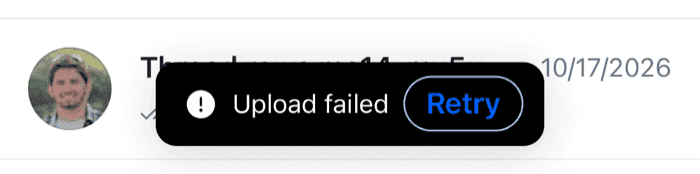 | 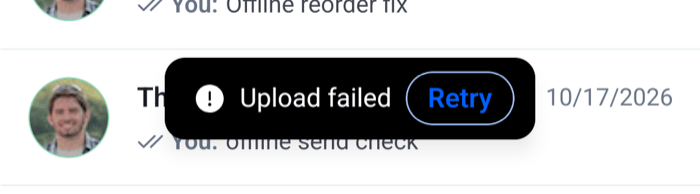 |
The card's parts are container, contentContainer, iconContainer, message, actionsContainer, actionButton and closeButton. The theme also has notification.actionButtonText, which the default card doesn't apply.
The card's background is the backgroundCoreInverse token, and its text, icon and close button are textOnInverse. A backgroundColor in notification.container changes the background only, so keep it dark enough for the light icon, or change the two tokens, which other parts of the SDK use too. Theming explains the tokens.
A snackbar of your own
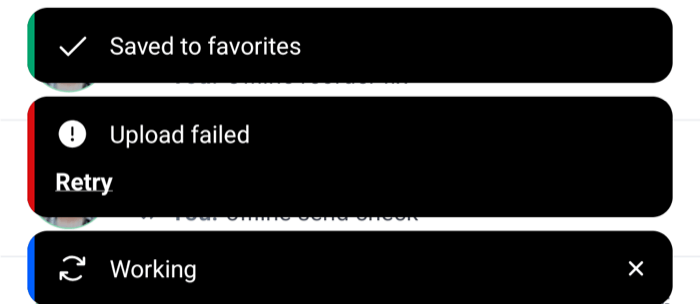
This card has a colored bar on its leading edge for the severity, the message, the notification's actions on a row of their own, and a close button:
import { Pressable, StyleSheet, Text, View } from "react-native";
import type { Notification as StreamNotification } from "stream-chat";
import {
  useComponentsContext,
  useNotificationApi,
  useTheme,
  useTranslationContext,
} from "stream-chat-react-native";
import type {
  ComponentOverrides,
  NotificationProps,
} from "stream-chat-react-native";

type Semantics = ReturnType<typeof useTheme>["theme"]["semantics"];

const severityColor = (
  notification: StreamNotification,
  semantics: Semantics,
) => {
  switch (notification.severity) {
    case "error":
      return semantics.accentError;
    case "warning":
      return semantics.accentWarning;
    case "success":
      return semantics.accentSuccess;
    default:
      return semantics.accentPrimary;
  }
};

const StripedNotification = ({
  Icon,
  notification,
  onDismiss,
  showClose,
}: NotificationProps) => {
  const { icons, NotificationIcon } = useComponentsContext();
  const { removeNotification } = useNotificationApi();
  const { t } = useTranslationContext();
  const {
    theme: { semantics },
  } = useTheme();

  const ResolvedIcon = Icon ?? NotificationIcon;
  const isError = notification.severity === "error";
  const closeVisible = showClose || !notification.duration;
  const dismiss = onDismiss ?? (() => removeNotification(notification.id));

  return (
    <View
      accessibilityLiveRegion={isError ? "assertive" : "polite"}
      accessibilityRole={isError ? "alert" : "summary"}
      style={[
        styles.card,
        { backgroundColor: semantics.backgroundCoreInverse },
      ]}
    >
      <View
        style={[
          styles.stripe,
          { backgroundColor: severityColor(notification, semantics) },
        ]}
      />
      <View style={styles.body}>
        <View style={styles.row}>
          {ResolvedIcon ? <ResolvedIcon notification={notification} /> : null}
          <Text style={[styles.message, { color: semantics.textOnInverse }]}>
            {notification.message}
          </Text>
          {closeVisible ? (
            <Pressable
              accessibilityLabel={t(
                "notifications.dismiss.accessibilityLabel",
                "Dismiss notification",
              )}
              accessibilityRole="button"
              hitSlop={8}
              onPress={dismiss}
            >
              <icons.NewClose
                height={20}
                stroke={semantics.textOnInverse}
                width={20}
              />
            </Pressable>
          ) : null}
        </View>
        {notification.actions?.length ? (
          <View style={styles.row}>
            {notification.actions.map((action) => (
              <Pressable
                accessibilityRole="button"
                key={action.label}
                onPress={action.handler}
              >
                <Text
                  style={[styles.action, { color: semantics.textOnInverse }]}
                >
                  {action.label}
                </Text>
              </Pressable>
            ))}
          </View>
        ) : null}
      </View>
    </View>
  );
};

// Pass to WithComponents, declared once at module scope.
export const notificationOverrides: ComponentOverrides = {
  Notification: StripedNotification,
};

const styles = StyleSheet.create({
  action: { fontWeight: "700", textDecorationLine: "underline" },
  body: { flex: 1, gap: 8, padding: 12 },
  card: {
    borderRadius: 12,
    flexDirection: "row",
    overflow: "hidden",
    width: "100%",
  },
  message: { flex: 1 },
  row: { alignItems: "center", flexDirection: "row", gap: 12 },
  stripe: { width: 4 },
});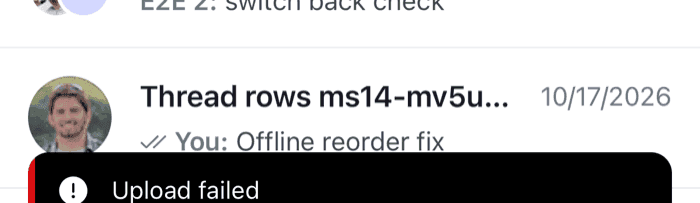 |  |
NotificationListrenders the card withnotification,onDismissandshowClose.onDismissremoves the notification from the store and frees the list for the next one. Without it, as when you render the card yourself, the card removes the notification itself throughuseNotificationApi().showCloseistruefor a notification without aduration, such as one with theloadingseverity. The card also checksdurationitself, so it behaves the same outside the list.- The icon is the
NotificationIconkey's, unless the list passesIcon. The default icon has thetextOnInversecolor, which suits the card's inverse background. A notification with no severity has no icon. notification.actionsholds buttons the publisher added, such as Retry. Each one runs itshandlerwhen pressed. The list keeps a notification with actions on screen for at least five seconds.- The dismiss label is the SDK's own translation key, so it's translated with the rest of the SDK.
The card shows notification.message as it is. The SDK's components translate their messages before they publish them, and your own code can do the same. The notifications stream-chat publishes, such as a failed upload, carry English text in message: the default card translates them by their type, through a mapping the SDK doesn't export. To keep those translated, keep the default card and change its look through the theme, or wrap it, as Replacing the list or a notification does.
A banner at the top of the list
NotificationList places the card for you. To change where it goes and how it moves, replace the list and pick the notification with useNotificationListController. It does what the default list does: it picks the notification to show, starts its timer, removes the others for the same target, and clears the target's notifications when the list unmounts. This list shows the card as a banner across the top of the message list or the channel list, and slides it in and out:
import { StyleSheet } from "react-native";
import Animated, { SlideInUp, SlideOutUp } from "react-native-reanimated";
import {
  useComponentsContext,
  useNotificationListController,
} from "stream-chat-react-native";
import type {
  ComponentOverrides,
  NotificationListProps,
} from "stream-chat-react-native";

const BannerNotificationList = ({
  filter,
  hostId,
  panel,
}: NotificationListProps) => {
  const { Notification } = useComponentsContext();
  const { dismissNotification, notification } = useNotificationListController({
    filter,
    hostId,
    panel,
  });

  if (!notification) return null;

  return (
    <Animated.View
      entering={SlideInUp.duration(200)}
      exiting={SlideOutUp.duration(160)}
      key={notification.id}
      pointerEvents="box-none"
      style={styles.banner}
    >
      <Notification
        notification={notification}
        onDismiss={dismissNotification}
        showClose={!notification.duration}
      />
    </Animated.View>
  );
};

// Pass to WithComponents, declared once at module scope.
export const notificationListOverrides: ComponentOverrides = {
  NotificationList: BannerNotificationList,
};

const styles = StyleSheet.create({
  banner: { left: 8, position: "absolute", right: 8, top: 8, zIndex: 20 },
});- The list passes
filteron, so the filterMessageListadds, which hides the upload failures a user causes by removing an attachment, still applies. It ignoresbottomOffset, which matters only at the bottom. key={notification.id}gives each notification its own view, so one leaving slides out while the next slides in.- The banner renders the
Notificationkey, so it shows the default card, or the striped card above when both overrides are registered. - Reanimated's animations follow the system's reduce-motion setting by default, so with reduced motion on, the banner appears and leaves without sliding.
The message list shows its "Waiting for network..." and "Reconnecting..." bar at the same place, at the top of the list. A banner shown while the connection is down covers it; move one of them, with the banner's top style or with the NetworkDownIndicator key as Connection status shows.
For the default list at the top without your own motion, register a NotificationList that renders the default one with the props it receives and verticalAlignment="top" and enterFrom="top" instead, as Replacing the list or a notification does. The lists render the key without those props, so they can't be passed from outside.
Several notifications at once
useNotificationListController shows one notification and removes the others for its target, so a list that stacks them reads the notifications with useNotifications instead, and does the rest of the controller's work itself. This list shows the newest three, one above the other:
import { useCallback, useEffect, useRef } from "react";
import { StyleSheet, View } from "react-native";
import type { Notification as StreamNotification } from "stream-chat";
import {
  hasSystemNotificationTag,
  isNotificationForTarget,
  registerActiveNotificationTarget,
  resolveNotificationTargetTagIfNeeded,
  useChatContext,
  useComponentsContext,
  useNotificationApi,
  useNotifications,
  useResolvedNotificationTarget,
} from "stream-chat-react-native";
import type {
  ComponentOverrides,
  NotificationListProps,
} from "stream-chat-react-native";

const MAX_VISIBLE = 3;
const ACTION_DURATION = 5000;

const StackedNotificationList = ({
  bottomOffset = 0,
  filter,
  hostId,
  panel,
}: NotificationListProps) => {
  const { client } = useChatContext();
  const { Notification } = useComponentsContext();
  const { removeNotification, startNotificationTimeout } = useNotificationApi();
  const target = useResolvedNotificationTarget({ hostId, panel });
  const startedIds = useRef(new Set<string>());

  const isShown = useCallback(
    (notification: StreamNotification) =>
      !hasSystemNotificationTag(notification) &&
      (filter ? filter(notification) : true),
    [filter],
  );
  const notifications = useNotifications({
    filter: isShown,
    requireTarget: true,
    target,
  });

  // A notification published without a target gets the target of the list
  // mounted last, as with the default list.
  useEffect(
    () =>
      client.notifications.store.addPreprocessor((next, previous) => {
        const known = new Set(previous?.notifications.map(({ id }) => id));
        next.notifications.forEach((notification) => {
          if (known.has(notification.id)) return;
          if (hasSystemNotificationTag(notification)) return;
          resolveNotificationTargetTagIfNeeded(
            client.notifications,
            notification,
          );
        });
      }),
    [client],
  );

  useEffect(() => {
    if (!target) return;
    return registerActiveNotificationTarget(client.notifications, target);
  }, [client, target]);

  // Starts each timer once. Starting it again would restart the countdown.
  useEffect(() => {
    const ids = new Set(notifications.map(({ id }) => id));
    startedIds.current.forEach((id) => {
      if (!ids.has(id)) startedIds.current.delete(id);
    });
    notifications.forEach((notification) => {
      if (startedIds.current.has(notification.id)) return;
      startedIds.current.add(notification.id);
      const keepForActions =
        notification.duration && notification.actions?.length
          ? Math.max(notification.duration, ACTION_DURATION)
          : undefined;
      startNotificationTimeout(notification.id, keepForActions);
    });
  }, [notifications, startNotificationTimeout]);

  // Clears this target's notifications when the list unmounts.
  useEffect(() => {
    if (!target) return;
    return () => {
      client.notifications.notifications
        .filter(
          (notification) =>
            !hasSystemNotificationTag(notification) &&
            isNotificationForTarget(notification, target),
        )
        .forEach(({ id }) => removeNotification(id));
    };
  }, [client, removeNotification, target]);

  if (!notifications.length) return null;

  return (
    <View
      pointerEvents="box-none"
      style={[styles.stack, { bottom: 16 + bottomOffset }]}
    >
      {notifications.slice(-MAX_VISIBLE).map((notification) => (
        <Notification
          key={notification.id}
          notification={notification}
          showClose={!notification.duration}
        />
      ))}
    </View>
  );
};

// Pass to WithComponents, declared once at module scope.
export const stackedNotificationListOverrides: ComponentOverrides = {
  NotificationList: StackedNotificationList,
};

const styles = StyleSheet.create({
  stack: { gap: 8, left: 16, position: "absolute", right: 16, zIndex: 20 },
});useNotificationswithrequireTargetand the list'stargetreturns only the notifications for this list, so each list in the app shows its own. Without a target, outside the components that provide one, such asChannelandChannelList, it returns none.filterkeeps the notificationsuseNotificationsreturns to the ones this list shows. Here it drops system notifications, which aren't snackbars, and applies thefilterthe list receives.- The list registers its target with
registerActiveNotificationTarget. The preprocessor gives a notification published without a target, such as one fromstream-chat, the target of the list registered last, unless the composer or a running action supplies one. - The manager doesn't start a notification's timer when it's added.
startNotificationTimeoutstarts it, and starting it again restarts the countdown, so the list remembers which timers it started. A notification with actions stays for at least five seconds, as in the default list. One without adurationstays until the user closes it. - The cards are rendered without
onDismiss, so each one removes its notification itself when its close button is pressed. - The default list removes its target's notifications when it unmounts, so a notification that's still waiting doesn't show up the next time the screen opens. This one does too.
Register stackedNotificationListOverrides in place of notificationListOverrides below.
Register them
Wrap the app, or the part that should use them, in WithComponents:
import type { PropsWithChildren } from "react";
import type { StreamChat } from "stream-chat";
import { Chat, WithComponents } from "stream-chat-react-native";
import type { ComponentOverrides } from "stream-chat-react-native";
import { notificationListOverrides } from "./BannerNotificationList";
import { notificationOverrides } from "./StripedNotification";

// Declared once: WithComponents reads its overrides when it mounts.
const overrides: ComponentOverrides = {
  ...notificationOverrides,
  ...notificationListOverrides,
};

export const ChatWithBanners = ({
  children,
  client,
}: PropsWithChildren<{ client: StreamChat }>) => (
  <WithComponents overrides={overrides}>
    <Chat client={client}>{children}</Chat>
  </WithComponents>
);MessageList, MessageFlashList, ChannelList and ThreadList render the NotificationList key, so the banner shows on each of them. The screens of channel details render the default list directly, so they keep the default snackbar, with your card inside it.
A message list of your own doesn't render a notification list. Render <NotificationList /> next to it, inside Channel or Thread, which provide the notification target it shows. Notification lists and targets lists the targets.