















Livestream message list
A livestream chat is a busy channel with a large audience: many messages a second, from people who mostly read, next to a video. This UI cookbook builds that screen. It turns off the events the audience doesn't need, keeps an unread count on the device, limits how often and how much the message list renders, and lays the chat out under or over the video. The settings themselves are explained in Performance.
Best practices
- Turn read, typing and connect events off for the channel type, on the server. An event that isn't sent costs nothing.
- Keep read events off, and count unread messages on the device with
localUnreadCountEnabledif the UI needs a count. - Cap the loaded messages with
maxLoadedItems, so a long stream doesn't keep every message in memory. - Raise
stateThrottleMsfor livestream channels only, and check that the chat still feels live. - Use
MessageFlashListwithisLiveStreaming, and measure in a release build on a real device. - Leave out what a stream audience doesn't use, such as threads.
The channel type
Each channel type has settings on the server that apply to all its channels. For a livestream, turn off these in the Stream Dashboard:
- Read events. Read state for thousands of viewers is costly, and no one looks at who read a message in a stream.
- Typing events. With many people typing at once, a typing indicator says nothing.
- Connect events. The presence events sent when members connect and disconnect.
Without read events, Channel doesn't mark the channel read and the list shows no unread notification, unless the device counts unread messages itself, as below. Channel settings lists what each setting costs, and Slow mode limits how often each viewer can send.
The client settings
The rest is set on the client, once, right after you create it:
import type { StreamChat } from "stream-chat";

export const configureLivestreams = (client: StreamChat) => {
  // Count unread messages on the device in channels without read events.
  client.config.set({
    channel: { readEvents: { localUnreadCountEnabled: true } },
  });

  // Livestream channels only: render less often, and keep fewer messages.
  client.config.setSetupFunction("channel", ({ channel }) => {
    if (channel.type !== "livestream") return;
    channel.messagePaginator.updateConfig({
      maxLoadedItems: 300,
      stateThrottleMs: 1000,
    });
  });
};localUnreadCountEnabledmakes the client count new messages in channels without read events. The count lives in the user's own read state, so the scroll-to-bottom button shows it in its badge and the unread notification shows. When the SDK would mark the channel read, it callsChannel.markReadLocally()instead, which resets the count and sends nothing. It's off by default, and channels with read events on ignore it. Turning read events off covers it.stateThrottleMssets how often the message list publishes new messages and reactions from other users: at most once every 500 ms by default, here once a second. The user's own sends and reactions, loading a page and jumping publish at once. Other people's messages appear up to a second later, in batches.maxLoadedItemscaps the messages the list keeps. Once the newest messages hold more than the cap, the oldest are dropped as new ones arrive, and scrolling back loads them again. The lists pause the cap while the user reads near the oldest loaded message. It's off by default.
readEvents is a channel setting, so it applies to every channel; a channel has no updateConfig(). The paginator settings go through the channel setup function instead, which runs for every channel the client has and every one it creates later, so they apply to livestream channels only. livestream is the name of Stream's built-in livestream type; use the name of yours. Throttling and the memory cap explains both paginator settings, and Configuration the setup functions.
The message list
MessageFlashList renders the messages with FlashList from @shopify/flash-list, which you install. It reuses the views of rows that scroll out for the rows that scroll in, where MessageList creates a view for every message. isLiveStreaming tunes either list for many messages a second: it renders the messages at most once per frame, and reports scrolling every frame. Both are experimental.
import { useCallback } from "react";
import type { ReactNode } from "react";
import { StyleSheet, View } from "react-native";
import type { Channel as StreamChannel } from "stream-chat";
import {
  Channel,
  MessageComposer,
  MessageFlashList,
  messageActions as defaultMessageActions,
} from "stream-chat-react-native";
import type { MessageActionsProp } from "stream-chat-react-native";

export const LivestreamChat = ({
  channel,
  video,
}: {
  channel: StreamChannel;
  video: ReactNode;
}) => {
  // The stream has no threads, so the menu has no Thread Reply.
  const messageActions = useCallback<MessageActionsProp>(
    (params) =>
      defaultMessageActions(params).filter(
        (action) => action.actionType !== "threadReply",
      ),
    [],
  );

  return (
    <View style={styles.screen}>
      <View style={styles.video}>{video}</View>
      <View style={styles.chat}>
        <Channel channel={channel} messageActions={messageActions}>
          <MessageFlashList isLiveStreaming />
          <MessageComposer />
        </Channel>
      </View>
    </View>
  );
};

const styles = StyleSheet.create({
  chat: { flex: 2 },
  screen: { flex: 1 },
  video: { aspectRatio: 16 / 9, backgroundColor: "black" },
}); | 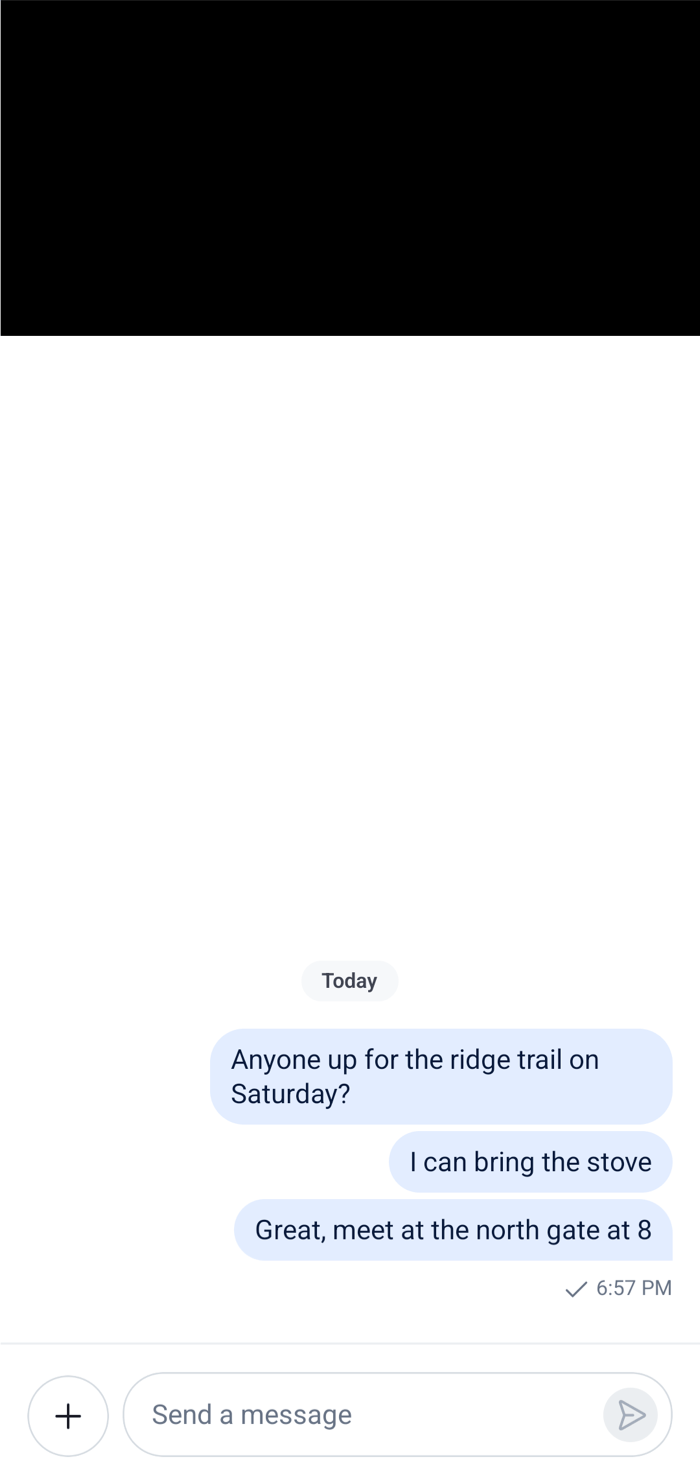 |
Pass your video player as video. The chat takes the space under it.
- The list is given no
onThreadSelect, so the replies button and Thread Reply would do nothing. The function removes Thread Reply from the message menu. To stop replies altogether, turn them off for the channel type on the server. Channelmarks the channel read, here locally, when it opens with unread messages, and the list does so again whenever a new message arrives while the user is at the newest message.MessageFlashListthrows when@shopify/flash-listisn't installed.MessageListworks the same way here, without it: withisLiveStreaming, it also scrolls to a new message while the user is within 300 points of the newest one, instead of 10.- When the message menu closes, the message animates back into the list, and can pass over the video above it. To keep the video drawn above it, wrap the video's view in
PortalWhileClosingView, as Fixed UI above a closing menu explains.
MessageList and MessageFlashList lists the differences between the two lists.
Chat over the video
A common layout puts the chat over the video, in the lower part of the screen. The list's background is the messageList.container style of the theme, so a transparent one lets the video show through. Give the bubbles a background of their own, so the messages stay readable over any frame. A ThemeProvider around the list applies both to this list only:
import type { PropsWithChildren } from "react";
import { StyleSheet, View } from "react-native";
import type { Channel as StreamChannel } from "stream-chat";
import {
  Channel,
  MessageComposer,
  MessageFlashList,
  ThemeProvider,
  useTheme,
} from "stream-chat-react-native";
import type { DeepPartial, Theme } from "stream-chat-react-native";

// Declared once, so the theme isn't merged again on every render.
const overVideo: DeepPartial<Theme> = {
  messageList: { container: { backgroundColor: "transparent" } },
  semantics: {
    chatBgIncoming: "rgba(0, 0, 0, 0.55)",
    chatBgOutgoing: "rgba(0, 0, 0, 0.7)",
    chatTextIncoming: "#FFFFFF",
    chatTextOutgoing: "#FFFFFF",
  },
};

const OverVideoTheme = ({ children }: PropsWithChildren) => {
  const { theme } = useTheme();

  return (
    <ThemeProvider style={overVideo} theme={theme}>
      {children}
    </ThemeProvider>
  );
};

export const OverlayLivestreamChat = ({
  channel,
  children,
}: PropsWithChildren<{ channel: StreamChannel }>) => (
  <View style={styles.screen}>
    {/* The video player, filling the screen. */}
    <View style={StyleSheet.absoluteFill}>{children}</View>
    <View style={styles.chat}>
      <Channel channel={channel}>
        <OverVideoTheme>
          <MessageFlashList isLiveStreaming />
        </OverVideoTheme>
        <MessageComposer />
      </Channel>
    </View>
  </View>
);

const styles = StyleSheet.create({
  chat: { bottom: 0, height: "45%", left: 0, position: "absolute", right: 0 },
  screen: { backgroundColor: "black", flex: 1 },
});ThemeProviderwiththememergesstyleover the theme it's given, here the app's theme fromuseTheme(). Only the list below it sees the transparent background and the dark bubbles. The composer keeps the app's theme.- The values are used as written, so the bubbles keep these colors in both color schemes.
- The message menu still opens over the whole screen, from the app's
OverlayProvider.
Theme object explains ThemeProvider, and Incoming and outgoing styles the bubble tokens. The Channel backgrounds UI cookbook puts an image behind a message list the same way.
Read more
- Performance: page size, throttling, the memory cap and measuring.
- Read state and unread counts: what counts as unread, and the local count.
- Message list UI: what the list renders and when it loads.