















Commands UI
This UI cookbook builds a command UI for the composer. When the user picks a command, such as /giphy, a bar above the input shows the command, what it does and the arguments it takes, with a button that cancels it. Sending posts the command with its name, so /giphy cats reaches the server as /giphy cats and not as cats. How commands work, from the suggestions to the Giphy preview, is explained in Commands and Giphy.
Best practices
- Install the command middleware before you build the UI. Without them, a command picked from the suggestions is sent as plain text.
- Register the composer setup function once, and return a teardown that removes what it inserted.
- Keep all composer setup in one function. A client has one setup function per kind of object, so a second call replaces the first.
- Read the active command from
textComposer.statewith a selector declared at module scope. - Cancel a command with
TextComposer.clearCommand(), which puts back the content the composer held before the command. - Keep
AutoCompleteInputat the same place in the tree whether a command is active or not, so the input keeps its focus.
Install the command middleware
setupCommandUIMiddlewares(composer) inserts four middleware. Two write the command's name back in front of the text when the message is sent and when a draft is saved. The other two keep the command suggestions from opening again while a command is active, and take the command out of the text when the user types it in full. The SDK exports the function but doesn't call it, so call it in the composer setup function:
import type { StreamChat } from "stream-chat";
import { setupCommandUIMiddlewares } from "stream-chat-react-native";

export const setUpComposers = (client: StreamChat) =>
  client.config.setSetupFunction("messageComposer", ({ composer }) => {
    setupCommandUIMiddlewares(composer);

    return () => {
      composer.compositionMiddlewareExecutor.remove(
        "stream-io/message-composer-middleware/command-string-injection",
      );
      composer.draftCompositionMiddlewareExecutor.remove(
        "stream-io/message-composer-middleware/draft-command-string-injection",
      );
      composer.textComposer.middlewareExecutor.remove([
        "stream-io/text-composer/active-command-guard",
        "stream-io/text-composer/command-string-extraction",
      ]);
    };
  });
The setup function runs for every composer that exists when you register it, and for every composer created later: the channel's, a thread's and the one that edits a message. It runs again on the same composer when the setup function is replaced, and the previous one's teardown runs first. setupCommandUIMiddlewares passes unique: true only when it inserts the first of the four, so without the teardown, a second run inserts the other three twice. The ids are explained in Composer middleware.
Register it once the client exists, before any Channel renders:
import { useEffect } from "react";
import type { PropsWithChildren } from "react";
import {
  Chat,
  OverlayProvider,
  useCreateChatClient,
} from "stream-chat-react-native";
import { setUpComposers } from "./src/setUpComposers";

const apiKey = "YOUR_API_KEY";
const userId = "YOUR_USER_ID";
const userToken = "YOUR_USER_TOKEN";

export const ChatRoot = ({ children }: PropsWithChildren) => {
  const client = useCreateChatClient({
    apiKey,
    tokenOrProvider: userToken,
    userData: { id: userId },
  });

  useEffect(() => {
    if (client) setUpComposers(client);
  }, [client]);

  if (!client) return null;

  return (
    <OverlayProvider>
      <Chat client={client}>{children}</Chat>
    </OverlayProvider>
  );
};
If your app already has a composer setup function, for example for emoji suggestions, add the call and the teardown to it instead.
Build the command bar
The command chip is part of InputView, which renders the chip, the text input AutoCompleteInput, and in a thread the also-send-to-channel checkbox. This InputView renders a bar in the chip's place:
import { Pressable, StyleSheet, Text, View } from "react-native";
import type { TextComposerState } from "stream-chat";
import {
  AutoCompleteInput,
  ShowThreadMessageInChannelButton,
  useMessageComposer,
  useStateStore,
  useTheme,
} from "stream-chat-react-native";
import type { InputViewProps } from "stream-chat-react-native";

const commandSelector = ({ command }: TextComposerState) => ({ command });

export const CommandInputView = (props: InputViewProps) => {
  const { textComposer } = useMessageComposer();
  const { command } = useStateStore(textComposer.state, commandSelector);
  const {
    theme: { semantics },
  } = useTheme();

  return (
    <View style={styles.container}>
      {command ? (
        <View
          style={[
            styles.bar,
            { borderBottomColor: semantics.borderCoreDefault },
          ]}
        >
          <View style={styles.details}>
            <Text style={[styles.name, { color: semantics.textPrimary }]}>
              /{command.name} {command.args}
            </Text>
            {command.description ? (
              <Text style={{ color: semantics.textSecondary }}>
                {command.description}
              </Text>
            ) : null}
          </View>
          <Pressable
            accessibilityLabel={`Cancel /${command.name}`}
            accessibilityRole="button"
            hitSlop={8}
            onPress={() => textComposer.clearCommand()}
          >
            <Text style={{ color: semantics.accentPrimary }}>Cancel</Text>
          </Pressable>
        </View>
      ) : null}
      <AutoCompleteInput {...props} />
      <ShowThreadMessageInChannelButton />
    </View>
  );
};

const styles = StyleSheet.create({
  bar: {
    alignItems: "center",
    borderBottomWidth: 1,
    flexDirection: "row",
    gap: 12,
    paddingHorizontal: 16,
    paddingVertical: 8,
  },
  container: { flex: 1 },
  details: { flex: 1 },
  name: { fontWeight: "600" },
});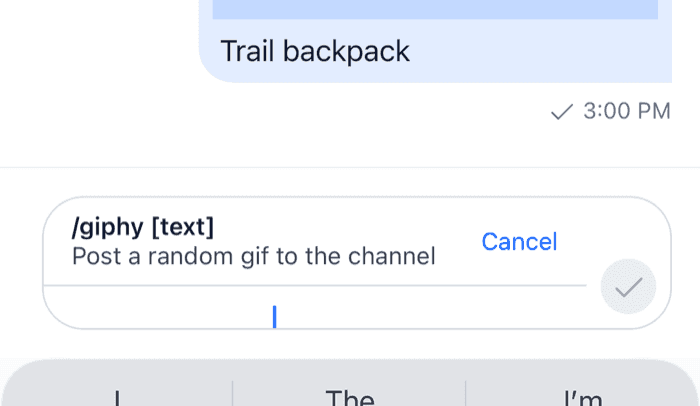 | 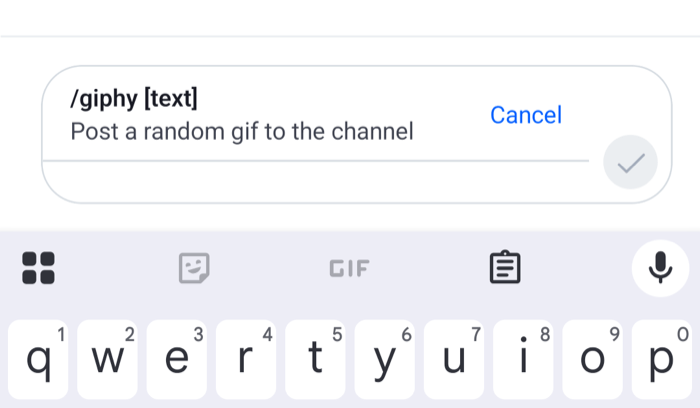 |
The command comes from the channel type's configuration on the server, with its name, its args, such as [text] for giphy, and its description. Here is what the composer does around the bar:
- Picking a command, from the suggestions after
/or from the attachment picker, setstextComposer.command. The composer saves its content and empties itself, so the user types only the arguments. - While a command is active, the attach button is hidden and the send button shows a checkmark. Mentions still open after
@, so/mute @bobcan be completed. TextComposer.clearCommand()drops the command and puts back the attachments and other content the composer held. For a command picked from the suggestions, the text comes back empty, because it held only the/githe user typed to find it.- The input shows a placeholder for some commands: "Search GIFs" for
giphy, and@usernameforban,unban,muteandunmute.
AutoCompleteInput stays the second child of the view in both states, so React keeps the same input when the bar appears, and the keyboard stays open. props carries additionalTextInputProps from Channel or Thread. AutoCompleteInput reads them when it mounts, and doesn't update when they change later.
Register it
InputView is an override key. Declare the overrides once and pass them to WithComponents around the screens that use the bar:
import type { Channel as StreamChannel } from "stream-chat";
import {
  Channel,
  MessageComposer,
  MessageList,
  WithComponents,
} from "stream-chat-react-native";
import type { ComponentOverrides } from "stream-chat-react-native";
import { CommandInputView } from "./CommandInputView";

const overrides: ComponentOverrides = { InputView: CommandInputView };

export const ChannelScreen = ({ channel }: { channel: StreamChannel }) => (
  <WithComponents overrides={overrides}>
    <Channel channel={channel}>
      <MessageList />
      <MessageComposer />
    </Channel>
  </WithComponents>
);
A Thread on its own screen needs the same overrides. In a thread, ShowThreadMessageInChannelButton renders the also-send-to-channel checkbox under the input. In a channel it renders nothing.
Require arguments before sending
The bar shows which arguments a command takes, but the composer decides when a command can be sent. By default, /ban, /mute, /unmute and /unban need a mentioned user, /ban needs a reason too, and the others can be sent empty. To hold back /giphy until the user types a search term, register a sendValidator, as Suggestions shows. Sending a command that isn't ready publishes a warning, and nothing is sent.
Related
- Commands and Giphy covers the Giphy preview and its buttons.
- Custom suggestions changes the command rows in the suggestion list.
- Custom composer builds a composer layout that keeps
InputView, so the bar works inside it too.