















Slow mode
In slow mode, each member waits a number of seconds after sending a message before they can send the next one. This page covers what the composer shows during the wait, where the countdown comes from, and how to change it.
What users get
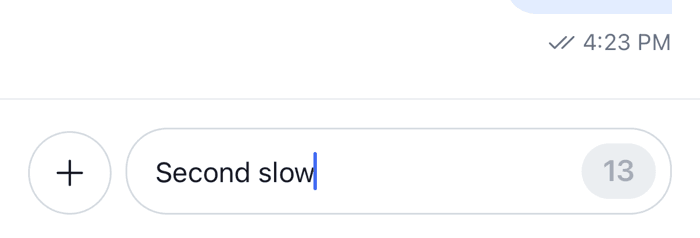
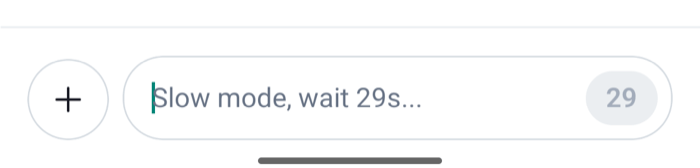
The "Announcements" channel has a cooldown of 30 seconds. The user sends a message. For the next 30 seconds their composer changes:
- The send button is replaced by the seconds left, counting down, on a disabled button.
- While the text field is empty, its placeholder says "Slow mode, wait 30s...", with the seconds counting down.
- The voice recording button is hidden.
The text field stays editable, so the user can type their next message during the wait, and the attachment button still adds attachments. They send them when the countdown reaches zero and the send button comes back. If the user closes and reopens the app during the wait, the countdown resumes from the time they sent their last message.
Moderators and admins usually don't wait: users with the skip-slow-mode capability see no countdown.
 |  |
How it works across the layers
State: the cooldown timer
The channel's data.cooldown holds the cooldown in seconds, and is unset or 0 without slow mode. Every channel has a channel.cooldownTimer, whose state store counts down for the current user:
cooldownRemainingis the whole seconds left until the user can send again,0when they can send;cooldownConfigSecondsis the channel's cooldown;canSkipCooldownis whether the user hasskip-slow-mode;ownLatestMessageTimestampis when the user last sent a message.
The timer starts from the user's latest message in the channel's message list, so loading the channel again, or a message sent from another device, starts it too. A reply sent only to a thread isn't in that list, so it doesn't start the countdown. The timer updates when the channel's cooldown or the user's capabilities change. What channels and threads hold shows the store and how to subscribe to it.
The state layer doesn't stop a send during the countdown: MessageComposer.send() doesn't check the timer. The server enforces the cooldown. A composer of your own reads cooldownRemaining to block sending, as the SDK's composer does.
UI: the composer
The parts of MessageComposer read the timer of the channel in context:
- The output buttons render
CooldownTimerin place of the send button whilecooldownRemainingis above zero.CooldownTimershows the number of seconds, which it reads withuseCooldownRemaining(). - The text input's placeholder shows the seconds left, from the same hook.
Two states of the composer take precedence over the countdown. While the user edits a message, or has a command such as /giphy in the composer, the composer shows the button that saves the edit or runs the command instead of CooldownTimer. A command can therefore be sent during the countdown, and the server decides whether to accept it. While an AI response is generating, the button that stops it shows instead of CooldownTimer too.
A thread's composer reads the same timer, its channel's, so it waits too.
Turning it on or off
Slow mode is a setting of each channel, its cooldown. Turn it on in the Chat Explorer of the Stream Dashboard, or from the client with Channel.enableSlowMode(seconds), and off with Channel.disableSlowMode():
// Members wait 30 seconds between messages.
await channel.enableSlowMode(30);

await channel.disableSlowMode();
Changing the cooldown needs the update-channel-cooldown permission, which the server's default grants give to admins and moderators. A user who has it sees set-channel-cooldown in the channel's own capabilities. Every client watching the channel gets the new value with the channel.updated event, and the countdown follows. Slow mode in the Chat API docs has the allowed range and who skips the cooldown.
Customizing
What the countdown looks like
Replace CooldownTimer through WithComponents. Your component reads the seconds with useCooldownRemaining():
import type { PropsWithChildren } from "react";
import { StyleSheet, Text, View } from "react-native";
import { useCooldownRemaining, WithComponents } from "stream-chat-react-native";

const CooldownLabel = () => {
  const secondsLeft = useCooldownRemaining();

  return (
    <View
      accessibilityLabel={`Slow mode, ${secondsLeft} seconds left`}
      accessible
      style={styles.label}
    >
      <Text>Wait {secondsLeft}s</Text>
    </View>
  );
};

// Declared outside the component, so WithComponents gets the same object on every render.
const overrides = { CooldownTimer: CooldownLabel };

export const WithCooldownLabel = ({ children }: PropsWithChildren) => (
  <WithComponents overrides={overrides}>{children}</WithComponents>
);

const styles = StyleSheet.create({
  label: { justifyContent: "center", paddingHorizontal: 8 },
});
Wrap Channel and Thread in it, or put the override in the WithComponents you already have. The countdown's container is themed as messageComposer.cooldownButtonContainer.
The placeholder text is the translation key autoCompleteInput.slowMode.placeholder, with the seconds as seconds. Localization explains how to change it.
Showing slow mode elsewhere
useCooldownRemaining() works anywhere inside a Channel or a Thread. This header badge tells members that the channel is in slow mode, and how long they still wait:
import { Text } from "react-native";
import type { ChannelStateData } from "stream-chat";
import {
  useChannel,
  useCooldownRemaining,
  useStateStore,
} from "stream-chat-react-native";

const cooldownSelector = ({ data }: ChannelStateData) => ({
  cooldown: data?.cooldown ?? 0,
});

export const SlowModeBadge = () => {
  const channel = useChannel();
  const { cooldown } = useStateStore(channel.state, cooldownSelector);
  const secondsLeft = useCooldownRemaining();

  if (!cooldown) return null;

  return (
    <Text>
      Slow mode: {cooldown}s{secondsLeft > 0 ? `, wait ${secondsLeft}s` : ""}
    </Text>
  );
};
It reads data.cooldown through useStateStore, so it updates when a moderator changes the cooldown. Reading channel.data.cooldown during render wouldn't: the getter isn't reactive. See Reading state in components.
Reference
- Composer UI components:
CooldownTimerand the other composer parts. - ComponentsContext: the
CooldownTimeroverride key. - Composer hooks:
useCooldownRemaining. - Channel and channel state:
cooldownTimer,enableSlowModeanddisableSlowMode.