# System notification banner

> **Info:** This is release candidate documentation for **Stream Chat React Native SDK v10**. For the latest stable version, see the [latest version (v9)](https://getstream.io/chat/docs/sdk/react-native/).

A system notification is about the whole app, not one screen: "Waiting for network...", or "Maintenance in 10 minutes". It carries the `system` tag, and no `NotificationList` shows it. The SDK publishes no system notifications. It shows the connection status in its own bars at the top of the message list and the channel list, as [Connection status](https://getstream.io/chat/docs/sdk/react-native/v10/features/app-experience/connection-status/) explains. This UI cookbook renders system notifications as a bar at the top of the app, with an icon per severity and an animation as it comes and goes. It then publishes the connection status as a system notification, so the bar shows it on every screen in place of the SDK's bars, and publishes a notice of the app's own. [System notifications](https://getstream.io/chat/docs/sdk/react-native/v10/ui/customizing/displaying-notifications/#system-notifications) explains the hooks this UI cookbook uses.

## Best practices

- Render the bar inside `Chat`, next to the navigator, so it shows on every screen. `useSystemNotifications` and `useNotificationApi` read `client.notifications` through `Chat`.
- Add the top safe area inset to the bar's padding, from `useSafeAreaInsets()`, so the status bar and the notch don't cover its text.
- Declare a `filter` you pass to `useSystemNotifications` at module scope. The hook builds its selector from the filter, so an inline one resubscribes on every render.
- Start the countdown of the notification the bar shows. A notification's duration counts down only after `startNotificationTimeout(id)`, which a `NotificationList` calls for the ones it shows and nothing calls for system notifications.
- Keep the connection logic in the hooks the SDK's bars use, `useNetworkConnectionStateSelector` and `useSettledWSConnectionHealth`, so the bar shows the same states at the same moments.

## Implementation

### 1. The banner

`useSystemNotifications()` returns the system notifications in the order `client.notifications` keeps them, oldest first by default. The banner shows the first. A notification with an action makes the whole bar a button:

```tsx title="src/SystemNotificationBanner.tsx"
import { useEffect } from "react";
import { ActivityIndicator, Pressable, StyleSheet, Text } from "react-native";
import Animated, { FadeInUp, FadeOutUp } from "react-native-reanimated";
import { useSafeAreaInsets } from "react-native-safe-area-context";
import type { Notification } from "stream-chat";
import {
  useComponentsContext,
  useNotificationApi,
  useSystemNotifications,
  useTheme,
} from "stream-chat-react-native";

const BannerIcon = ({ notification }: { notification: Notification }) => {
  const { icons } = useComponentsContext();
  const {
    theme: { semantics },
  } = useTheme();

  switch (notification.severity) {
    case "error":
      return (
        <icons.ExclamationCircle size={16} stroke={semantics.accentError} />
      );
    case "warning":
      return <icons.Warning size={16} stroke={semantics.accentWarning} />;
    case "success":
      return <icons.Check size={16} stroke={semantics.accentSuccess} />;
    case "info":
      return <icons.InfoTooltip size={16} stroke={semantics.textPrimary} />;
    case "loading":
      return <ActivityIndicator color={semantics.textPrimary} size="small" />;
    default:
      return null;
  }
};

export const SystemNotificationBanner = () => {
  const [notification] = useSystemNotifications();
  const { startNotificationTimeout } = useNotificationApi();
  const { top } = useSafeAreaInsets();
  const {
    theme: { semantics },
  } = useTheme();

  // A notification with a duration goes away once it has been on screen that long.
  useEffect(() => {
    if (notification) startNotificationTimeout(notification.id);
  }, [notification, startNotificationTimeout]);

  if (!notification) return null;

  const action = notification.actions?.[0];

  return (
    <Animated.View
      entering={FadeInUp}
      exiting={FadeOutUp}
      // A new notification enters as the previous one leaves.
      key={notification.id}
      style={[
        styles.container,
        {
          backgroundColor: semantics.backgroundCoreSurfaceDefault,
          paddingTop: top + 8,
        },
      ]}
    >
      <Pressable
        accessibilityLiveRegion="polite"
        accessibilityRole={action ? "button" : "summary"}
        disabled={!action}
        onPress={action?.handler}
        style={styles.content}
      >
        <BannerIcon notification={notification} />
        <Text
          numberOfLines={1}
          style={[styles.message, { color: semantics.textPrimary }]}
        >
          {notification.message}
        </Text>
      </Pressable>
    </Animated.View>
  );
};

const styles = StyleSheet.create({
  container: {
    left: 0,
    paddingBottom: 8,
    paddingHorizontal: 12,
    position: "absolute",
    right: 0,
    top: 0,
  },
  content: {
    alignItems: "center",
    flexDirection: "row",
    gap: 8,
    justifyContent: "center",
  },
  message: { flexShrink: 1, fontSize: 12, fontWeight: "600" },
});
```

<table>
  <tr>
  <td align='center' width='50%'>

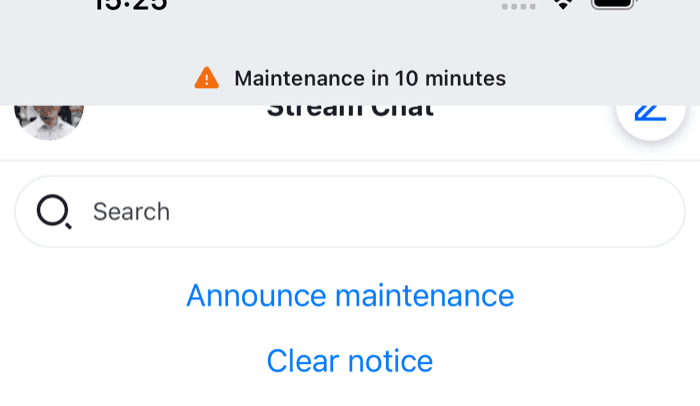
![A banner over the top of the screen reading Maintenance in 10 minutes on iOS](https://getstream.io/docs-assets/images/65aae9b80f7c.png)

  </td>
  <td align='center' width='50%'>

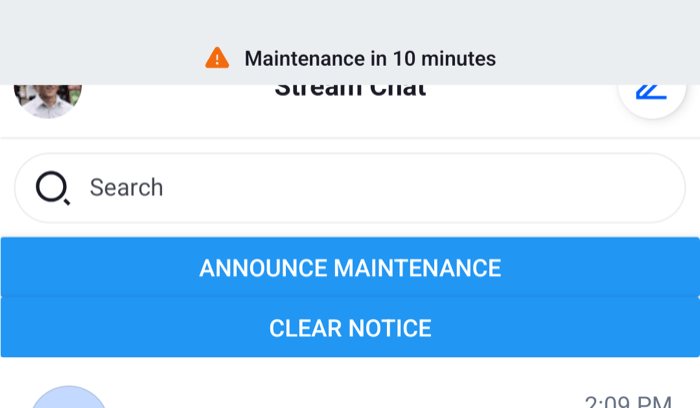
![A banner over the top of the screen reading Maintenance in 10 minutes on Android](https://getstream.io/docs-assets/images/de9714beeaea.png)

  </td>
  </tr>
</table>

While it shows, the bar lies over the top of the screen: the status bar area and the top of the navigator's header. The screens under it keep their layout, so nothing jumps when it comes and goes.

The icons come from `useComponentsContext()`, so icons you replace with `WithComponents` show here too. `entering` and `exiting` are Reanimated layout animations. When the notification is removed, the component renders nothing and Reanimated plays `FadeOutUp` before the bar leaves the screen.

To show only some system notifications, pass a module-scope `filter`. To show several at once, map over the array.

### 2. Publishing the connection status

This component publishes a system notification while the client can't reach Stream, and removes it when the connection is back. It reads the same two facts as the SDK's bars: whether the device has a network, and whether the connection to Stream is up, with drops shorter than `offlineNotificationDisplayDelayMs`, five seconds by default, ignored. It renders nothing:

```tsx title="src/ConnectionNotifier.tsx"
import { useEffect } from "react";
import type { NetworkConnectionState } from "stream-chat";
import {
  useNetworkConnectionStateSelector,
  useNotificationApi,
  useSettledWSConnectionHealth,
  useTranslationContext,
} from "stream-chat-react-native";

const isOnlineSelector = ({ isOnline }: NetworkConnectionState) => ({
  isOnline,
});

export const ConnectionNotifier = () => {
  const { addSystemNotification, removeNotification } = useNotificationApi();
  const { t } = useTranslationContext();
  const { isOnline } =
    useNetworkConnectionStateSelector(isOnlineSelector) ?? {};
  const isConnected = useSettledWSConnectionHealth();

  // `=== false`: `undefined` means the network status isn't known yet.
  const message =
    isOnline === false
      ? t("common.waitingForNetwork.text", "Waiting for network...")
      : !isConnected
        ? t("common.reconnecting.text", "Reconnecting...")
        : undefined;

  useEffect(() => {
    if (!message) return;

    const id = addSystemNotification({
      message,
      options: { severity: "loading", type: "app:connection:lost" },
      origin: { emitter: "ConnectionNotifier" },
    });

    return () => removeNotification(id);
  }, [addSystemNotification, message, removeNotification]);

  return null;
};
```

The texts are the SDK's own translation keys, so a language you register for the SDK translates them too. A `loading` notification has no duration, so it stays until the effect's cleanup removes it: when the connection is back, or when the message changes from "Waiting for network..." to "Reconnecting...". [Connection status](https://getstream.io/chat/docs/sdk/react-native/v10/features/app-experience/connection-status/#a-status-of-your-own) explains the two hooks.

### 3. Mount inside `Chat`

Render the banner and the notifier inside `Chat`, after the navigator, in a view that fills the screen. The overrides hide the SDK's two connection bars, which would repeat the banner:

```tsx title="src/ChatWithBanner.tsx"
import type { PropsWithChildren } from "react";
import { StyleSheet, View } from "react-native";
import type { StreamChat } from "stream-chat";
import { Chat, WithComponents } from "stream-chat-react-native";
import type { ComponentOverrides } from "stream-chat-react-native";
import { ConnectionNotifier } from "./ConnectionNotifier";
import { SystemNotificationBanner } from "./SystemNotificationBanner";

// Declared once: WithComponents reads its overrides when it mounts.
const overrides: ComponentOverrides = {
  ChannelListHeaderNetworkDownIndicator: () => null,
  NetworkDownIndicator: () => null,
};

export const ChatWithBanner = ({
  children,
  client,
}: PropsWithChildren<{ client: StreamChat }>) => (
  <WithComponents overrides={overrides}>
    <Chat client={client}>
      <View style={styles.container}>
        {children}
        <ConnectionNotifier />
        <SystemNotificationBanner />
      </View>
    </Chat>
  </WithComponents>
);

const styles = StyleSheet.create({
  container: { flex: 1 },
});
```

Use `ChatWithBanner` in place of `Chat`, inside `OverlayProvider`, with your `NavigationContainer` as its child, as on [Navigation](https://getstream.io/chat/docs/sdk/react-native/v10/ui/layout/navigation/#where-the-providers-go). The banner comes after the navigator, so it's drawn above the screens.

## Publishing your own system notifications

`addSystemNotification` from `useNotificationApi()` publishes one, anywhere inside `Chat`. It adds the `system` tag and no target tags, so the banner shows it and no `NotificationList` does. It takes the same payload as `addNotification`, without the `target` and `targetPanels` options, and returns the notification's id:

```tsx title="src/MaintenanceNotice.tsx"
import { useRef } from "react";
import { Button, View } from "react-native";
import { useNotificationApi } from "stream-chat-react-native";

export const MaintenanceNotice = () => {
  const { addSystemNotification, removeNotification } = useNotificationApi();
  const notificationId = useRef<string | null>(null);

  const show = () => {
    notificationId.current = addSystemNotification({
      message: "Maintenance in 10 minutes",
      // A duration of 0 keeps it until it's removed.
      options: {
        duration: 0,
        severity: "warning",
        type: "app:maintenance:upcoming",
      },
      origin: { emitter: "MaintenanceNotice" },
    });
  };

  const hide = () => {
    if (notificationId.current) removeNotification(notificationId.current);
    notificationId.current = null;
  };

  return (
    <View>
      <Button onPress={show} title="Announce maintenance" />
      <Button onPress={hide} title="Clear notice" />
    </View>
  );
};
```

Without a `duration`, the severity's default applies: three seconds for `error`, `warning`, `info` and `success`, counted from when the banner starts it. `tags` you pass are added to the `system` tag. `message` is shown as it is, so translate it before you publish it. While the connection notification is up too, the banner shows whichever was published first.

## Read more

- [Displaying notifications](https://getstream.io/chat/docs/sdk/react-native/v10/ui/customizing/displaying-notifications/): the notification lists, routing and translating notifications.
- [Snackbar](https://getstream.io/chat/docs/sdk/react-native/v10/ui-cookbook/app/snackbar/): restyling the notifications the lists show.
- [Connection status](https://getstream.io/chat/docs/sdk/react-native/v10/features/app-experience/connection-status/): the states behind the connection notification, and what screen readers hear.

---

For the most recent version of this documentation, visit [https://getstream.io/chat/docs/sdk/react-native/v10/ui-cookbook/app/system-notification-banner/](https://getstream.io/chat/docs/sdk/react-native/v10/ui-cookbook/app/system-notification-banner/).