















Selecting Channels
Deprecated.
SelectedChannelMenuis@Deprecatedand will be removed in v8. UseChannelActionsSheetinstead — it's a public@Composablebuilt on Material 3'sModalBottomSheetwith drag handle, swipe-to-dismiss, scrim, and corner radius baked in. The factoryChatComponentFactory.ChannelMenualready delegates to the new sheet, soChannelsScreenintegrators pick up the new rendering automatically.
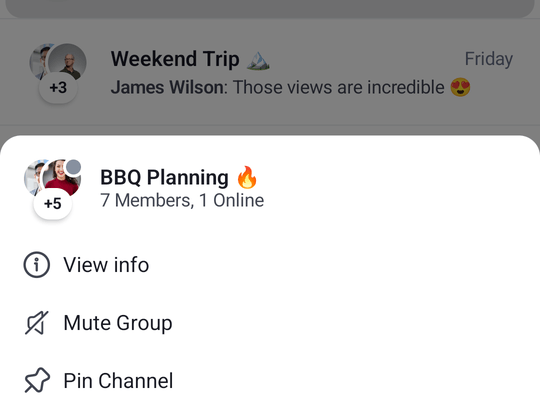
The SelectedChannelMenu component displays information about a selected Channel and provides actions the user can take. It shows:
- Channel name: The formatted name of the selected channel, with inline muted and/or pinned icons when the channel is in those states. The default header derives them from
selectedChannel.isPinned()and the current user's mute settings (channel-level mute, or — for a DM — the counterpart user's mute) — no extra parameters to pass. - Channel members: Avatars of the channel members.
- Member status: Online/offline status or member count.
- Channel options: Actions like "View Info", "Pin/Unpin Chat", "Mute/Unmute Channel", "Leave Group", or "Delete Conversation" based on user permissions. "Pin Chat" and "Archive Chat" are opt-in via
ChannelOptionsVisibility.isPinChannelVisibleandisArchiveChannelVisible(both default tofalse).
Let's see how to use the SelectedChannelMenu in your code.
Usage
If you're using the ChannelScreen component, you don't have to do anything. The SelectedChannelMenu component and its logic will be integrated into the UI.
If you're looking to build a custom UI, you can add the SelectedChannelMenu component on top of your UI, like so:
val listViewModel: ChannelListViewModel by viewModels { ChannelListViewModelFactory() }

override fun onCreate(savedInstanceState: Bundle?) {
    super.onCreate(savedInstanceState)

    setContent {
        ChatTheme {
            val user by listViewModel.user.collectAsState()
            val selectedChannelState by listViewModel.selectedChannel
            val currentlySelectedChannel = selectedChannelState

            Box(modifier = Modifier.fillMaxSize()) {
                // The rest of your UI

                if (currentlySelectedChannel != null) {
                    SelectedChannelMenu(
                        modifier = Modifier
                            .fillMaxWidth()
                            .wrapContentHeight()
                            .align(Alignment.BottomCenter),
                        selectedChannel = currentlySelectedChannel,
                        currentUser = user,
                        channelActions = buildDefaultChannelActions(
                            selectedChannel = currentlySelectedChannel,
                            ownCapabilities = currentlySelectedChannel.ownCapabilities,
                            viewModel = listViewModel,
                            onViewInfoAction = { /* Handle view info */ },
                        ),
                        onChannelOptionConfirm = { listViewModel.executeOrConfirm(it) },
                        onDismiss = { listViewModel.dismissChannelAction() }
                    )
                }
            }
        }
    }
}
For the SelectedChannelMenu component to work, you need to provide selectedChannel, currentUser, and channelActions parameters.
In the example above, you fetch the data from a ChannelListViewModel that you use in the rest of the UI. But you can also provide the data manually if you decide not to use our components.
Notice how you also show the SelectedChannelMenu only if the selectedChannel is not null. This is a smart way of knowing when to show the info and when to hide it.
With a bit of extra code for the rest of the content, when selecting a channel, the snippet above will produce the following UI:
 |
|---|
This represents just the SelectedChannelMenu component, the rest of the UI can be whatever your implementation requires.
Finally, you can see a list of ChannelOptions, which are different depending on whether you're an admin for this channel or just a member. Clicking these will trigger channel actions.
Let's see how to handle these.
Handling Actions
The SelectedChannelMenu exposes two required action handlers:
@Composable
fun SelectedChannelMenu(
    ..., // State & styling
    onChannelOptionConfirm: (ChannelAction) -> Unit,
    onDismiss: () -> Unit,
)onChannelOptionConfirm: Called when the user taps on any channel option. Receives aChannelActionwhich can be one of:ViewInfo- View channel detailsMuteChannel/UnmuteChannel- Mute or unmute notificationsPinChannel/UnpinChannel- Pin or unpin the channelArchiveChannel/UnarchiveChannel- Archive or unarchive the channelLeaveGroup- Leave the group channelDeleteConversation- Delete the conversation
onDismiss: Called when the menu is dismissed (e.g., by tapping the overlay).
Here's how ChannelsScreen handles these actions internally:
SelectedChannelMenu(
    ..., // State and styling
    onChannelOptionConfirm = { action ->
        when (action) {
            is ViewInfo -> {
                listViewModel.dismissChannelAction()
                onViewChannelInfoAction(action.channel)
            }
            is MuteChannel -> listViewModel.muteChannel(action.channel)
            is UnmuteChannel -> listViewModel.unmuteChannel(action.channel)
            is PinChannel -> listViewModel.pinChannel(action.channel)
            is UnpinChannel -> listViewModel.unpinChannel(action.channel)
            is ArchiveChannel -> listViewModel.archiveChannel(action.channel)
            is UnarchiveChannel -> listViewModel.unarchiveChannel(action.channel)
            else -> listViewModel.executeOrConfirm(action)
        }
    },
    onDismiss = { listViewModel.dismissChannelAction() }
)
For destructive actions like LeaveGroup and DeleteConversation, you should show a confirmation dialog before executing the action. Here's how to handle them:
val activeAction = listViewModel.activeChannelAction

if (activeAction is LeaveGroup) {
    SimpleDialog(
        modifier = Modifier.padding(16.dp),
        title = "Leave group",
        message = "Are you sure you want to leave this group?",
        onPositiveAction = { listViewModel.leaveGroup(activeAction.channel) },
        onDismiss = { listViewModel.dismissChannelAction() },
    )
} else if (activeAction is DeleteConversation) {
    SimpleDialog(
        modifier = Modifier.padding(16.dp),
        title = "Delete conversation",
        message = "Are you sure you want to delete this conversation?",
        onPositiveAction = { listViewModel.deleteConversation(activeAction.channel) },
        onDismiss = { listViewModel.dismissChannelAction() },
    )
}
The executeOrConfirm() method either runs the action immediately or stores it in activeChannelAction for destructive actions, which you can observe to show the appropriate confirmation dialog.
Customization
The SelectedChannelMenu offers the following customization options:
@Composable
fun SelectedChannelMenu(
    ..., // State and actions
    modifier: Modifier = Modifier,
    shape: Shape = RoundedCornerShape(topStart = 16.dp, topEnd = 16.dp),
    overlayColor: Color = ChatTheme.colors.backgroundCoreScrim,
    headerContent: @Composable ColumnScope.() -> Unit = { /* Default header */ },
    centerContent: @Composable ColumnScope.() -> Unit = { /* Default options */ },
)modifier: Modifier for the root component. Useful for size, padding, and alignment.shape: Shape of the menu card. Defaults toRoundedCornerShape(topStart = 16.dp, topEnd = 16.dp)(rounded top corners). Change toRoundedCornerShape(16.dp)for a dialog style.overlayColor: Color of the background overlay. Defaults toChatTheme.colors.backgroundCoreScrim.headerContent: Content at the top of the menu. By default, delegates toChatComponentFactory.ChannelMenuHeaderContent()which shows channel name, member status text, and member avatars.centerContent: Content in the center of the menu. By default, delegates toChatComponentFactory.ChannelMenuCenterContent()which shows the list of channel actions.
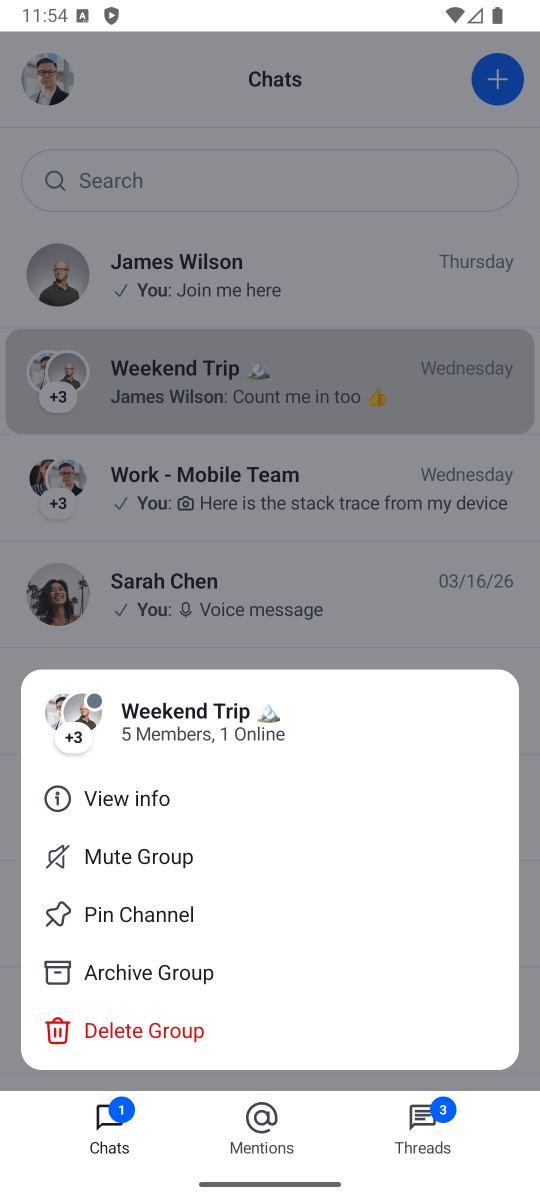
Here's an example of customizing this component to display as a card:
SelectedChannelMenu(
    modifier = Modifier
        .padding(16.dp) // Adding padding to the component
        .fillMaxWidth() // Fill width
        .wrapContentHeight() // Wrap height
        .align(Alignment.BottomCenter), // Aligning the component
    shape = RoundedCornerShape(16.dp), // Rounded corners for all sides
    ... // State
)
This code will produce the following UI:
 |
|---|
The SelectedChannelMenu component now looks more like a card that displays over other elements. This is just an example of how easy it is to apply UI customization to our components.