















Channel
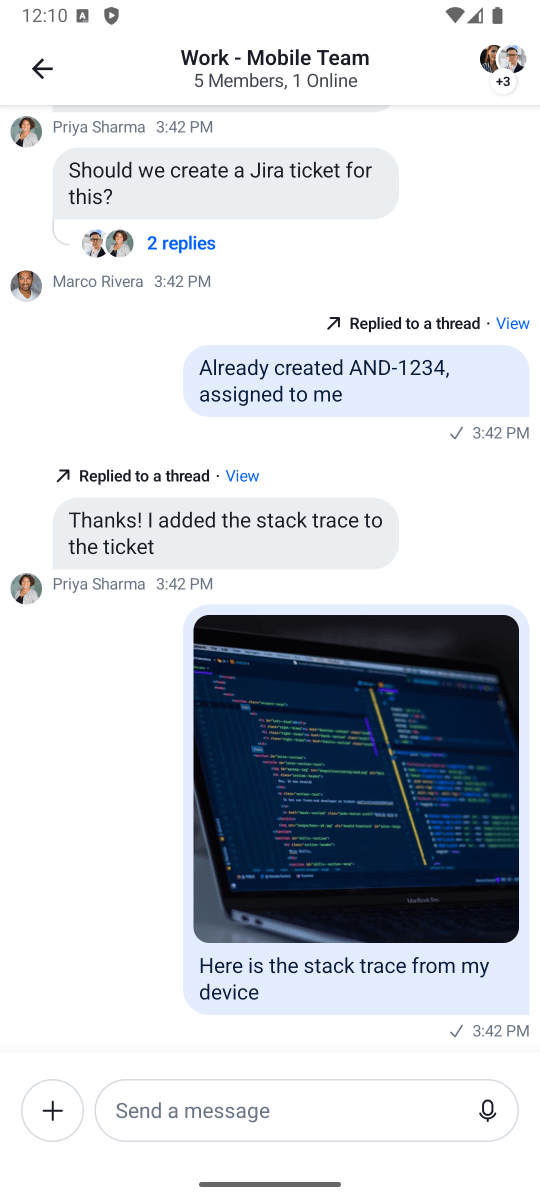
ChannelScreen is a ready-to-use chat screen that handles the entire messaging experience. Use it when you want a full-featured chat UI with minimal setup.
Included features:
- Message list: Displays messages with automatic pagination, date separators, loading states, empty states, and a scroll-to-bottom button for new messages
- Message composer: Full-featured input with text formatting, attachment buttons, voice recording, edit mode, and reply-to-message functionality
- Attachment picker: Picker for selecting images from gallery, capturing photos/videos, picking files, creating polls, or using commands
- Message actions: Long-press menu with options for reactions, reply, thread reply, copy, edit, delete, pin, and flag
- Reactions: Emoji picker for adding reactions and display of reaction counts on messages
- Thread support: Inline thread replies with automatic navigation to thread view
- Typing indicators: Shows when other users are typing in the channel
- Read receipts: Displays read status for sent messages
If you need more control over the layout or want to add custom UI elements, consider using the individual bound components like MessageList and MessageComposer instead.
Usage
The benefit of a screen component solution is easy integration. All you need to do to integrate ChannelScreen in your app is to call it within setContent() in your Activity or Fragment and pass in the ChannelViewModelFactory with your channelId:
override fun onCreate(savedInstanceState: Bundle?) {
    super.onCreate(savedInstanceState)
    // Load the ID of the channel you've opened
    val channelId = "messaging:123"

    setContent {
        ChatTheme {
            ChannelScreen(
                viewModelFactory = ChannelViewModelFactory(
                    context = this,
                    channelId = channelId
                )
            )
        }
    }
}
This renders the following UI:
Next, learn more about handling screen actions.
Handling Actions
The ChannelScreen component exposes actions for handling user interactions:
@Composable
fun ChannelScreen(
    ..., // State and customization
    onBackPressed: () -> Unit = {},
    onHeaderTitleClick: ((channel: Channel) -> Unit)? = null,
    onChannelAvatarClick: ((Channel) -> Unit)? = null,
)onBackPressed: Called when the user taps on the header back button.onHeaderTitleClick: Called when the user taps on the header title. Useful for showing the channel information.onChannelAvatarClick: Called when the user taps on the channel avatar. Receives theChannelobject. Can be used to show channel information.
Here's an example of setting up custom behavior:
ChannelScreen(
    viewModelFactory = viewModelFactory,
    onBackPressed = { finish() },
    onHeaderTitleClick = { channel ->
        // Show channel info
    },
    onChannelAvatarClick = { channel ->
        // Show channel details
    },
)
Customization
The ChannelScreen component offers several customization options:
@Composable
fun ChannelScreen(
    viewModelFactory: ChannelViewModelFactory,
    skipPushNotification: Boolean = false,
    skipEnrichUrl: Boolean = false,
    verticalArrangement: Arrangement.Vertical = Arrangement.Bottom,
    threadsVerticalArrangement: Arrangement.Vertical = Arrangement.Bottom,
    topBarContent: @Composable (BackAction) -> Unit = { ... },
    bottomBarContent: @Composable () -> Unit = { ... },
    ... // action handlers
)viewModelFactory: The factory that you build yourself. This lets you control not just the way theViewModels are built, but also their lifecycle, as you can share them between components. This requires of you to provide achannelIdin order to power the screen and show data, but it also allows you to customize the behavior of the screen through various parameters.skipPushNotification: When set totrue, sending messages from this screen will not trigger push notifications to other users. Defaults tofalse.skipEnrichUrl: When set totrue, URLs in messages will not be enriched with link previews. Defaults tofalse.verticalArrangement: Controls the vertical arrangement of messages in the list. Defaults toArrangement.Bottom.threadsVerticalArrangement: Controls the vertical arrangement of messages in thread views. Defaults toArrangement.Bottom.topBarContent: A composable slot for customizing the top bar/header content. Receives aBackActionparameter that you can use to handle back navigation. Use this to completely replace the default header with your own implementation.bottomBarContent: A composable slot for customizing the bottom bar content, which by default contains the message composer. Use this to replace or wrap the default composer with additional UI elements.
Customizing the Top Bar
You can provide a custom top bar using the topBarContent parameter:
ChannelScreen(
    viewModelFactory = viewModelFactory,
    topBarContent = { backAction ->
        // Custom header implementation
    }
)
Customizing the Bottom Bar
You can customize the bottom bar to add additional UI elements around the composer:
ChannelScreen(
    viewModelFactory = viewModelFactory,
    bottomBarContent = {
        // Custom bottomBar (composer) implementation
    }
)
Overriding the ViewModels
In case you want to control the logic when using the ChannelScreen, you can do so by providing a ChannelViewModelFactory that you use to build the respective ViewModels yourself.
Here's an example:
class MessagesActivity : ComponentActivity() {

    // 1
    private val factory by lazy {
        ChannelViewModelFactory(
            context = this,
            channelId = channelId,
            // Customization options
        )
    }

    // 2
    private val listViewModel by viewModels<MessageListViewModel>(factoryProducer = { factory })

    private val attachmentsPickerViewModel by viewModels<AttachmentsPickerViewModel>(factoryProducer = { factory })
    private val composerViewModel by viewModels<MessageComposerViewModel>(factoryProducer = { factory })

    override fun onCreate(savedInstanceState: Bundle?) {
        super.onCreate(savedInstanceState)

        setContent {
            ChatTheme {
                ChannelScreen(
                    // 3
                    viewModelFactory = factory,
                    onBackPressed = { finish() },
                )
            }
        }
    }
}
There are a few steps here that allow you to override and control the ViewModels:
- You create the
ChannelViewModelFactoryyourself, which lets you describe the data and configuration used to build theViewModels. - You lazily create an instance of the required
ViewModels. This means that you'll either build theViewModelfirst and then pass it to the Compose component, or your Compose component will create theViewModeland you'll get access to it here. - You pass in the factory to the
ChannelScreen, which allows this connection to happen.
The ViewModels should be the same and you should easily be able to react to things like item clicks, changes in the state and more.
ChannelViewModelFactory Configuration
The ChannelViewModelFactory provides configuration options for customizing the behavior of the messages screen. Behavioral settings are grouped into MessageListOptions and ComposerOptions:
ChannelViewModelFactory(
    // Required
    context = context,
    channelId = "messaging:123",

    // Navigation
    messageId = null,
    parentMessageId = null,

    // Message list behavior
    messageListOptions = MessageListOptions(
        messageLimit = 30,
        showSystemMessages = true,
        messageFooterVisibility = MessageFooterVisibility.LastInGroup,
        enforceUniqueReactions = false,
        dateSeparatorHandler = DateSeparatorHandler.getDefaultDateSeparatorHandler(),
        threadDateSeparatorHandler = DateSeparatorHandler.getDefaultThreadDateSeparatorHandler(),
        messagePositionHandler = MessagePositionHandler.defaultHandler(),
        showDateSeparatorInEmptyThread = false,
        showThreadSeparatorInEmptyThread = false,
        threadLoadOlderToNewer = false,
    ),

    // Composer behavior
    composerOptions = ComposerOptions(
        maxAttachmentCount = 30,
        linkPreviewEnabled = false,
        draftMessagesEnabled = true,
    ),

    // Features
    autoTranslationEnabled = true,
)
Required Parameters
context: Android context, used internally for clipboard operations and other system services.channelId: The ID of the channel to display messages for.
Navigation Parameters
messageId: When provided, the message list will automatically scroll to this message when opened. Useful for deep-linking to specific messages.parentMessageId: When scrolling to a message that's inside a thread, provide the parent message ID to ensure proper navigation.
MessageListOptions
Controls message display, separators, grouping, and thread behavior:
messageLimit: Number of messages to load per page. Defaults to30.showSystemMessages: Whether to display system messages (e.g., "User joined the channel"). Defaults totrue.messageFooterVisibility: Controls when message footers (timestamp, read status) are shown. Defaults toMessageFooterVisibility.LastInGroup.enforceUniqueReactions: Whentrue, users can only add one reaction of each type per message. Defaults tofalse.dateSeparatorHandler: Controls when date separators appear between messages. The default handler shows separators when messages are from different days.threadDateSeparatorHandler: Same as above but for thread message lists.messagePositionHandler: Determines message grouping and positioning (e.g., whether a message is the first, middle, or last in a group from the same user).showDateSeparatorInEmptyThread: Whether to show a date separator in threads with no replies. Defaults tofalse.showThreadSeparatorInEmptyThread: Whether to show the thread separator in threads with no replies. Defaults tofalse.threadLoadOlderToNewer: Controls the load direction for thread messages. Whenfalse(default), newer messages load first. Whentrue, older messages load first.
ComposerOptions
Controls composer behavior:
maxAttachmentCount: Maximum number of attachments allowed per message. Defaults to30.linkPreviewEnabled: Whentrue, URLs typed in the composer will show link previews. Defaults tofalse.draftMessagesEnabled: Whentrue, enables draft message support. Unsent messages are saved and restored. Defaults totrue.
Feature Parameters
autoTranslationEnabled: Whentrue, messages are automatically translated based on user language preferences. Defaults totrue.
Advanced Parameters
These parameters allow injecting custom implementations for advanced use cases:
mediaRecorder: CustomStreamMediaRecorderfor voice message recording.userLookupHandler: Custom handler for user mention lookups in the composer.clipboardHandler: Custom handler for clipboard operations (copy message).fileToUriConverter: Custom function for converting files to URI strings.
In addition to the customization options above, you can achieve a unique look and feel by modifying ChatTheme parameters.
For more information on how to do so read our Customizing Components page.