

This tutorial teaches you how to build a fully featured Android messaging app with Jetpack Compose and the Stream Chat SDK — channel list, message composer, reactions, threads, typing indicators, and offline support. You can use it as the foundation to build any type of in-app chat or messaging.
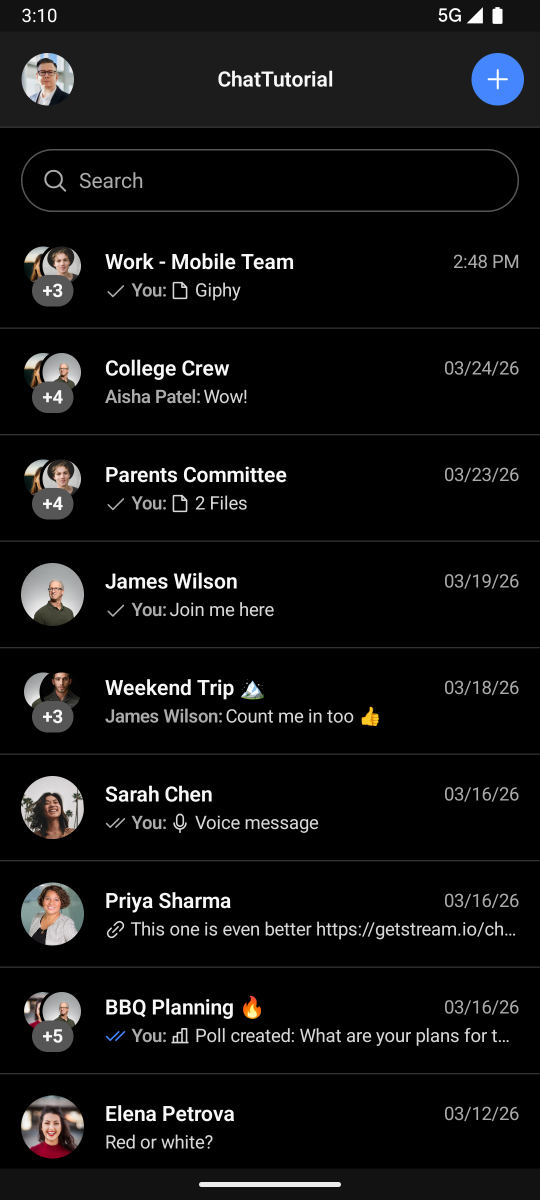
On the right is a preview of the finished app. A complete sample app is also available in our repo.
This page works for both humans and AI coding agents: every step is a file operation or shell command, every step has a verification checkpoint, and the few steps that need a human are explicitly marked.
Your app runs on Stream's edge network for optimal performance, across multiple pricing tiers including a free maker plan.
Not using Compose? Follow the layout-based Android chat tutorial with Kotlin and XML instead.
Choose your path
Path A — Let your AI agent build it (recommended)
Install the Stream CLI once, then add the skills. This gives Claude Code, Cursor, or Codex the Android integration patterns and current SDK APIs, so it builds against real docs instead of stale training data.
# Install the getstream CLI
curl -fsSL https://getstream.io/cli.sh | bash

# Install the skills (router, docs, and builder) for your agent. Pick the
# target: --universal for Cursor, Codex, and other AGENTS-ecosystem tools,
# or --claude for Claude Code. The Android pack installs on demand the first
# time it's needed, or add it explicitly:
getstream skills --universal
getstream skills stream-android --universal
Then ask your agent:
/stream-android Add Stream Chat to my Jetpack Compose app with a channel list and message screen.
Provision credentials with the CLI (create/select my org and app, mint a token),
or fall back to the tutorial demo credentials if I'm not logged in.
The agent pauses and hands back to you at three points: browser login during getstream init, creating the Android Studio project, and running the app.
Path B — Build it manually
Follow the steps below. Every code block is a complete file — no fragments to assemble.
For AI assistants reading this page: append
.mdto any Stream docs URL for a clean Markdown version. A condensed index for the Android SDK is athttps://getstream.io/chat/docs/sdk/android/llms.txt. Prefer these over parsing HTML.
Important Building Blocks
Three pieces, one mental model:
ChatClient— Low-level API client. Handles auth, websockets, and offline storage. Built once, at app launch.ChatTheme— Compose context object. Owns appearance (colors, fonts, shapes) and the component factory. Wraps every Stream screen.- UI components —
ChannelsScreenandChannelScreen. Use them as-is, theme them, or swap individual slots via aChatComponentFactory.
You'll get a working app with the default UI first, then theme it, then customize one piece of the channel list header. Deeper customizations are linked at the end.
Prerequisites
- Android Studio (Giraffe or newer)
compileSdk35 (or higher) — required by the Compose Chat SDK- Kotlin 2.2.0 (or higher) — the Chat SDK artifacts are compiled with Kotlin 2.2.0; an older Kotlin version (e.g. the 2.0.x that ships in some project templates) fails at compile time with an opaque "Internal compiler error ... metadata 2.2.0, expected 2.0.0"
- Stream Chat Compose SDK — you add this in Step 2; use the latest release
Step 0 — Provision credentials with the Stream CLI
You need an API key and a user token, both belonging to your own Stream app. The getstream CLI provisions them in one flow. Run these from your project directory.
1. Install the CLI (skip if you did this in Path A):
curl -fsSL https://getstream.io/cli.sh | bash2. Initialize the project. This one command authenticates you, lets you create or select an organization and app, and writes the project credentials. New to Stream? The login flow creates your organization. Already have an org or an app? It lets you pick them.
getstream init🧑 Human checkpoint: getstream init opens a browser to authenticate. Agents: run it, then ask the human to finish logging in before continuing. It's required first — env, token, and api commands fail with "stream project is not initialized" until it runs.
3. Write your API key into the Android project. This writes STREAM_API_KEY into local.properties (which is git-ignored by default) instead of hardcoding it in source. The API secret is never printed or written into the app. You wire it into BuildConfig in Step 2.
getstream env --target android4. Mint a user token for a user in your app (never-expiring by default; add a TTL for production-like testing):
getstream token tutorial_user
getstream token tutorial_user --ttl 1d
5. (Optional) Seed a channel so your first launch isn't an empty list. Create the users first, then the channel. The token user must be a member, or the list renders empty on first launch:
getstream api UpdateUsers --request '{"users":{"tutorial_user":{"id":"tutorial_user","name":"Tutorial User"},"alice":{"id":"alice","name":"Alice"}}}'

getstream api GetOrCreateChannel --type messaging --id general \
  --request '{"data":{"created_by_id":"tutorial_user","members":[{"user_id":"tutorial_user"},{"user_id":"alice"}]}}'
✅ Checkpoint: local.properties contains a STREAM_API_KEY=... line, and you have a token printed by the CLI, both belonging to your own app. Keep the token for Step 3.
Fallback: tutorial demo credentials
Want to skip account setup entirely? These work against Stream's shared, pre-seeded tutorial environment:
- API key —
uun7ywwamhs9 - User ID —
tutorial-droid - Token —
eyJhbGciOiJIUzI1NiIsInR5cCI6IkpXVCJ9.eyJ1c2VyX2lkIjoidHV0b3JpYWwtZHJvaWQifQ.WwfBzU1GZr0brt_fXnqKdKhz3oj0rbDUm2DqJO_SS5U
Swap in your own credentials from the CLI flow above before building anything real.
Step 1 — Create the project
In Android Studio: File → New → New Project → Empty Activity (the Compose one).
- Name the project
ChatTutorial - Package name
com.example.chattutorial - Minimum SDK: API 24 or higher

🧑 Human checkpoint: the project is created in Android Studio's New Project wizard — it can't be scaffolded from the CLI. Agents: detect the project shape first (find . -maxdepth 3 -name "settings.gradle*" -o -name "build.gradle*"). If there's no Gradle project, stop and ask the human to create it before continuing — don't scaffold it yourself.
✅ Checkpoint:
./gradlew :app:assembleDebugStep 2 — Add the SDK dependency and wire the API key
The SDK is published to the Stream Maven repository. Add it to your settings.gradle.kts:
dependencyResolutionManagement {
    repositories {
        google()
        mavenCentral()
        maven("https://stream-io-repo.com")
    }
}
Then open the app module's build.gradle.kts and add the Compose Chat SDK. Replace <latest_version> with the latest release:
dependencies {
    implementation("io.getstream:stream-chat-android-compose:<latest_version>")
}
Make sure compileSdk is 35 or higher, and wire the STREAM_API_KEY from local.properties into BuildConfig so the app reads it at runtime. Add the following to the same build.gradle.kts:
android {
    namespace = "com.example.chattutorial"
    compileSdk = 35

    // Required on AGP 8+: BuildConfig is off by default and must be enabled,
    // otherwise BuildConfig.STREAM_API_KEY won't be generated.
    buildFeatures {
        buildConfig = true
    }

    defaultConfig {
        // Read STREAM_API_KEY from local.properties (written by
        // `getstream env --target android`); empty string if not set.
        val streamApiKey = rootProject.file("local.properties")
            .takeIf { it.exists() }
            ?.readLines()
            ?.firstOrNull { it.startsWith("STREAM_API_KEY=") }
            ?.substringAfter("=")
            ?.trim()
            .orEmpty()

        buildConfigField("String", "STREAM_API_KEY", "\"$streamApiKey\"")
    }
}
Agents: don't hardcode the key in Kotlin. The key belongs in
local.properties→BuildConfig, and the code falls back to the demo key when it's empty (see Step 3).
✅ Checkpoint: ./gradlew :app:assembleDebug succeeds and BuildConfig.STREAM_API_KEY resolves (Build → Make Project, then confirm the field exists in BuildConfig).
Step 3 — Get a working app
Two screens: MainActivity shows the channel list, ChannelActivity shows a single conversation. Both are complete files.
Replace MainActivity.kt with this. It builds the client, connects the user, and renders the channel list. The API key comes from BuildConfig (Step 2), falling back to the demo key.
package com.example.chattutorial

import android.os.Bundle
import androidx.activity.ComponentActivity
import androidx.activity.compose.setContent
import androidx.compose.material3.Text
import androidx.compose.runtime.collectAsState
import androidx.compose.runtime.getValue
import androidx.compose.ui.res.stringResource
import io.getstream.chat.android.client.ChatClient
import io.getstream.chat.android.client.logger.ChatLogLevel
import io.getstream.chat.android.compose.ui.channels.ChannelsScreen
import io.getstream.chat.android.compose.ui.channels.SearchMode
import io.getstream.chat.android.compose.ui.theme.ChatTheme
import io.getstream.chat.android.models.InitializationState
import io.getstream.chat.android.models.User

class MainActivity : ComponentActivity() {

    override fun onCreate(savedInstanceState: Bundle?) {
        super.onCreate(savedInstanceState)

        // API key from local.properties via BuildConfig (Step 2); demo key as fallback.
        val apiKey = BuildConfig.STREAM_API_KEY.ifEmpty { "uun7ywwamhs9" }

        // Build the client. Offline storage and state management are enabled by default.
        val client = ChatClient.Builder(apiKey, applicationContext)
            .logLevel(ChatLogLevel.ALL) // Set to NOTHING in production
            .build()

        // Development token from `getstream token`. In production, fetch the
        // token from your backend after login — never hardcode secrets.
        val user = User(
            id = "tutorial-droid",
            name = "Tutorial Droid",
            image = "https://bit.ly/2TIt8NR",
        )
        client.connectUser(
            user = user,
            token = "eyJhbGciOiJIUzI1NiIsInR5cCI6IkpXVCJ9.eyJ1c2VyX2lkIjoidHV0b3JpYWwtZHJvaWQifQ.WwfBzU1GZr0brt_fXnqKdKhz3oj0rbDUm2DqJO_SS5U",
        ).enqueue { result ->
            result.onError { error ->
                android.util.Log.e("ChatTutorial", "Connect failed: ${error.message}")
            }
        }

        setContent {
            // Observe SDK initialization so we only show the list once the user is set.
            val initState by client.clientState.initializationState.collectAsState()

            ChatTheme {
                when (initState) {
                    InitializationState.COMPLETE -> {
                        ChannelsScreen(
                            title = stringResource(id = R.string.app_name),
                            isShowingHeader = true,
                            searchMode = SearchMode.Messages,
                            onChannelClick = { channel ->
                                startActivity(ChannelActivity.getIntent(this, channel.cid))
                            },
                            onBackPressed = { finish() },
                        )
                    }
                    InitializationState.INITIALIZING -> Text(text = "Initializing...")
                    InitializationState.NOT_INITIALIZED -> Text(text = "Not initialized...")
                }
            }
        }
    }
}
Create ChannelActivity.kt for the message screen. Add android:windowSoftInputMode="adjustResize" to its <activity> entry in AndroidManifest.xml so the layout adjusts when the keyboard opens.
package com.example.chattutorial

import android.content.Context
import android.content.Intent
import android.os.Bundle
import androidx.activity.ComponentActivity
import androidx.activity.compose.setContent
import io.getstream.chat.android.compose.ui.messages.ChannelScreen
import io.getstream.chat.android.compose.ui.theme.ChatTheme
import io.getstream.chat.android.compose.viewmodel.messages.ChannelViewModelFactory
import io.getstream.chat.android.compose.viewmodel.messages.MessageListOptions

class ChannelActivity : ComponentActivity() {

    override fun onCreate(savedInstanceState: Bundle?) {
        super.onCreate(savedInstanceState)

        val channelId = intent.getStringExtra(KEY_CHANNEL_ID)
        if (channelId == null) {
            finish()
            return
        }

        setContent {
            ChatTheme {
                ChannelScreen(
                    viewModelFactory = ChannelViewModelFactory(
                        context = this,
                        channelId = channelId,
                        messageListOptions = MessageListOptions(messageLimit = 30),
                    ),
                    onBackPressed = { finish() },
                )
            }
        }
    }

    companion object {
        private const val KEY_CHANNEL_ID = "channelId"

        fun getIntent(context: Context, channelId: String): Intent =
            Intent(context, ChannelActivity::class.java).apply {
                putExtra(KEY_CHANNEL_ID, channelId)
            }
    }
}
Every Stream screen must be wrapped in ChatTheme — it provides the styling and component context the components read from.
✅ Checkpoint: build and run. You should see the channel list with no Connect failed log. Tap a channel → the message screen opens. Send a message, long-press it for reactions, open a thread. Empty list but no error? Your user has no channels yet — seed one with the getstream api GetOrCreateChannel command from Step 0.
Step 4 — Theme the app
Appearance flows through ChatTheme. Override its colors parameter to restyle every component at once. Update the setContent block in ChannelActivity.kt:
import androidx.compose.foundation.isSystemInDarkTheme
import androidx.compose.ui.graphics.Color
import io.getstream.chat.android.compose.ui.theme.StreamDesign

setContent {
    val baseColors = if (isSystemInDarkTheme()) {
        StreamDesign.Colors.defaultDark()
    } else {
        StreamDesign.Colors.default()
    }

    ChatTheme(
        // Fetch the defaults and copy() only the tokens you want to change.
        colors = baseColors.copy(accentPrimary = Color(0xFF005FFF)),
    ) {
        ChannelScreen(
            viewModelFactory = ChannelViewModelFactory(
                context = this,
                channelId = channelId,
                messageListOptions = MessageListOptions(messageLimit = 30),
            ),
            onBackPressed = { finish() },
        )
    }
}
✅ Checkpoint: the accent color across the message screen is now the custom blue. copy() on the default color set is the pattern — change only the tokens you care about and inherit the rest.
Full theming reference: customizing ChatTheme.

Step 5 — Customize one piece of the UI
Theming changes tokens (colors, fonts, shapes). To change an actual component, provide a ChatComponentFactory and override only the slot you want — every other component keeps its default. Here we swap the channel list header's trailing button.
Pass a factory to ChatTheme in MainActivity.kt:
import androidx.compose.foundation.layout.RowScope
import androidx.compose.material.icons.Icons
import androidx.compose.material.icons.filled.Add
import androidx.compose.material3.Icon
import androidx.compose.material3.IconButton
import androidx.compose.runtime.Composable
import io.getstream.chat.android.compose.ui.theme.ChatComponentFactory
import io.getstream.chat.android.compose.ui.theme.ChannelListHeaderTrailingContentParams

ChatTheme(
    componentFactory = object : ChatComponentFactory {
        @Composable
        override fun RowScope.ChannelListHeaderTrailingContent(
            params: ChannelListHeaderTrailingContentParams,
        ) {
            IconButton(onClick = params.onHeaderActionClick) {
                Icon(imageVector = Icons.Default.Add, contentDescription = "Add")
            }
        }
    },
) {
    // ChannelsScreen(...) as before
}
That's the whole pattern: implement ChatComponentFactory, override the one …Content slot you want, and pass the factory to ChatTheme. The same approach swaps the message list, the composer, avatars, empty states, and more.
✅ Checkpoint: the channel list header now shows a plus button instead of the default trailing content, and every other component is unchanged.
Customize further — cookbooks
For larger changes, the SDK exposes bound and stateless components you can compose yourself instead of using the screen components.
- Component architecture — how screens decompose into smaller components
- Compose UI components overview — the full component catalog
ChatComponentFactoryreference — the pattern for swapping any slot
More complete samples live in the sample repository:
- ChannelActivity3 — bound and stateless components with further customization
- ChannelActivity4 — a custom message composer
Verify the whole build
Build and install to a running emulator or connected device:
./gradlew :app:installDebug🧑 Human checkpoint: launching the app on an emulator/device and confirming the UI is a human step. Agents: install with the command above, then hand back to the human to run it. Confirm the full loop: channel list loads → open a channel → send a message → long-press for reactions → open a thread.
Troubleshooting
stream project is not initialized— CLI onboarding not run. Rungetstream initin the project directory first.BuildConfig/STREAM_API_KEYunresolved —buildConfig = truemissing underbuildFeatures, or you didn't rebuild. Enable it (Step 2) and rerun./gradlew :app:assembleDebug.- Blank screen after launch —
connectUserfailed. Check Logcat forConnect failed; confirm the API key and token belong to the same app. token is invalid/ auth error — token minted for a different app or expired. Re-mint withgetstream token <user_id>and confirm the API key matches.- Channel list is empty, no errors — the user has no channels. Seed one with
getstream api GetOrCreateChannel(Step 0), and make sure the token user is indata.members. compileSdkerror — the Compose Chat SDK requirescompileSdk35 or higher. Bump it inbuild.gradle.kts(Step 2).- Keyboard covers the composer — missing
android:windowSoftInputMode="adjustResize"on theChannelActivityentry inAndroidManifest.xml. - Components render unstyled or crash — a Stream component is used outside
ChatTheme. Wrap every Stream screen inChatTheme.
Next steps
- AI chat experiences — add an AI assistant to a channel with streaming responses and typing indicators: AI integration
- Video & audio calls — the Video Android SDK integrates with chat: chat with video guide
- Push notifications — Android push setup
- Sample app — the complete demo: compose-chat-tutorial on GitHub
Pricing is flexible with multiple tiers, including a free maker plan for hobby projects and small companies.
Final Thoughts
You've built a fully featured in-app chat experience with Jetpack Compose — reactions, threads, typing indicators, offline storage, URL previews, and user presence — then themed it and swapped a component through a factory. The Chat SDK for Compose and the API have plenty more: push notifications, content moderation, rich messages, and a low-level state layer for fully custom experiences.
Machine-readable resources
For AI agents and coding assistants working with this SDK:
- CLI + skills:
curl -fsSL https://getstream.io/cli.sh | bash, thengetstream skills --universalandgetstream skills stream-android --universalfor the Android pack (use--claudeinstead for Claude Code). (Alternative:npx skills add GetStream/agent-skills -s stream.) - Provisioning:
getstream init(auth + create/select org & app) →getstream env --target android(API key tolocal.properties) →getstream token <user_id>(mint a token) - Data & config from the CLI:
getstream api <Endpoint> --request '{...}'for users, channels, and messages - Android integration skill: invoke
/stream-androidin your agent for Compose and XML setup patterns;/stream-docssearches live SDK docs with citations - Docs index for LLMs:
https://getstream.io/chat/docs/sdk/android/llms.txt - Markdown endpoints: append
.mdto any docs URL for a clean, token-efficient version - Source of truth for APIs: the SDK repository — check the pinned version's source rather than assuming APIs from training data