You can customize the look and feel of all UI components provided by StreamChatSwiftUI. The SDK allows you to change the appearance of components such as colors, fonts, and images via the Appearance configuration. Changes to appearance should be done when initializing the StreamChat object, typically in your AppDelegate or at the start of your app lifecycle.
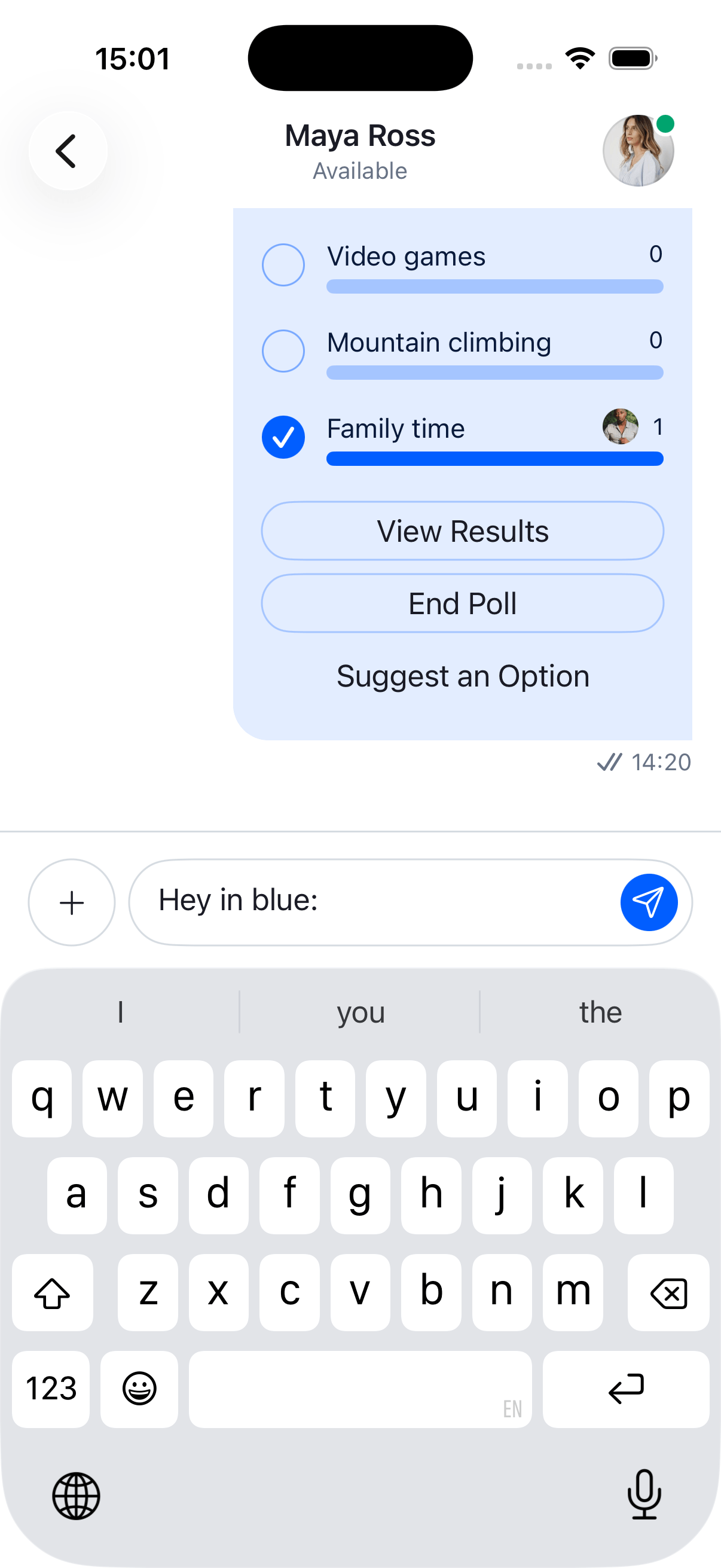
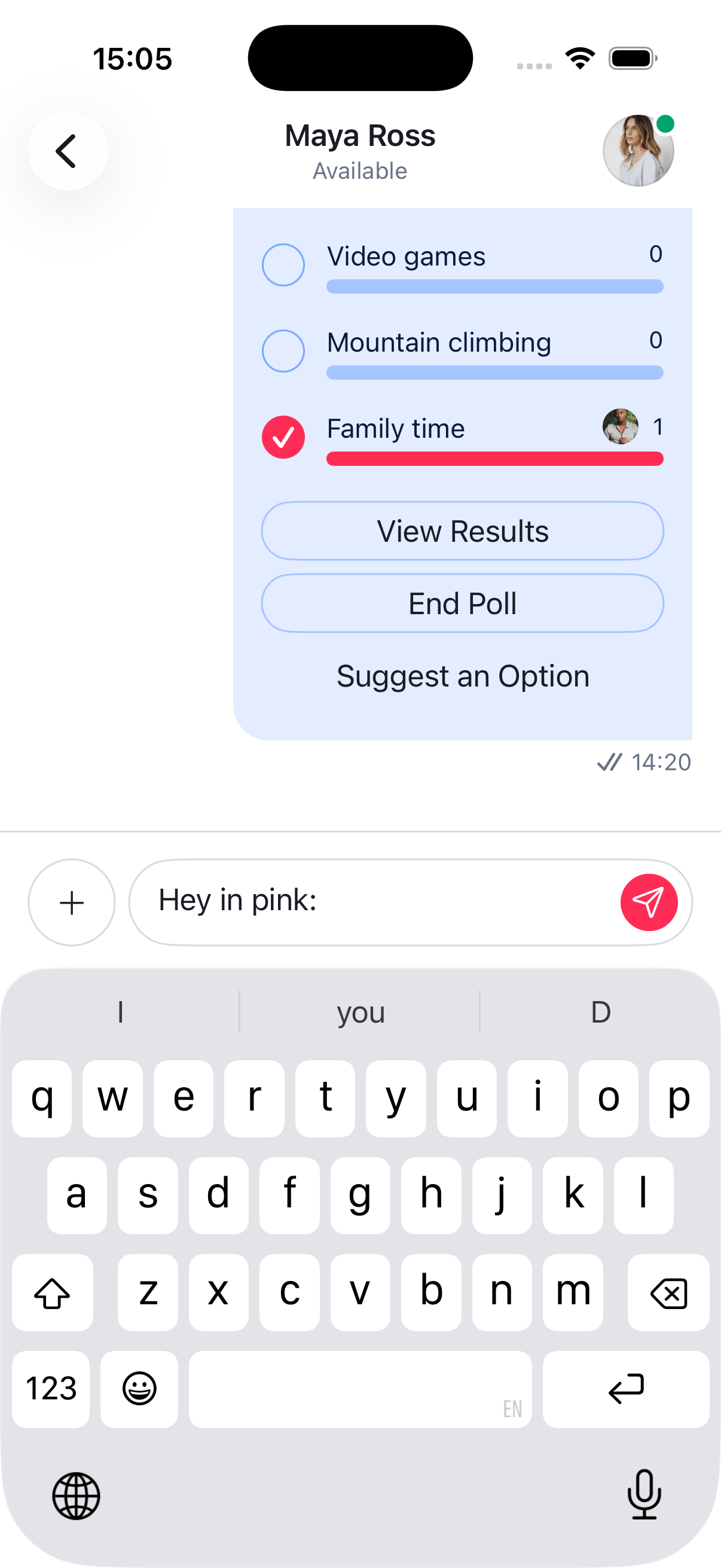
The most basic customization you can do is to change the brand color. In SwiftUI, you can customize the accent color by setting it in the ColorPalette configuration. UI elements will respect this accent color as the main brand color throughout the chat interface.
For example, by customizing the accent color in the Appearance configuration when creating the StreamChat object, you can easily modify the brand color of the whole chat UI:
The colors and fonts are part of the Appearance configuration type. Since all components have access to this configuration through dependency injection, all components will be impacted by the changes on this configuration.
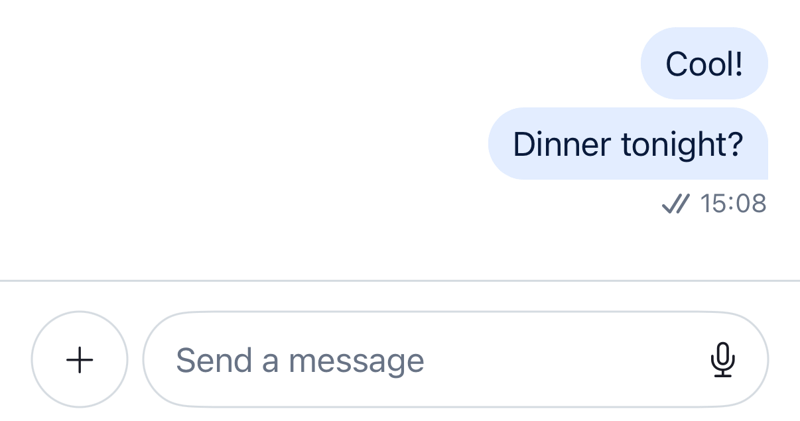
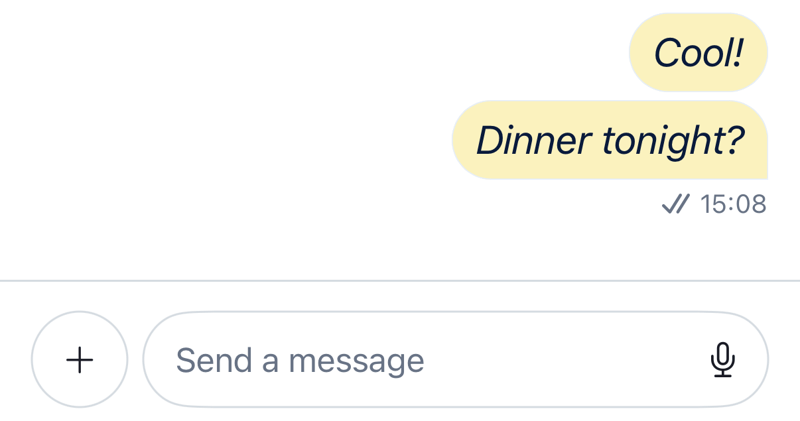
For example, let's change the color of outgoing message bubbles and the body font. We can do this by modifying the values in the Appearance object when initializing StreamChat:
You can see the font and the background color of the message has changed. Also note, that the font in the composer text view is also changed, since it uses the same semantic font as the body of the message.
You can find the full reference of the SwiftUI font configuration in FontsSwiftUI and the color definitions in ColorPalette.
The main brand color. Used for interactive elements, buttons, links, and primary actions. Override this to apply your brand color across the SDK.
accentSuccess
Indicates a positive or completed state. Used for confirmations and success feedback.
accentError
Indicates a failure or destructive state. Used for failed messages, validation errors, and deletions.
accentNeutral
A mid-tone gray for de-emphasized UI elements.
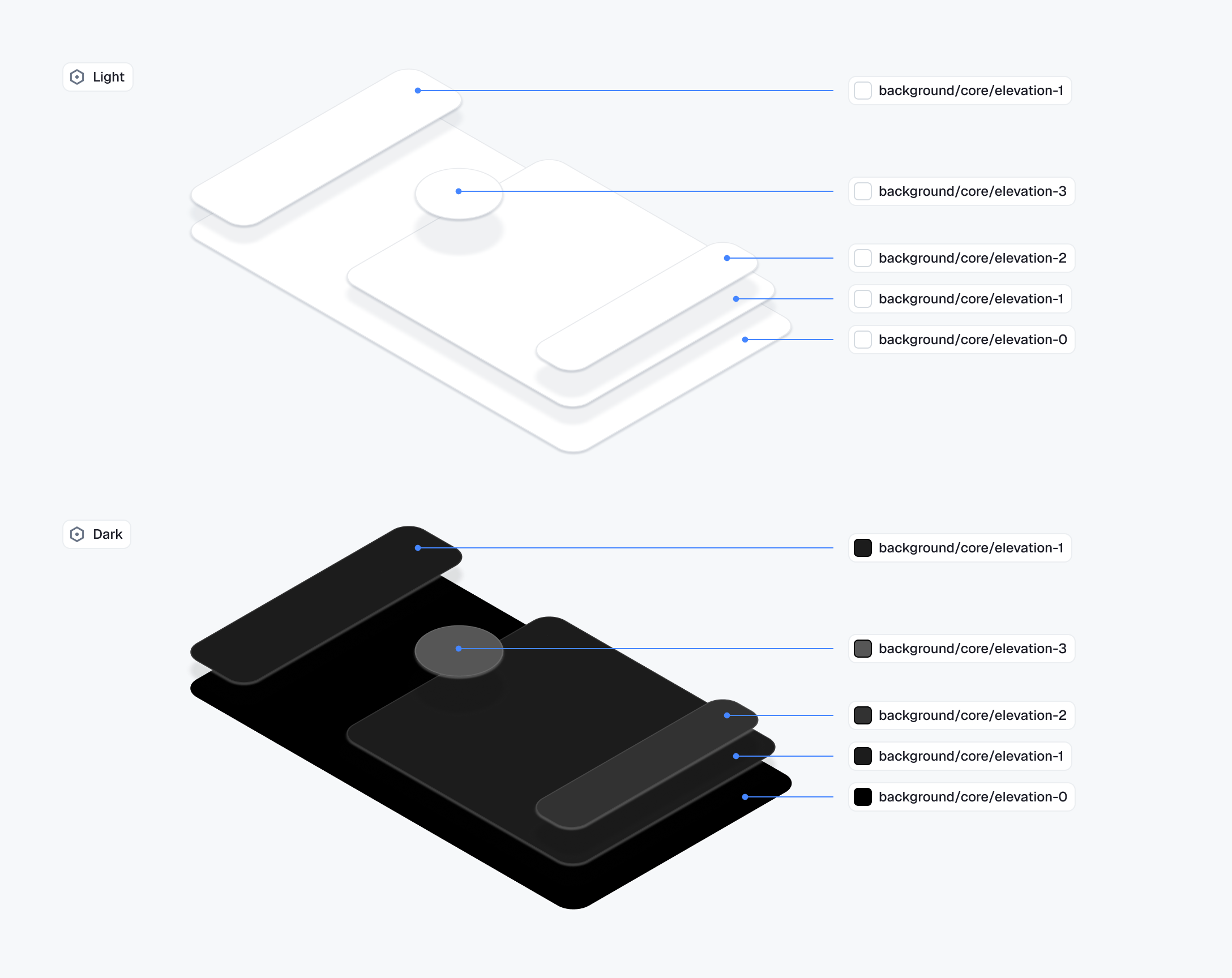
Background — Elevation
The elevation scale establishes a vertical hierarchy. Higher numbers sit visually closer to the user. In dark mode, values step progressively lighter as depth increases. In light mode, all levels are white.
Token
Description
backgroundCoreElevation0
The base layer. Always white, used as the reference point for the elevation scale. Steps above this gain depth in dark mode through progressively lighter backgrounds.
backgroundCoreElevation1
Slightly raised surfaces. Used for content containers that sit directly on the base layer, such as the message list and channel list.
backgroundCoreElevation2
Floating and modal surfaces. Used for popovers, dropdowns, dialogs, and any element that interrupts the content flow.
backgroundCoreElevation3
Used for badge counts that float above other UI elements.
Background — Surface
Token
Description
backgroundCoreApp
The outermost application background. Sits behind all surfaces and is generally not overridden directly.
backgroundCoreSurfaceDefault
Background for sectioned content areas. Used for grouped containers and distinct content regions.
backgroundCoreSurfaceSubtle
A slightly receded background. Used for secondary containers or to create soft visual separation.
backgroundCoreSurfaceCard
Background for contained, card-style elements. Matches the surface in light mode but lifts slightly in dark mode to maintain visual separation.
backgroundCoreSurfaceStrong
A more prominent background. Used for elements that need to stand out from the main surface.
backgroundCoreInverse
The opposite of the primary surface. Used for tooltips, snackbars, and high-contrast floating elements.
backgroundCoreOnAccent
Background for elements placed on an accent-colored surface. Ensures legibility against brand colors.
backgroundCoreHighlight
A tint for drawing attention to content. Used for highlights and pinned messages.
backgroundCoreOverlayLight
A light semi-transparent layer. Used to lighten surfaces and for hover states on dark backgrounds.
backgroundCoreOverlayDark
A dark semi-transparent layer. Used for image overlays.
backgroundCoreScrim
A heavy semi-transparent layer. Used behind sheets, drawers, and modals to separate them from content.
Background — Utility
Token
Description
backgroundUtilityPressed
A slightly stronger overlay applied during an active press or tap. Provides tactile feedback on interactive elements.
backgroundUtilitySelected
Indicates an active or selected state. Used for selected messages, active list items, and toggled controls.
backgroundUtilityDisabled
Background for non-interactive elements. Flattens the element visually to signal unavailability.
Text
Token
Description
textPrimary
Main body text. Used for message content, titles, and any text that carries primary meaning.
textSecondary
Supporting metadata text. Used for timestamps, subtitles, and secondary labels.
textTertiary
De-emphasized text. Used for hints, placeholders, and lowest-priority supporting information.
textOnInverse
Text on inverse-colored surfaces. Flips between light and dark to maintain legibility when the background inverts.
textOnAccent
Text on accent-colored surfaces. Stays white in both light and dark mode since the accent background does not invert.
textDisabled
Text for non-interactive or unavailable states. Communicates that an element cannot be interacted with.
textLink
Hyperlinks and inline actions. Uses the brand color to signal interactivity within text content.
Border
Token
Description
borderCoreDefault
Standard border for surfaces and containers. Used for input fields, cards, and dividers on neutral backgrounds.
borderCoreSubtle
A lighter border for minimal separation. Used where a full-strength border would feel too heavy.
borderCoreStrong
An emphatic border for elements that need clear definition. Used for focused containers and prominent dividers.
borderCoreInverse
Border on inverse-colored surfaces. Stays legible when the background flips between light and dark mode.
borderCoreOnInverse
Border on inverse-colored surfaces used as a separator element.
borderCoreOnAccent
Border on accent-colored surfaces. Stays white in both light and dark mode since the accent background does not invert.
borderCoreOpacitySubtle
A very light transparent border. Used as a frame treatment on images and media attachments.
borderCoreOpacityStrong
A stronger transparent border for elements on colored or dark backgrounds. Used for waveform bars and similar treatments.
borderUtilityDisabled
Border for non-interactive elements. Matches the disabled surface to visually flatten the element.
borderUtilityDisabledOnSurface
Border for disabled elements on elevated surfaces. Stays visually distinct from the surface without drawing attention.
Avatar
Token
Description
avatarBackgroundDefault
Default avatar background color.
avatarPaletteBackground1
First palette option for avatar backgrounds.
avatarPaletteText1
Text color paired with the first avatar palette background.
avatarTextDefault
Default text color for avatar initials.
Badge
Token
Description
badgeBackgroundDefault
Background for the default badge variant.
badgeBackgroundError
Background for error badges indicating failures or critical counts.
badgeBackgroundInverse
Background for badges on light surfaces requiring high contrast.
badgeBackgroundNeutral
Background for neutral, informational badges.
badgeBackgroundOverlay
Background for badges overlaid on media or images.
badgeBackgroundPrimary
Background for primary-styled badges.
badgeBorder
Border color for badges.
badgeText
Text color for badges on default backgrounds.
badgeTextOnAccent
Text color for badges on accent-colored backgrounds.
badgeTextOnInverse
Text color for badges on inverse backgrounds.
Button
Token
Description
buttonPrimaryBackground
Background for primary action buttons.
buttonPrimaryBackgroundLiquidGlass
Background for primary buttons with Liquid Glass material.
buttonPrimaryBorder
Border for primary action buttons.
buttonPrimaryText
Text color for outlined primary buttons.
buttonPrimaryTextOnAccent
Text color for filled primary buttons.
buttonSecondaryBackground
Background for secondary action buttons.
buttonSecondaryBackgroundLiquidGlass
Background for secondary buttons with Liquid Glass material.
buttonSecondaryBorder
Border for secondary action buttons.
buttonSecondaryText
Text color for secondary buttons.
buttonSecondaryTextOnAccent
Text color for filled secondary buttons.
buttonDestructiveBackground
Background for destructive action buttons.
buttonDestructiveBackgroundLiquidGlass
Background for destructive buttons with Liquid Glass material.
buttonDestructiveBorder
Border for destructive action buttons.
buttonDestructiveText
Text color for outlined destructive buttons.
buttonDestructiveTextOnAccent
Text color for filled destructive buttons.
Chat
Token
Description
chatBackgroundIncoming
Bubble background for incoming messages.
chatBackgroundOutgoing
Bubble background for outgoing messages.
chatBackgroundAttachmentIncoming
Background for attachment previews in incoming messages.
chatBackgroundAttachmentOutgoing
Background for attachment previews in outgoing messages.
chatBorderIncoming
Border for incoming message bubbles.
chatBorderOutgoing
Border for outgoing message bubbles.
chatBorderOnChatIncoming
Border for elements inside incoming message bubbles.
chatBorderOnChatOutgoing
Border for elements inside outgoing message bubbles.
chatTextIncoming
Text color for incoming messages.
chatTextOutgoing
Text color for outgoing messages.
chatTextLink
Link text color within chat messages.
chatTextSystem
Text color for system messages.
chatTextTimestamp
Text color for message timestamps.
chatTextTypingIndicator
Text color for the typing indicator.
chatTextUsername
Text color for usernames in chat.
chatReplyIndicatorIncoming
Reply thread indicator color for incoming messages.
chatReplyIndicatorOutgoing
Reply thread indicator color for outgoing messages.
chatPollProgressFillIncoming
Poll progress bar fill color in incoming messages.
chatPollProgressFillOutgoing
Poll progress bar fill color in outgoing messages.
chatPollProgressTrackIncoming
Poll progress bar track color in incoming messages.
chatPollProgressTrackOutgoing
Poll progress bar track color in outgoing messages.
Control
Token
Description
controlCheckboxBorder
Border for checkbox controls.
controlChipText
Text color for chip controls.
controlPlaybackThumbBackgroundActive
Background for the active playback scrubber thumb.
controlPlaybackThumbBackgroundDefault
Background for the default playback scrubber thumb.
controlPlaybackThumbBorderActive
Border for the active playback scrubber thumb.
controlPlaybackThumbBorderDefault
Border for the default playback scrubber thumb.
controlPlayButtonBackground
Background for the play button overlay.
controlPlayButtonIcon
Icon color for the play button overlay.
controlProgressBarFill
Fill color for progress bars.
controlProgressBarTrack
Track color for progress bars.
controlRadioCheckBackgroundSelected
Background for selected radio buttons and checkmarks.
controlRadioCheckBorder
Border for radio buttons and checkmarks.
controlRadioCheckIcon
Icon color for the check indicator in radio buttons and checkmarks.
controlRemoveControlBackground
Background for the remove/delete control.
controlRemoveControlBorder
Border for the remove/delete control.
controlRemoveControlIcon
Icon color for the remove/delete control.
Input
Token
Description
inputSendIconDisabled
Send button icon color when the input is empty or disabled.
inputTextDefault
Default text color for input fields.
inputTextIcon
Icon color within input fields.
inputTextPlaceholder
Placeholder text color for input fields.
Presence
Token
Description
presenceBackgroundOffline
Background for the offline presence indicator.
presenceBackgroundOnline
Background for the online presence indicator.
presenceBorder
Border for presence indicator dots.
Reaction
Token
Description
reactionBackground
Background for reaction pills.
reactionBorder
Border for reaction pills.
reactionText
Text color for reaction counts.
Navigation
Token
Description
navigationBarTitle
Title text color in the navigation bar.
navigationBarSubtitle
Subtitle text color in the navigation bar.
navigationBarBackground
Background color for the navigation bar. Defaults to system appearance when nil.
Besides customizing the UI appearance, you can also customize the data formatting of the components. For example, you can change how the channel name is displayed or how the timestamp of messages are formatted. For this, you should use the Utils object, which is part of the StreamChat object.
Below is an example of how to change the channel name and message timestamp formatting.
final class CustomChannelNameFormatter: ChannelNameFormatter { func format(channel: ChatChannel, forCurrentUserId currentUserId: UserId?) -> String? { if let name = channel.name { return name } return channel.lastActiveMembers .map { $0.name ?? $0.id } .joined(separator: ", ") }}let customMessageDateFormatter: DateFormatter = { let formatter = DateFormatter() formatter.dateStyle = .short formatter.timeStyle = .short return formatter}()let utils = Utils( dateFormatter: customMessageDateFormatter, channelNameFormatter: CustomChannelNameFormatter())let streamChat = StreamChat( chatClient: client, utils: utils)