















Livestream Chat
Introduction
The Stream Chat SDK provides livestream-optimized APIs for use cases where performance is critical. Unlike the regular ChatChannelController / Chat, the livestream variants don't store messages in the local database, eliminating database read/write overhead. They are also more memory efficient since they support setting a maximum number of messages.
You can choose between two APIs that share the same underlying engine:
LivestreamChannelController: a delegate-based, completion-handler API that mirrorsChatChannelController. Useful when integrating into existing UIKit code.LivestreamChat: an async/await, observable state-layer API that mirrorsChat. Useful when adopting modern Swift Concurrency, SwiftUI, or Combine.
Comparison
The livestream APIs are more limited in terms of features in comparison to the regular ChatChannelController / Chat. Here is a list of features that each variant supports to help you decide which one to use.
| Feature | Regular Chat | Live Chat |
|---|---|---|
| Performance | Great | Excellent |
| Memory Usage | Higher | Lower |
| Messages Capping | ❌ | ✅ |
| Reactions | ✅ | ✅ |
| Attachments Rendering | ✅ | ✅ |
| Attachment Upload Progress | ✅ | ❌ |
| Commands | ✅ | ❌ |
| Read Indicators | ✅ | ❌ |
| Typing Indicators | ✅ | ✅ |
| Threads | ✅ | ❌ |
| Offline Support | ✅ | ❌ |
Performance Best Practices
When building a livestream chat experience, the livestream APIs already handle some performance concerns for you (no offline storage, no read indicators). For maximum scalability, we also recommend configuring the channel itself with these settings:
- Disable read events and typing indicators at the channel type level. Typing indicators are not automatically suppressed by the livestream APIs and must be explicitly turned off server-side to avoid unnecessary API traffic.
- Enable slow mode. Use slow mode to throttle how often viewers can send messages. This prevents spam and protects performance during high-traffic events.
- Local unread counts - if your app needs unread messages indicators, you can turn on local unread counts. These unread counts work only locally, for the specific device. To turn this feature on, you should set
isLocalUnreadCountEnabledin theChatClientConfigtotruewhen creating theChatClient.
For a comprehensive guide covering channel configuration, moderation, load testing, and more, see the Livestream Best Practices guide.
Usage
Basic Usage
The livestream APIs have the same interface as the regular ChatChannelController / Chat, making it easy to switch between them. You can create a livestream object using the same factory methods you're already familiar with:
// Create a livestream channel controller
let query = ChannelQuery(cid: .init(type: .livestream, id: "my-livestream"))
let livestreamController = chatClient.livestreamChannelController(for: query)
// Create a livestream chat
let cid = ChannelId(type: .livestream, id: "my-livestream")
let livestreamChat = chatClient.makeLivestreamChat(for: cid)
try await livestreamChat.get()The livestream object behaves exactly like its regular counterpart. You can send messages, add reactions, and handle all the same events:
// Send a message
livestreamController.createNewMessage(text: "Hello livestream!")

// Add a reaction
livestreamController.addReaction("love", to: messageId)
// Send a message
try await livestreamChat.sendMessage(with: "Hello livestream!")
// Add a reaction
try await livestreamChat.sendReaction(to: messageId, with: "love")Message Limiting
One of the key features of the livestream APIs is the ability to limit the number of messages kept in memory. This helps prevent memory issues during long livestreams with high message volume.
You can configure the maximum number of messages using maxMessageLimitOptions as well as the amount of messages that are discarded when the limit is reached:
// Set a limit of 100 messages and discard 20 messages when the limit is reached.
livestreamController.maxMessageLimitOptions = MaxMessageLimitOptions(
    maxLimit: 100,
    discardAmount: 20
)

// You can also make the discard amount to 1.
livestreamController.maxMessageLimitOptions = MaxMessageLimitOptions(
    maxLimit: 100,
    discardAmount: 1
)
// Set a limit of 100 messages and discard 20 messages when the limit is reached.
livestreamChat.maxMessageLimitOptions = MaxMessageLimitOptions(
maxLimit: 100,
discardAmount: 20
)
// You can also make the discard amount to 1.
livestreamChat.maxMessageLimitOptions = MaxMessageLimitOptions(
maxLimit: 100,
discardAmount: 1
)When the message limit is reached, older messages are automatically discarded to make room for new ones.
Pause and Resume for Pagination
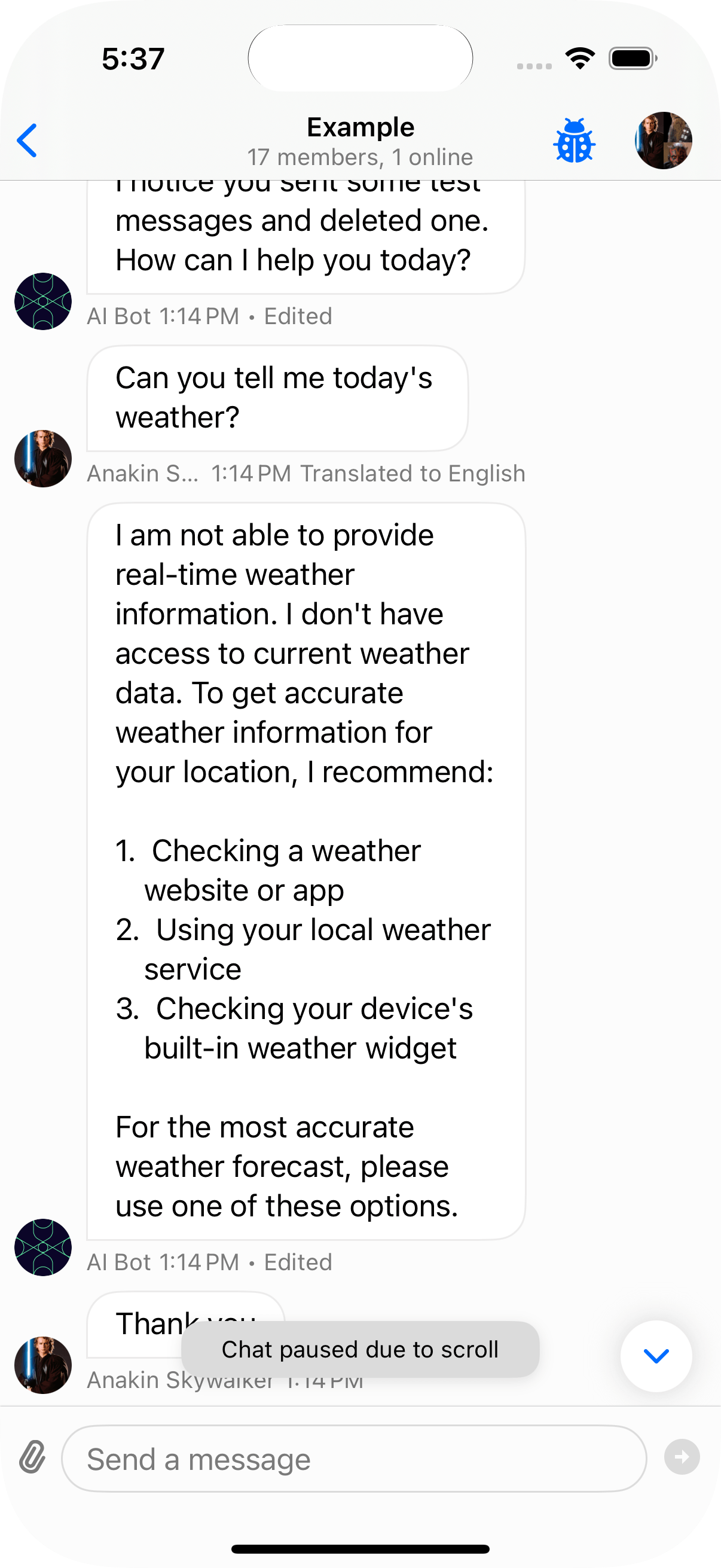
If you need to support pagination (loading older messages) while maintaining message limits, you can use the pause and resume functionality. This is useful, because when the user scrolls up to load older pages, the discarding of messages needs to be paused.
// Pause new messages updates in the controller.
// The new messages will be discarded until resume is called.
// Call this when the users starts scrolling the message list.
livestreamController.pause()

// Load older messages.
livestreamController.loadPreviousMessages()

// Resume new message updates. Call this once the user reaches
// the bottom of the message list or creates a new message.
livestreamController.resume()
// Pause new messages updates in the chat.
// The new messages will be discarded until resume is called.
// Call this when the users starts scrolling the message list.
livestreamChat.pause()
// Load older messages.
try await livestreamChat.loadOlderMessages()
// Resume new message updates. Call this once the user reaches
// the bottom of the message list or creates a new message.
try await livestreamChat.resume()This is a feature that most livestream apps support like Twitch, here is an example on how the UI can look like when the user scrolls up while in the middle of a livestream.
Typing Indicators
The livestream APIs support typing indicators with the same semantics as the regular ChatChannelController / Chat. From your composer, send a keystroke event on every key press. The SDK manages the typing.start and typing.stop events for you, including the automatic stop after a period of inactivity.
// Call this every time the user types in the composer.
livestreamController.sendKeystrokeEvent()

// Send a final stop event when the user submits a message.
livestreamController.sendStopTypingEvent()
// Call this every time the user types in the composer.
try await livestreamChat.keystroke()
// Send a final stop event when the user submits a message.
try await livestreamChat.stopTyping()Observe currently typing users via the delegate, the Combine publisher, or the observable state:
// Delegate
func livestreamChannelController(
    _ controller: LivestreamChannelController,
    didChangeTypingUsers typingUsers: Set<ChatUser>
) {
    // Update your typing indicator UI.
}

// Combine
livestreamController.typingUsersPublisher
    .sink { typingUsers in
        // Update your typing indicator UI.
    }
    .store(in: &cancellables)
// Combine via the observable state
livestreamChat.state.$typingUsers
.sink { typingUsers in
// Update your typing indicator UI.
}
.store(in: &cancellables)
// SwiftUI via @ObservedObject
struct TypingIndicator: View {
@ObservedObject var state: LivestreamChatState
var body: some View {
Text("\(state.typingUsers.count) user(s) typing...")
}
}Sending typing events respects the channel's typing-events capability. You can read it via livestreamController.channel?.canSendTypingEvents or livestreamChat.state.channel?.canSendTypingEvents. Thread typing events are not supported by the livestream APIs because threads are not part of their feature set.
Demo Implementation
At the moment the SDK does not provide a default UI component that uses these APIs. But you can find example implementations in the stream-chat-swift repository:
- The UIKit Demo App drives the chat with
LivestreamChannelControllerand its delegate. - The YouTube Clone example drives the chat with
LivestreamChatand observes the state via Combine.
Both demonstrate:
- Setting up the livestream chat
- Configuring message limits
- Handling pause/resume functionality
To test the livestream chat in the demo app:
- Open the Stream Chat Demo App
- Login with any user and open the channel list
- Swipe a channel in the channel list
- Tap on "..."
- Select "Show as Livestream Controller"
This will open the livestream chat interface where you can see the performance benefits and test the message limiting functionality.