
 React
React iOS
iOS Android
 Flutter
 Angular
 JavaScript
 Unity
Unity Unreal
 Node
Node Python
 Ruby
Ruby PHP
PHP Java
Java .NET
.NET Go
Go REST
RESTlet apiKeyString = "your_api_key_string"
let config = ChatClientConfig(apiKey: .init(apiKeyString))
let client = ChatClient(config: config)
let newTintColor = UIColor.systemPink
var colors = ColorPalette()
colors.tintColor = Color(newTintColor)
let appearance = Appearance(colors: colors)
let streamChat = StreamChat(chatClient: client, appearance: appearance)Theming
You can customize the look and feel of all UI components provided by StreamChatSwiftUI. The SDK allows you to change the appearance of components such as colors, fonts, and images via the Appearance configuration. Changes to appearance should be done when initializing the StreamChat object, typically in your AppDelegate or at the start of your app lifecycle.
Brand Color
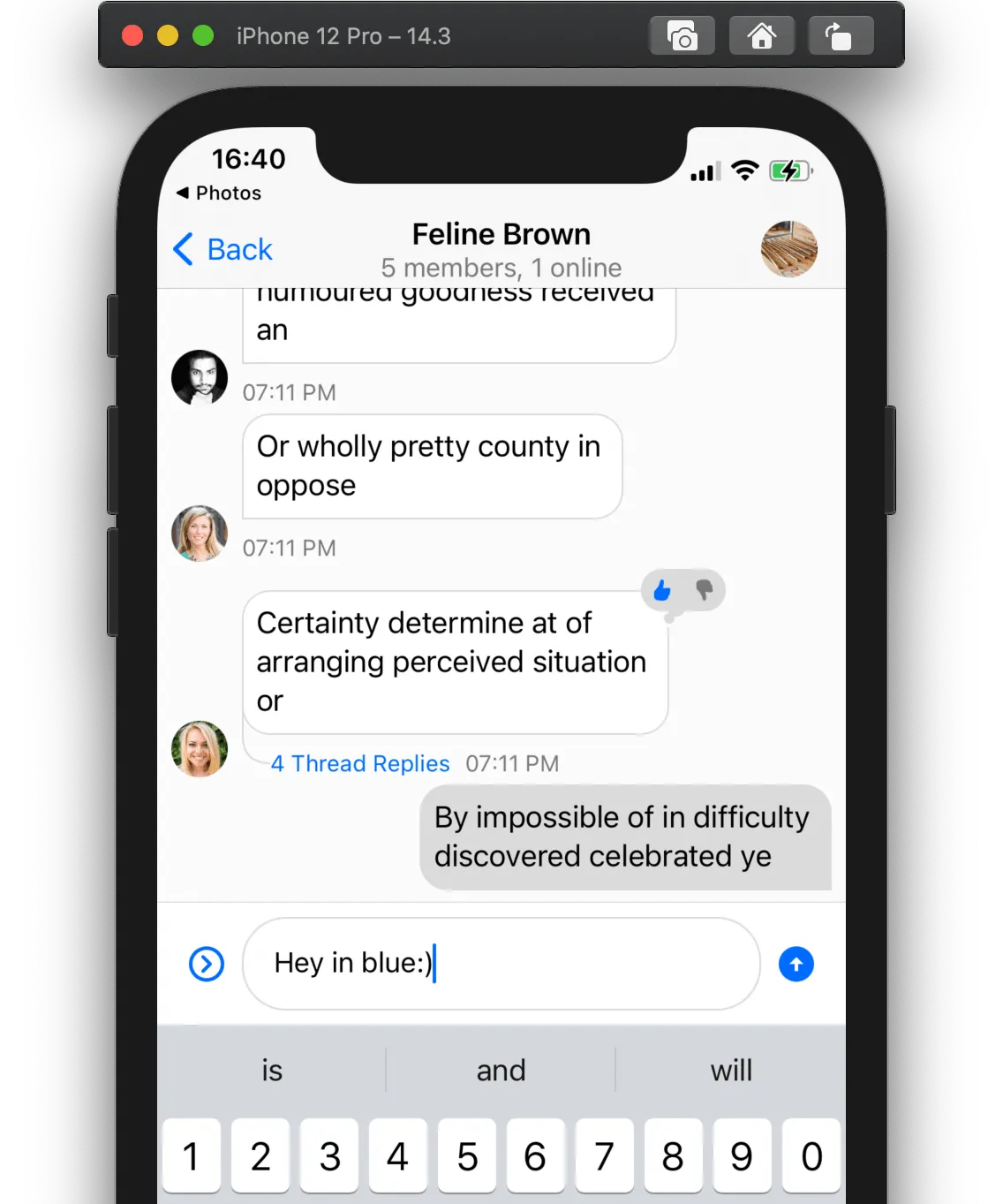
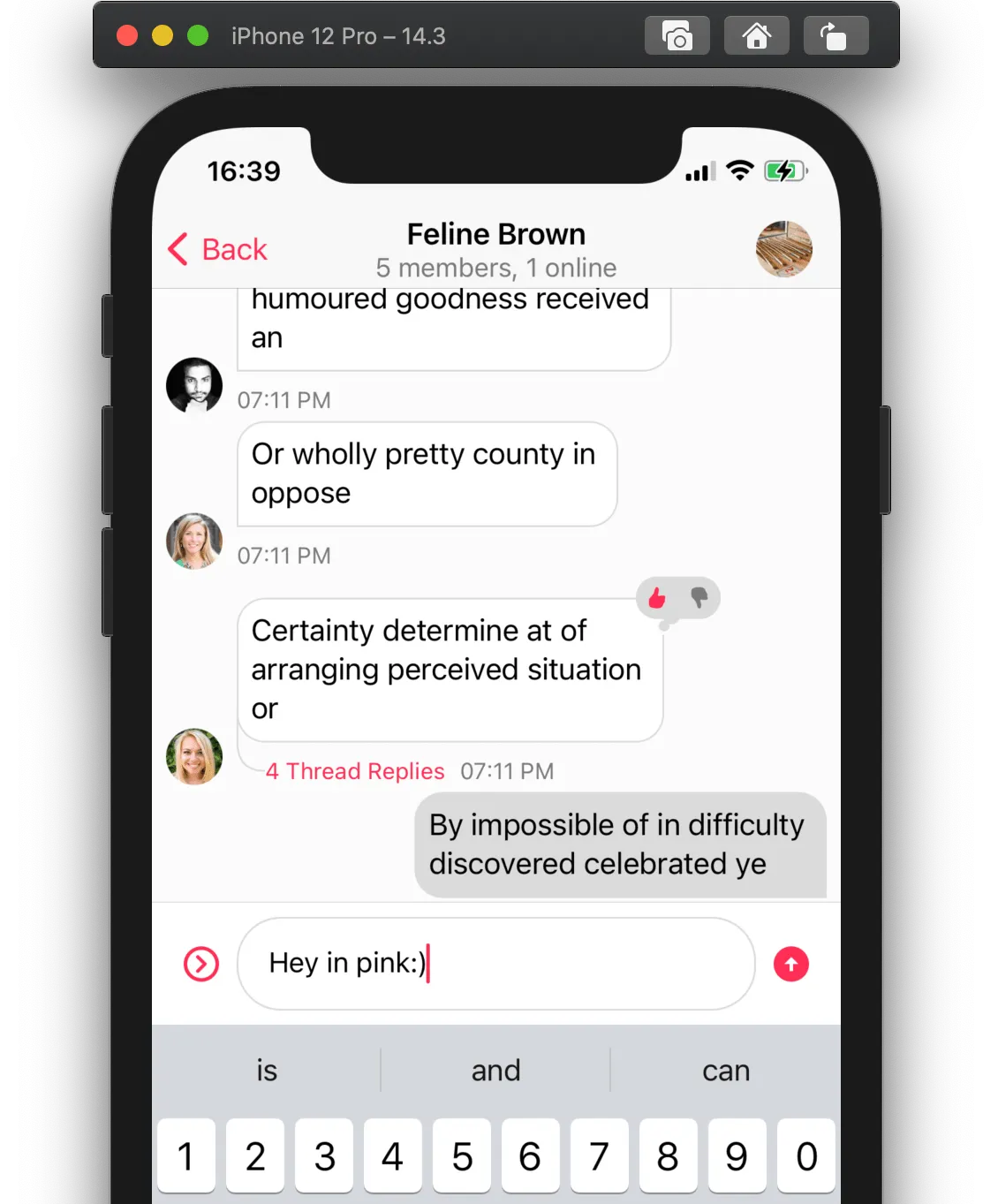
The most basic customization you can do is to change the brand color. In SwiftUI, you can customize the tint color by setting it in the ColorPalette configuration. UI elements will respect this tint color as the main (brand) color throughout the chat interface.
For example, by customizing the tint color in the Appearance configuration when creating the StreamChat object, you can easily modify the brand color of the whole chat UI:
| Before | After |
|---|---|
 |  |
Colors and Fonts
The colors and fonts are part of the Appearance configuration type. Since all components have access to this configuration through dependency injection, all components will be impacted by the changes on this configuration.
For example, let's change the color of the messages sent by the current user and the body font. We can do this by modifying the values in the Appearance object when initializing StreamChat:
var colors = ColorPalette()
colors.messageCurrentUserBackground = .yellow

var fonts = Fonts()
fonts.body = .italicSystemFont(ofSize: 20)

let appearance = Appearance(colors: colors, fonts: fonts)
let streamChat = StreamChat(chatClient: client, appearance: appearance)| Before | After |
|---|---|
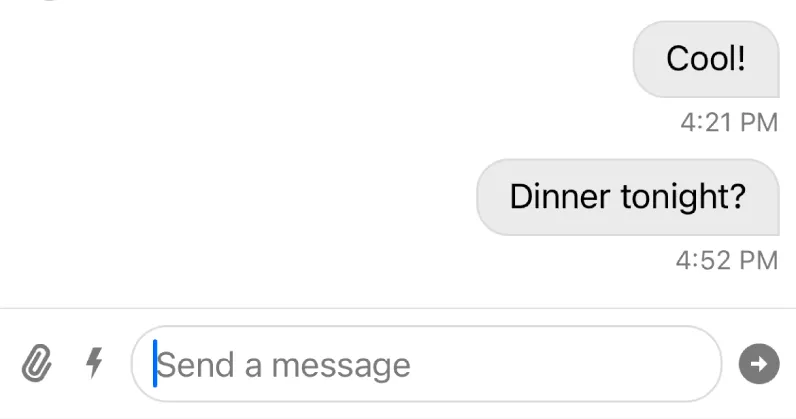 | 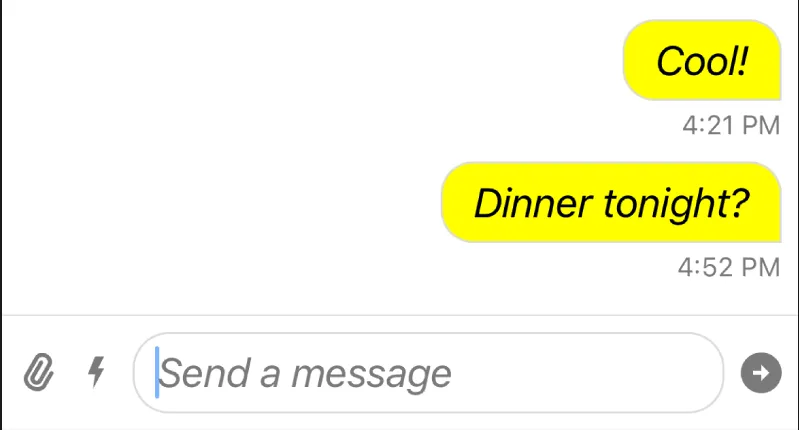 |
You can see the font and the background color of the message has changed. Also note, that the font in the composer text view is also changed, since it uses the same semantic font as the body of the message.
You can find the full reference of both Fonts and ColorPalette respectively..
Image Assets
The image assets and icons used by buttons also use the Appearance configuration type. For example, let's modify the icon used for the "Send" button:
let images = Images()
images.sendArrow = UIImage(systemName: "arrowshape.turn.up.right")!

let appearance = Appearance(colors: colors, fonts: fonts, images: images)
let streamChat = StreamChat(chatClient: client, appearance: appearance)| Before | After |
|---|---|
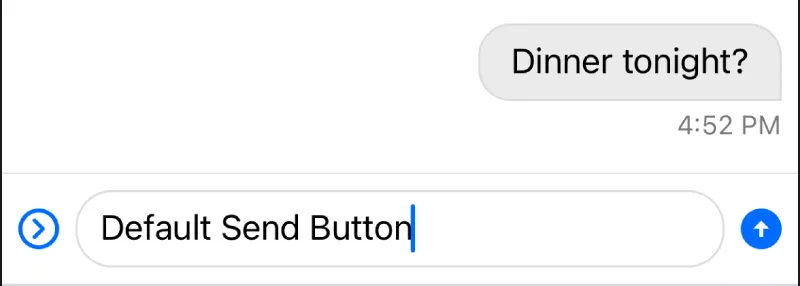 | 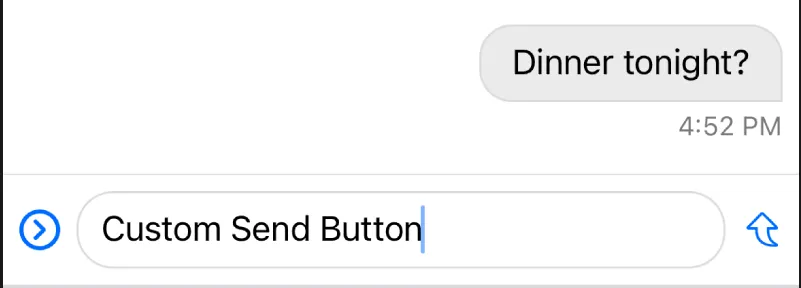 |
If the same image is used in multiple places, changing the image in the Appearance object will update it in all places.
The full reference of the Images object can be found here.
Data Formatting
Besides customizing the UI appearance, you can also customize the data formatting of the components. For example, you can change how the channel name is displayed or how the timestamp of messages are formatted. For this, you should use the Utils object, which is part of the StreamChat object.
Below is an example of how to change the channel name and message timestamp formatting.
let channelNamer: ChatChannelNamer = { channel, currentUserId in
    if let name = channel.name {
        return name
    }
    return channel.lastActiveMembers.joined(separator: ", ")
}
let customDateFormatter: DateFormatter = {
    let formatter = DateFormatter()
    formatter.dateStyle = .short
    formatter.timeStyle = .short
    return formatter
}()
let utils = Utils(
    dateFormatter: customDateFormatter,
    channelNamer: channelNamer
)
let streamChat = StreamChat(
    chatClient: client,
    utils: utils
)