















Logging
Console Logs
Enable Logging
By default, logging is disabled. You can enable the logs by setting the log level in the LogConfig. It is recommended to enable the logs in development builds only and as soon as you create the ChatClient.
import StreamChat

LogConfig.level = .debug
Log Levels
There are four different level's available.
.debug: It will log everything for debugging purposes..info: It will log additional information besides warnings and errors..warning: It will log warnings and errors..error: It will only log errors.
Log Subsystems
In case you are debugging a specific area of the SDK, you can filter the logs based on subsystems. You can select one or multiple subsystems:
import StreamChat

// Only one subsystem
LogConfig.subsystems = .httpRequests
// Multiple subsystems
LogConfig.subsystems = [.httpRequests, .authentication]
There are the following subsystems available.
.all: The default, this will log all subsystems..database: The subsystem responsible for database operations..httpRequests: The subsystem responsible for HTTP operations..webSocket: The subsystem responsible for WebSocket operations..offlineSupport: The subsystem responsible for offline support..authentication: The subsystem responsible for authentication..audioPlayback: The subsystem responsible for audio playback..audioRecording: The subsystem responsible for audio recording..other: The subsystem related to misc logs and not related to any subsystem.
Debugging
When debugging an issue, we recommend to start by logging the HTTP requests and the WebSocket events, and only set more specific subsystems if required, or if you want to only debug a specific area.
LogConfig.level = .debug
LogConfig.subsystems = [.httpRequests, .webSocket]
If you want, you can also only debug the HTTP requests by setting the subsystems to only .httpRequests, or only the WebSocket events by setting the subsystems to only .webSocket.
Customizing Console Logs
By default, logs are output as plain text to your console. However, the SDK also provides functionality to customize log messages with emojis, making it easier to identify logs generated by the SDK.
LogConfig.formatters = [
    PrefixLogFormatter(
        prefixes: [
            .info: "ℹ️",
            .debug: "🛠",
            .warning: "⚠️",
            .error: "🚨"
        ]
    )
]
It's also possible to hide certain parts of the log messages:
LogConfig.showThreadName = false
LogConfig.showDate = false
LogConfig.showFunctionName = false
In the example above, the threadName, date and functionName are hidden from the logs.
Intercepting Logs
You can also intercept logs generated by the SDK and send them to your own servers or to any third-party analytics provider.
To do this, create a custom log destination:
class CustomLogDestination: BaseLogDestination {
    override func process(logDetails: LogDetails) {
        let level = logDetails.level
        let message = logDetails.message
        // Send the log details to your server or third-party SDK
        ...
    }
}
Make sure that you set the log destination before creating the ChatClient:
LogConfig.destinationTypes = [
   ConsoleLogDestination.self,
   CustomLogDestination.self // Your custom destination
]
Log Viewer
The StreamChatLogsUI library adds an in-app log viewer to your app. You can browse the SDK logs and inspect HTTP requests and WebSocket events while the app is running, without connecting the device to Xcode.
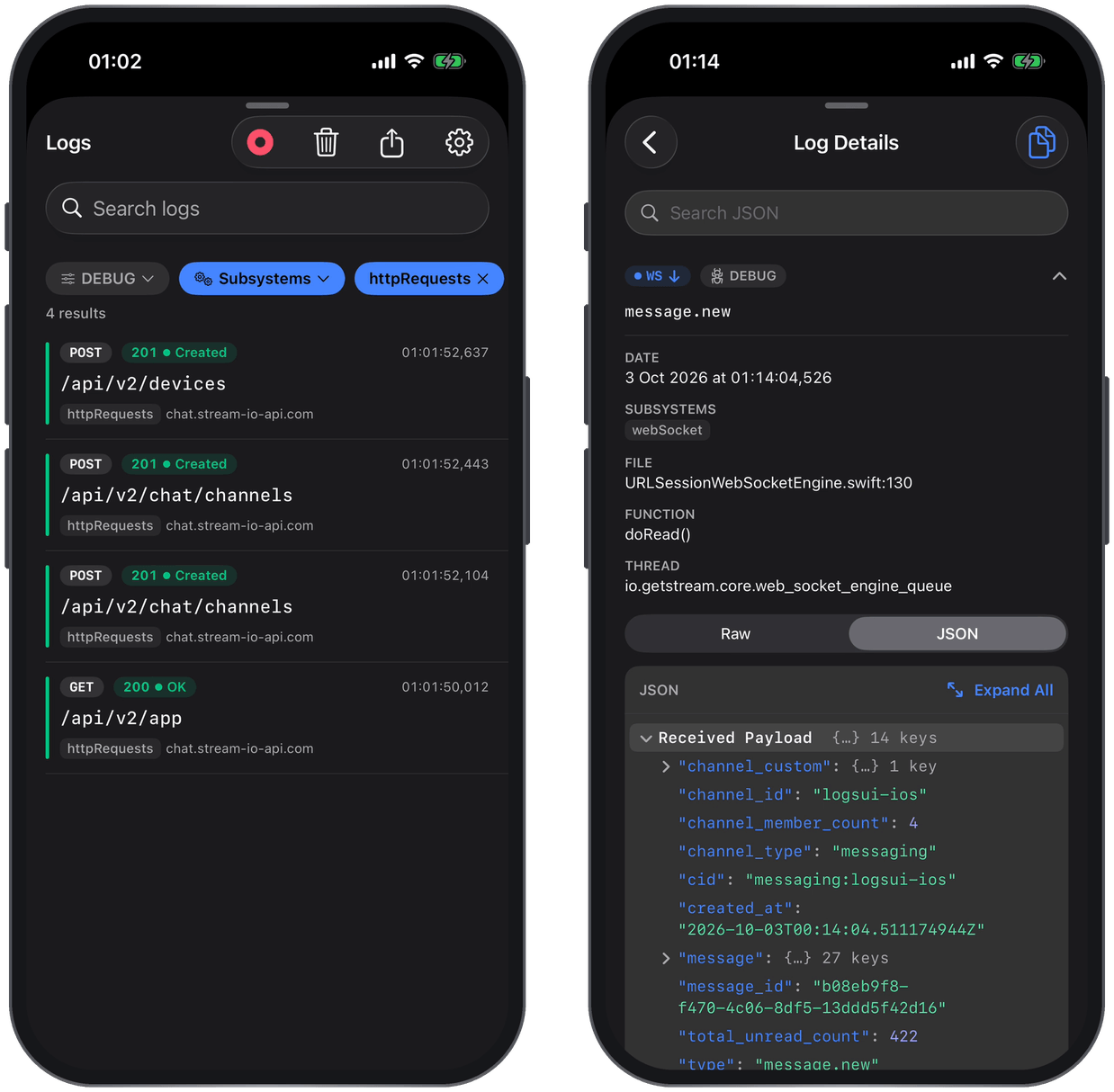
The log viewer is meant for development and internal builds. It requires iOS 16 or later, and does nothing on earlier versions.
Installation
StreamChatLogsUI is available through Swift Package Manager. Add the StreamChatLogsUI product of the stream-chat-swift package to your app target. Ideally, add it to a debug-only target, so the log viewer is not included in release builds.
Enabling the Log Viewer
Configure the LogConfig first, and then call LogViewer.install() once, when the app launches:
import StreamChat
import StreamChatLogsUI

LogConfig.level = .debug
LogViewer.install()
The SDK logs are then sent both to the console and to the log viewer. The console starts with the level, subsystems, destination types and format of the LogConfig, so set them before calling LogViewer.install(), and don't change them afterwards.
Opening the Log Viewer
You can show a floating button that opens the log viewer, open it by shaking the device, or open it from your own UI:
// Shows a floating button that opens the log viewer
LogViewer.showsFloatingButton = true

// Opens the log viewer when the device is shaken
LogViewer.presentsOnShake = true

// Opens the log viewer
LogViewer.present()
The floating button can be dragged to any side of the screen.
Filtering the Log Viewer
By default, the log viewer shows every entry. You can set the filter it opens with, for example to only show the HTTP requests and the WebSocket events:
LogViewer.defaultFilter = LogFilter(
    subsystems: Set([LogSubsystem.httpRequests, .webSocket].map(\.description))
)
The levels of a LogFilter are matched exactly, and an empty set shows every level.
Once levels or subsystems are chosen in the log viewer, they are saved and used instead of the defaultFilter the next time it opens.
Exporting Logs
The log viewer can export the recorded logs, so you can send them to Stream's support team. Tap the share button in the toolbar and choose Export All Logs. When a filter is active, Export Filtered Logs exports only the entries that match it.
The export is a JSON file. It contains the log entries together with the app version, the system version, and the device model. Use the share sheet to send the file by email, Messages, or another app.
To learn more about the log viewer, see the StreamLogsUI repository on GitHub.