








Music mode
For live music, karaoke, podcasts, or professional streaming, you may want to capture audio without speech processing. The iOS SDK provides an audio bitrate profile on call.microphone to switch between voice and music during a call.
Music mode
Music mode, also called Hi-Fi audio, is the .musicHighQuality audio bitrate profile. It increases the audio publish bitrate and disables speech processing, including echo cancellation, noise suppression, and automatic gain control, so instruments and backing tracks can pass through.
The SDK supports three profiles:
| Profile | Use case | Speech processing |
|---|---|---|
.voiceStandard |
Standard voice calls (default) | Enabled |
.voiceHighQuality |
Higher-quality speech or podcasts | Enabled |
.musicHighQuality |
Live music and unprocessed audio | Disabled |
The SDK uses the bitrate offered by the SFU for the selected profile. If no profile mapping is available, .voiceHighQuality and .musicHighQuality fall back to 128 kbps. Returning to .voiceStandard restores the negotiated voice bitrate. These values are bitrate limits, not guaranteed throughput.
Use a voice profile when people are talking and music mode when a performer starts playing. You can switch profiles on a running call without leaving and rejoining. Switching into or out of music mode reconfigures audio capture and may briefly interrupt captured audio.
Music mode currently requires the device's built-in microphone with speakerphone disabled. Echo cancellation is disabled in this mode.
Allow HiFi audio on the call type
HiFi audio is allowed by default on the livestream call type.
On other call types, turn on Allow HiFi audio in the Stream Dashboard under Video & Audio > Call Types > [call type] > Settings.
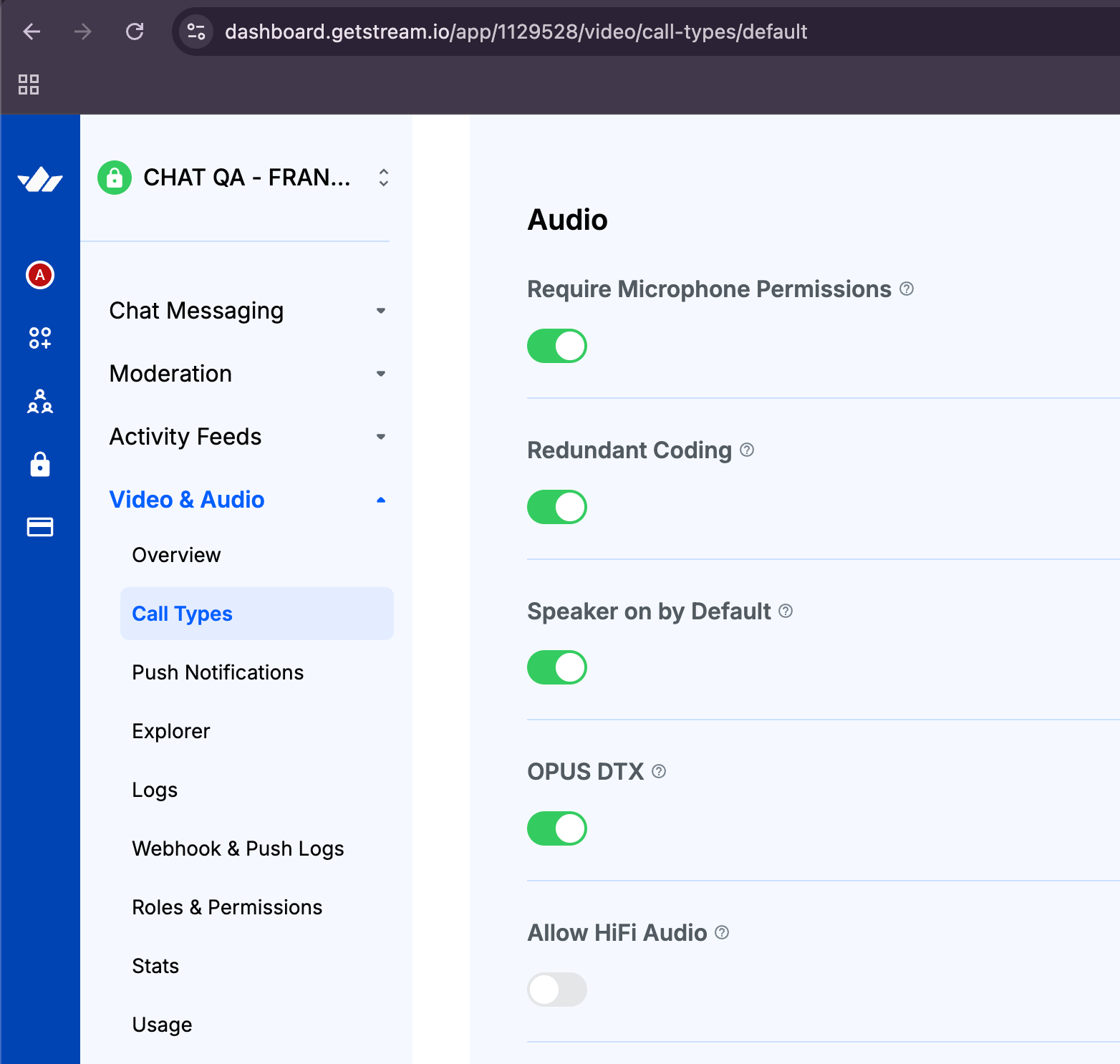
Both .voiceHighQuality and .musicHighQuality require this setting. Switching back to .voiceStandard does not require it.
Enabling music mode
Join the call before setting the audio bitrate profile:
import StreamVideo

let call = streamVideo.call(callType: "default", callId: "123")
try await call.join()
try await call.microphone.setAudioBitrateProfile(.musicHighQuality)
To return to standard voice capture:
try await call.microphone.setAudioBitrateProfile(.voiceStandard)For higher-quality speech while keeping speech processing enabled:
try await call.microphone.setAudioBitrateProfile(.voiceHighQuality)setAudioBitrateProfile is an asynchronous, throwing operation. It can fail if the call is not joined, HiFi audio is not allowed on the call type, call settings cannot be loaded, or the audio configuration cannot be applied. Handle the error in your app and update controls from the published profile rather than assuming the requested change succeeded.
Observing the current profile
call.microphone.audioBitrateProfile is a published property. It updates after a successful change and stays at the previous value if the operation fails.
import Combine

let profileSubscription = call.microphone.$audioBitrateProfile
    .sink { profile in
        let isMusicModeEnabled = profile == .musicHighQuality
        print("Music mode enabled: \(isMusicModeEnabled)")
    }
Retain the subscription for as long as you need to observe changes. In SwiftUI, observe MicrophoneManager with @ObservedObject and read its audioBitrateProfile property to keep your control in sync.
Setting the current profile again is a no-op. The selected profile survives reconnection, but resets to .voiceStandard when you leave. After joining again, select music mode again if needed.
Interaction with noise cancellation
Music mode automatically suspends the audio filter configured with call.setAudioFilter, including Stream's noise cancellation, so it does not suppress music.
Returning to a voice profile restores the requested filter once screen sharing is also inactive. You do not need to manually stop and restart noise cancellation around a music mode change.
Stereo audio
Selecting .musicHighQuality does not automatically enable stereo capture or stereo playback. Stereo playback is configured separately through audio session policies, subject to the device and audio route.