


Drive-thru ordering is a deceptively hard real-time problem. Background noise, interruptions, fast-paced conversations, and the need for low-latency responses all push traditional voice systems to their limits.
Modern speech-to-speech models change that equation by making natural, interruptible conversations possible without stitching together separate STT, LLM, and TTS pipelines.
In this tutorial, you’ll create a real-time drive-thru voice AI ordering system using Google Gemini Live and Stream’s Vision Agents framework.
What You Will Build
You’ll be guided step-by-step through building an AI app that allows you to talk with Gemini in real-time to order food and drink at a restaurant drive-thru.
Gemini audio models provide low-latency, live voice and video interactions with AI services and platforms. We will use the Vision Agents open-source Python framework to develop the drive-thru food ordering assistant and interface with the Gemini Live API to provide a natural-sounding speech communication experience. Watch the article’s companion 10-minute YouTube tutorial.
Requirements
Ensure you have Python 3.10 or a later version installed on your machine. To simplify and bundle your Python project and its virtual environment properly, we recommend using uv to initialize your project. Running the sample demo project requires API credentials from Google and Stream.
- Stream API Key and Secret: To interact with the core Vision Agents SDK and Stream Video’s backend.
- Google API Key: To access the Gemini Live API and its human-like audio generation LLMs.
Quickstart
Let’s walk through how to create our AI order automation system in Python for drive-thru restaurants.
Environment Set Up and Installation
Jump into your favorite code editor, create a new Python project with uv, install the Vision Agents SDK, and set your API credentials as environment variables by running the following commands in your Terminal.
1234567891011121314151617# Initialize a new Python project, create and activate a virtual environment
uv init drive-thru_agent
cd drive-thru_agent

# Install Vision Agents & Gemini Live STS plugin
uv add "vision-agents[getstream, gemini]"

# Create a new/empty .env to store API credentials
touch .env

# Stream API credentials
STREAM_API_KEY=...
STREAM_API_SECRET=...
EXAMPLE_BASE_URL=https://pronto-staging.getstream.io

# Gemini API credentials
GOOGLE_API_KEY=...
Executing the above commands will generate a uv-based Python project with a virtual environment activated. It also sets up your .env file to store the required API keys for the project.
Using uv add "vision-agents[getstream, gemini]", you install the core Vision Agents SDK, getstream to provide a low-latency audio/video transport via WebRTC, and gemini to handle speech-to-text (STT), turn detection, LLM processing, noise cancellation, and text-to-speech (TTS).
Note: Since the Gemini Live API is speech-to-speech (Speech-to-Speech) by design, it handles STT, TTS, and turn detection with a single LLM to ensure low-latency agent responses and a unified, simple voice pipeline architecture, which is easier to manage.
Configure the Vision Agents Gemini Live Plugin
Modify your uv project’s main.py (for example, drive-thru_ai_ordering.py) and follow these steps to configure the drive-thru agent.
Step 1: Equip the Agent With Instructions
When you initialize an agent in Vision Agents, you can give it an inline instruction to guide its responses. Since the drive-thru ordering system requires numerous interactions between users and the AI assistant, there is a need for well-formatted, detailed instructions. This can be added as a Markdown file to instruct the agent to read it in its definition.
Add a new Markdown file drive-thru_ai_ordering_instructions.md and copy this GitHub Gist to substitute its content.
Step 2: Add Required Project Imports
123456789101112import logging

from vision_agents.core.edge.types import User
from vision_agents.core.agents import Agent, AgentLauncher
from vision_agents.core import cli
from vision_agents.plugins import gemini, getstream

logging.basicConfig(
    level=logging.INFO,
    format="%(asctime)s %(levelname)s %(name)s: %(message)s",
)
logger = logging.getLogger(__name__)
We add the necessary imports for the Vision Agents SDK, the Gemini model, and logging configuration to receive log messages for debugging the voice AI assistant.
Step 3: Create a New Agent
Add the following code snippet below the imports to define a main async function and set up the agent with some parameters.
1234567891011121314151617181920212223async def create_agent(**kwargs) -> Agent:
    agent = Agent(
        edge=getstream.Edge(),
        agent_user=User(
            name="Restaurant Ordering Agent"
        ),  # the user object for the agent (name, image etc)
        instructions="Read @drive-thru_ai_ordering_instructions.md",

        # Establish connection to the LLM
        llm=gemini.Realtime(
            model="gemini-2.5-flash-native-audio-preview-12-2025",
            config={
                "response_modalities": ["AUDIO"],
                "speech_config": {
                    "voice_config": {
                        "prebuilt_voice_config": {"voice_name": "Leda"}
                    }
                },
            },
        ),
        processors=[],  # processors can fetch extra data, check images/audio data or transform video
    )
    return agent
This creates a new agent using the SDK’s agent class. This class in Vision Agents accepts a couple of properties for providing an application with a network transport, instructions, and optional processors. Audio and video processors help AI systems to process image, audio, and video frames in real-time.
In the sample code above, we read the instructions from the Markdown file added in Step 1 and utilize the updated Gemini Live audio model (December 2025) for real-time speech-to-speech interactions.
12instructions="Read @drive-thru_ai_ordering_instructions.md",
model="gemini-2.5-flash-native-audio-preview-12-2025",
Step 4: Create and Join a Video Call
To have live conversations with the voice agent, we can integrate a custom UI and a transport layer. By default, the Vision Agents framework uses Stream Video to help users have back-and-forth speech interactions with the agent.
123456789async def join_call(agent: Agent, call_type: str, call_id: str, **kwargs) -> None:
    # ensure the agent user is created
    await agent.create_user()
    # Create a call
    call = await agent.create_call(call_type, call_id)

    with await agent.join(call):
        await agent.llm.simple_response(text="Great the user and ask what they would like to order.")
        await agent.finish()  # run till the call ends
To add Stream Video support, you should append this code snippet to create and join a call. Doing so establishes a low-latency real-time transport for audio and video.
The Complete Code Listing
Let’s construct the agent by assembling the code snippets in the steps above together in drive-through_ai_ordering.py.
123456789101112131415161718192021222324252627282930313233343536373839404142434445464748495051525354555657"""
# Environment setup and installation
uv init
uv venv && source .venv/bin/activate
uv add vision-agents
uv add "vision-agents[getstream, gemini]"
"""

import logging

from vision_agents.core.edge.types import User
from vision_agents.core.agents import Agent, AgentLauncher
from vision_agents.core import cli
from vision_agents.plugins import gemini, getstream

logging.basicConfig(
    level=logging.INFO,
    format="%(asctime)s %(levelname)s %(name)s: %(message)s",
)
logger = logging.getLogger(__name__)

async def create_agent(**kwargs) -> Agent:
    agent = Agent(
        edge=getstream.Edge(),
        agent_user=User(
            name="Restaurant Ordering Agent"
        ),  # the user object for the agent (name, image etc)
        instructions="Read @drive-thru_ai_ordering_instructions.md",

        # Establish connection to the LLM
        llm=gemini.Realtime(
            model="gemini-2.5-flash-native-audio-preview-12-2025",
            config={
                "response_modalities": ["AUDIO"],
                "speech_config": {
                    "voice_config": {
                        "prebuilt_voice_config": {"voice_name": "Leda"}
                    }
                },
            },
        ),
        processors=[],  # processors can fetch extra data, check images/audio data or transform video
    )
    return agent

async def join_call(agent: Agent, call_type: str, call_id: str, **kwargs) -> None:
    # ensure the agent user is created
    await agent.create_user()
    # Create a call
    call = await agent.create_call(call_type, call_id)

    with await agent.join(call):
        await agent.llm.simple_response(text="Great the user and ask what they would like to order.")
        await agent.finish()  # run till the call ends

if __name__ == "__main__":
    cli(AgentLauncher(create_agent=create_agent, join_call=join_call))
Navigate to your generated uv project’s root and execute the Python script with uv run drive-thru_ai_ordering.py.
Congratulations. 🎉
You have developed a simple yet fully functional drive-thru AI automation system to enhance food and drink ordering in restaurants.
How It Works

The intelligent drive-thru solution is an AI ordering system that combines interactive voice and vision capabilities, natural turn-taking, and noise handling to provide a human-like ordering experience. It processes voice ordering input and output through the Gemini Live API and is built with Vision Agents to deliver a low-latency speech communication experience.
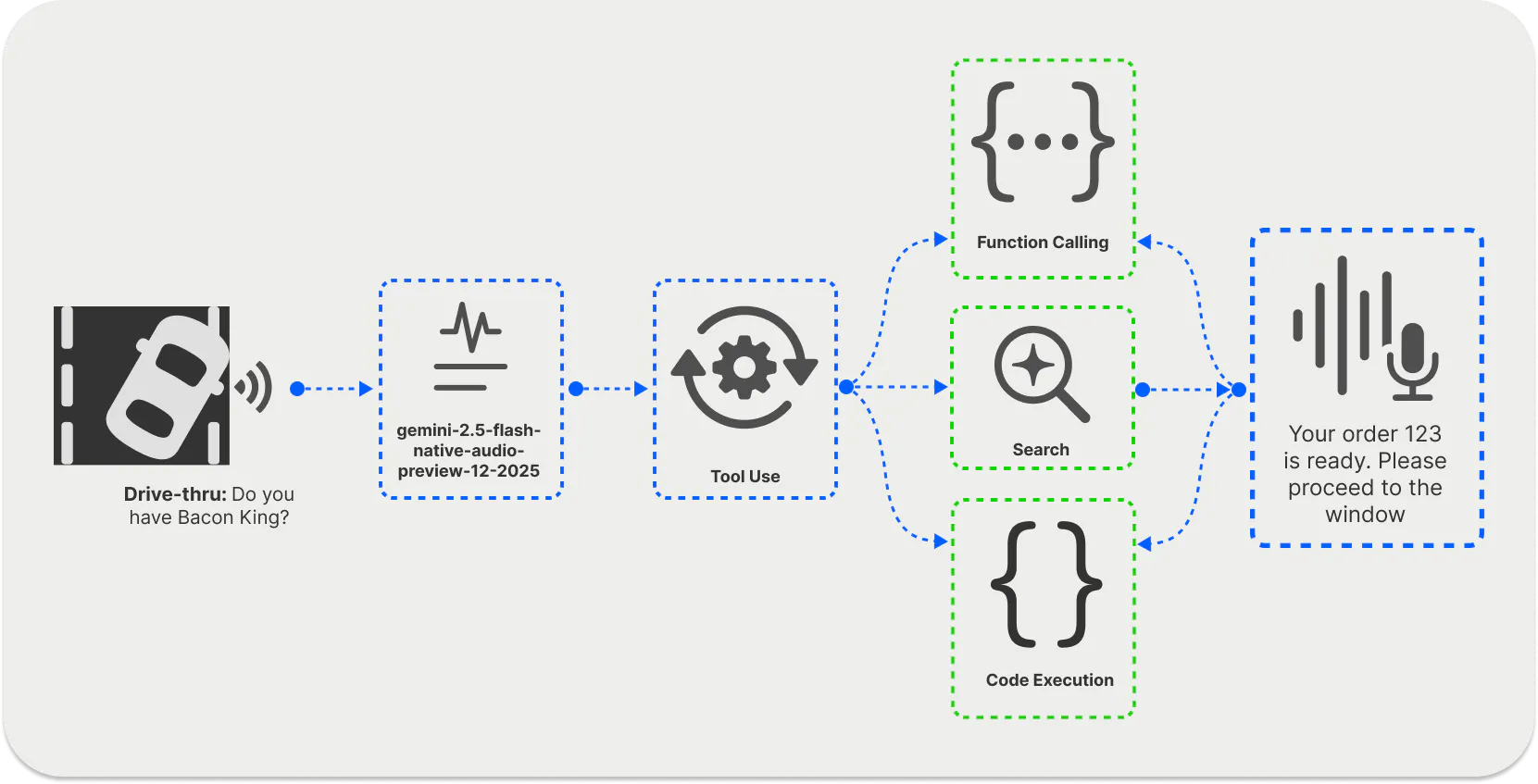
When a user wants to order a drink or food, the voice UI in a speaker post collects the order information from the user and sends it to a Gemini native audio model for processing. The system performs function calling and searches through the restaurant menu to confirm the user’s order availability. It engages in turn-by-turn, natural-like, interruptible conversations to complete the order.
Gemini Live Speech-to-Speech in Vision Agents

The Gemini Live (Speech-to-Speech) API integrates with Vision Agents as a Python plugin available on pypi.org. It establishes a real-time Gemini Live session with a Stream video call, allowing your assistant to speak and listen simultaneously.
The live API supports the following features for advanced voice assistant use cases.
- Events Subscription: This feature enables you to subscribe to
audiofor synthesized audio chunks and "text" events. - Bidirectional Audio: Use this feature to stream the microphone’s PCM to Gemini, and play speech into the call using
output_track. - Video Frame Forwarding: This feature enables you to send a remote participant's video frames to Gemini Live for multimodal understanding. You can use
start_video_senderwith a remoteMediaStreamTrackto build your voice apps. - Text Messages: Use
send_textto add text turns directly to any conversation. - Auto Resampling: The
send_audio_pcmfunction resamples input frames to a target rate when necessary.
Handling Interruptions
Interruptions are key features to consider when building voice-enabled applications. They enable natural conversation experiences similar to those found in human-to-human communication.
Interruptions allow users to cut off an assistant in mid-sentence and ask follow-up questions. To handle interruptions gracefully in the Vision Agents integration, the Gemini Live plugin detects user speech activity in incoming PCM and interrupts any ongoing playback. After a short period of silence, playback is enabled again, allowing the assistant to speak.
Configure Voice and Language
When working with the Gemini Live API, you can specify a voice and set its name within a speechConfig object as part of the assistant’s session configuration in Vision Agents.
12345"speech_config": { "voice_config": { "prebuilt_voice_config": {"voice_name": "Leda"} } },
The API also supports several Native Audio capabilities, such as:
- Thinking Budget: The latest native audio output model of the API,
gemini-2.5-flash-native-audio-preview-12-2025, has thinking capabilities and also offers the possibility to configure its thinking budget. The thinking can be disabled by setting thethinkingBudgetparameter to0.
1234567891011model = "gemini-2.5-flash-native-audio-preview-12-2025"

config = types.LiveConnectConfig(
    response_modalities=["AUDIO"]
    thinking_config=types.ThinkingConfig(
        thinking_budget=1024,
    )
)

async with client.aio.live.connect(model=model, config=config) as session:
    # Send audio input and receive audio
- Affective Audio: The ability of the Gemini audio model to adapt its response style to the user’s voice input, expression, and tone.
123456client = genai.Client(http_options={"api_version": "v1alpha"})

config = types.LiveConnectConfig(
    response_modalities=["AUDIO"],
    enable_affective_dialog=True
)
- Proactive Audio: The ability of Gemini to give no response or ignore the user’s input if the content is not relevant.
123456client = genai.Client(http_options={"api_version": "v1alpha"})

config = types.LiveConnectConfig(
    response_modalities=["AUDIO"],
    proactivity={'proactive_audio': True}
)
Get Troubleshooting Help
Running the demo may result in some errors. Here are some common issues you may encounter, along with their solutions.
- Hallucinated Responses: Ensure you equip an agent with detailed yet concise instructions to guide its output and achieve accurate results.
- No Response: If there is no response from the assistant, ensure that the
GOOGLE_API_KEY/GEMINI_API_KEYand the specified model or its snapshot are correct. - No Audio Playback: If there is no audio playback, verify that you have published the output track to the call and the call is subscribed to the agent's audio.
- Issues With Sample-Rate: Sample-rate issues can be fixed by configuring the
send_audio_pcm(..., target_rate=48000)to normalize input frames.
Real World Restaurant Applications and Benefits
This step-by-step tutorial has guided you in building a drive-thru voice AI ordering system for restaurants, enabling faster and more accurate food/drink ordering, supercharging sales, and helping employees focus on a better customer experience.
The demo we created here can be extended and integrated with any restaurant to:
- Ensure Faster Ordering: Use the system to minimize ordering times at your restaurant's drive-thru speaker post.
- Streamline Interactions: Offer a seamless ordering and serving process for customers, increasing staff productivity and revenue.
- Improve UX: Enhance customer satisfaction and retention for a better user experience.
The ordering system you built in this tutorial also supports your preferred AI provider. Instead of using Gemini, you can swap its implementation in the agent’s configuration using the OpenAI Realtime API or a real-time model like Amazon Nova Sonic. The swappable AI service architecture in Vision Agents is designed to prevent the need to change your code completely.
The Vision Agents repo has advanced examples and use cases for your inspiration. You can read the docs to learn about the various concepts and also join the Discord community to contribute to the open-source video AI framework.