
Stream's Activity Feed V3 SDK enables teams of all sizes to build scalable activity feeds. This SDK is designed to enable you to get a feed application up and running quickly and efficiently while supporting customization for complex use cases.
In this tutorial, we will use Stream's Activity Feed V3 SDK for React to:
- Set up a simple activity feed application and connect it to Stream's Activity Feed V3 SDK.
- Create user and timeline feeds.
- Add activities, reactions and comments.
- Explore new content with "For you" feed.
The app we're building is a simplified version of our demo app. Here is a quick visual overview of the application we're building:
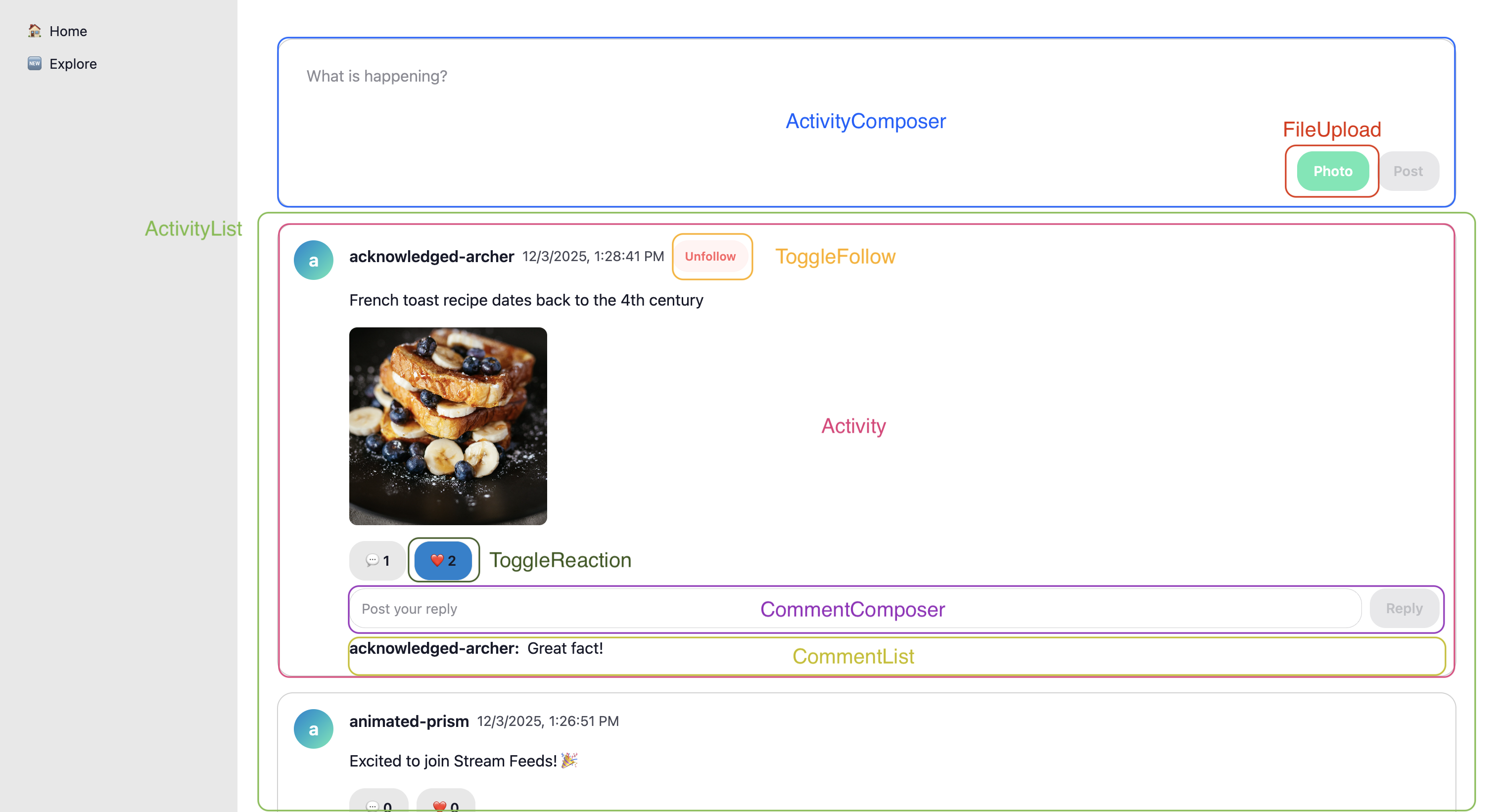
Project Setup and Installation
To follow the tutorial make sure you have installed:
To follow the tutorial you need to clone or download the starter application that has some boilerplate code:
We'll start the tutorial from the initial commit, if you wish to see the finished source code, it's the latest commit in the stream-feeds-react-tutorial repository.
123456# or download zip from https://github.com/GetStream/stream-feeds-react-tutorial/releases/tag/initial-commit
git clone git@github.com:GetStream/stream-feeds-react-tutorial.git
cd stream-feeds-react-tutorial
git checkout initial-commit

yarn
Install Stream's Feeds v3 React SDK:
1yarn add @stream-io/feeds-react-sdk
The tutorial application uses React 19, the SDK's version support can be found in the Installation guide
To make the tutorial as easy as possible, we generated credentials for you to pick up and use. These credentials consist of:
API_KEY- an API key that is used to identify your Stream application by our serversidandtoken- authorization information of the current username- optional, used as a display name of the current user
To start using credentials, replace the contents of the src/user.ts file:
1234567export const API_KEY = 'REPLACE_WITH_API_KEY';

export const CURRENT_USER = {
  id: 'REPLACE_WITH_USER_ID',
  name: 'REPLACE_WITH_USER_NAME',
  token: 'REPLACE_WITH_TOKEN',
};
Security Note: In production applications, never expose your API secret or generate tokens on the client side. Tokens should always be generated on your backend server to ensure security. The credentials in this tutorial are for development purposes only.
Run the application:
1yarn dev
For now, the application doesn't do much, but this will change as we complete the tutorial step by step.
Connect to the Stream API
Let's create and connect the demo user to the Stream API.
The starter application you cloned has all necessary files, but they're empty. You can update their content from the code snippets in the tutorial. No need to create any additional files.
To achieve this, we're using the useCreateFeedsClient hook and StreamFeeds context provider to make sure all components have access to the client instance. Let's update App.tsx:
123456789101112131415161718192021222324import { StreamFeeds, useCreateFeedsClient } from '@stream-io/feeds-react-sdk';
import { AppSkeleton } from './AppSkeleton';
import { API_KEY, CURRENT_USER } from './user';

export default function App() {
  const client = useCreateFeedsClient({
    apiKey: API_KEY,
    tokenOrProvider: CURRENT_USER.token,
    userData: {
      id: CURRENT_USER.id,
      name: CURRENT_USER.name,
    },
  });

  if (!client) {
    return null;
  }

  return (
    <StreamFeeds client={client}>
      <AppSkeleton />
    </StreamFeeds>
  );
}
For simplicity, the tutorial doesn't handle errors. In a real application, you should always make sure to handle errors from API requests. The Error handling guide provides more information on this topic.
Creating Feeds
In this step we're creating a few feeds using built-in feed groups. Before we dive into the code, let's understand the core concepts:
- User Feed: A feed that contains all activities (posts) created by a specific user. Each user has their own user feed (e.g.,
user:alice). - Timeline Feed: A feed that contains activities from all the feeds that you follow. When you follow someone's user feed, their activities automatically appear in your timeline feed (this concept is called fan-out).
- Follow Relationship: When you follow a user's feed, your timeline feed subscribes to their user feed. This means new activities from followed users automatically appear in your timeline.
Let's see what the concept looks like in code (no need to add this to your app yet):
12345678910111213// SDK hooks for accessing client and connected user
const client = useFeedsClient();
const connectedUser = useClientConnectedUser();

// Using user id for the feed id, but you can use any id you want to
const ownFeed = client.feed('user', connectedUser.id);
await ownFeed.getOrCreate({
  // Turns on real-time updates
  watch: true
});

const ownTimeline = client.feed('timeline', connectedUser.id);
await ownTimeline.getOrCreate({watch: true, limit: 10});
To ensure our own posts are part of our timeline, we need to set up the follow relationship:
1234567// You typically create these relationships on your server-side, we do this here for simplicity
const alreadyFollows = ownFeed.currentState.own_follows?.find(
  (follow) => follow.source_feed.feed === ownTimeline.feed,
);
if (!alreadyFollows) {
  ownTimeline.follow(ownFeed);
}
To make sure the user's feeds are easily accessible throughout the application, we create a React context provider for initializing feeds (own-feeds-context.tsx) and add this to App.tsx. This is the full code that contains the React boilerplate, add this to your application:
123456789101112131415161718192021222324252627282930313233343536373839404142434445464748495051525354555657585960616263import {
  Feed,
  useClientConnectedUser,
  useFeedsClient,
} from '@stream-io/feeds-react-sdk';
import {
  createContext,
  PropsWithChildren,
  useContext,
  useEffect,
  useState,
} from 'react';

type OwnFeedsContextValue = {
  ownFeed: Feed | undefined;
  ownTimeline: Feed | undefined;
};

const OwnFeedsContext = createContext<OwnFeedsContextValue>({
  ownFeed: undefined,
  ownTimeline: undefined,
});

export const OwnFeedsContextProvider = ({ children }: PropsWithChildren) => {
  const [ownFeed, setOwnFeed] = useState<Feed>();
  const [ownTimeline, setOwnTimeline] = useState<Feed>();
  const client = useFeedsClient();
  const connectedUser = useClientConnectedUser();

  useEffect(() => {
    if (!connectedUser || !client) return;

    const feed = client.feed('user', connectedUser.id);
    setOwnFeed(feed);

    const timeline = client.feed('timeline', connectedUser.id);
    setOwnTimeline(timeline);

    Promise.all([
      feed.getOrCreate({ watch: true }),
      timeline.getOrCreate({ watch: true, limit: 10 }),
    ]).then(() => {
      // You typically create these relationships on your server-side, we do this here for simplicity
      const alreadyFollows = feed.currentState.own_follows?.find(
        (follow) => follow.source_feed.feed === timeline.feed,
      );
      if (!alreadyFollows) timeline.follow(feed);
    });

    return () => {
      setOwnFeed(undefined);
      setOwnTimeline(undefined);
    };
  }, [connectedUser, client]);

  return (
    <OwnFeedsContext.Provider value={{ ownFeed, ownTimeline }}>
      {children}
    </OwnFeedsContext.Provider>
  );
};

export const useOwnFeedsContext = () => useContext(OwnFeedsContext);
123456789101112131415161718192021222324252627import { StreamFeeds, useCreateFeedsClient } from '@stream-io/feeds-react-sdk';
import { AppSkeleton } from './AppSkeleton';
import { API_KEY, CURRENT_USER } from './user';
import { OwnFeedsContextProvider } from './own-feeds-context';

export default function App() {
  const client = useCreateFeedsClient({
    apiKey: API_KEY,
    tokenOrProvider: CURRENT_USER.token,
    userData: {
      id: CURRENT_USER.id,
      name: CURRENT_USER.name,
    },
  });

  if (!client) {
    return null;
  }

  return (
    <StreamFeeds client={client}>
      <OwnFeedsContextProvider>
        <AppSkeleton />
      </OwnFeedsContextProvider>
    </StreamFeeds>
  );
}
Activity List
Activity Feeds SDKs don't have UI components (yet).
Now that we created feeds, we can create UI components to display the activities. To achieve this we're creating the following components:
Activitycomponent - this will be very simple for now, and we'll extend it during the tutorialActivityListcomponent to display activities, and paginate- We display the user's
timelinefeed on theHomepage
The
Activitycomponent for now contains the most basic activity information (for exampleactivity.text) and some HTML code to create a layout we can extend with new features.
123456789101112131415161718192021222324import { ActivityResponse } from '@stream-io/feeds-react-sdk';

export const Activity = ({ activity }: { activity: ActivityResponse }) => {
  return (
    <div className="w-full p-4 bg-base-100 card border border-base-300">
      <div className="w-full flex items-start gap-4">
        <div className="avatar flex-shrink-0">
          <div className="w-10 h-10 rounded-full bg-gradient-to-br from-primary to-secondary  flex items-center justify-center text-white text-lg font-semibold">
            <span>{activity.user?.name?.[0]}</span>
          </div>
        </div>
        <div className="w-full flex flex-col items-start gap-4">
          <div className="flex flex-row items-center gap-2">
            <span className="font-semibold text-md">{activity.user.name}</span>
            <span className="text-sm text-base-content/80">
              {activity.created_at.toLocaleString()}
            </span>
          </div>
          <p className="w-full">{activity.text}</p>
        </div>
      </div>
    </div>
  );
};
12345678910111213141516171819202122232425import { useFeedActivities } from '@stream-io/feeds-react-sdk';
import { Activity } from './Activity';

export const ActivityList = () => {
  const { activities, loadNextPage, has_next_page } = useFeedActivities();

  return (
    <div className="w-full flex flex-col items-center justify-start gap-4">
      {activities?.length === 0 ? (
        'No posts yet'
      ) : (
        <>
          {activities?.map((activity) => (
            <Activity activity={activity} key={activity.id} />
          ))}
          {has_next_page && (
            <button className="btn btn-soft btn-primary" onClick={loadNextPage}>
              Load more
            </button>
          )}
        </>
      )}
    </div>
  );
};
12345678910111213141516171819import { StreamFeed } from '@stream-io/feeds-react-sdk';
import { useOwnFeedsContext } from '../own-feeds-context';
import { ActivityList } from '../components/activity/ActivityList';

export const Home = () => {
  const { ownTimeline } = useOwnFeedsContext();

  if (!ownTimeline) {
    return null;
  }

  return (
    <div className="w-full flex flex-col items-center justify-start gap-4">
      <StreamFeed feed={ownTimeline}>
        <ActivityList />
      </StreamFeed>
    </div>
  );
};
The activity list is currently empty. We'll change that in the next step. Before doing that, let's recap the important parts from this step:
- We're using the
StreamFeedcontext to makeownTimelineaccessible to all components in a given subtree - Components then can use
useFeedContextanduseFeedActivitieshooks to access the data they need- You can find the full list of feed state hooks on the Contexts and Hooks page of the documentation
Activity Composer
Let's create an ActivityComposer component to be able to post, and add it to the Home page:
As mentioned previously: users post on their
userfeed, and it automatically appears in theirtimelinefeed via follow relationship.
12345678910111213141516171819202122232425262728293031323334353637383940import { useFeedContext } from '@stream-io/feeds-react-sdk';
import { useCallback, useState } from 'react';

export const ActivityComposer = () => {
  const feed = useFeedContext();
  const [newText, setNewText] = useState('');

  const sendActivity = useCallback(async () => {
    await feed?.addActivity({
      text: newText,
      // Type can be any string you want
      type: 'post',
    });
    setNewText('');
  }, [feed, newText]);

  return (
    <div className="w-full p-4 bg-base-100 card border border-base-300">
      <div className="w-full flex flex-col gap-2">
        <textarea
          className="w-full textarea textarea-ghost flex-1 min-h-[60px] text-base"
          rows={3}
          placeholder="What is happening?"
          value={newText}
          onChange={(e) => setNewText(e.target.value)}
          style={{ resize: 'none' }}
        />
        <div className="w-full flex justify-end items-center gap-2">
          <button
            className="btn btn-primary flex-shrink-0"
            onClick={sendActivity}
            disabled={!newText}
          >
            Post
          </button>
        </div>
      </div>
    </div>
  );
};
1234567891011121314151617181920212223import { StreamFeed } from '@stream-io/feeds-react-sdk';
import { useOwnFeedsContext } from '../own-feeds-context';
import { ActivityComposer } from '../components/activity/ActivityComposer';
import { ActivityList } from '../components/activity/ActivityList';

export const Home = () => {
  const { ownTimeline, ownFeed } = useOwnFeedsContext();

  if (!ownTimeline || !ownFeed) {
    return null;
  }

  return (
    <div className="w-full flex flex-col items-center justify-start gap-4">
      <StreamFeed feed={ownFeed}>
        <ActivityComposer />
      </StreamFeed>
      <StreamFeed feed={ownTimeline}>
        <ActivityList />
      </StreamFeed>
    </div>
  );
};
Go ahead and post something! It'll automatically appear on your timeline.
Explore Page
The "Explore" page uses the foryou feed to explore new content by showing popular activities.
The layout is similar to the Home page, we're reusing the ActivityList component, but there is no composer. Code for Explore.tsx:
12345678910111213141516171819202122232425262728293031323334import {
  useFeedsClient,
  useClientConnectedUser,
  StreamFeed,
} from '@stream-io/feeds-react-sdk';
import { useEffect, useMemo } from 'react';
import { ActivityList } from '../components/activity/ActivityList';

export const Explore = () => {
  const client = useFeedsClient();
  const currentUser = useClientConnectedUser();
  const feed = useMemo(() => {
    if (!currentUser?.id || !client) {
      return undefined;
    }
    return client.feed('foryou', currentUser.id);
  }, [client, currentUser?.id]);

  useEffect(() => {
    if (feed) {
      feed.getOrCreate({ limit: 10 });
    }
  }, [feed]);

  if (!feed) {
    return null;
  }

  return (
    <StreamFeed feed={feed}>
      <ActivityList />
    </StreamFeed>
  );
};
You may have noticed that we don't use
watch: truefor this feed. This is because theforyoufeed uses the "popular" activity selector, which doesn't support real-time updates. Addingwatch:truewon't cause an error, but does nothing here. The documentation details how real-time updates work.
In the next step, we're adding a follow button, so we can follow users from the foryou page.
Follow and Unfollow
To implement following and unfollowing feeds we're adding:
ToggleFollowButtoncomponent- Extending the
Activitycomponent with the follow/unfollow button
12345678910111213141516171819202122232425262728293031323334353637383940414243444546474849505152535455import { useCallback } from 'react';
import { useOwnFeedsContext } from '../own-feeds-context';
import {
  FeedResponse,
  useFeedsClient,
  useOwnFollows,
} from '@stream-io/feeds-react-sdk';

export const ToggleFollowButton = ({
  feed: feedResponse,
}: {
  feed: FeedResponse;
}) => {
  const client = useFeedsClient();
  const { ownTimeline } = useOwnFeedsContext();

  const feed = client?.feed(feedResponse.group_id, feedResponse.id);
  const { own_follows: ownFollows } = useOwnFollows(feed) ?? {};
  const isFollowing = (ownFollows?.length ?? 0) > 0;

  const follow = useCallback(async () => {
    if (!feed) return;

    await ownTimeline?.follow(feed);
    // Reload timelinesto see new activities
    await ownTimeline?.getOrCreate({ watch: true, limit: 10 });
  }, [feed, ownTimeline]);

  const unfollow = useCallback(async () => {
    if (!feed) return;

    await ownTimeline?.unfollow(feed);
    // Reload timeline to remove activities
    await ownTimeline?.getOrCreate({ watch: true, limit: 10 });
  }, [feed, ownTimeline]);

  const toggleFollow = useCallback(() => {
    if (isFollowing) {
      unfollow();
    } else {
      follow();
    }
  }, [isFollowing, feed, follow, unfollow]);

  return (
    <button
      className={`btn btn-soft ${
        isFollowing ? 'btn-error' : 'btn-primary'
      } btn-sm`}
      onClick={toggleFollow}
    >
      {isFollowing ? 'Unfollow' : 'Follow'}
    </button>
  );
};
123456789101112131415161718192021222324252627282930313233import {
  ActivityResponse,
  useClientConnectedUser,
} from '@stream-io/feeds-react-sdk';
import { ToggleFollowButton } from '../ToggleFollowButton';

export const Activity = ({ activity }: { activity: ActivityResponse }) => {
  const currentUser = useClientConnectedUser();

  return (
    <div className="w-full p-4 bg-base-100 card border border-base-300">
      <div className="w-full flex items-start gap-4">
        <div className="avatar flex-shrink-0">
          <div className="w-10 h-10 rounded-full bg-gradient-to-br from-primary to-secondary  flex items-center justify-center text-white text-lg font-semibold">
            <span>{activity.user?.name?.[0]}</span>
          </div>
        </div>
        <div className="w-full flex flex-col items-start gap-4">
          <div className="flex flex-row items-center gap-2">
            <span className="font-semibold text-md">{activity.user.name}</span>
            <span className="text-sm text-base-content/80">
              {activity.created_at.toLocaleString()}
            </span>
            {activity.current_feed?.feed !== `user:${currentUser?.id}` && (
              <ToggleFollowButton feed={activity.current_feed!} />
            )}
          </div>
          <p className="w-full">{activity.text}</p>
        </div>
      </div>
    </div>
  );
};
Let's walk through the steps:
feed.followandfeed.unfollowlets us follow/unfollow feeds.- To immediately see the results of the follow/unfollow, we're reloading the timeline feed with
getOrCreate. - In
Activitycomponent we're usingactivity.current_feedto know which feed the activity is posted toactivity.current_feedhas information about the feed the activity was posted to. It's especially useful if you're building Reddit-style applications where there is no 1:1 mapping between feeds and users. It lets you display name/image of the feed the activity belongs to.
useOwnFollowsis used to determine if we're following a given feed or not- Stream API also supports follow requests where approval from feed owner is required to follow
Now that the follow button is working, you can start following another user using the "Explore" page.
Reactions
To make our application more interactive, we'll add reactions for activities.
To achieve this, we need to implement the ToggleReaction and extend the Activity component:
1234567891011121314151617181920212223242526272829303132333435import { ActivityResponse, useFeedsClient } from '@stream-io/feeds-react-sdk'; import { useCallback } from 'react'; export const ToggleReaction = ({ activity, }: { activity: ActivityResponse; }) => { const client = useFeedsClient(); const toggleReaction = useCallback(() => { activity.own_reactions?.length > 0 ? client?.deleteActivityReaction({ activity_id: activity.id, type: 'like', }) : client?.addActivityReaction({ activity_id: activity.id, type: 'like', }); }, [client, activity.id, activity.own_reactions]); return ( <button type="button" className={`btn ${ activity.own_reactions?.length > 0 ? 'bg-primary' : '' }`} onClick={toggleReaction} > ❤️ {activity.reaction_groups['like']?.count ?? 0} </button> ); };
123456789101112131415161718192021222324252627282930313233343536373839import {
  ActivityResponse,
  useClientConnectedUser,
} from '@stream-io/feeds-react-sdk';
import { ToggleFollowButton } from '../ToggleFollowButton';
import { ToggleReaction } from './ToggleReaction';

export const Activity = ({ activity }: { activity: ActivityResponse }) => {
  const currentUser = useClientConnectedUser();

  return (
    <div className="w-full p-4 bg-base-100 card border border-base-300">
      <div className="w-full flex items-start gap-4">
        <div className="avatar flex-shrink-0">
          <div className="w-10 h-10 rounded-full bg-gradient-to-br from-primary to-secondary  flex items-center justify-center text-white text-lg font-semibold">
            <span>{activity.user?.name?.[0]}</span>
          </div>
        </div>
        <div className="w-full flex flex-col items-start gap-4">
          <div className="flex flex-row items-center gap-2">
            <span className="font-semibold text-md">{activity.user.name}</span>
            <span className="text-sm text-base-content/80">
              {activity.created_at.toLocaleString()}
            </span>
            {activity.current_feed?.feed !== `user:${currentUser?.id}` && (
              <ToggleFollowButton feed={activity.current_feed!} />
            )}
          </div>
          <p className="w-full">{activity.text}</p>
          <div className="w-full flex flex-col gap-2">
            <div className="flex flex-row gap-2">
              <ToggleReaction activity={activity} />
            </div>
          </div>
        </div>
      </div>
    </div>
  );
};
You can use the demo app to follow your tutorial user, and to react to their activities.
Let's recap what we did in this step:
client.addActivityReactionandclient.deleteActivityReactiontoggles reactionstypecan be any string you'd like- Since the React SDK provides reactive state management, the UI is automatically updated anytime anything on the activity changes
- We use
activity.own_reactionsandactivity.reaction_groupsto get real-time reaction data for activity - Some advanced features not shown in tutorial:
- A single user can add multiple reactions to an activity
- Comments can have reactions too
- Checkout the activity reactions and comment reactions pages in the documentation for more information
Comments
Comments are another good way to add interactivity to your app. To add this feature, we need to do the following tasks:
- Implement
CommentComposerto post comments - Implement
CommentListto list comments - Extend
Activitycomponent to show comments
1234567891011121314151617181920212223242526272829303132333435363738import { ActivityResponse, useFeedsClient } from '@stream-io/feeds-react-sdk';
import { useState, useCallback } from 'react';

export const CommentComposer = ({
  activity,
}: {
  activity: ActivityResponse;
}) => {
  const client = useFeedsClient();
  const [commentDraft, setCommentDraft] = useState('');

  const addComment = useCallback(async () => {
    await client?.addComment({
      object_id: activity.id,
      object_type: 'activity',
      comment: commentDraft,
    });
    setCommentDraft('');
  }, [client, activity.id, commentDraft]);

  return (
    <div className="w-full flex flex-row gap-2">
      <input
        className="input w-full"
        placeholder="Post your reply"
        value={commentDraft}
        onChange={(e) => setCommentDraft(e.target.value)}
      />
      <button
        className="btn btn-primary"
        onClick={addComment}
        disabled={!commentDraft.trim()}
      >
        Reply
      </button>
    </div>
  );
};
1234567891011121314151617181920212223242526272829303132333435363738import {
  ActivityResponse,
  useActivityComments,
} from '@stream-io/feeds-react-sdk';
import { useEffect } from 'react';

export const CommentList = ({ activity }: { activity: ActivityResponse }) => {
  const {
    comments = [],
    loadNextPage,
    has_next_page,
  } = useActivityComments({ activity });

  // Load initial comments
  useEffect(() => {
    if (comments.length === 0 && activity.comment_count > 0) {
      void loadNextPage({ limit: 5, sort: 'best' });
    }
  }, [loadNextPage, comments.length, activity.comment_count]);
  return (
    <>
      {comments.map((comment) => (
        <div className="flex flex-row items-center gap-2" key={comment.id}>
          <span className="font-semibold">{comment.user.name}:</span>
          <span>{comment.text}</span>
        </div>
      ))}
      {activity.comment_count > 0 && has_next_page && (
        <button
          className="btn btn-soft btn-primary"
          onClick={() => loadNextPage()}
        >
          Load more comments
        </button>
      )}
    </>
  );
};
1234567891011121314151617181920212223242526272829303132333435363738394041424344454647import { ActivityResponse, useClientConnectedUser, } from '@stream-io/feeds-react-sdk'; import { ToggleFollowButton } from '../ToggleFollowButton'; import { ToggleReaction } from './ToggleReaction'; import { CommentList } from '../comments/CommentList'; import { CommentComposer } from '../comments/CommentComposer'; export const Activity = ({ activity }: { activity: ActivityResponse }) => { const currentUser = useClientConnectedUser(); return ( <div className="w-full p-4 bg-base-100 card border border-base-300"> <div className="w-full flex items-start gap-4"> <div className="avatar flex-shrink-0"> <div className="w-10 h-10 rounded-full bg-gradient-to-br from-primary to-secondary flex items-center justify-center text-white text-lg font-semibold"> <span>{activity.user?.name?.[0]}</span> </div> </div> <div className="w-full flex flex-col items-start gap-4"> <div className="flex flex-row items-center gap-2"> <span className="font-semibold text-md">{activity.user.name}</span> <span className="text-sm text-base-content/80"> {activity.created_at.toLocaleString()} </span> {activity.current_feed?.feed !== `user:${currentUser?.id}` && ( <ToggleFollowButton feed={activity.current_feed!} /> )} </div> <p className="w-full">{activity.text}</p> <div className="w-full flex flex-col gap-2"> <div className="flex flex-row gap-2"> <button type="button" className="btn cursor-default"> 💬 {activity.comment_count} </button> <ToggleReaction activity={activity} /> </div> <CommentComposer activity={activity} /> <CommentList activity={activity} /> </div> </div> </div> </div> ); };
Let's recap what happened in this step:
client.addCommentlets us create a commentuseActivityCommentslets you read and paginate comments- Stream API provides multiple ways to sort comments
activity.comment_countstores how many comments the activity has
Comments can be threaded/nested too (not shown in the tutorial).
Posting Images
Stream API allows attaching files to activities and comments. Let's extend our app with attaching images to activities. To achieve this we need to:
- Implement
FileUploadcomponent to let users pick files, and upload it to Stream's CDN - Extend the
ActivityComposerto send attachments with the activity - Extend the
Activitycomponent to display the attachment
12345678910111213141516171819202122232425262728293031323334353637383940414243444546474849505152535455565758import { useFeedsClient } from '@stream-io/feeds-react-sdk';
import { useCallback, useState } from 'react';

export const FileUpload = ({
  onImageUploaded,
}: {
  onImageUploaded: (imageUrl: string) => void;
}) => {
  const client = useFeedsClient();
  const [isUploading, setIsUploading] = useState(false);

  const uploadImage = useCallback(
    async (file: File) => {
      if (!client) {
        return;
      }
      setIsUploading(true);
      try {
        const { file: image_url } = await client.uploadImage({ file });
        if (image_url) {
          onImageUploaded(image_url);
        }
      } finally {
        setIsUploading(false);
      }
    },
    [client, onImageUploaded],
  );

  const fileSelected = useCallback(
    (e: React.ChangeEvent<HTMLInputElement>) => {
      const file = e.target.files?.[0];
      if (!file) {
        return;
      }
      void uploadImage(file);
    },
    [uploadImage],
  );

  return (
    <label className="cursor-pointer">
      <div className="btn btn-secondary">
        {isUploading ? (
          <span className="loading loading-spinner loading-sm"></span>
        ) : (
          'Photo'
        )}
      </div>
      <input
        type="file"
        accept="image/*"
        className="hidden"
        onChange={fileSelected}
      />
    </label>
  );
};
123456789101112131415161718192021222324252627282930313233343536373839404142434445464748495051525354import { useFeedContext } from '@stream-io/feeds-react-sdk';
import { useCallback, useState } from 'react';
import { FileUpload } from './FileUpload';

export const ActivityComposer = () => {
  const feed = useFeedContext();
  const [newText, setNewText] = useState('');
  const [imageUrl, setImageUrl] = useState<string | undefined>(undefined);

  const sendActivity = useCallback(async () => {
    await feed?.addActivity({
      text: newText,
      // Type can be any string you want
      type: 'post',
      attachments: imageUrl
        ? [{ type: 'image', image_url: imageUrl, custom: {} }]
        : [],
    });
    setNewText('');
    setImageUrl(undefined);
  }, [feed, newText, imageUrl]);

  return (
    <div className="w-full p-4 bg-base-100 card border border-base-300">
      <div className="w-full flex flex-col gap-2">
        <textarea
          className="w-full textarea textarea-ghost flex-1 min-h-[60px] text-base"
          rows={3}
          placeholder="What is happening?"
          value={newText}
          onChange={(e) => setNewText(e.target.value)}
          style={{ resize: 'none' }}
        />
        {imageUrl && (
          <img
            src={imageUrl}
            alt="Uploaded image"
            className="w-50 h-50 object-cover rounded-lg"
          />
        )}
        <div className="w-full flex justify-end items-center gap-2">
          <FileUpload onImageUploaded={setImageUrl} />
          <button
            className="btn btn-primary flex-shrink-0"
            onClick={sendActivity}
            disabled={!newText}
          >
            Post
          </button>
        </div>
      </div>
    </div>
  );
};
123456789101112131415161718192021222324252627282930313233343536373839404142434445464748495051525354import { ActivityResponse, useClientConnectedUser, } from '@stream-io/feeds-react-sdk'; import { ToggleFollowButton } from '../ToggleFollowButton'; import { ToggleReaction } from './ToggleReaction'; import { CommentList } from '../comments/CommentList'; import { CommentComposer } from '../comments/CommentComposer'; export const Activity = ({ activity }: { activity: ActivityResponse }) => { const currentUser = useClientConnectedUser(); return ( <div className="w-full p-4 bg-base-100 card border border-base-300"> <div className="w-full flex items-start gap-4"> <div className="avatar flex-shrink-0"> <div className="w-10 h-10 rounded-full bg-gradient-to-br from-primary to-secondary flex items-center justify-center text-white text-lg font-semibold"> <span>{activity.user?.name?.[0]}</span> </div> </div> <div className="w-full flex flex-col items-start gap-4"> <div className="flex flex-row items-center gap-2"> <span className="font-semibold text-md">{activity.user.name}</span> <span className="text-sm text-base-content/80"> {activity.created_at.toLocaleString()} </span> {activity.current_feed?.feed !== `user:${currentUser?.id}` && ( <ToggleFollowButton feed={activity.current_feed!} /> )} </div> <p className="w-full">{activity.text}</p> {activity.attachments.length > 0 && ( <img src={activity.attachments[0].image_url} alt="Uploaded image" className="w-50 h-50 object-cover rounded-lg" /> )} <div className="w-full flex flex-col gap-2"> <div className="flex flex-row gap-2"> <button type="button" className="btn cursor-default"> 💬 {activity.comment_count} </button> <ToggleReaction activity={activity} /> </div> <CommentComposer activity={activity} /> <CommentList activity={activity} /> </div> </div> </div> </div> ); };
Go ahead and post an image! Or send a URL, as Stream API can automatically attach URL metadata as an attachment.
Final Thoughts
In this tutorial, we built a fully-functioning React activity feed application with Stream's Activity Feed V3 SDK. We showed how easy it is to:
- Set up a simple activity feed application and connect it to Stream's Activity Feed V3 SDK.
- Create user and timeline feeds.
- Add activities, reactions and comments.
- Explore new content with "For you" feed.
Even though this was a long tutorial, Activity Feed V3 has even more features:
- Activity selectors and ranking for customizing what content to show for users
- Activity processors for extracting topics from activity content
- Notification feeds (with aggregation)
- Story feed (activity expiration)
- Custom feed groups
- Feed and activity visibility including premium activities with feed memberships
- Moderation and fine-grained permission system
- Polls
- For more React examples, checkout stream-feeds-js repository
- Full list of supported Hooks and Contexts