















Message Status Indicators
The SDK provides built-in message status indicators so users can see message delivery states.
Best Practices
- Enable read and delivery events per channel type before relying on indicators.
- Use
WithComponentsto overrideMessageStatusand hide indicators in low-signal contexts. - Distinguish delivered vs. read clearly to avoid user confusion.
- Avoid showing your own user in read/delivered lists.
- Keep status UI lightweight to prevent re-render churn on busy channels.
Message status indicators
This cookbook shows how to use and customize those indicators.
Status indicators states
Possible states:
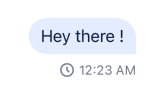
- sending: The message is pending to be sent to the server. It shows a timer icon.
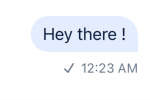
- received: The message has been received by the server successfully. It is shown as a gray checkmark.
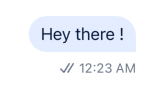
- delivered: The message has been delivered to at least one of the channel members devices. It is shown as double gray checkmark.
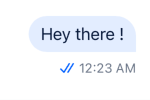
- read: The message has been read by at least one of the channel members. It is shown as double blue checkmark.
| Pending | Sent | Delivered | Read |
|---|---|---|---|
 |
 |
 |
 |
Basic Customization
Hide status indicators
To hide indicators, override MessageStatus via WithComponents and return null.
import { WithComponents } from "stream-chat-react-native";

<WithComponents overrides={{ MessageStatus: () => null }}>
  <Channel channel={channel}>
    <MessageList />
  </Channel>
</WithComponents>;
Show all read and delivered members
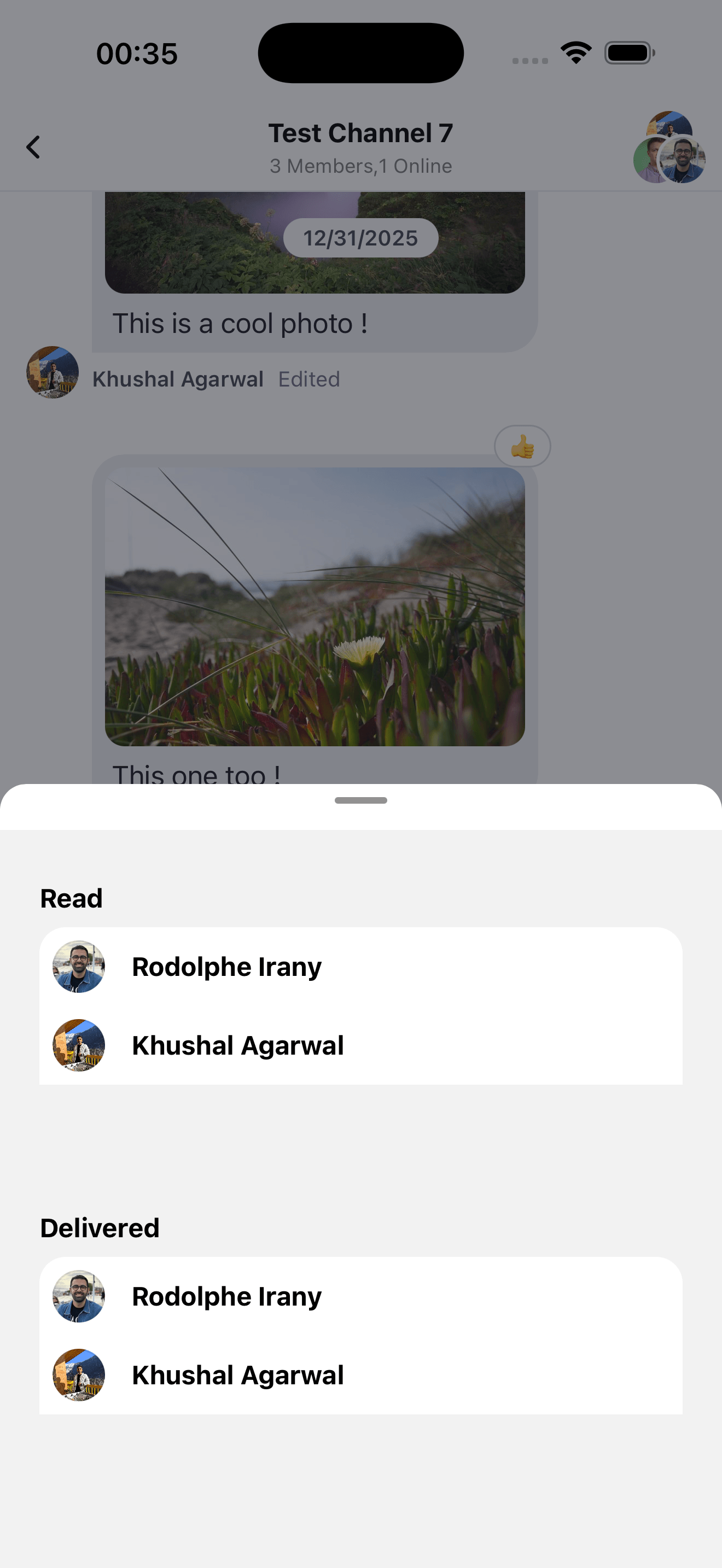
Example: a custom bottom sheet showing who has read vs. only received.
- First, create the bottom sheet component that will be used to show the members that have read the message and the ones that were delivered but not read yet.
import React, { useMemo } from "react";
import BottomSheet, { BottomSheetFlatList } from "@gorhom/bottom-sheet";
import { BottomSheetView } from "@gorhom/bottom-sheet";
import {
  Avatar,
  useChatContext,
  useMessageDeliveredData,
  useMessageReadData,
  useTheme,
} from "stream-chat-react-native";
import { LocalMessage, UserResponse } from "stream-chat";
import { StyleSheet, Text, View } from "react-native";

const renderUserItem = ({ item }: { item: UserResponse }) => (
  <View style={styles.userItem}>
    <Avatar imageUrl={item.image} name={item.name ?? item.id} size="sm" />
    <Text style={styles.userName}>{item.name ?? item.id}</Text>
  </View>
);

const renderEmptyText = ({ text }: { text: string }) => (
  <Text style={styles.emptyText}>{text}</Text>
);

export const MessageInfoBottomSheet = ({
  message,
  ref,
}: {
  message?: LocalMessage;
  ref: React.RefObject<BottomSheet | null>;
}) => {
  const {
    theme: { colors },
  } = useTheme();
  const { client } = useChatContext();
  const deliveredStatus = useMessageDeliveredData({ message });
  const readStatus = useMessageReadData({ message });

  const otherDeliveredToUsers = useMemo(() => {
    return deliveredStatus.filter(
      (user: UserResponse) => user.id !== client?.user?.id,
    );
  }, [deliveredStatus, client?.user?.id]);

  const otherReadUsers = useMemo(() => {
    return readStatus.filter(
      (user: UserResponse) => user.id !== client?.user?.id,
    );
  }, [readStatus, client?.user?.id]);

  return (
    <BottomSheet enablePanDownToClose ref={ref} index={-1} snapPoints={["50%"]}>
      <BottomSheetView
        style={[styles.container, { backgroundColor: colors.white_smoke }]}
      >
        <Text style={styles.title}>Read</Text>
        <BottomSheetFlatList
          data={otherReadUsers}
          renderItem={renderUserItem}
          keyExtractor={(item) => item.id}
          style={styles.flatList}
          ListEmptyComponent={renderEmptyText({
            text: "No one has read this message.",
          })}
        />
        <Text style={styles.title}>Delivered</Text>
        <BottomSheetFlatList
          data={otherDeliveredToUsers}
          renderItem={renderUserItem}
          keyExtractor={(item) => item.id}
          style={styles.flatList}
          ListEmptyComponent={renderEmptyText({
            text: "The message was not delivered to anyone.",
          })}
        />
      </BottomSheetView>
    </BottomSheet>
  );
};

const styles = StyleSheet.create({
  container: {
    flex: 1,
    padding: 24,
    justifyContent: "center",
    height: "100%",
  },
  title: {
    fontSize: 16,
    fontWeight: "bold",
    marginVertical: 8,
  },
  flatList: {
    borderRadius: 16,
  },
  userItem: {
    flexDirection: "row",
    alignItems: "center",
    padding: 8,
    backgroundColor: "white",
  },
  userName: {
    fontSize: 16,
    fontWeight: "bold",
    marginLeft: 16,
  },
  emptyText: {
    fontSize: 16,
    marginVertical: 16,
    textAlign: "center",
  },
});- Open this bottom sheet via a custom message action (see Custom Message Actions).
Mark as Delivered on Background push notification on Android
This example shows how to mark a message as delivered on Android background push notifications.
Use setBackgroundMessageHandler to mark messages as delivered in the background.
Example:
bootstrapBackgroundMessageHandler.ts
import {
  FirebaseMessagingTypes,
  setBackgroundMessageHandler,
} from '@react-native-firebase/messaging';

const displayNotification = async (
  remoteMessage: FirebaseMessagingTypes.RemoteMessage,
  channelId: string,
) => {
  const { stream, ...rest } = remoteMessage.data ?? {};
  const data = {
    ...rest,
    ...((stream as unknown as Record<string, string> | undefined) ?? {}), // extract and merge stream object if present
  };
  if (data.body && data.title) {
    await notifee.displayNotification({
      android: {
        channelId,
        pressAction: {
          id: 'default',
        },
      },
      body: data.body as string,
      title: data.title as string,
      data,
    });
  }
};

setBackgroundMessageHandler(messaging, async (remoteMessage) => {
  try {
    const loginConfig = // get the login config from the storage
    if (!loginConfig) {
      return;
    }
    const chatClient = StreamChat.getInstance(loginConfig.apiKey);
    await chatClient._setToken(
      { id: loginConfig.userId },
      loginConfig.userToken,
    );

    const notification = remoteMessage.data;

    const deliverMessageConfirmation = [
      {
        cid: notification?.cid,
        id: notification?.id,
      },
    ];

    await chatClient?.markChannelsDelivered({
      latest_delivered_messages:
        deliverMessageConfirmation as DeliveredMessageConfirmation[],
    });
    // create the android channel to send the notification to
    const channelId = await notifee.createChannel({
      id: "chat-messages",
      name: "Chat Messages",
    });
    // display the notification
    await displayNotification(remoteMessage, channelId);
  } catch (error) {
    console.error(error);
  }
});
Now, import the bootstrapBackgroundMessageHandler.ts file in the index.ts on the top of the file before the App component.
index.ts
import "./bootstrapBackgroundMessageHandler";Now, you can test the above by sending a push notification to the app.