















Custom Navigation
This cookbook shows how to drive the ChannelDetails component with your own navigation instead of the default modals.
By default, ChannelDetails opens its sub-screens — edit channel, add members, all members, pinned messages, media, and files — as modals. Each of these can be swapped for a screen in your own navigator. Examples use React Navigation, but any library works.
Best Practices
- Wrap every screen in
ChannelDetailsContextProvider— this is how the header, sections, lists, and forms read thechannel. - Override sub-components with
WithComponentsand route them using the provided callbacks (onPress,getNavigationItems,onViewAllMembersPress). - Leave a callback unset to keep its built-in modal behavior, so you can adopt navigation screen by screen.
- Reuse the exported list and form components (
PinnedMessageList,ChannelEditDetailsForm, etc.) instead of rebuilding them.
The Initial UI
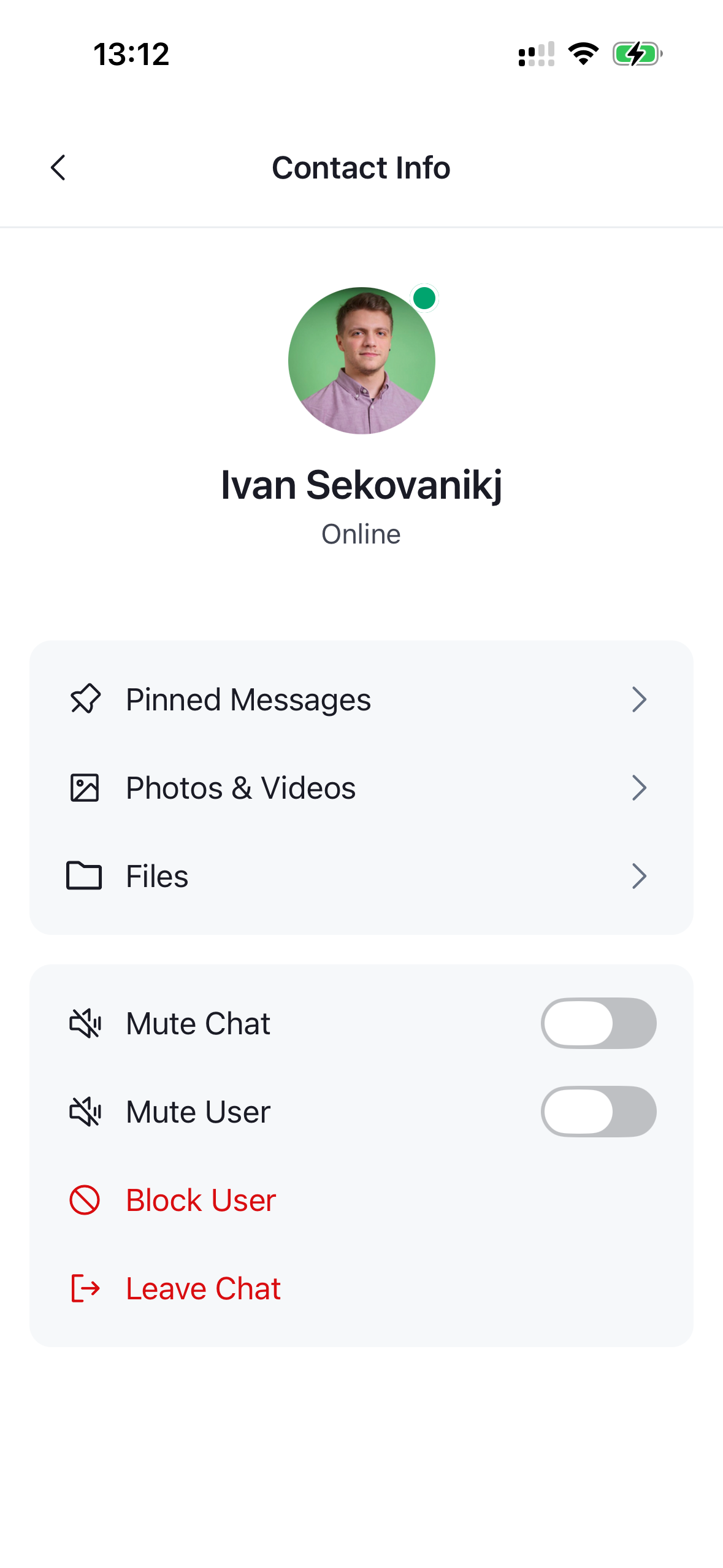
Without any customization, render ChannelDetails inside a ChannelDetailsContextProvider. Every modal works out of the box:
import {
  ChannelDetails,
  ChannelDetailsContextProvider,
} from "stream-chat-react-native";

const ChannelDetailsScreen = ({ route, navigation }) => {
  const { channel } = route.params;
  return (
    <ChannelDetailsContextProvider channel={channel}>
      <ChannelDetails onBack={() => navigation.goBack()} />
    </ChannelDetailsContextProvider>
  );
};
Custom Screen Header
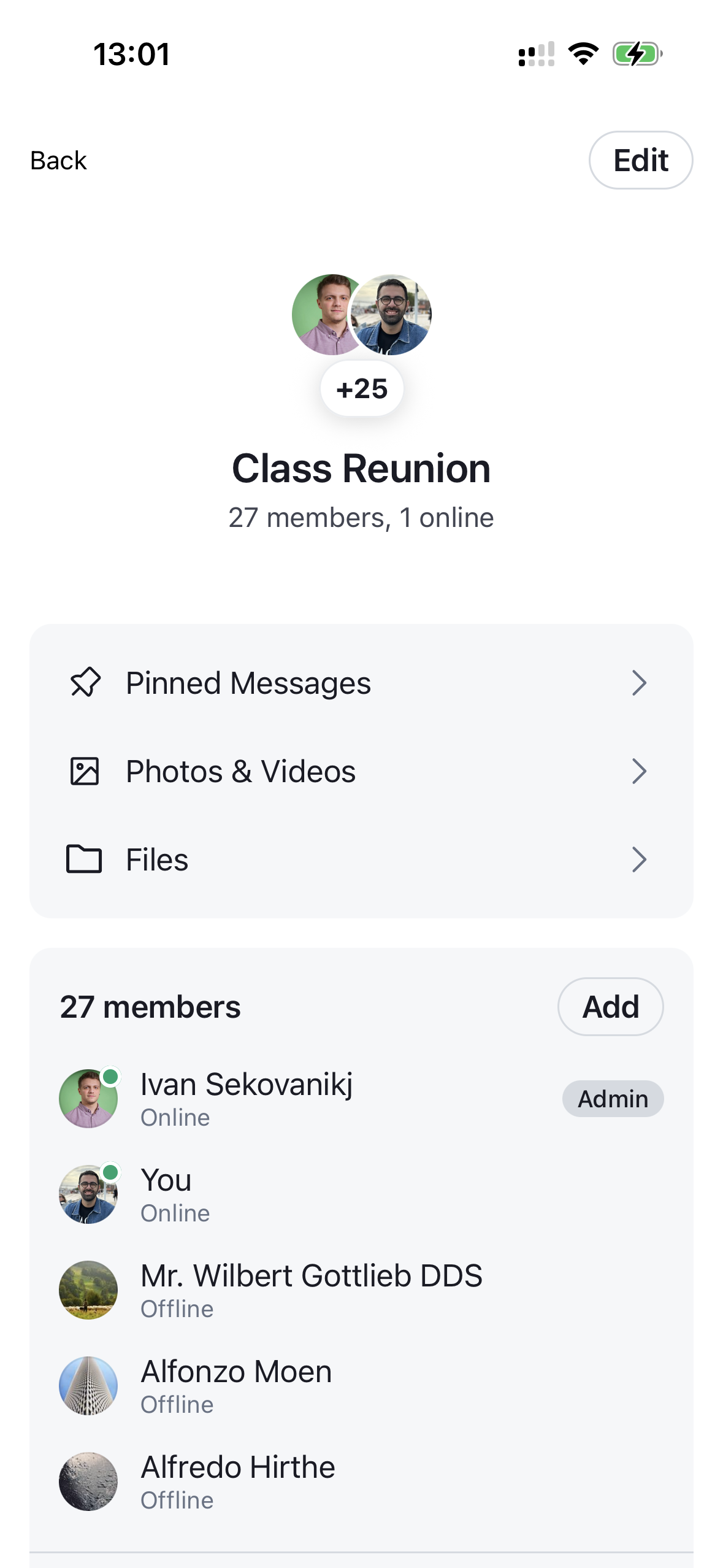
Replace the built-in header by overriding ChannelDetailsNavHeader through WithComponents. Your header receives onBack and title from ChannelDetailsNavHeaderProps. Render ChannelDetailsEditButton to keep the edit action available — with no onPress it opens the built-in edit modal:
import { Pressable, Text, View } from "react-native";
import {
  ChannelDetails,
  ChannelDetailsContextProvider,
  ChannelDetailsEditButton,
  ChannelDetailsNavHeaderProps,
  WithComponents,
} from "stream-chat-react-native";

const ChannelDetailsHeader = ({
  onBack,
  title,
}: ChannelDetailsNavHeaderProps) => (
  <View>
    {onBack ? (
      <Pressable onPress={onBack}>
        <Text>Back</Text>
      </Pressable>
    ) : null}
    <Text>{title}</Text>
    <ChannelDetailsEditButton />
  </View>
);

const ChannelDetailsScreen = ({ route, navigation }) => {
  const { channel } = route.params;
  return (
    <ChannelDetailsContextProvider channel={channel}>
      <WithComponents
        overrides={{ ChannelDetailsNavHeader: ChannelDetailsHeader }}
      >
        <ChannelDetails onBack={() => navigation.goBack()} />
      </WithComponents>
    </ChannelDetailsContextProvider>
  );
};| Default header | Custom header |
|---|---|
|
 |
Edit Page
Pass an onPress to ChannelDetailsEditButton to navigate to your own screen instead of opening the modal. The screen registration is unchanged — only the header now routes to ChannelEditScreen:
import { Pressable, Text, View } from "react-native";
import { useNavigation } from "@react-navigation/native";
import {
  ChannelDetails,
  ChannelDetailsContextProvider,
  ChannelDetailsEditButton,
  ChannelDetailsNavHeaderProps,
  useChannelDetailsContext,
  WithComponents,
} from "stream-chat-react-native";

const ChannelDetailsHeader = ({
  onBack,
  title,
}: ChannelDetailsNavHeaderProps) => {
  const navigation = useNavigation();
  const { channel } = useChannelDetailsContext();
  return (
    <View>
      {onBack ? (
        <Pressable onPress={onBack}>
          <Text>Back</Text>
        </Pressable>
      ) : null}
      <Text>{title}</Text>
      <ChannelDetailsEditButton
        onPress={() => navigation.navigate("ChannelEditScreen", { channel })}
      />
    </View>
  );
};

const ChannelDetailsScreen = ({ route, navigation }) => {
  const { channel } = route.params;
  return (
    <ChannelDetailsContextProvider channel={channel}>
      <WithComponents
        overrides={{ ChannelDetailsNavHeader: ChannelDetailsHeader }}
      >
        <ChannelDetails onBack={() => navigation.goBack()} />
      </WithComponents>
    </ChannelDetailsContextProvider>
  );
};
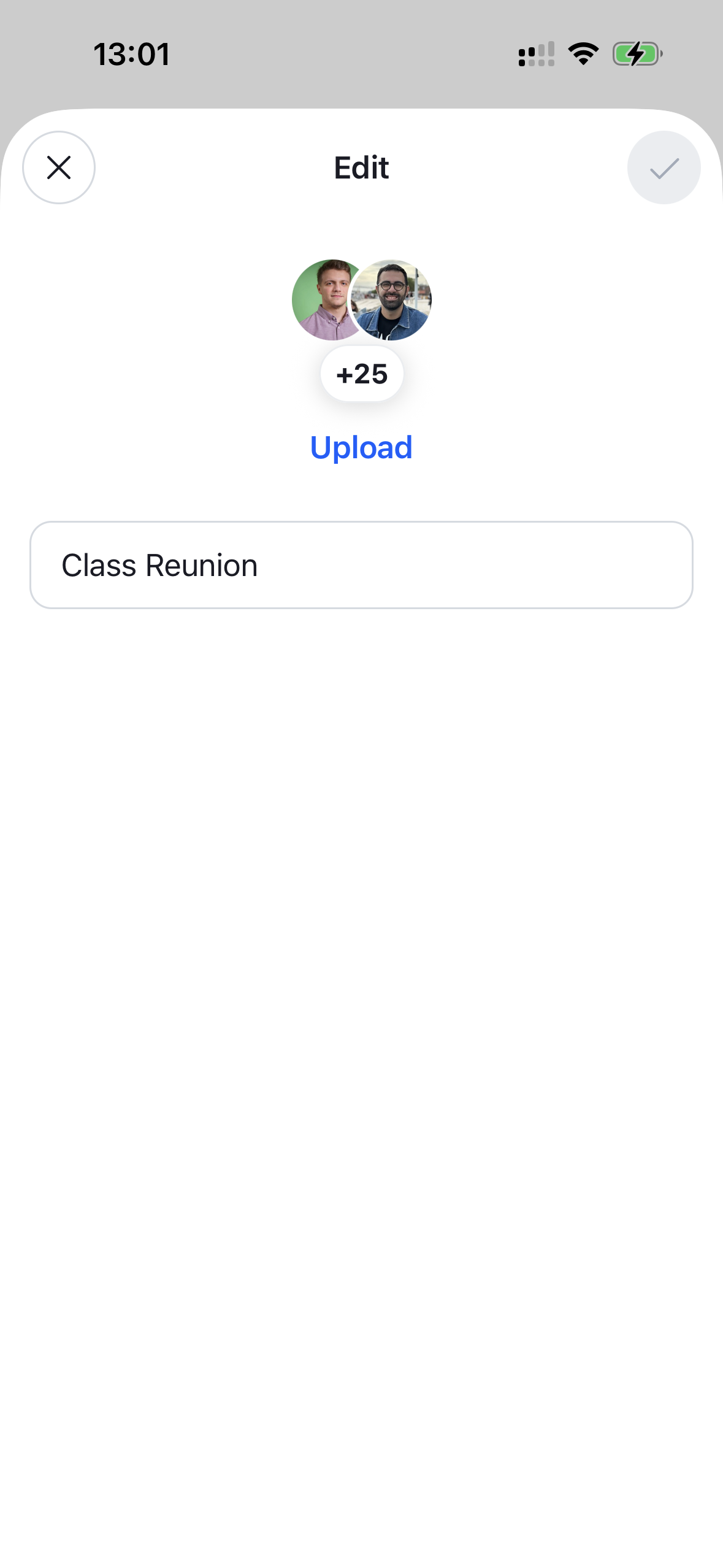
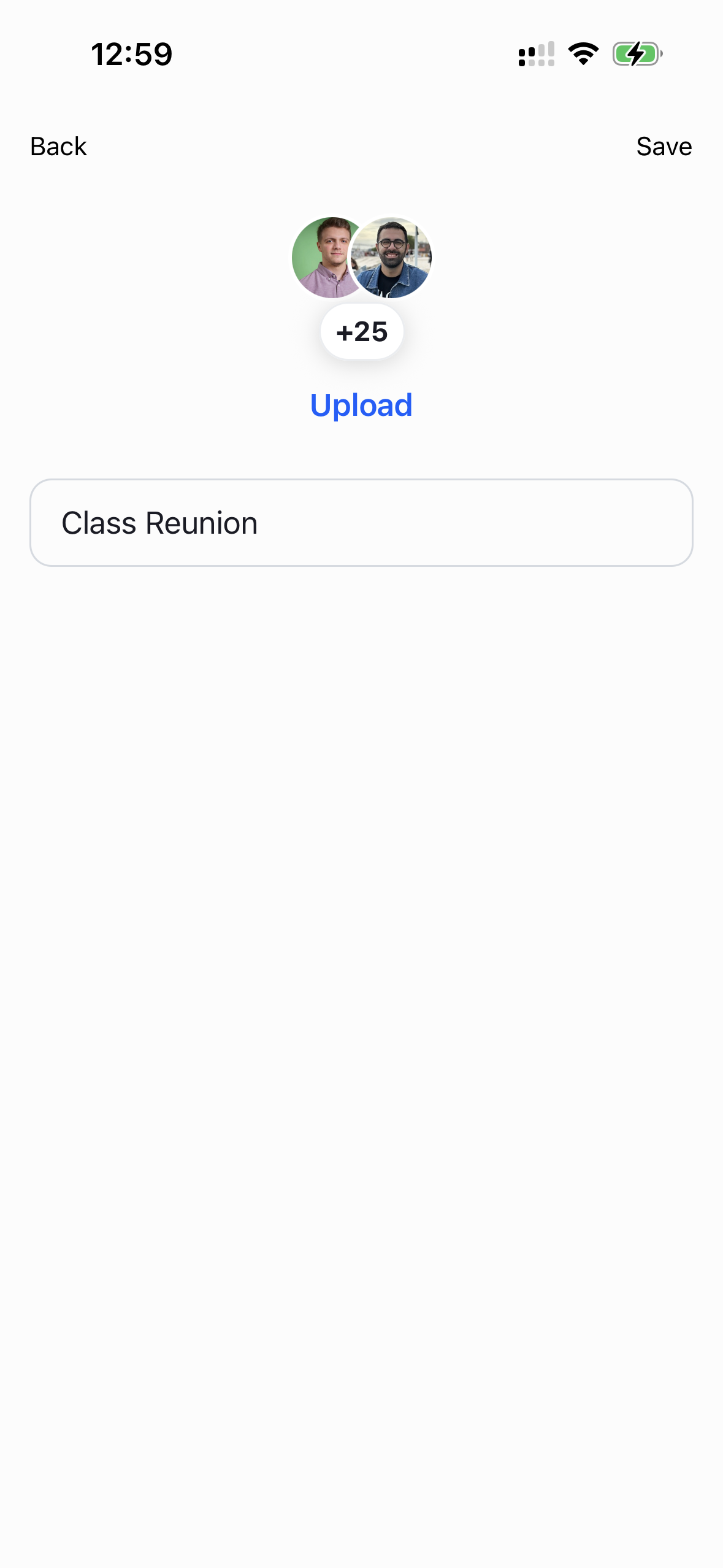
The edit screen wraps ChannelEditDetailsForm in a ChannelDetailsContextProvider. Use useChannelEditDetailsContext to wire up your own confirm action, and override ChannelEditDetailsFormHeader to replace the modal-style header. The useAreChannelDetailsEdited selector tells you when there are unsaved changes, so you can keep the save button disabled until the form is ready:
import { Pressable, Text, View } from "react-native";
import { useNavigation } from "@react-navigation/native";
import {
  ChannelDetailsContextProvider,
  ChannelEditDetailsForm,
  ChannelEditDetailsFormHeaderProps,
  useAreChannelDetailsEdited,
  useChannelEditDetailsContext,
  WithComponents,
} from "stream-chat-react-native";

const EditFormHeader = ({ onClose }: ChannelEditDetailsFormHeaderProps) => {
  const navigation = useNavigation();
  const { store, submit } = useChannelEditDetailsContext();
  const canSubmit = useAreChannelDetailsEdited(store);
  const onSave = async () => {
    await submit();
    navigation.goBack();
  };
  return (
    <View>
      <Pressable onPress={onClose}>
        <Text>Back</Text>
      </Pressable>
      <Pressable disabled={!canSubmit} onPress={onSave}>
        <Text>Save</Text>
      </Pressable>
    </View>
  );
};

const ChannelEditScreen = ({ route, navigation }) => (
  <ChannelDetailsContextProvider channel={route.params.channel}>
    <WithComponents
      overrides={{ ChannelEditDetailsFormHeader: EditFormHeader }}
    >
      <ChannelEditDetailsForm onClose={() => navigation.goBack()} />
    </WithComponents>
  </ChannelDetailsContextProvider>
);| Default edit modal | Custom edit screen |
|---|---|
 |
 |
Navigation Section
The navigation section lists rows for pinned messages, photos & videos, and files — each opening a modal. Use getNavigationItems on ChannelDetailsNavigationSection to route a row to your own screen. Map over defaultItems and set onPress on the rows you want to handle; rows you leave untouched keep their default behavior:
import { useNavigation } from "@react-navigation/native";
import {
  ChannelDetails,
  ChannelDetailsContextProvider,
  ChannelDetailsNavigationSection,
  GetChannelDetailsNavigationItems,
  useChannelDetailsContext,
  WithComponents,
} from "stream-chat-react-native";

const navigationItems = {
  "pinned-messages": "ChannelPinnedMessagesScreen",
  "photos-and-videos": "ChannelImagesScreen",
  files: "ChannelFilesScreen",
};

const NavigationSection = (props) => {
  const navigation = useNavigation();
  const { channel } = useChannelDetailsContext();
  const getNavigationItems: GetChannelDetailsNavigationItems = ({
    defaultItems,
  }) =>
    defaultItems.map((item) =>
      navigationItems[item.section]
        ? {
            ...item,
            onPress: () =>
              navigation.navigate(navigationItems[item.section], { channel }),
          }
        : item,
    );

  return (
    <ChannelDetailsNavigationSection
      {...props}
      getNavigationItems={getNavigationItems}
    />
  );
};

const ChannelDetailsScreen = ({ route, navigation }) => {
  const { channel } = route.params;
  return (
    <ChannelDetailsContextProvider channel={channel}>
      <WithComponents
        overrides={{
          ChannelDetailsNavHeader: ChannelDetailsHeader,
          ChannelDetailsNavigationSection: NavigationSection,
        }}
      >
        <ChannelDetails onBack={() => navigation.goBack()} />
      </WithComponents>
    </ChannelDetailsContextProvider>
  );
};
Each destination screen renders the matching exported list. These read the channel from context, so they take no channel prop — just wrap them in ChannelDetailsContextProvider:
import {
  ChannelDetailsContextProvider,
  FileAttachmentList,
  MediaList,
  PinnedMessageList,
} from "stream-chat-react-native";

const ChannelPinnedMessagesScreen = ({ route }) => (
  <ChannelDetailsContextProvider channel={route.params.channel}>
    <PinnedMessageList />
  </ChannelDetailsContextProvider>
);

const ChannelImagesScreen = ({ route }) => (
  <ChannelDetailsContextProvider channel={route.params.channel}>
    <MediaList />
  </ChannelDetailsContextProvider>
);

const ChannelFilesScreen = ({ route }) => (
  <ChannelDetailsContextProvider channel={route.params.channel}>
    <FileAttachmentList />
  </ChannelDetailsContextProvider>
);MediaList opens images and videos in the ImageGallery. It uses the OverlayProvider already mounted at the root of your app, so no extra provider is needed.
Member Pages
The member section has two entry points: a "view all members" button and an "add members" button, both opening modals. Pass onViewAllMembersPress to ChannelDetailsMemberSection and onPress to ChannelAddMembersButton to navigate instead:
import { useNavigation } from "@react-navigation/native";
import {
  ChannelAddMembersButton,
  ChannelDetails,
  ChannelDetailsContextProvider,
  ChannelDetailsMemberSection,
  useChannelDetailsContext,
  WithComponents,
} from "stream-chat-react-native";

const MemberSection = (props) => {
  const navigation = useNavigation();
  const { channel } = useChannelDetailsContext();
  return (
    <ChannelDetailsMemberSection
      {...props}
      onViewAllMembersPress={() =>
        navigation.navigate("ChannelAllMembersScreen", { channel })
      }
    />
  );
};

const AddMembersButton = (props) => {
  const navigation = useNavigation();
  const { channel } = useChannelDetailsContext();
  return (
    <ChannelAddMembersButton
      {...props}
      onPress={() =>
        navigation.navigate("ChannelAddMembersScreen", { channel })
      }
    />
  );
};

const ChannelDetailsScreen = ({ route, navigation }) => {
  const { channel } = route.params;
  return (
    <ChannelDetailsContextProvider channel={channel}>
      <WithComponents
        overrides={{
          ChannelDetailsNavHeader: ChannelDetailsHeader,
          ChannelDetailsNavigationSection: NavigationSection,
          ChannelDetailsMemberSection: MemberSection,
          ChannelAddMembersButton: AddMembersButton,
        }}
      >
        <ChannelDetails onBack={() => navigation.goBack()} />
      </WithComponents>
    </ChannelDetailsContextProvider>
  );
};
The all-members screen renders ChannelMemberList, and the add-members screen renders ChannelAddMembersForm. Both read the channel from context. The useIsSelectionEmpty selector lets you keep the confirm button disabled until at least one member is selected:
import { Pressable, Text, View } from "react-native";
import { useNavigation } from "@react-navigation/native";
import {
  ChannelAddMembersForm,
  ChannelAddMembersFormHeaderProps,
  ChannelDetailsContextProvider,
  ChannelMemberList,
  useChannelAddMembersContext,
  useIsSelectionEmpty,
  WithComponents,
} from "stream-chat-react-native";

const ChannelAllMembersScreen = ({ route }) => (
  <ChannelDetailsContextProvider channel={route.params.channel}>
    <ChannelMemberList />
  </ChannelDetailsContextProvider>
);

const AddMembersFormHeader = ({
  onClose,
}: ChannelAddMembersFormHeaderProps) => {
  const navigation = useNavigation();
  const { selectionStore, submit } = useChannelAddMembersContext();
  const isSelectionEmpty = useIsSelectionEmpty(selectionStore);
  const onAdd = async () => {
    await submit();
    navigation.goBack();
  };
  return (
    <View>
      <Pressable onPress={onClose}>
        <Text>Back</Text>
      </Pressable>
      <Pressable disabled={isSelectionEmpty} onPress={onAdd}>
        <Text>Add</Text>
      </Pressable>
    </View>
  );
};

const ChannelAddMembersScreen = ({ route, navigation }) => (
  <ChannelDetailsContextProvider channel={route.params.channel}>
    <WithComponents
      overrides={{ ChannelAddMembersFormHeader: AddMembersFormHeader }}
    >
      <ChannelAddMembersForm onClose={() => navigation.goBack()} />
    </WithComponents>
  </ChannelDetailsContextProvider>
);