















Custom MessageList
This cookbook shows how to build custom UI with MessageList.
Best Practices
- Keep
MessageListtransparent and style messages via theme for layered layouts. - Use
MaskedViewor gradients sparingly to avoid overdraw on low-end devices. - Pin
MessageComposeroutside the masked area so typing remains readable. - Route thread navigation explicitly to avoid losing the main chat context.
- Test with large message volumes to validate scroll performance in overlays.
- Keep
read-eventsdisabled on live-stream channels; use a client-local unread count for a “new messages” indicator instead. See Unread counts on live-stream channels.
Live-stream implementation using MessageList
Two common live-stream layouts:
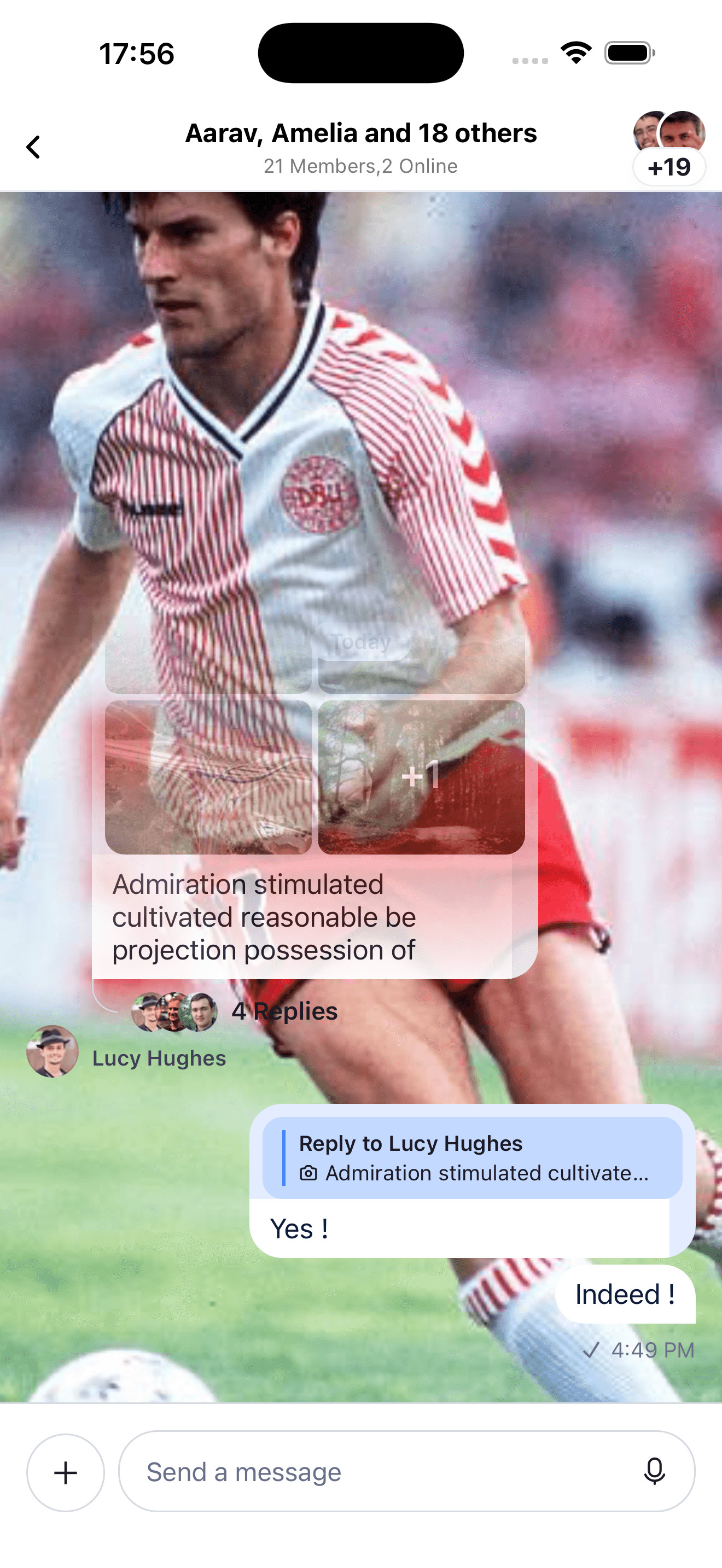 | 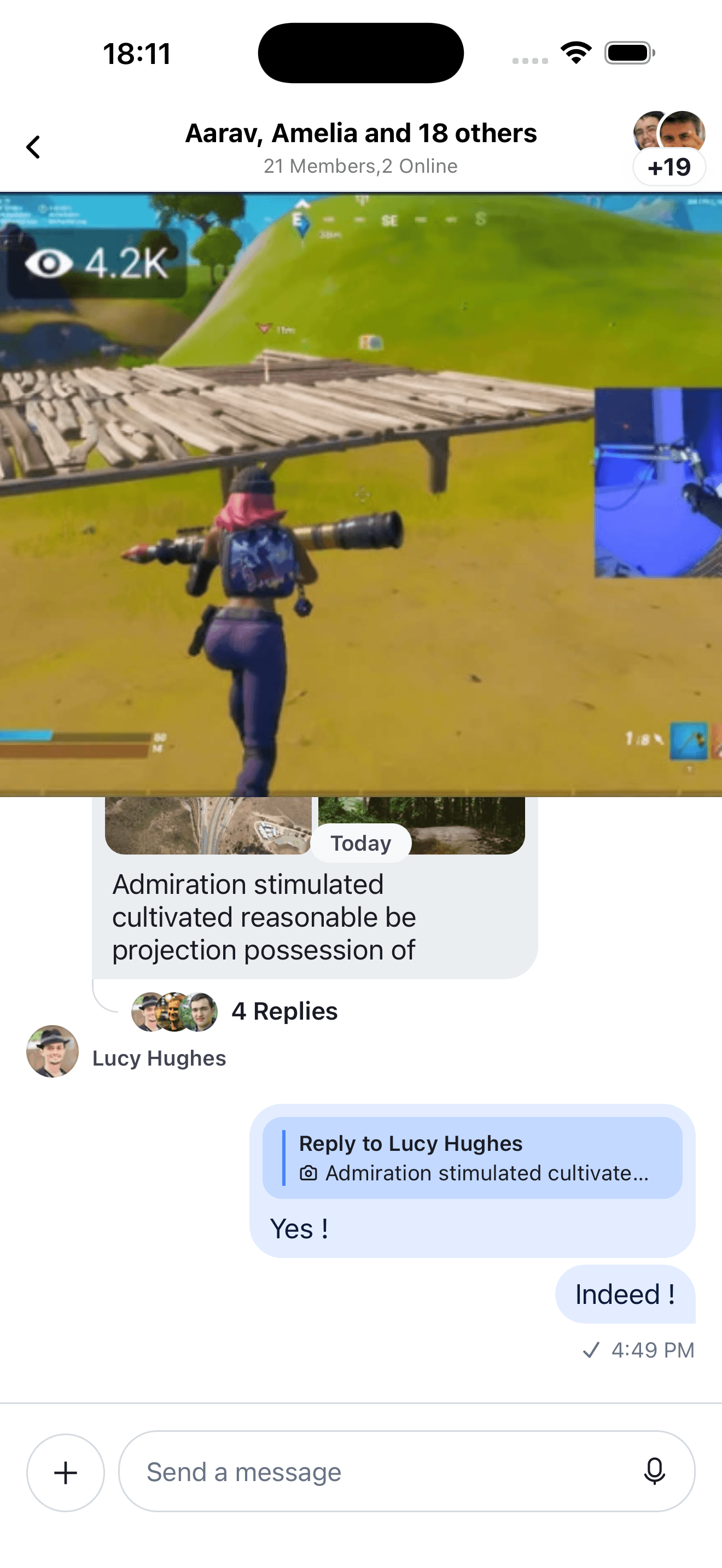 |
| Faded chat with video as background | Split screen between video and chat |
Here are examples for both:
Unread counts on live-stream channels
Live-stream channels typically have the read-events capability disabled — tracking a precise per-user read state for a large, ephemeral audience is both unnecessary and costly. Keep read events disabled for these channels; don’t turn them on just to get an unread indicator.
If you want to show users how many messages arrived while they were scrolled away, enable a client-local unread count when creating the client:
const client = StreamChat.getInstance("Your API Key", {
  isLocalUnreadCountEnabled: true,
});
This keeps a lightweight unread count on the client — readable via channel.countUnread() and reset with channel.markReadLocally() — without enabling server-side read events. See Channels with read events disabled for the full behavior.
Faded chat with video as background
import React from "react";
import { Image, SafeAreaView, StyleSheet, View } from "react-native";

// Install these dependencies
import MaskedView from "@react-native-community/masked-view";
import LinearGradient from "react-native-linear-gradient";

import {
  Chat,
  Channel,
  MessageComposer,
  MessageList,
} from "stream-chat-react-native";

const theme = {
  messageList: {
    container: {
      backgroundColor: "transparent",
    },
  },
  messageItemView: {
    content: {
      textContainer: {
        backgroundColor: "white",
      },
    },
  },
};

// Render your chat screen
<SafeAreaView style={{ flex: 1 }}>
  {/* For the sake of example, we are using image as background, you can replace it with your Video component. */}
  <Image
    source={{
      uri: "https://i.pinimg.com/474x/59/a2/aa/59a2aae82b34bace9dc4d4df90457a3b.jpg",
    }}
    style={{ height: "100%", width: "100%" }}
  />

  <View style={[{ position: "absolute" }, StyleSheet.absoluteFillObject]}>
    <Chat client={chatClient} style={theme}>
      <Channel
        channel={channel}
        keyboardVerticalOffset={headerHeight}
        topInset={headerHeight}
        thread={thread}
      >
        <View style={{ flex: 1 }} />
        <View style={{ flex: 2 }}>
          <MaskedView
            style={{ flex: 1 }}
            maskElement={
              <LinearGradient
                colors={["rgba(0,0,0,0)", "rgba(0,0,0,1)"]}
                style={{
                  flex: 1,
                }}
                start={{ x: 0, y: 0 }}
                end={{ x: 0, y: 1 }}
                locations={[0, 0.5]}
              />
            }
          >
            <MessageList />
          </MaskedView>
        </View>
        <MessageComposer />
      </Channel>
    </Chat>
  </View>
</SafeAreaView>;
Split screen between video and chat
import React from "react";
import { Image, SafeAreaView, StyleSheet, View } from "react-native";

import {
  Chat,
  Channel,
  MessageComposer,
  MessageList,
  PortalWhileClosingView,
} from "stream-chat-react-native";

// Render your chat screen
<SafeAreaView style={{ flex: 1 }}>
  <View style={[{ position: "absolute" }, StyleSheet.absoluteFillObject]}>
    <Chat client={chatClient} i18nInstance={streami18n}>
      <Channel
        channel={channel}
        keyboardVerticalOffset={headerHeight}
        topInset={headerHeight}
        thread={thread}
      >
        <View style={{ flex: 1 }}>
          <PortalWhileClosingView
            portalHostName="overlay-image"
            portalName="channel-header-image"
          >
            <Image
              source={{
                uri: "https://i.ibb.co/rfx5PCr/Screenshot-2021-02-24-at-14-20-57.png",
              }}
              style={{ height: "100%", width: "100%" }}
              resizeMode={"cover"}
            />
          </PortalWhileClosingView>
        </View>
        <MessageList
          onThreadSelect={(thread) => {
            setThread(thread);
            navigation.navigate("Thread");
          }}
        />
        <MessageComposer />
      </Channel>
    </Chat>
  </View>
</SafeAreaView>;