
What Is Frame Rate & How Does It Work?

TL;DR
- Frame rate measures how densely motion is sampled over time (fps), not how sharp or clean each frame looks - that's resolution and bitrate's job.
- Higher fps mainly buys smoother motion, and only a little latency; it doesn't add sharpness, fix motion blur, or remove compression artifacts.
- Pick the rate based on the motion your viewer needs to follow: 24 fps for cinematic content, 30 fps as a dependable default, 60 fps for fast motion, sports, or gameplay.
- Common bugs come from treating fps as one uniform number: fractional rates need rationals, CFR and VFR need different handling, and video fps is independent of display refresh rate.
Every video pipeline makes you pick a frame rate. Cameras ask for one, encoders ask for one, and export presets default to one whether you thought about it or not. It's tempting to treat it as a general quality setting and turn it up whenever video looks bad, but frame rate controls one specific property of video, and most decisions around it get easier once you know which one.
What Does Frame Rate Measure?
Frame rate is the number of individual frames a video captures or displays each second, written as frames per second (fps). Video creates motion by showing still images in quick succession, so frame rate describes how densely that motion gets sampled over time. At 24 fps, a new frame arrives every 41.7 ms, at 30 fps every 33.3 ms, and at 60 fps every 16.7 ms.
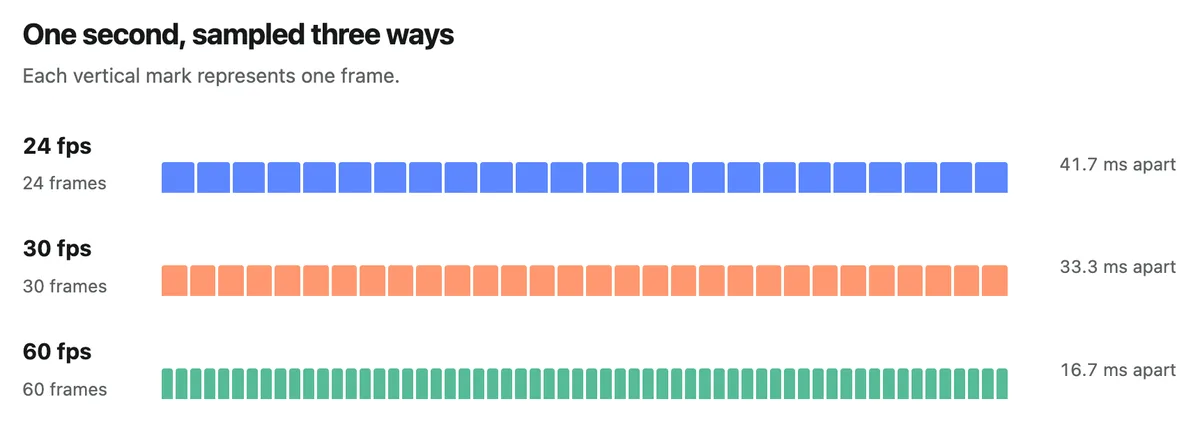
More marks on that timeline don't add any detail to an individual frame. They add more samples along the time axis.
But frame rate also means different things depending on where in the video pipeline we are:
- The capture rate, which is how often the camera or renderer produces a new frame.
- The media rate, which is the frame rate stored in the encoded file or stream.
- The presentation rate, which is how often the player actually puts a new frame on screen.
When all three agree, nobody thinks about them. When they disagree, you get slow motion, sped-up playback, duplicated frames, or judder. So it's worth knowing which of the three a given setting controls.
What Does a Higher Frame Rate Actually Improve?
A higher frame rate updates the position of moving things more often. Fast pans, sports, gameplay, scrolling, and cursor movement all look smoother at 60 fps than at 30 because twice as many samples describe the same motion, and the steps between positions are small enough for the eye to track comfortably.
It can also trim latency a little. At 30 fps, the next frame is up to 33 ms away; at 60 fps, half that. In a real system, though, encoding, buffering, networking, and display scheduling usually add far more delay than a single frame interval, so raising fps on its own rarely improves responsiveness.
Equally important is what frame rate doesn't change:
- It doesn't add sharpness. Resolution, optics, focus, and compression decide how detailed each frame is.
- It doesn't control motion blur. Shutter speed sets how long the sensor gathers light per frame, so a 60 fps frame can still be blurry and a 24 fps frame can be sharp.
- It doesn't remove compression artifacts. At a fixed bitrate, more frames leave the encoder with less data per frame.
The gains taper off, too. Most viewers notice a clear jump from 30 to 60 fps in fast motion, while 60 to 120 fps mostly matters for gaming, VR, and slow-motion capture.
And the 24 fps of television and film persists on purpose. Its slower cadence reads as deliberate and film-like. When The Hobbit screened in a 48 fps high frame rate (HFR) version in 2012, many viewers found the smoother motion oddly hyper-real for a narrative film, the so-called soap opera effect.
How Is Frame Rate Different From Resolution and Bitrate?
Frame rate, resolution, and bitrate sit side by side on every encoder panel and are constantly blamed for each other's problems. A video can be 4K and stuttery, 720p and perfectly smooth, or 1080p at a healthy frame rate and still full of blocky artifacts.
Each number answers a different question:
- Resolution is pixels per frame. It sets how much spatial detail each image can hold.
- Frame rate is frames per second. It sets the density of motion sampling over time.
- Bitrate is bits per second. It's the data budget the encoder spreads across all of that detail and motion.
They interact through simple arithmetic. Raw pixel throughput is width × height × fps, so 1080p60 pushes about 124 million pixels per second, where 1080p30 pushes 62 million. Hold the bitrate steady while doubling the frame rate, and the encoder gets roughly half the budget per frame, which is why platforms recommend more bitrate for higher frame rates.
YouTube's recommended H.264 upload bitrates show the pattern:
| Resolution | 24/25/30 fps | 50/60 fps |
|---|---|---|
| 720p | 5 Mbps | 7.5 Mbps |
| 1080p | 8 Mbps | 12 Mbps |
| 1440p | 16 Mbps | 24 Mbps |
The per-frame budget is a rough mental model rather than a quality score, since modern video codecs reuse information across frames rather than encoding each frame from scratch. It's still a good instinct for why 60 fps at a starved bitrate often looks worse than 30 fps at the same bitrate.
Which Frame Rate Should You Choose?
Start with the motion your viewer needs to follow, rather than with the highest number your camera supports. If fast motion or interaction is central to the content, start at 60 fps and confirm that your bitrate, compute, and displays can keep up. If it isn't, 30 fps is a dependable default, with 24 reserved for a deliberate film cadence.
| Use Case | Starting point | Notes |
|---|---|---|
| Scripted, cinematic content | 24 fps | Established cadence; move to 30 or 60 only when a smoother look is intentional |
| Talking heads and tutorials | 30 fps | Motion is moderate; audio, lighting, and composition matter more |
| Product and UI demos | 30 fps | Enough for ordinary cursor movement; use 60 for fast scrolling or animation |
| Video calls (WebRTC) | 30 fps | Balances faces and gestures against bandwidth and device load; adaptive systems drop toward 15 fps under constraint |
| Sports, action, gameplay | 60 fps | Captures more positions during fast movement, so it's easier to track |
| Slow-motion source | 60 fps or higher | Extra real frames can play back on a slower timeline |
Match the source rate whenever you can. Converting afterward means duplicating, dropping, or synthesizing frames, and none of those improve the footage. If you work in 50 Hz regions, 25 and 50 fps serve the same roles as 30 and 60 fps, since broadcast and lighting infrastructure there grew up around 50 Hz mains power.
What Should Developers Watch Out For?
Most frame rate bugs stem from treating fps as a single, uniform integer that means the same thing everywhere. A few specifics are worth internalizing:
- Store fractional rates as rationals. The broadcast-legacy rates 23.976, 29.97, and 59.94 fps are really 24000/1001, 30000/1001, and 60000/1001. Rounding 29.97 up to 30 introduces drift that accumulates over long, time-sensitive pipelines, and Apple's QA1447 lists the preferred rational forms.
- Constant and variable frame rate need different assumptions. CFR media has one nominal frame duration. VFR media, common from screen recorders and phone cameras, times each frame individually, so an average fps value can't tell you when any particular frame appears. Many editors and pipelines expect CFR, and FFmpeg's output -r option will duplicate or drop frames to produce it.
- Video fps and display refresh rate are independent. The player maps frame timestamps onto whatever refresh cycles the display offers. 24 fps on a 60 Hz display produces an uneven repeat pattern, while a 120 Hz display can show every frame exactly five times.
- 60i means 60 fields, not 60 frames. Interlaced formats carry alternating half-images, so 1080i60 deinterlaces to 1080p30.
Capture frame rate and playback frame rate are separate choices, and the gap between them is what enables slow motion. Say the camera records 60 frames during one second of action. Put those frames on a 30 fps timeline, showing each one once, and they take two seconds to play through. The motion runs at half speed, and every frame is one the camera actually captured.
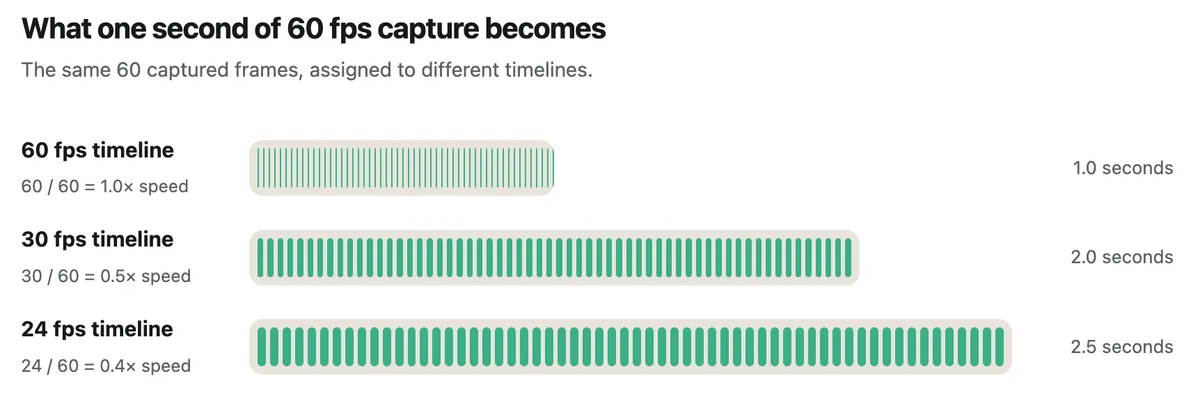
The reverse can't recover anything. A camera recording at 30 fps never saw where things were between its frames. Exporting that footage at 60 fps either duplicates each frame, which adds no motion detail, or interpolates new in-between frames, which can introduce visible artifacts around occlusions, fast, irregular movement, or lead back to the soap opera effect.
When playback looks wrong, measure before guessing. ffprobe shows both what a file claims and what its frames actually do:
# Reported rates and time base
ffprobe -v error -select_streams v:0 \
  -show_entries stream=r_frame_rate,avg_frame_rate,time_base \
  -of default=noprint_wrappers=1 input.mp4

# Presentation timestamps for individual frames (VFR diagnosis)
ffprobe -v error -select_streams v:0 \
  -show_entries frame=best_effort_timestamp_time \
  -of csv=p=0 input.mp4 | head -n 20
In the browser, requestVideoFrameCallback() fires each time a new video frame reaches the compositor and exposes presentation metadata, so you can count the frames a user actually sees rather than trusting what the file promised.
Between the two, you can usually tell within a few minutes whether a choppy video is a frame rate problem, a timestamp problem, or a display scheduling problem.