


This guide walks you through how to get up and running with Stream's AI Moderation product: enabling moderation in your project, configuring policies, testing your setup, and building workflows that help your team stay ahead of harmful content.
What This Tutorial Covers
In this tutorial, you'll learn how to:
-
Set up your project and choose the right data region for compliance.
-
Configure policies for text, images, and video using Stream's dashboard.
-
Test your setup and troubleshoot common issues.
-
Explore the moderation dashboard and real-time queue.
By the end, you'll have a fully functional moderation workflow that automatically detects harmful content and provides visibility into every decision, all within the Stream ecosystem.
If you're looking for a more robust walkthrough of the moderation product → check out our Moderation Certification Course.
Setting Up Your Project
Everything begins in the Stream Dashboard, the central hub where you can configure apps, manage environments, and monitor moderation activity.
When you first sign in, you can either create a new app or select an existing one. Most Trust & Safety teams prefer to start with a dedicated development environment to test policies before deploying them in production.
From the Dashboard, click Create App, give it a clear name (for example, Moderation Pilot - Q4), and confirm the environment you're working in. You will want to select the right data region for your app. This decision determines where your chat, feed, and moderation data will live, and it's important from both a compliance and latency perspective. Stream offers multiple hosting regions, including the US and EU, and once you select one, it can't be changed later.

For companies operating under regulations like the Digital Services Act (DSA) or GDPR, choosing an EU region helps maintain clear data-residency boundaries and simplifies reporting obligations. If you're in a healthcare or wellness vertical that needs to meet HIPAA standards, keeping data in a US region ensures audit logs and processing remain within US jurisdiction.
Once your app is created, you'll see a Moderation tab in the left-hand navigation. If the tab doesn't appear, that simply means moderation hasn't been enabled for your account yet. You can reach out to the Stream team to activate it at moderation@getstream.io.

Once your project is live, you'll notice the Moderation dashboard initially looks empty. That's normal. In order for moderation data to start populating, you have to first set up a policy. We will review how to set up a policy in the next step.
Configuring a Policy
Once your project is live, the next step is to define how your moderation system should behave, what types of harm to detect, which content types to scan, and how Stream should respond when a violation is found.
These decisions are managed through Policies in the Stream Dashboard.
To begin, navigate to the Moderation tab in your Stream Dashboard. From there, click the Policies subtab. This page lists any existing moderation policies connected to your project. You can edit these or create a new one by selecting Add New.

When you create a new policy, you'll be prompted to select the product. You can additionally add the channel type or channel type ID to moderate specific channels differently.
For example, if you simply create a chat policy, it will cover all chat channels across your entire platform.
When adding the channel type or type ID, ensure it matches what you have built within your chat instance, or the moderation will not connect properly.
Understanding Policy Options
Stream's policy builder is designed to handle every major type of user-generated content, giving you both AI-powered and rule-based tools in one place.
AI (LLM) Text Moderation
This model uses large language models (LLMs) to analyze the intent and tone of written content. It looks beyond keyword matching to understand context, identifying threats, hate speech, or harassment, even when phrased indirectly or sarcastically. You can adjust the prompts for each harm label, allowing for customized detection based on your platform's moderation needs.

AI (NLP) Text Moderation
This model uses natural language processing (NLP) to evaluate written content and detect harmful language based on meaning, not just exact words. It classifies messages into severity levels (Low, Medium, High, and Critical) across multiple harm categories such as insults, bullying, threats, self-harm, scams, and platform circumvention. The model automatically detects the message's language and applies the appropriate moderation pipeline, supporting more than 30 languages out of the box.

AI Image Moderation
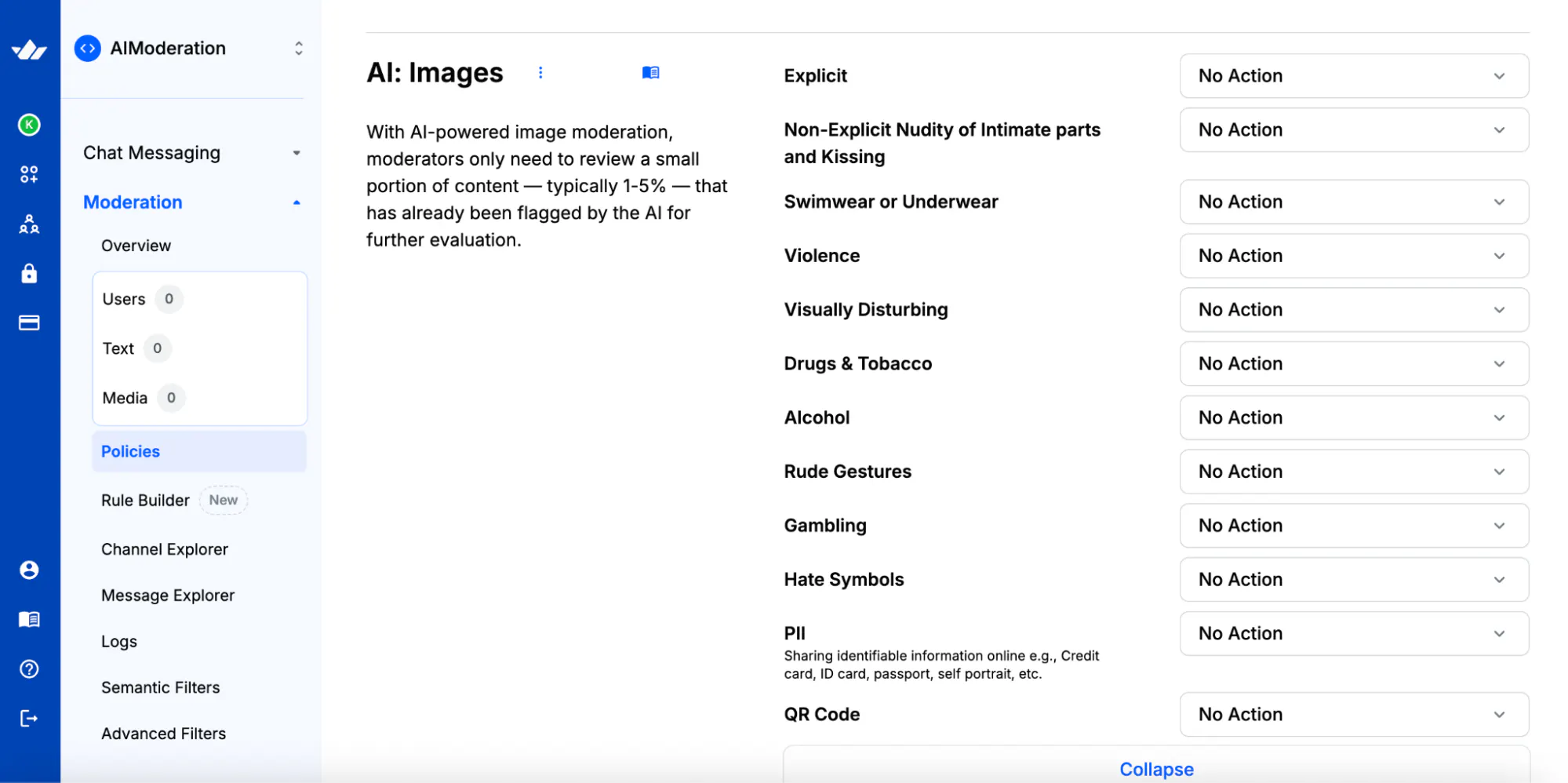
This model evaluates uploaded or shared images in real time, detecting nudity, graphic violence, weapons, or other visual harms. It's ideal for apps where users exchange media, such as dating platforms, social feeds, or marketplaces.
AI Image OCR (Optical Character Recognition)
Harmful messages aren't always confined to plain text. This feature scans text that appears inside an image, such as captions, memes, or screenshots, and evaluates that text through the same AI moderation pipeline. It's a crucial safeguard against circumvention tactics where bad actors hide words within images.
AI Video Moderation
For apps that support short-form or livestream video, Stream's AI Video Moderation analyzes frames in real time to detect inappropriate or high-risk visual content. The system can flag or automatically block videos before they are fully uploaded or shared, keeping your platform safe from rapid-spread harms.

Semantic Filters
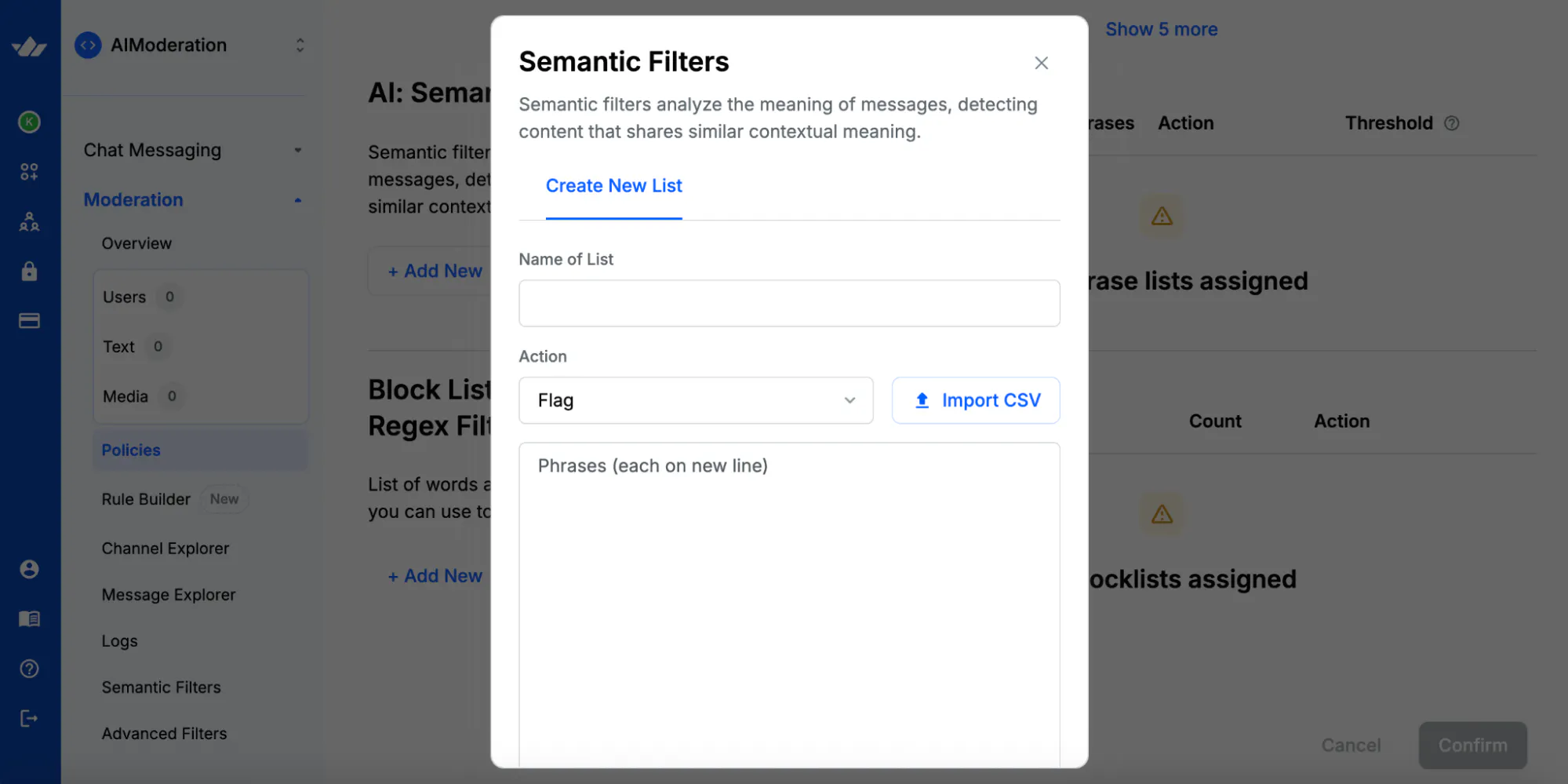
Semantic filters let you train the system to detect specific patterns or phrases relevant to your community. You create a list of example phrases, and the model learns to identify those intents even when phrased differently. For example, a gaming platform might train a filter to recognize spoiler messages, or a dating app might detect solicitation attempts.
Blocklists and Regex Filters
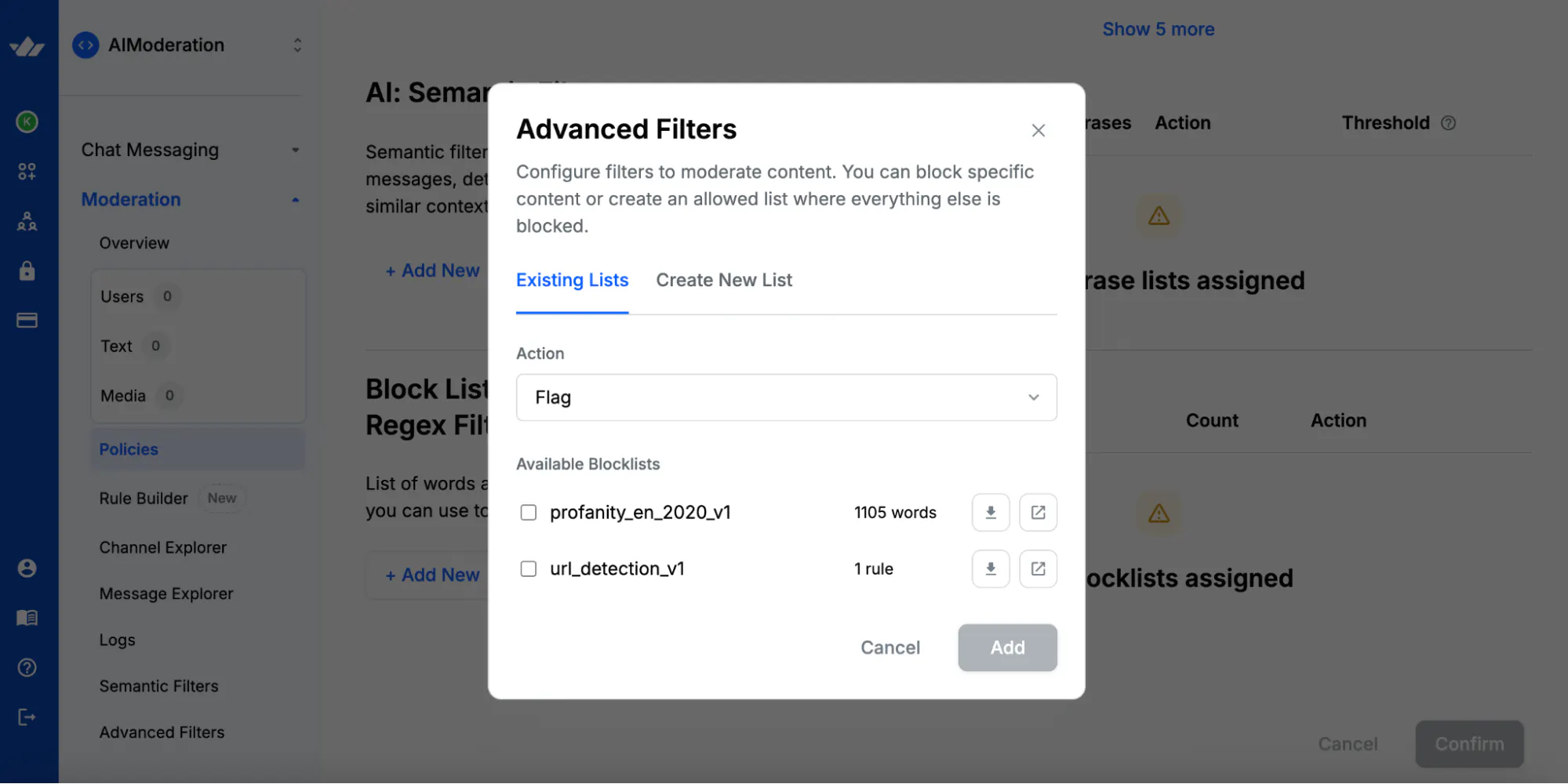
For predictable, rule-based moderation, such as blocking specific words, URLs, or phone numbers, you can enable blocklists or write regular expressions (regex). These are fast, deterministic rules that complement AI detection. Many teams use regex filters to prevent spam (like email addresses or payment links) while relying on AI models for nuanced harm detection.
Automating Decisions with the Rule Builder
Once your detection models are in place, you can use Stream's Rule Builder to automate how the system responds to different violations. The Rule Builder allows you to define user-based automation, such as automatically shadowblocking or banning users after repeated offenses, or escalating certain categories of harm to a human review queue.
For example:
-
If a user triggers three or more flags within 24 hours, issue an automatic 24-hour channel ban.
-
If a user sends two messages containing URLs within 30 minutes, then temporarily ban them for 12 hours.
These automations save your team time, enforce consistency, and ensure high-severity harms are addressed instantly, even outside business hours.

Once you've configured your policy and saved it, Stream immediately begins applying those settings to new messages, images, and videos in your app. You can always return to the Policies tab to adjust thresholds, add new filters, or refine automation rules as your community evolves.
Testing Your Configuration
With your first moderation policy in place, it's time to validate that everything works as expected. Testing ensures your detection models, filters, and automation rules are functioning correctly before you roll them out to real users. Stream's moderation system operates in real time, so you can see immediate feedback as content passes through your configured harms and policies.
The easiest way to test is by using your development or sandbox app and generating sample content. You can either open your test application if it's already connected to the Stream API or use the built-in data generator in the Dashboard. If you haven't used the generator yet, it automatically creates test channels and messages that simulate live user behavior, perfect for confirming your setup without risking production data.
Once you have messages flowing, send a few examples that intentionally trigger the harms you configured earlier. For example:
-
A message containing explicit hate speech to test detection.
-
An image with an implied threat or act of violence to confirm they are being flagged.
-
A spam message with an email address or link to test your regex rules.
As these messages are processed, Stream's AI engines evaluate them in milliseconds and return the appropriate response, whether it's flagged, blocked, or shadow-blocked, according to your policy's configuration.
You can monitor these responses directly in the Moderation Dashboard under the Text tab. Each message that matches a harm category will appear in the queue along with its classification, severity level, and any automated actions that were taken.
Clicking a message reveals additional context, like the channel it was sent in, related user metadata, and the reasoning behind the model's decision. This real-time visibility helps Trust & Safety teams quickly assess accuracy and refine policies.
If you don't see any results at first, don't worry. There are a few common causes worth checking:
-
App ID and API Key: Make sure you're using credentials from the same project where your policy is active.
-
AI Moderation enabled: Confirm moderation is turned on for your app and that the correct models are selected in your policy.
-
Content type: Double-check that your test messages match the content types (text, image, or video) your policy covers.
Once you begin seeing flags populate in the dashboard, you'll know your moderation pipeline is active and functioning correctly. At this point, you can fine-tune thresholds, add new filters, or expand coverage to additional harm categories based on your results.
Testing your configuration requires understanding how your moderation system behaves under real-world conditions. Take the time to experiment with different types of content, review how the queue prioritizes severity, and verify that automated actions are triggered as intended. Doing so will give your team confidence that it's tuned precisely to your platform's needs before it ever encounters live user content.
Exploring the Moderation Dashboard
Once your policies are active and content is flowing through your app, the Moderation Dashboard becomes the operational center for your Trust & Safety team. This is where moderators review flagged content, take action on users, and monitor trends in real-time.
Key Views: Messages, Media, and Users
The dashboard is organized into three main views, each designed for a specific type of review workflow.
Text
This is the primary moderation queue where all flagged text messages appear. Each entry shows the message preview, the harm category that triggered the flag, the automated action, and the severity level. Moderators can click any item to see additional context, including the full conversation thread, the sender's details, and timestamps, before deciding whether to confirm or dismiss the flag.

Media
The media view displays flagged images and videos processed through Stream's AI Image, OCR, and Video moderation engines. Visual thumbnails allow moderators to quickly assess severity without downloading or exposing themselves to harmful content. The system automatically provides category labels (e.g., "Explicit Nudity," "Graphic Violence") so teams can triage efficiently.

Users
Moderation also involves behavior. The Users view consolidates moderation data at the user level, making it easy to identify repeat offenders, suspicious patterns, or high-risk accounts. From here, you can see how often a user has triggered specific actions and whether they're currently banned or shadow-banned. This holistic view is especially valuable for compliance reporting and behavioral analysis.

Working in the Queue
Each queue item represents a unique moderation event and provides moderators with everything they need to act confidently.
From within the queue, moderators can:
-
Approve or reject flags to confirm model accuracy.
-
Unflag or unblock messages if content was incorrectly classified.
-
Delete messages to remove them from the user's view and the channel.
-
Ban or shadow-ban users for temporary or permanent enforcement.
The queue updates in real time as new content is analyzed, allowing Trust & Safety teams to keep pace with high-volume environments without manually refreshing. Filters enable moderators to sort by reporter, dates, harm type, and more, allowing them to focus on the most critical issues first.
Automating Actions with the Rule Builder
Within the dashboard, the Rule Builder allows you to automate responses to recurring patterns or severity levels.
For example:
-
Automatically delete messages flagged as "Critical" severity by the AI Text engine.
-
Temporarily ban users who trigger multiple violations within a short window.
These rules reduce manual overhead, improve response times, and ensure enforcement remains consistent even when human moderators aren't available. Every automated action still appears in the audit trail, maintaining full transparency for Trust & Safety reporting.
Wrapping Up
In just a few steps, you've configured a system that automatically detects, flags, and manages harmful content across text, images, and video, all within the same real-time infrastructure that powers your app.
Stream's moderation tools are built to deliver three key advantages:
-
Fast setup: Enable moderation directly from the Stream Dashboard without writing a single line of code when using existing Stream products.
-
Flexible customization: Combine AI models, filters, and automation rules to match your community's unique needs.
-
Real-time prevention: Detect and act on harm the moment it occurs, keeping users safe before damage spreads.
If you haven't already, head to your Stream Dashboard and enable moderation for your project. Within minutes, you can begin testing and refining your policies, monitoring live content, and building the workflows that keep your platform safe at scale.