

This tutorial demonstrates how to build an electronic device setup and repair assistant in Python with voice capabilities using Qwen3-VL hosted on Baseten.
The assistant analyzes what a user shows on camera (like cables, ports, device components, or error states) and guides them step-by-step through setup or repair tasks. It’s designed to reduce confusion during troubleshooting by giving real-time, contextual instructions.
Here’s a look at what you’ll build:
Project Overview
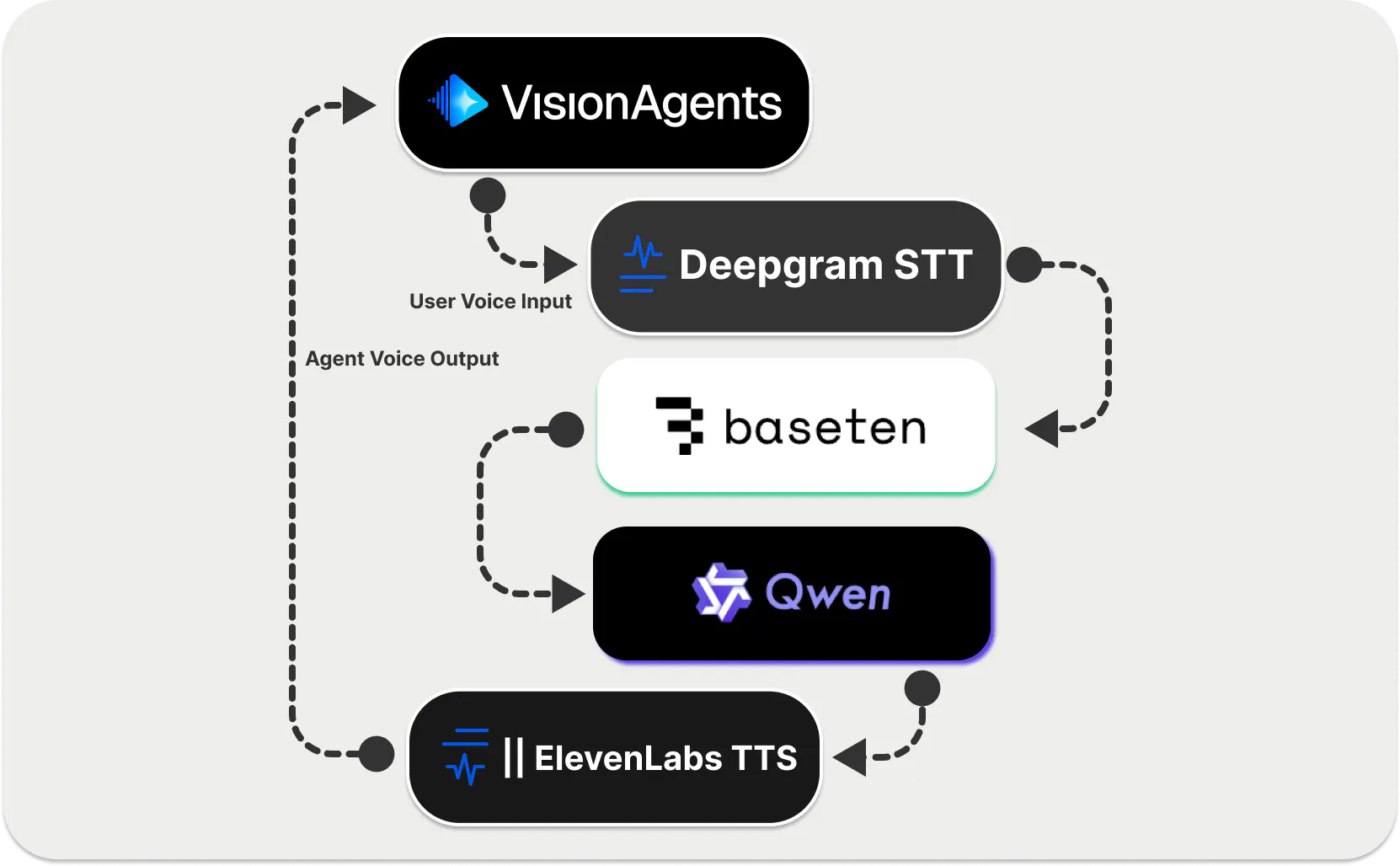
Qwen3-VL is a vision-language model developed by Qwen AI. This model can be used to build AI applications to perceive and reason about visual content, such as images and videos. Since Qwen3-VL is a huge model, we will host and deploy it on the Baseten inference platform for instant and reliable (99.99% uptime) cloud access.
To create the demo, you will use the open-source Vision Agents video AI framework and its OpenAI plugin to access the Qwen model from Baseten.
Continue reading to create a vision AI copilot that uses:
- The Frontier Vision Language Model (Qwen3 VL 235B) by Qwen on Baseten for LLM processing and handling vision-related tasks.
- Stream for edge/real-time audio and video communication.
- Deepgram as the speech-to-text (STT) component.
- ElevenLabs Vision Agents plugin for text-to-speech (TTS).
- The open-source project, Smart Turn, for turn detection.
Requirements
Obtain the following API credentials from the various AI service providers, and let's get started.
BASETEN_API_KEY: https://login.baseten.co/sign-upSTREAM_API_KEYandSTREAM_API_SECRET: https://getstream.io/try-for-free/OPENAI_API_KEYandOPENAI_BASE_URL(for Baseten VLM): https://platform.openai.com/api-keys, https://app.baseten.co/loginDEEPGRAM_API_KEY: https://console.deepgram.com/loginELEVENLABS_API_KEY: https://elevenlabs.io/app/sign-in
Quick Start in Python
Begin by creating a new uv-based Python project (Python 3.13 or a later version is recommended) and installing Vision Agents, along with its associated plugins, specifically for the sample demo in this tutorial.
To do so, use the following Terminal commands.
Environment Set Up
12345678# Initialize a new Python project with uv
uv init

# Install Vision Agents
uv add vision-agents

## Install plugins for Vision Agents
uv add "vision-agents[deepgram, elevenlabs, getstream, openai, smart-turn]"
NOTE: From the installation commands above, you don’t see Baseten because it is available for access through OpenAI’s Chat Completion API.
Next, create a .env file in the project’s root to store the following API credentials.
123456789STREAM_API_KEY
STREAM_API_SECRET
EXAMPLE_BASE_URL=https://pronto-staging.getstream.io

OPENAI_API_KEY=...
OPENAI_BASE_URL=... # for Baseten VLM

DEEPGRAM_API_KEY=...
ELEVENLABS_API_KEY=...
Add Agent Instructions
To enable the AI agent to help users efficiently, you should provide detailed instructions on how it should interact when fixing issues and setting up electronics.
When creating a new agent in Vision Agents, it accepts an instructions parameter for guiding your agent. To add detailed instructions for your project, you can, for example, create a Markdown file, baseten_qwen3vl_instructions.md and pass it to the instructions parameter to read the file when defining a new agent.
Step-by-Step Agent Set Up
In your project’s root, find main.py and substitute its content with these imports.
123456789import asyncio

from dotenv import load_dotenv
from vision_agents.core import Agent, User, cli
from vision_agents.core.agents import AgentLauncher
from vision_agents.core.events import CallSessionParticipantJoinedEvent
from vision_agents.plugins import deepgram, elevenlabs, getstream, openai, smart_turn

load_dotenv()
For the required API credentials, you can load them from the .env file by installing the Python-dotenv package. Alternatively, you can save them in your machine’s shell profile (.zshrc or .zprofile) on the Mac to load them automatically when you run the Python script.
Below the project’s imports, add the following code snippet to create a new agent using the Agent class in Vision Agents. It handles the conversation flow, real-time audio/video processing, agent responses, and integrates seamlessly with MCP tools and servers. It also supports speech-to-text (STT) and text-to-speech (TTS) voice pipelines, as well as real-time voice APIs such as OpenAI Realtime, Gemini Live, and models like Amazon Nova Sonic (a speech-to-speech foundation model).
12345678910111213141516async def create_agent(**kwargs) -> Agent:
    # Initialize the Baseten VLM
    llm = openai.ChatCompletionsVLM(model="qwen-3-vl-32b")

    # Create an agent with video understanding capabilities
    agent = Agent(
        edge=getstream.Edge(),
        agent_user=User(name="Video Assistant", id="agent"),
        instructions="Read @plugin_examples/baseten_qwen3vl_instructions.md",
        llm=llm,
        turn_detection=smart_turn.TurnDetection(),
        stt=deepgram.STT(),
        tts=elevenlabs.TTS(),
        processors=[],
    )
    return agent
This snippet initializes the hosted Qwen3-VL model on Baseten using the OpenAI Chat Completions API endpoint llm = openai.ChatCompletionsVLM(model="qwen-3-vl-32b") and creates a new agent with specified parameters.
The parameter edge=getstream.Edge(), ensures a low-latency audio and video communication with the troubleshooting agent. The instructions parameter, instructions="Read @plugin_examples/baseten_qwen3vl_instructions.md", to the agent, you equip it with the Qwen vision-language model capable of processing images and video frames in real-time. reads the content of the specified Markdown file. By passing llm=llm,
Finally, add the following code snippet below the agent’s definition.
1234567891011121314151617async def join_call(agent: Agent, call_type: str, call_id: str, **kwargs) -> None:
    await agent.create_user()
    call = await agent.create_call(call_type, call_id)

    @agent.events.subscribe
    async def on_participant_joined(event: CallSessionParticipantJoinedEvent):
        if event.participant.user.id != "agent":
            await asyncio.sleep(2)
            await agent.simple_response("Describe what you currently see and help to fix it if possible")

    with await agent.join(call):
        await agent.edge.open_demo(call)
        # The agent will automatically process video frames and respond to user input
        await agent.finish()

if __name__ == "__main__":
    cli(AgentLauncher(create_agent=create_agent, join_call=join_call))
Using this snippet, we create and join a new video call using Stream Video to interact with the vision agent in real-time when we run the Python script.
Putting It All Together
To assemble the above code snippets together, replace the content of your main.py with the following.
1234567891011121314151617181920212223242526272829303132333435363738394041424344import asyncio

from dotenv import load_dotenv
from vision_agents.core import Agent, User, cli
from vision_agents.core.agents import AgentLauncher
from vision_agents.core.events import CallSessionParticipantJoinedEvent
from vision_agents.plugins import deepgram, elevenlabs, getstream, openai, smart_turn

load_dotenv()

async def create_agent(**kwargs) -> Agent:
    # Initialize the Baseten VLM
    llm = openai.ChatCompletionsVLM(model="qwen-3-vl-32b")

    # Create an agent with video understanding capabilities
    agent = Agent(
        edge=getstream.Edge(),
        agent_user=User(name="Video Assistant", id="agent"),
        instructions="Read @plugin_examples/baseten_qwen3vl_instructions.md",
        llm=llm,
        turn_detection=smart_turn.TurnDetection(),
        stt=deepgram.STT(),
        tts=elevenlabs.TTS(),
        processors=[],
    )
    return agent

async def join_call(agent: Agent, call_type: str, call_id: str, **kwargs) -> None:
    await agent.create_user()
    call = await agent.create_call(call_type, call_id)

    @agent.events.subscribe
    async def on_participant_joined(event: CallSessionParticipantJoinedEvent):
        if event.participant.user.id != "agent":
            await asyncio.sleep(2)
            await agent.simple_response("Describe what you currently see and help to fix it if possible")

    with await agent.join(call):
        await agent.edge.open_demo(call)
        # The agent will automatically process video frames and respond to user input
        await agent.finish()

if __name__ == "__main__":
    cli(AgentLauncher(create_agent=create_agent, join_call=join_call))
Running the Python script above, you should be able to interact with the device setup/repair vision agent, as shown in this demo.
Configurable Parameters and Events
In the sample code above, we initialized the Baseten hosted model via the OpenAI Chat Completion API with only one parameter llm = openai.ChatCompletionsVLM(model="qwen-3-vl-32b"). However, you can customize the model's initialization by setting different values for the following parameters.
12345678openai.ChatCompletionsVLM(
    model: str, # Name of the Baseten hosted model (e.g., "qwen3vl")
    api_key: Optional[str] = None,  # API key (defaults to OPENAI_API_KEY env var)
    base_url: Optional[str] = None, # Base URL (defaults to OPENAI_BASE_URL env var)
    fps: int = 1,                   # Frames per second to process (default: 1)
    frame_buffer_seconds: int = 10, # Seconds of video to buffer (default: 10)
    client: Optional[AsyncOpenAI] = None,  # Custom OpenAI client (optional)
)
model: The name of the hosted Baseten model you want to use. This must be a vision-capable model.api_key: Your Baseten API key. If not provided, it reads from the -OPENAI_API_KEYenvironment variable.base_url: The base URL for Baseten API. If not provided, it reads from theOPENAI_BASE_URLenvironment variable.fps: The number of video frames per second to capture and send to the model. Lower values reduce API costs, but this configuration may miss fast-moving video content. The default is one fps.frame_buffer_seconds: This parameter defines how many seconds of video to buffer. Total buffer size =fps * frame_buffer_seconds. The default is 10 seconds.client: An optional pre-configuredAsyncOpenAIclient. If provided, theapi_keyandbase_urlwill be ignored.
How it Works
The following will happen whenever you run the Python script.
- Video Frame Buffering: The Vision Agents plugin automatically subscribes to video tracks when the agent joins a call. It buffers frames at the specified FPS for the configured duration.
- Frame Processing: When responding to user input, the plugin converts buffered video frames to JPEG format, resizes the frames to 800x600 (maintaining the aspect ratio), and encodes the frames as base64 data URLs.
- API Request: Sends the conversation history (including system instructions) along with all buffered frames to the Baseten model.
- Streaming Response: Processes the streaming response and renders events for each chunk and completion.
Debugging Guide
Running the Python script may result in some errors. Here are some common issues and their solutions.
- The model is not ready. It is still building or deploying: This error may occur when you run the Baseten model for the first time. Running it for the first time takes a while for the model to start. This is because Baseten puts hosted models to sleep if they are not used for about fifteen minutes. Note that it may take a few minutes for the model to warm up, load, and become ready for use.
- Video not processing: If this issue occurs, ensure the agent has joined a call with video tracks enabled. The plugin automatically subscribes to the video when tracks are added.
- API errors: You may encounter API errors if the
OPENAI_API_KEYandOPENAI_BASE_URLare set incorrectly or if the name of the hosted model is incorrect. - High latency: If the agent's response results in a high latency, consider reducing the
fpsorframe_buffer_secondsto decrease the number of frames sent per request.
Extend What You Built
This tutorial guided you in building a simple Vision AI application using Baseten and Qwen3-VL via the OpenAI Chat Completions API. You can extend what we built in this tutorial with, for example, Vision Agents' real-time audio and video processor plugins, such as Decart, Moonshot, Roboflow, and Ultralytics, to add artistic video effects, object detection, and tracking.
For advanced examples, check out the Vision Agents sample demos on GitHub and how-to guides.