As a moderator, the Stream Dashboard is where you’ll spend most of your time. It’s the central place to review flagged content, confirm or override AI decisions, and apply actions to keep your community safe.
The App Selector
When you log in, one of the first things you’ll notice is the App Selector in the top-left corner. Many organizations use multiple environments (development, staging, production), and each has its own moderation queues. Always make sure you’re in the right environment before taking action; otherwise, you might be reviewing test data instead of live user activity.
The Moderation Queues
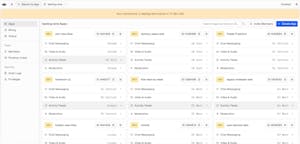
The left-hand navigation bar takes you into the heart of moderation: the queues. Each queue gives you a different lens on flagged activity:
- Users Queue: Lists accounts flagged for repeated violations or high-risk behavior. From here, you can issue bans and delete content.
- Content Queue: Collects flagged content. You’ll see a preview, harm label, severity, and any actions already taken by the AI. Clicking in reveals the conversation history for context.
- Chat Explorer: Lets you browse conversations across channels, even when content hasn’t been flagged. This tool is especially useful for spotting trends, investigating heated discussions, or posting reminders to the community (e.g., “Let’s keep things respectful and follow our guidelines”).
Together, these queues give you both a focused view of flagged violations and a broader view of what’s happening across channels.
Reviewing Flagged Content
When you open a flagged item in any queue, you’ll see:
- The content itself (text, image, or video).
- The harm label (why it was flagged).
- The severity level (for text) or confidence score (for media).
- User metadata, such as their ID, role, and moderation history.
- The AI’s initial action (flag, block, shadowblock, bounce, or mask).
- A conversation preview, showing surrounding messages for added context.
- Moderator notes.
This review view is where your judgment comes into play. For example:
- A message like “That exam killed me” might be flagged for violence, but context shows it’s harmless.
- A different message like “I’m going to kill you” would be labeled as a threat with critical severity and already blocked by the AI.
In both cases, your job is to confirm or override the AI’s action based on context.
Tools for Moderators
To make reviews faster and more accurate, the dashboard includes several tools:
- Filters & Search: Narrow flagged items by harm category, content type, user ID, or date.
- Bulk Actions: Select multiple items (like spam messages) and resolve them at once.
- Moderator Notes: Add comments on tricky cases to explain your decision or flag them for Admins.
These tools make moderation collaborative and consistent, ensuring every decision is both traceable and easy to understand later.
Putting It in Context
Think of the dashboard as both a triage center and a control panel. The AI flags what it sees as risky, the dashboard organizes those items into queues, and you use the provided context, filters, and tools to decide what happens next.
Now that you know how to navigate the dashboard and explore flagged items, let’s take a closer look at what flagged content contains, labels, severity levels, confidence scores, and the context you’ll use to guide your decisions.