















Custom message
Every message in a message list is rendered by the MessageUI component. The default one is easy to restyle with component variables, and each of its parts has its own override key. When that isn't enough, you replace MessageUI itself. This recipe builds a custom one step by step, reusing the SDK's parts where they help. How the override works is explained in Overriding components.
Best practices
- Restyle the default
MessageUIbefore replacing it. A replacement has to handle every kind of message your app shows. - Read the message and its handlers with
useMessageContext(). A customMessageUIreceives no props. - Render the text with
MessageText, so Markdown, links and mentions keep working. - Show only the actions the user may take.
useUserRole(message)reads the user's capabilities in the channel. - Test the result with deleted, failed and edited messages, messages with attachments, and messages in a thread.
Message text and avatars
Start with the simplest message UI: the raw text.
import { useMessageContext } from "stream-chat-react";

export const CustomMessageUi = () => {
  const { message } = useMessageContext();

  return <div data-message-id={message.id}>{message.text}</div>;
};The message UI and every component inside it read MessageContext with useMessageContext(): the message, the handlers for its actions, and the read and delivery state.
Register it on the MessageUI key with WithComponents. Every message list below it, in the channel and in its threads, then renders messages with CustomMessageUi:
import type { Channel as StreamChannel } from "stream-chat";
import {
  Channel,
  ChannelHeader,
  MessageComposer,
  MessageList,
  WithComponents,
} from "stream-chat-react";
import { CustomMessageUi } from "./CustomMessageUi";

// Declared once, so WithComponents gets the same object on every render.
const overrides = { MessageUI: CustomMessageUi };

export const ChannelWithCustomMessages = ({
  channel,
}: {
  channel: StreamChannel;
}) => (
  <WithComponents overrides={overrides}>
    <Channel channel={channel}>
      <ChannelHeader />
      <MessageList />
      <MessageComposer />
    </Channel>
  </WithComponents>
);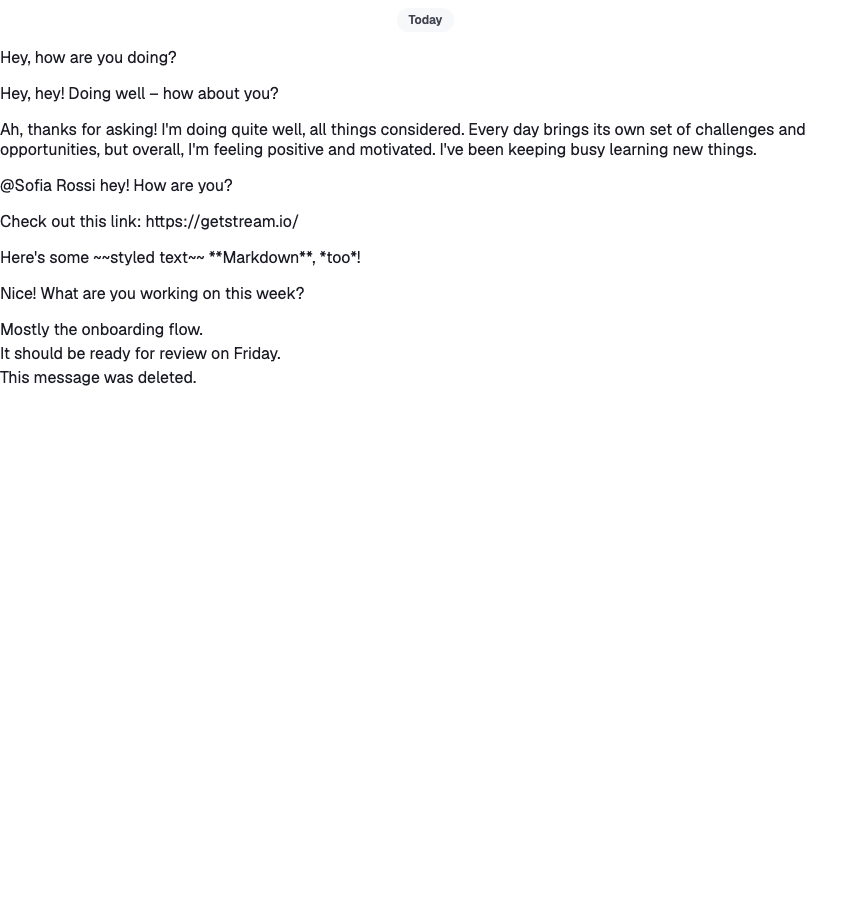
All messages now sit on one side, and you can't tell who sent them. isMyMessage() tells the user's own messages apart, and message.user holds the sender. Put the user's messages on the right and everyone else's on the left. The styles go in CustomMessageUi.css, imported from CustomMessageUi.tsx with import "./CustomMessageUi.css";:
import { useMessageContext } from "stream-chat-react";

export const CustomMessageUi = () => {
  const { isMyMessage, message } = useMessageContext();

  const messageUiClassNames = ["custom-message-ui"];

  if (isMyMessage()) {
    messageUiClassNames.push("custom-message-ui--mine");
  } else {
    messageUiClassNames.push("custom-message-ui--other");
  }

  return (
    <div className={messageUiClassNames.join(" ")} data-message-id={message.id}>
      <strong className="custom-message-ui__name">
        {message.user?.name || message.user?.id}
      </strong>
      <span>{message.text}</span>
    </div>
  );
};.custom-message-ui {
--cmui-gap-size: 0.5rem;
--cmui-inline-spacing: 2rem;
--cmui-block-spacing: 0.5rem;
display: flex;
gap: var(--cmui-gap-size);
padding-inline: var(--cmui-inline-spacing);
padding-block: var(--cmui-block-spacing);
}
.custom-message-ui__name {
flex-shrink: 0;
display: flex;
gap: var(--cmui-gap-size);
}
.custom-message-ui--mine .custom-message-ui__name::before {
content: "<";
}
.custom-message-ui--other .custom-message-ui__name::after {
content: ">";
}
.custom-message-ui--mine {
flex-direction: row-reverse;
text-align: right;
}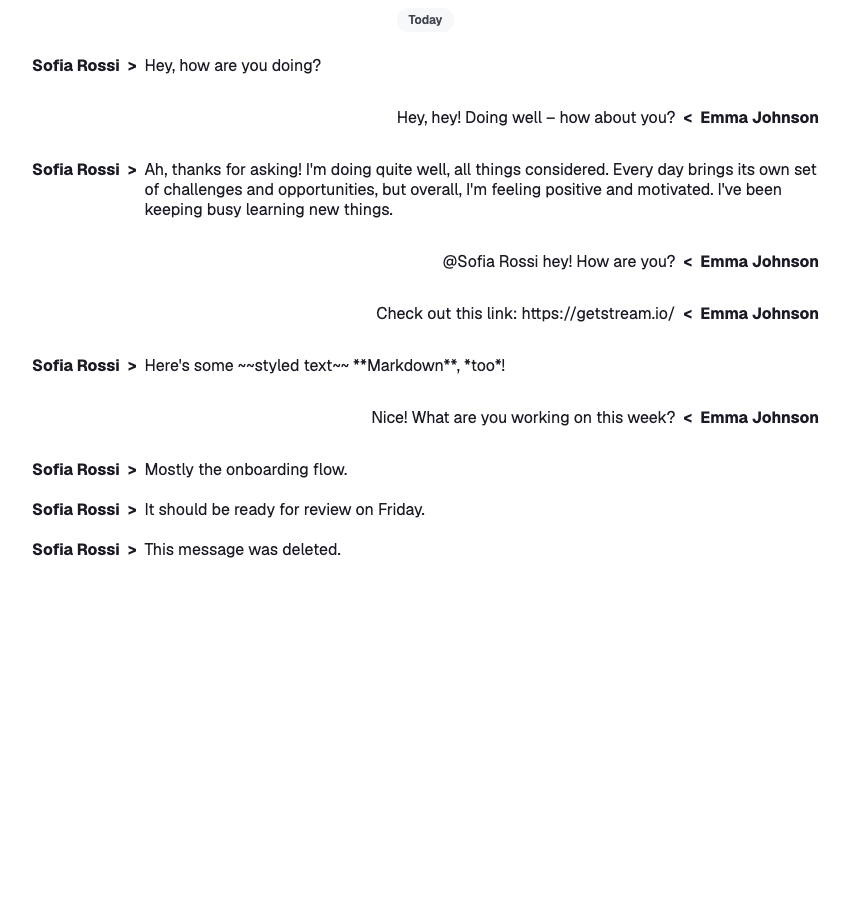
This already reads better. Next, replace the name with the SDK's Avatar, which shows the user's image, or their initials when they have none:
import { Avatar, useMessageContext } from "stream-chat-react";

export const CustomMessageUi = () => {
  const { isMyMessage, message } = useMessageContext();

  const messageUiClassNames = ["custom-message-ui"];

  if (isMyMessage()) {
    messageUiClassNames.push("custom-message-ui--mine");
  } else {
    messageUiClassNames.push("custom-message-ui--other");
  }

  return (
    <div className={messageUiClassNames.join(" ")} data-message-id={message.id}>
      <Avatar
        imageUrl={message.user?.image}
        size="sm"
        userName={message.user?.name || message.user?.id}
      />
      <span className="custom-message-ui__text">{message.text}</span>
    </div>
  );
};.custom-message-ui {
--cmui-gap-size: 0.5rem;
--cmui-inline-spacing: 2rem;
--cmui-block-spacing: 0.5rem;
display: flex;
gap: var(--cmui-gap-size);
padding-inline: var(--cmui-inline-spacing);
padding-block: var(--cmui-block-spacing);
}
.custom-message-ui .str-chat__avatar {
flex-shrink: 0;
}
.custom-message-ui__text {
display: flex;
flex-direction: column;
align-self: center;
}
.custom-message-ui--mine {
flex-direction: row-reverse;
text-align: right;
}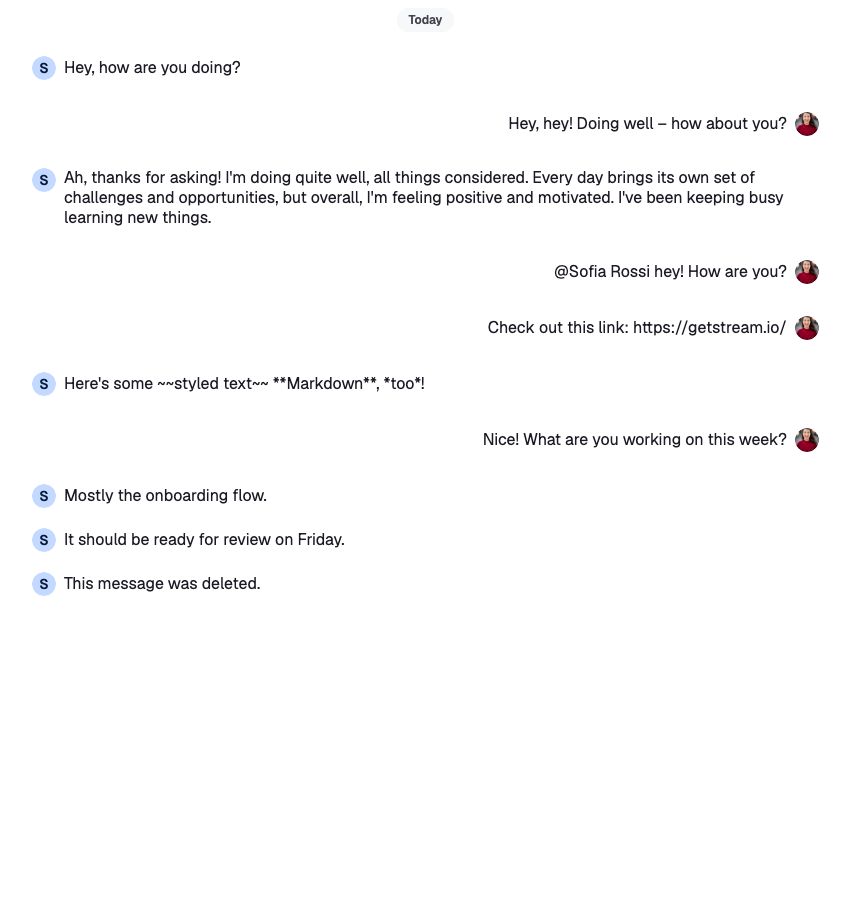
The text is still plain: links, mentions and Markdown show as typed. MessageText renders the message's text through renderText, which turns them into links, mention highlights and formatted text. It reads the message from MessageContext, so it needs no props:
import { Avatar, MessageText, useMessageContext } from "stream-chat-react";

export const CustomMessageUi = () => {
  const { isMyMessage, message } = useMessageContext();

  const messageUiClassNames = ["custom-message-ui"];

  if (isMyMessage()) {
    messageUiClassNames.push("custom-message-ui--mine");
  } else {
    messageUiClassNames.push("custom-message-ui--other");
  }

  return (
    <div className={messageUiClassNames.join(" ")} data-message-id={message.id}>
      <Avatar
        imageUrl={message.user?.image}
        size="sm"
        userName={message.user?.name || message.user?.id}
      />
      <MessageText />
    </div>
  );
};.custom-message-ui {
--cmui-gap-size: 0.5rem;
--cmui-inline-spacing: 2rem;
--cmui-block-spacing: 0.5rem;
display: flex;
gap: var(--cmui-gap-size);
padding-inline: var(--cmui-inline-spacing);
padding-block: var(--cmui-block-spacing);
}
.custom-message-ui .str-chat__avatar {
flex-shrink: 0;
}
.custom-message-ui--mine {
flex-direction: row-reverse;
text-align: right;
}
.custom-message-ui .str-chat__message-text p {
all: unset;
}
.custom-message-ui .str-chat__message-text {
display: flex;
flex-direction: column;
align-self: center;
}
.custom-message-ui .str-chat__message-mention {
font-weight: bold;
color: palevioletred;
cursor: pointer;
}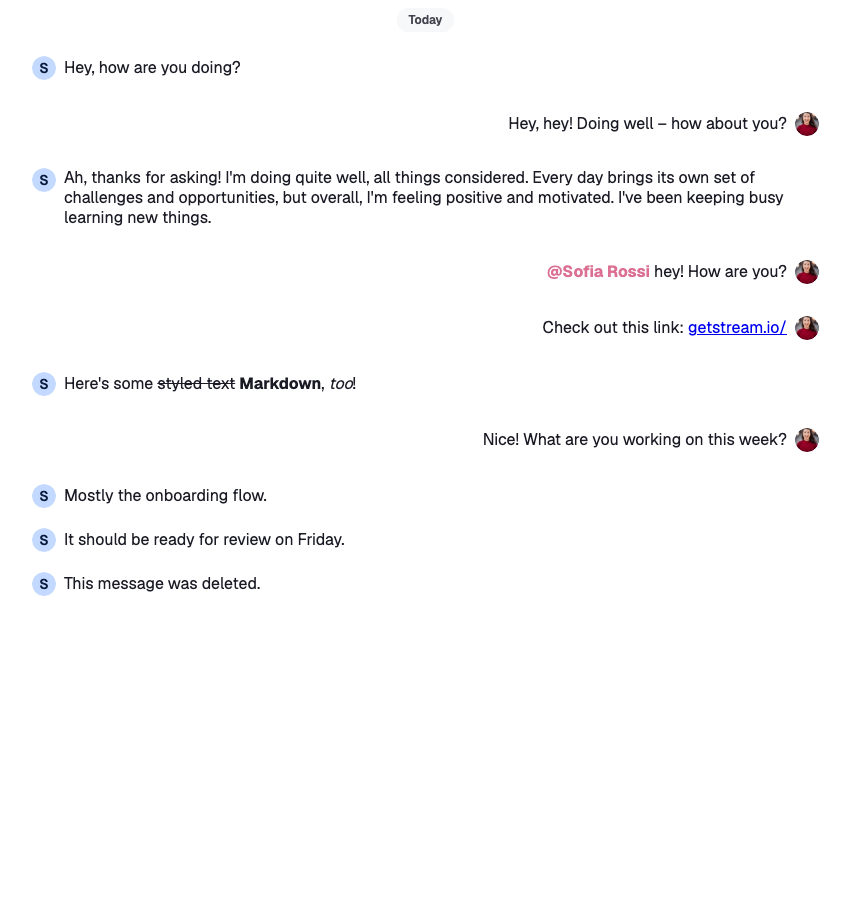
A mention is highlighted but does nothing when clicked. Mentions shows how to handle clicks on it.
Metadata
The messages still lack context. Add the time the message was sent, an "Edited" mark, and whether it was sent, delivered or read.
The server's timestamps are nanosecond numbers, so convert them with convertTimestampToDate before formatting; Data conventions explains why. MessageContext gives the user's own message deliveredTo and readBy, the users the message reached and the users who read it. By default only the latest own message that was delivered or read gets them; returnAllReadData on the list gives them to every own message:
import type { LocalMessage, UserResponse } from "stream-chat";
import { convertTimestampToDate } from "stream-chat";
import {
  Avatar,
  MessageText,
  useChatContext,
  useMessageContext,
  useThreadContext,
} from "stream-chat-react";

const statusIconMap = {
  delivered: "✅",
  read: "👁️",
  sending: "🛫",
  sent: "✉️",
  unknown: "❓",
};

type MessageStatusParams = {
  deliveredTo: UserResponse[];
  message: LocalMessage;
  ownUserId: string;
  readBy: UserResponse[];
  threadList: boolean;
};

const getMessageStatus = ({
  deliveredTo,
  message,
  ownUserId,
  readBy,
  threadList,
}: MessageStatusParams): keyof typeof statusIconMap => {
  const [firstReader] = readBy;
  const [firstDeliveredUser] = deliveredTo;

  const justReadByMe = readBy.length === 1 && firstReader?.id === ownUserId;
  const read = readBy.length > 0 && !justReadByMe && !threadList;

  const deliveredOnlyToMe =
    deliveredTo.length === 1 && firstDeliveredUser?.id === ownUserId;
  const delivered =
    deliveredTo.length > 0 && !deliveredOnlyToMe && !read && !threadList;

  const sent =
    message.status === "received" && !delivered && !read && !threadList;
  const sending = message.status === "sending";

  if (read) return "read";
  if (delivered) return "delivered";
  if (sent) return "sent";
  if (sending) return "sending";
  return "unknown";
};

const CustomMessageUiMetadata = () => {
  const { deliveredTo = [], message, readBy = [] } = useMessageContext();
  const { client } = useChatContext();
  const threadList = !!useThreadContext();

  const createdAt = convertTimestampToDate(message.created_at);
  const editedAt = convertTimestampToDate(message.message_text_updated_at);
  const status = getMessageStatus({
    deliveredTo,
    message,
    ownUserId: client.user?.id ?? "",
    readBy,
    threadList,
  });

  return (
    <div className="custom-message-ui__metadata">
      <div className="custom-message-ui__metadata-created-at">
        {createdAt?.toLocaleString()}
      </div>
      <div className="custom-message-ui__metadata-read-status">
        {statusIconMap[status]}
      </div>
      {editedAt && (
        <div
          className="custom-message-ui__metadata-edited-status"
          title={editedAt.toLocaleString()}
        >
          Edited
        </div>
      )}
    </div>
  );
};

export const CustomMessageUi = () => {
  const { isMyMessage, message } = useMessageContext();

  const messageUiClassNames = ["custom-message-ui"];

  if (isMyMessage()) {
    messageUiClassNames.push("custom-message-ui--mine");
  } else {
    messageUiClassNames.push("custom-message-ui--other");
  }

  return (
    <div className={messageUiClassNames.join(" ")} data-message-id={message.id}>
      <div className="custom-message-ui__body">
        <Avatar
          imageUrl={message.user?.image}
          size="sm"
          userName={message.user?.name || message.user?.id}
        />
        <MessageText />
      </div>
      <CustomMessageUiMetadata />
    </div>
  );
};.custom-message-ui {
--cmui-gap-size-md: 0.5rem;
--cmui-gap-size-sm: 0.2rem;
--cmui-inline-spacing: 2rem;
--cmui-block-spacing: 0.5rem;
display: flex;
flex-direction: column;
gap: var(--cmui-gap-size-md);
padding-inline: var(--cmui-inline-spacing);
padding-block: var(--cmui-block-spacing);
}
.custom-message-ui .str-chat__avatar {
flex-shrink: 0;
}
.custom-message-ui__body {
gap: var(--cmui-gap-size-md);
display: flex;
}
.custom-message-ui--mine .custom-message-ui__body {
flex-direction: row-reverse;
text-align: right;
}
.custom-message-ui__metadata {
display: flex;
font-size: x-small;
align-items: baseline;
}
.custom-message-ui__metadata > *:nth-child(even)::after,
.custom-message-ui__metadata > *:nth-child(even)::before {
content: "•";
padding-inline: var(--cmui-gap-size-sm);
}
.custom-message-ui__metadata > *:last-child::after {
display: none;
}
.custom-message-ui--mine .custom-message-ui__metadata {
align-self: flex-end;
}
.custom-message-ui .str-chat__message-text p {
all: unset;
}
.custom-message-ui .str-chat__message-text {
display: flex;
flex-direction: column;
align-self: center;
}
.custom-message-ui .str-chat__message-mention {
font-weight: bold;
color: palevioletred;
cursor: pointer;
}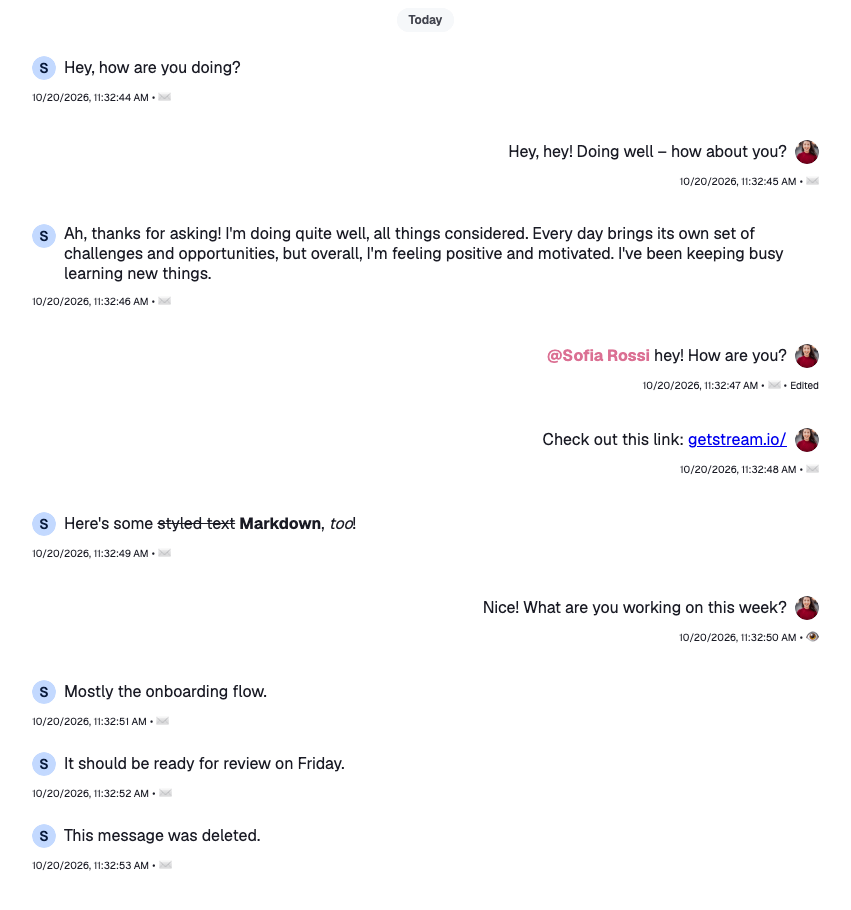
The metadata now repeats under every message. MessageList groups consecutive messages from the same sender and puts a class on the list item around each message: str-chat__li--top, --middle, --bottom or --single. Show the metadata only under the last message of a group:
.custom-message-ui__metadata {
  display: flex;
  display: none;
  font-size: x-small;
  align-items: baseline;
}

.str-chat__li--bottom .custom-message-ui__metadata,
.str-chat__li--single .custom-message-ui__metadata {
  display: flex;
}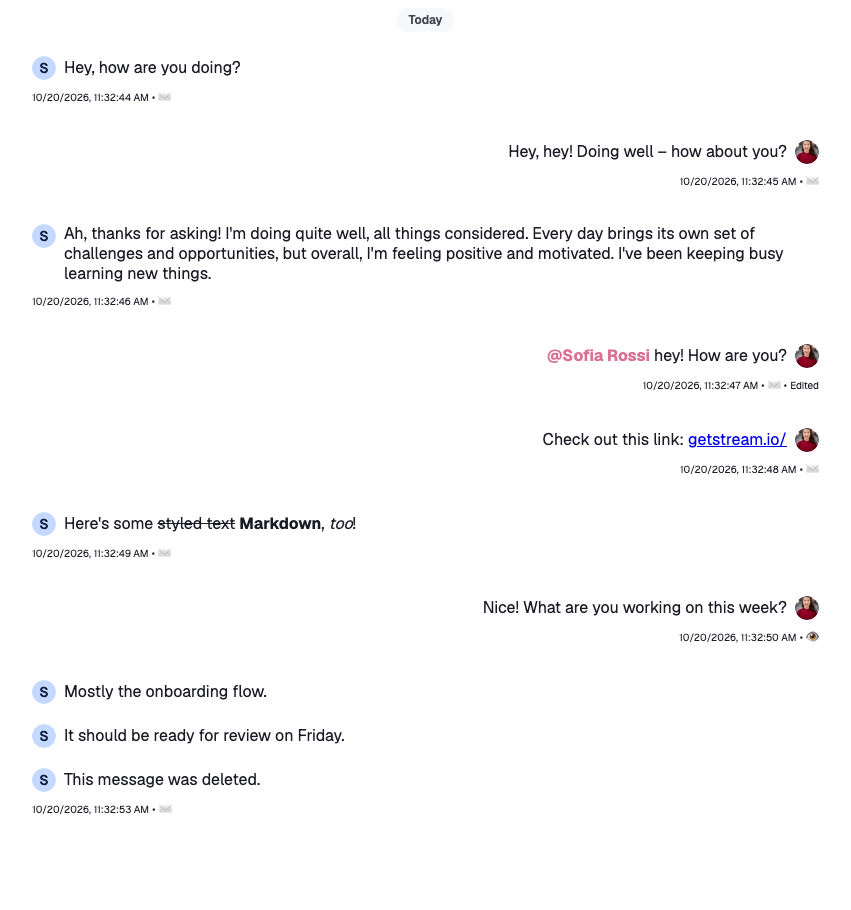
VirtualizedMessageList puts the same classes on its items, so these rules work there too. To make the same decision in code, read groupStyles from MessageContext: it holds the message's place in its group, such as ["bottom"].
The SDK's own MessageStatus and MessageTimestamp handle more cases, such as the list of readers and translated date formats, and need no props. A custom message UI can render them instead of building its own.
Message actions
The message can be read now, but not acted on. MessageContext has a handler for each action, such as handleDelete, handleFlag, handleOpenThread and handlePin. Wire some of them to buttons that show while the pointer is over the message.
The next samples show only the components they change. The whole file is in the complete example at the end.
Show each button only to users who may use it. useUserRole(message) reads the user's capabilities in the channel: canDelete, canFlag, canPin and canReply. The default actions menu hides most actions on its own, but not Pin, so the check matters most there; Actions explains what the default filter does. The SDK offers neither Pin nor Reply on a thread reply, so those buttons stay out of a thread too. useThreadContext() returns the thread when the message renders inside Thread, and undefined in a channel:
const CustomMessageUiActions = () => {
  const { handleDelete, handleFlag, handleOpenThread, handlePin, message } =
    useMessageContext();
  const threadList = !!useThreadContext();
  const { canDelete, canFlag, canPin, canReply } = useUserRole(message);

  return (
    <div className="custom-message-ui__actions">
      <div className="custom-message-ui__actions-group">
        {canPin && !threadList && (
          <button
            onClick={handlePin}
            title={message.pinned ? "Unpin" : "Pin"}
            type="button"
          >
            {message.pinned ? "📍" : "📌"}
          </button>
        )}
        {canDelete && (
          <button
            onClick={() => void handleDelete()}
            title="Delete"
            type="button"
          >
            🗑️
          </button>
        )}
        {canReply && !threadList && (
          <button onClick={handleOpenThread} title="Open thread" type="button">
            ↩️
          </button>
        )}
        {canFlag && (
          <button onClick={handleFlag} title="Flag message" type="button">
            🚩
          </button>
        )}
      </div>
    </div>
  );
};

export const CustomMessageUi = () => {
  const { isMyMessage, message } = useMessageContext();

  const messageUiClassNames = ["custom-message-ui"];

  if (isMyMessage()) {
    messageUiClassNames.push("custom-message-ui--mine");
  } else {
    messageUiClassNames.push("custom-message-ui--other");
  }

  return (
    <div className={messageUiClassNames.join(" ")} data-message-id={message.id}>
      <div className="custom-message-ui__body">
        <Avatar
          imageUrl={message.user?.image}
          size="sm"
          userName={message.user?.name || message.user?.id}
        />
        <MessageText />
      </div>
      <CustomMessageUiMetadata />
      <CustomMessageUiActions />
    </div>
  );
};.custom-message-ui {
--cmui-bg-color: #efefef;
--cmui-border-color: #ddd;
--cmui-border-radius: 0.2rem;
position: relative;
}
.custom-message-ui:hover,
.custom-message-ui:has(.str-chat__message-text:focus) {
background: var(--cmui-bg-color);
}
.custom-message-ui__actions {
display: none;
position: absolute;
gap: var(--cmui-gap-size-md);
top: -20px;
}
.custom-message-ui:hover .custom-message-ui__actions {
display: flex;
}
.custom-message-ui--mine .custom-message-ui__actions {
left: var(--cmui-inline-spacing);
}
.custom-message-ui--other .custom-message-ui__actions {
right: var(--cmui-inline-spacing);
}
.custom-message-ui__actions-group {
display: flex;
background-color: var(--cmui-border-color);
border-radius: var(--cmui-border-radius);
gap: 1px;
padding: 1px;
}
.custom-message-ui__actions-group:empty {
display: none;
}
.custom-message-ui__actions-group button {
all: unset;
background: white;
justify-content: center;
align-items: center;
cursor: pointer;
padding: 5px;
line-height: 1rem;
}
.custom-message-ui__actions-group button:first-child {
border-bottom-left-radius: calc(var(--cmui-border-radius) - 1px);
border-top-left-radius: calc(var(--cmui-border-radius) - 1px);
}
.custom-message-ui__actions-group button:last-child {
border-bottom-right-radius: calc(var(--cmui-border-radius) - 1px);
border-top-right-radius: calc(var(--cmui-border-radius) - 1px);
}
.custom-message-ui__actions-group button:hover {
background: var(--cmui-bg-color);
}The new rules go after the ones from the previous steps.
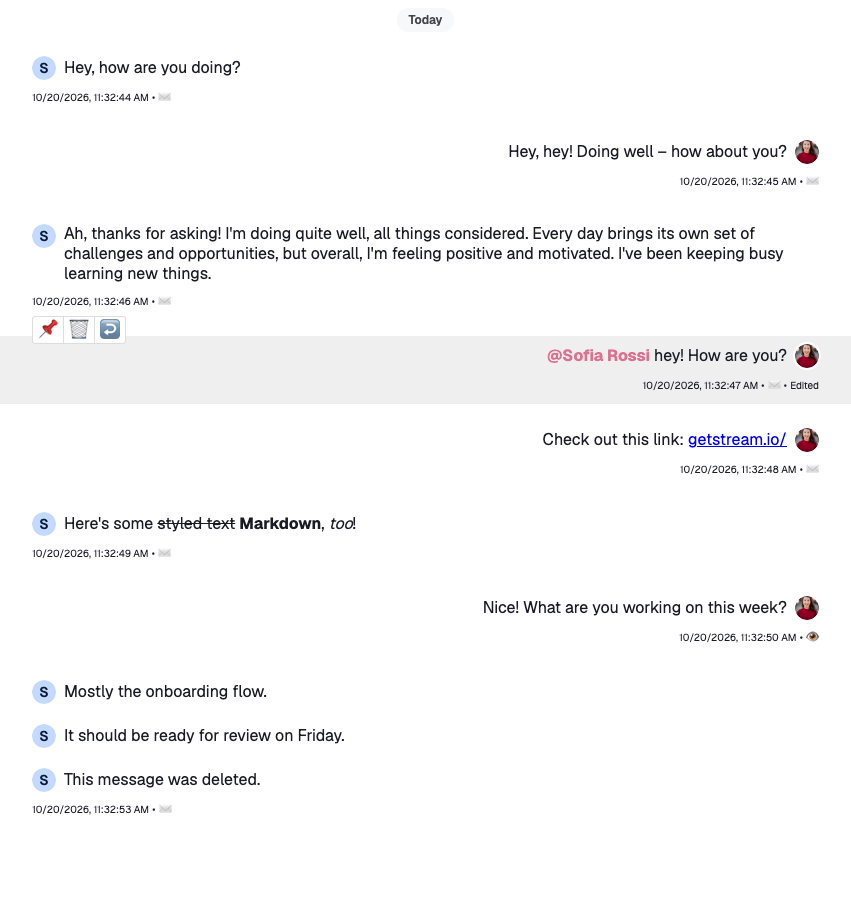
handlePinpins the message, or unpins it if it's pinned. The message shows its new state at once, and goes back if the request fails. The Pin indicator recipe changes how a pinned message looks.handleDeletedeletes the message. The message list shows it as deleted before the server answers.handleOpenThreadopens the message's thread through the layout, so withChatViewit opens in the thread slot. Without a layout it does nothing; see Navigation.handleFlagflags the message for moderation.
Thread and reply count
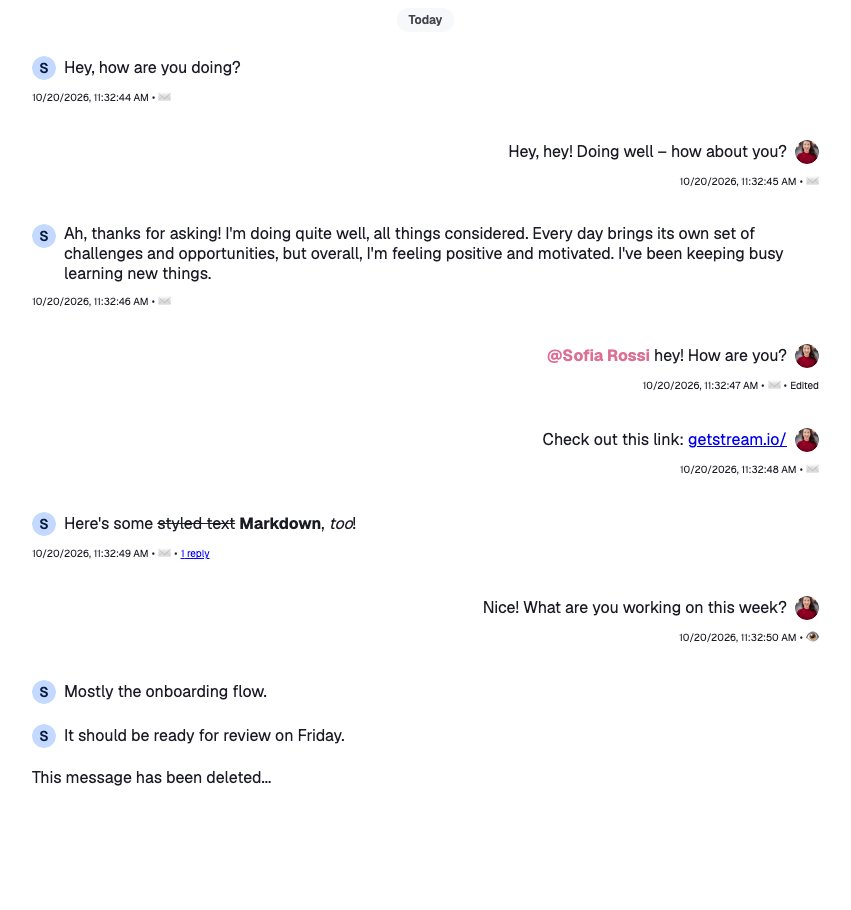
When a message gets replies, its reply_count grows. Add a button next to the metadata that shows the count and opens the thread. A message in a thread's own list has no thread to open, so the button stays out of it:
const CustomMessageUiMetadata = () => {
  const {
    deliveredTo = [],
    handleOpenThread,
    message,
    readBy = [],
  } = useMessageContext();
  const { client } = useChatContext();
  const threadList = !!useThreadContext();

  const createdAt = convertTimestampToDate(message.created_at);
  const editedAt = convertTimestampToDate(message.message_text_updated_at);
  const status = getMessageStatus({
    deliveredTo,
    message,
    ownUserId: client.user?.id ?? "",
    readBy,
    threadList,
  });

  return (
    <div className="custom-message-ui__metadata">
      <div className="custom-message-ui__metadata-created-at">
        {createdAt?.toLocaleString()}
      </div>
      <div className="custom-message-ui__metadata-read-status">
        {statusIconMap[status]}
      </div>
      {editedAt && (
        <div
          className="custom-message-ui__metadata-edited-status"
          title={editedAt.toLocaleString()}
        >
          Edited
        </div>
      )}
      {!threadList && message.reply_count > 0 && (
        <button
          className="custom-message-ui__metadata-reply-count"
          onClick={handleOpenThread}
          type="button"
        >
          <span>
            {message.reply_count}{" "}
            {message.reply_count > 1 ? "replies" : "reply"}
          </span>
        </button>
      )}
    </div>
  );
};.custom-message-ui__metadata-reply-count {
all: unset;
}
.custom-message-ui__metadata-reply-count > span {
color: blue;
text-decoration: underline;
cursor: pointer;
}Deleted message
A deleted message keeps its place in the list, without its text. isMessageDeleted(message) covers every way a message can be deleted: a soft delete, a message of type deleted, and a message deleted only for the current user. Render a placeholder instead of the content:
export const CustomMessageUi = () => {
const { isMyMessage, message } = useMessageContext();
const messageUiClassNames = ["custom-message-ui"];
const isDeleted = isMessageDeleted(message);
if (isMyMessage()) {
messageUiClassNames.push("custom-message-ui--mine");
} else {
messageUiClassNames.push("custom-message-ui--other");
}
return (
<div className={messageUiClassNames.join(" ")} data-message-id={message.id}>
{isDeleted && (
<div className="custom-message-ui__body">
This message has been deleted...
</div>
)}
{!isDeleted && (
<>
<div className="custom-message-ui__body">
<Avatar
imageUrl={message.user?.image}
size="sm"
userName={message.user?.name || message.user?.id}
/>
<MessageText />
</div>
<CustomMessageUiMetadata />
<CustomMessageUiActions />
</>
)}
</div>
);
};
Reactions
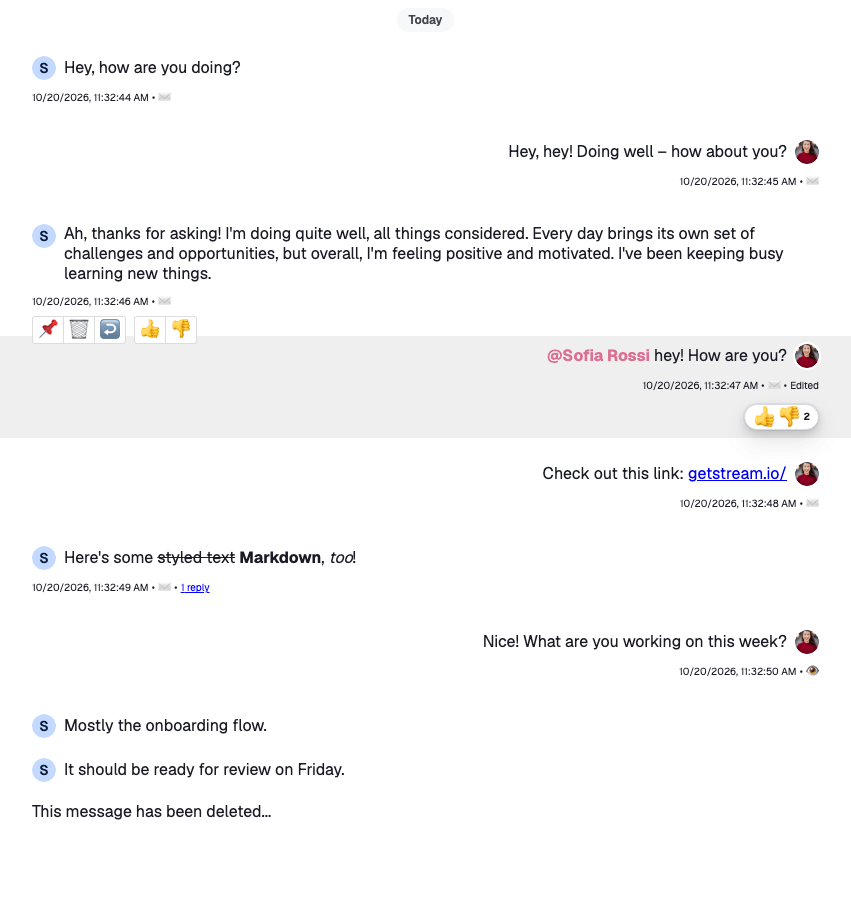
Next, add two reactions, thumbs up and thumbs down, as buttons next to the actions, and show the reactions a message has with the SDK's MessageReactions.
First define the reactions and register them as reactionOptions with WithComponents, next to the message UI. Each key is the reaction type stored on the server. MessageReactions, the reactions dialog and your own components read them from there; Reactions explains the format:
import type { Channel as StreamChannel } from "stream-chat";
import type { ReactionOptions } from "stream-chat-react";
import {
Channel,
ChannelHeader,
emojiToUnicode,
MessageComposer,
MessageList,
WithComponents,
} from "stream-chat-react";
import { CustomMessageUi } from "./CustomMessageUi";
const reactionOptions: ReactionOptions = {
quick: {
"+1": {
Component: () => <>👍</>,
name: "Thumbs up",
unicode: emojiToUnicode("👍"),
},
"-1": {
Component: () => <>👎</>,
name: "Thumbs down",
unicode: emojiToUnicode("👎"),
},
},
};
const overrides = { MessageUI: CustomMessageUi, reactionOptions };
export const ChannelWithCustomMessages = ({
channel,
}: {
channel: StreamChannel;
}) => (
<WithComponents overrides={overrides}>
<Channel channel={channel}>
<ChannelHeader />
<MessageList />
<MessageComposer />
</Channel>
</WithComponents>
);Then give CustomMessageUiActions a button for each quick reaction. It reads the registered options with useComponentContext(). handleReaction(type, event) adds the reaction, or removes it if the user already reacted with it, and the message shows the change before the server answers. canReact is the send-reaction capability:
const CustomMessageUiActions = () => {
const {
handleDelete,
handleFlag,
handleOpenThread,
handlePin,
handleReaction,
message,
} = useMessageContext();
const threadList = !!useThreadContext();
const { canDelete, canFlag, canPin, canReact, canReply } =
useUserRole(message);
const { reactionOptions } = useComponentContext();
const quickReactions =
reactionOptions && "quick" in reactionOptions ? reactionOptions.quick : {};
return (
<div className="custom-message-ui__actions">
<div className="custom-message-ui__actions-group">
{canPin && !threadList && (
<button
onClick={handlePin}
title={message.pinned ? "Unpin" : "Pin"}
type="button"
>
{message.pinned ? "📍" : "📌"}
</button>
)}
{canDelete && (
<button
onClick={() => void handleDelete()}
title="Delete"
type="button"
>
🗑️
</button>
)}
{canReply && !threadList && (
<button onClick={handleOpenThread} title="Open thread" type="button">
↩️
</button>
)}
{canFlag && (
<button onClick={handleFlag} title="Flag message" type="button">
🚩
</button>
)}
</div>
{canReact && (
<div className="custom-message-ui__actions-group">
{Object.entries(quickReactions).map(([type, { Component, name }]) => (
<button
key={type}
onClick={(event) => void handleReaction(type, event)}
title={`React with: ${name}`}
type="button"
>
<Component />
</button>
))}
</div>
)}
</div>
);
};Finally, render MessageReactions under the metadata. It shows each reaction with its count, and opens the reactions dialog when clicked.
Complete example
import type { LocalMessage, UserResponse } from "stream-chat";
import { convertTimestampToDate } from "stream-chat";
import {
Avatar,
isMessageDeleted,
MessageReactions,
MessageText,
useChatContext,
useComponentContext,
useMessageContext,
useThreadContext,
useUserRole,
} from "stream-chat-react";
import "./CustomMessageUi.css";
const statusIconMap = {
delivered: "✅",
read: "👁️",
sending: "🛫",
sent: "✉️",
unknown: "❓",
};
type MessageStatusParams = {
deliveredTo: UserResponse[];
message: LocalMessage;
ownUserId: string;
readBy: UserResponse[];
threadList: boolean;
};
const getMessageStatus = ({
deliveredTo,
message,
ownUserId,
readBy,
threadList,
}: MessageStatusParams): keyof typeof statusIconMap => {
const [firstReader] = readBy;
const [firstDeliveredUser] = deliveredTo;
const justReadByMe = readBy.length === 1 && firstReader?.id === ownUserId;
const read = readBy.length > 0 && !justReadByMe && !threadList;
const deliveredOnlyToMe =
deliveredTo.length === 1 && firstDeliveredUser?.id === ownUserId;
const delivered =
deliveredTo.length > 0 && !deliveredOnlyToMe && !read && !threadList;
const sent =
message.status === "received" && !delivered && !read && !threadList;
const sending = message.status === "sending";
if (read) return "read";
if (delivered) return "delivered";
if (sent) return "sent";
if (sending) return "sending";
return "unknown";
};
const CustomMessageUiActions = () => {
const {
handleDelete,
handleFlag,
handleOpenThread,
handlePin,
handleReaction,
message,
} = useMessageContext();
const threadList = !!useThreadContext();
const { canDelete, canFlag, canPin, canReact, canReply } =
useUserRole(message);
const { reactionOptions } = useComponentContext();
const quickReactions =
reactionOptions && "quick" in reactionOptions ? reactionOptions.quick : {};
return (
<div className="custom-message-ui__actions">
<div className="custom-message-ui__actions-group">
{canPin && !threadList && (
<button
onClick={handlePin}
title={message.pinned ? "Unpin" : "Pin"}
type="button"
>
{message.pinned ? "📍" : "📌"}
</button>
)}
{canDelete && (
<button
onClick={() => void handleDelete()}
title="Delete"
type="button"
>
🗑️
</button>
)}
{canReply && !threadList && (
<button onClick={handleOpenThread} title="Open thread" type="button">
↩️
</button>
)}
{canFlag && (
<button onClick={handleFlag} title="Flag message" type="button">
🚩
</button>
)}
</div>
{canReact && (
<div className="custom-message-ui__actions-group">
{Object.entries(quickReactions).map(([type, { Component, name }]) => (
<button
key={type}
onClick={(event) => void handleReaction(type, event)}
title={`React with: ${name}`}
type="button"
>
<Component />
</button>
))}
</div>
)}
</div>
);
};
const CustomMessageUiMetadata = () => {
const {
deliveredTo = [],
handleOpenThread,
message,
readBy = [],
} = useMessageContext();
const { client } = useChatContext();
const threadList = !!useThreadContext();
const createdAt = convertTimestampToDate(message.created_at);
const editedAt = convertTimestampToDate(message.message_text_updated_at);
const status = getMessageStatus({
deliveredTo,
message,
ownUserId: client.user?.id ?? "",
readBy,
threadList,
});
return (
<div className="custom-message-ui__metadata">
<div className="custom-message-ui__metadata-created-at">
{createdAt?.toLocaleString()}
</div>
<div className="custom-message-ui__metadata-read-status">
{statusIconMap[status]}
</div>
{editedAt && (
<div
className="custom-message-ui__metadata-edited-status"
title={editedAt.toLocaleString()}
>
Edited
</div>
)}
{!threadList && message.reply_count > 0 && (
<button
className="custom-message-ui__metadata-reply-count"
onClick={handleOpenThread}
type="button"
>
<span>
{message.reply_count}{" "}
{message.reply_count > 1 ? "replies" : "reply"}
</span>
</button>
)}
</div>
);
};
export const CustomMessageUi = () => {
const { isMyMessage, message } = useMessageContext();
const messageUiClassNames = ["custom-message-ui"];
const isDeleted = isMessageDeleted(message);
if (isMyMessage()) {
messageUiClassNames.push("custom-message-ui--mine");
} else {
messageUiClassNames.push("custom-message-ui--other");
}
return (
<div className={messageUiClassNames.join(" ")} data-message-id={message.id}>
{isDeleted && (
<div className="custom-message-ui__body">
This message has been deleted...
</div>
)}
{!isDeleted && (
<>
<div className="custom-message-ui__body">
<Avatar
imageUrl={message.user?.image}
size="sm"
userName={message.user?.name || message.user?.id}
/>
<MessageText />
</div>
<CustomMessageUiMetadata />
<CustomMessageUiActions />
<MessageReactions />
</>
)}
</div>
);
};.custom-message-ui {
--cmui-gap-size-md: 0.5rem;
--cmui-gap-size-sm: 0.2rem;
--cmui-inline-spacing: 2rem;
--cmui-block-spacing: 0.5rem;
--cmui-bg-color: #efefef;
--cmui-border-color: #ddd;
--cmui-border-radius: 0.2rem;
position: relative;
display: flex;
flex-direction: column;
gap: var(--cmui-gap-size-md);
padding-inline: var(--cmui-inline-spacing);
padding-block: var(--cmui-block-spacing);
}
.custom-message-ui .str-chat__avatar {
flex-shrink: 0;
}
.custom-message-ui:hover,
.custom-message-ui:has(.str-chat__message-text:focus) {
background: var(--cmui-bg-color);
}
.custom-message-ui__body {
gap: var(--cmui-gap-size-md);
display: flex;
}
.custom-message-ui--mine .custom-message-ui__body {
flex-direction: row-reverse;
text-align: right;
}
.custom-message-ui__actions {
display: none;
position: absolute;
gap: var(--cmui-gap-size-md);
top: -20px;
}
.custom-message-ui:hover .custom-message-ui__actions {
display: flex;
}
.custom-message-ui__actions-group {
display: flex;
background-color: var(--cmui-border-color);
border-radius: var(--cmui-border-radius);
gap: 1px;
padding: 1px;
}
.custom-message-ui__actions-group:empty {
display: none;
}
.custom-message-ui__actions-group button {
all: unset;
background: white;
justify-content: center;
align-items: center;
cursor: pointer;
padding: 5px;
line-height: 1rem;
}
.custom-message-ui__actions-group button:first-child {
border-bottom-left-radius: calc(var(--cmui-border-radius) - 1px);
border-top-left-radius: calc(var(--cmui-border-radius) - 1px);
}
.custom-message-ui__actions-group button:last-child {
border-bottom-right-radius: calc(var(--cmui-border-radius) - 1px);
border-top-right-radius: calc(var(--cmui-border-radius) - 1px);
}
.custom-message-ui__actions-group button:hover {
background: var(--cmui-bg-color);
}
.custom-message-ui__metadata {
display: none;
font-size: x-small;
align-items: baseline;
}
.str-chat__li--bottom .custom-message-ui__metadata,
.str-chat__li--single .custom-message-ui__metadata {
display: flex;
}
.custom-message-ui__metadata > *:nth-child(even)::after,
.custom-message-ui__metadata > *:nth-child(even)::before {
content: "•";
padding-inline: var(--cmui-gap-size-sm);
}
.custom-message-ui__metadata > *:last-child::after {
display: none;
}
.custom-message-ui__metadata-reply-count {
  all: unset;
}

.custom-message-ui__metadata-reply-count > span {
  color: blue;
  text-decoration: underline;
  cursor: pointer;
}
.custom-message-ui--mine .str-chat__message-reactions {
align-self: flex-end;
}
.custom-message-ui--mine .custom-message-ui__metadata {
align-self: flex-end;
}
.custom-message-ui--mine .custom-message-ui__actions {
left: var(--cmui-inline-spacing);
}
.custom-message-ui--other .custom-message-ui__actions {
right: var(--cmui-inline-spacing);
}
.custom-message-ui .str-chat__message-text p {
all: unset;
}
.custom-message-ui .str-chat__message-text {
display: flex;
flex-direction: column;
align-self: center;
}
.custom-message-ui .str-chat__message-mention {
font-weight: bold;
color: palevioletred;
cursor: pointer;
}
Attachments
This message UI shows no attachments. To show them, render the SDK's Attachment with the message's attachments, as the default MessageUI does. handleAction runs the buttons of a Giphy preview, such as Send and Shuffle:
const CustomMessageUiAttachments = () => {
  const { handleAction, message } = useMessageContext();

  if (!message.attachments?.length) return null;

  return (
    <Attachment
      actionHandler={handleAction}
      attachments={message.attachments}
    />
  );
};
Render <CustomMessageUiAttachments /> in CustomMessageUi, next to MessageText.
Attachment picks the right component for each attachment: images, videos, files, voice recordings, link previews and Giphy. Attachments and uploads explains how to change how each kind renders, and Overriding components shows a message UI that renders them.
Read more
The default MessageUI handles more than this recipe does:
- Editing a message in place: Sending, editing and deleting.
- Bounced messages, which moderation rejected: Sending, editing and deleting and MessageBounceContext.
- Polls, quoted messages, failed sends and the pin, reminder and translation marks: Message list UI lists every part of a message and its override key.
- The full actions menu, with the user's capabilities applied: Actions.