Attachment actions
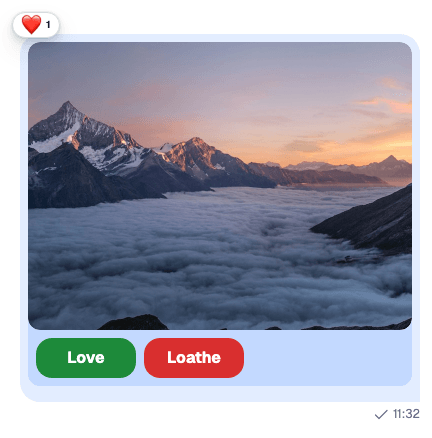
An attachment can carry actions: buttons the message shows under the attachment. Giphy previews use them for Send, Shuffle and Cancel. This recipe adds two buttons, "Love" and "Loathe", to every image a user sends, and clicking one reacts to the message. It's a demo of how far attachments stretch rather than a common use case.
These are actions on attachments in the message list. The menu that adds attachments in the composer is a different thing, the attachment selector's action set, explained in Actions.
The recipe has two parts:
- The composer adds the actions to each image when the message is sent, with a composition middleware.
- The message list renders them with an
AttachmentActionsof your own, which reacts instead of calling the server.
Best practices
- Add the actions in a composition middleware, in the composer setup function. Every composer then adds them, in channels and threads alike, and both
messageandlocalMessageget them. - Replace
AttachmentActionsthrough theAttachmentcomponent, and render the default for other attachments, so Giphy previews keep their buttons. - Handle your own actions in your component. The default
AttachmentActionssends a click to the server withChannel.sendAction(), which only handles built-in actions such as Giphy's. - Expect actions on a single image only. A message with several images shows them as a gallery, without actions.
- Pick reaction types the reaction list knows. The message shows only the types in its reaction options:
haha,like,love,sad,wowandfireby default.
Custom actions
An action is an Action from stream-chat: name, text and type, and optionally value and style. Each button's value here is the reaction it posts:
import type { Action } from "stream-chat";

export const voteActions: Action[] = [
  { name: "vote", text: "Love", type: "button", value: "love" },
  { name: "vote", text: "Loathe", type: "button", value: "sad" },
];
Custom AttachmentActions
AttachmentActions receives the attachment's fields, including type, and its actions. For images, this one renders a button per action, and each click reacts through handleReaction from useMessageContext(). Every other attachment gets the default:
import type { AttachmentActionsProps } from "stream-chat-react";
import { AttachmentActions, useMessageContext } from "stream-chat-react";

export const VoteAttachmentActions = (props: AttachmentActionsProps) => {
  const { actions, type } = props;
  const { handleReaction } = useMessageContext();

  if (type !== "image") return <AttachmentActions {...props} />;

  return (
    <div className="vote-actions">
      {actions.map((action) => (
        <button
          className={`vote-actions__button vote-actions__button--${action.value}`}
          key={action.value}
          onClick={(event) => {
            if (action.value) void handleReaction(action.value, event);
          }}
          type="button"
        >
          {action.text}
        </button>
      ))}
    </div>
  );
};
handleReaction toggles: a second click on "Love" removes the user's love reaction. It updates the message at once and undoes the change if the request fails.
Custom Attachment
Attachment renders the attachments of a message and takes its parts as props. Pass it the new actions, and register the result as the Attachment override:
import type { AttachmentProps } from "stream-chat-react";
import { Attachment } from "stream-chat-react";
import { VoteAttachmentActions } from "./VoteAttachmentActions";

export const VoteAttachment = (props: AttachmentProps) => (
  <Attachment {...props} AttachmentActions={VoteAttachmentActions} />
);
Attachments and uploads lists the other parts Attachment takes.
Enrich attachments before message submission
The composition chain builds the message when the user sends it. A middleware inserted after stream-io/message-composer-middleware/attachments, which adds the uploaded files, finds the images there and adds the actions:
import { isImageAttachment } from "stream-chat";
import type {
  Attachment,
  MessageComposerMiddlewareState,
  MessageCompositionMiddleware,
  MiddlewareHandlerParams,
} from "stream-chat";
import { voteActions } from "./voteActions";

const addVoteActions = (attachments: Attachment[] = []) =>
  attachments.map((attachment) =>
    isImageAttachment(attachment)
      ? { ...attachment, actions: voteActions }
      : attachment,
  );

export const voteActionsMiddleware: MessageCompositionMiddleware = {
  id: "my-app/vote-actions",
  handlers: {
    compose: ({
      forward,
      next,
      state,
    }: MiddlewareHandlerParams<MessageComposerMiddlewareState>) => {
      if (!state.message.attachments?.some(isImageAttachment)) return forward();

      return next({
        ...state,
        localMessage: {
          ...state.localMessage,
          attachments: addVoteActions(state.localMessage.attachments),
        },
        message: {
          ...state.message,
          attachments: addVoteActions(state.message.attachments),
        },
      });
    },
  },
};
Install it in the composer setup function, with a teardown that removes it:
import { voteActionsMiddleware } from "./voteActionsMiddleware";

client.config.setSetupFunction("messageComposer", ({ composer }) => {
  composer.compositionMiddlewareExecutor.insert({
    middleware: [voteActionsMiddleware],
    position: { after: "stream-io/message-composer-middleware/attachments" },
    unique: true,
  });

  return () =>
    composer.compositionMiddlewareExecutor.remove(voteActionsMiddleware.id);
});
There is one setup function per kind of object, so put all your composer setup in this one function. Composer middleware explains the chain, the ids, and why both copies of the message change.
Implementation
The app below puts the pieces together, on the layout from the Quick start. It imports voteActionsMiddleware and VoteAttachment from the files above.
The code
import { useEffect } from "react";
import { ChannelPaginator } from "stream-chat";
import type { ChannelFilters, SortParamRequest } from "stream-chat";
import {
  ChannelHeader,
  ChannelNavigation,
  Chat,
  MessageComposer,
  MessageList,
  useCreateChatClient,
  WithComponents,
} from "stream-chat-react";
import { ChannelSlot, ChatView } from "stream-chat-react/slot-layout";
import type { LayoutDescriptor } from "stream-chat-react/slot-layout";
import { VoteAttachment } from "./VoteAttachment";
import { voteActionsMiddleware } from "./voteActionsMiddleware";
import "stream-chat-react/dist/css/index.css";
import "./App.css";

const apiKey = "YOUR_API_KEY";
const userId = "YOUR_USER_ID";
const userToken = "YOUR_USER_TOKEN";

const filters: ChannelFilters = {
  members: { $in: [userId] },
  type: "messaging",
};
const sort: SortParamRequest[] = [{ direction: -1, field: "last_message_at" }];
const layouts: LayoutDescriptor[] = [
  { id: "channels", slots: ["channel", "thread"] },
];
const overrides = { Attachment: VoteAttachment };

const ChannelsView = () => (
  <>
    <ChannelNavigation />
    <ChannelSlot slot="channel">
      <ChannelHeader />
      <MessageList />
      <MessageComposer />
    </ChannelSlot>
  </>
);

const App = () => {
  const client = useCreateChatClient({
    apiKey,
    tokenOrProvider: userToken,
    userData: { id: userId },
  });

  useEffect(() => {
    if (!client) return;

    const paginator = new ChannelPaginator({
      client,
      filters,
      id: "my-channels",
      sort,
    });
    client.channelManager.insertPaginator({ paginator });

    client.config.setSetupFunction("messageComposer", ({ composer }) => {
      composer.compositionMiddlewareExecutor.insert({
        middleware: [voteActionsMiddleware],
        position: {
          after: "stream-io/message-composer-middleware/attachments",
        },
        unique: true,
      });
      return () =>
        composer.compositionMiddlewareExecutor.remove(voteActionsMiddleware.id);
    });

    return () => {
      client.channelManager.removePaginator(paginator);
      client.config.setSetupFunction("messageComposer", null);
    };
  }, [client]);

  if (!client) return <div>Connecting...</div>;

  return (
    <Chat client={client}>
      <WithComponents overrides={overrides}>
        <ChatView layouts={layouts} views={{ channels: <ChannelsView /> }} />
      </WithComponents>
    </Chat>
  );
};

export default App;html,
body,
#root {
height: 100%;
}
body {
margin: 0;
}
.vote-actions {
display: flex;
gap: 8px;
padding: 8px;
}
.vote-actions__button {
background: #d92f2f;
border: 0;
border-radius: 16px;
color: #ffffff;
font-size: 1rem;
font-weight: 700;
height: 40px;
width: 100px;
}
.vote-actions__button--love {
background: #1d8a3a;
}The result
The rendered message before a click:
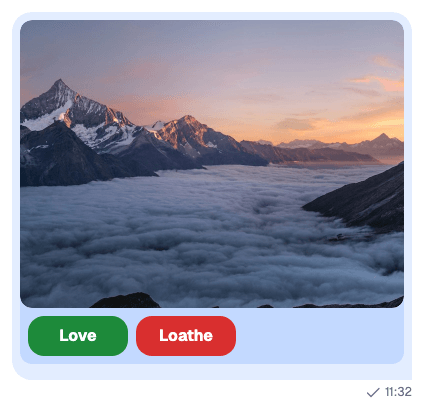
The rendered message after a click: