















Emoji
Users can type emoji with their keyboard in any app. This page covers the two things the SDK adds on top: an emoji picker next to the input, and :shortcode autocomplete. Both are optional and built on emoji-mart.
What users get
The user clicks the smiley button after the input. A picker opens with emoji by category, a search field and skin tones. Clicking an emoji inserts it at the cursor and puts the focus back in the input.
They can also type : followed by a few letters. After :piz, a list suggests 🍕 and other matches, and picking one replaces :piz with the emoji. When they type an emoticon with a colon that the search knows, such as :), it's replaced with its emoji as they type.
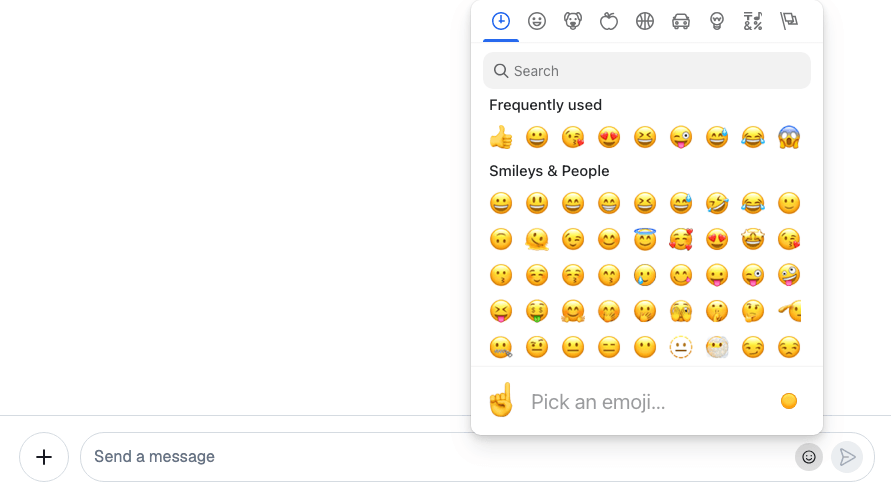
How it works across the layers
- State. An emoji is text. The picker inserts it with
TextComposer.insertText(). Autocomplete is a text composer middleware, like the ones for mentions and commands, with:as its trigger. - UI.
EmojiPickercomes from thestream-chat-react/emojisentry point, and renders when you register it as theEmojiPickeroverride. The suggestion list renders the emoji suggestions. - Layout. Not involved.
The picker
AdditionalMessageComposerActions, the area after the input, renders the EmojiPicker override when there is one. EmojiPicker is a button that opens emoji-mart's picker in a popover. The picker loads its emoji data from @emoji-mart/data the first time it opens. The button is hidden during a slow-mode cooldown and while a command is active.
Autocomplete
createTextComposerEmojiMiddleware(searchIndex), also from stream-chat-react/emojis, builds the middleware. It needs a search index that finds emoji by name: emoji-mart's SearchIndex, or any object with a search(query) method that returns emoji.
- On each text change, the middleware looks for a
:and the text after it, just before the cursor. - If the word before the cursor is an emoticon of an emoji the index returns, the word is replaced with that emoji.
- Otherwise it opens the suggestions with up to seven emoji that the index finds for the text after the colon.
- Picking one replaces the
:querywith the emoji and a space.
The middleware works like a custom trigger. The suggestion list shows each suggestion with its emoji and its id, such as pizza.
Turning it on or off
Both parts are off by default.
The picker
-
Install emoji-mart and its data. They're optional peer dependencies of
stream-chat-react:npm install emoji-mart @emoji-mart/data -
Import the picker's stylesheet after the main one:
import "stream-chat-react/dist/css/index.css";
import "stream-chat-react/dist/css/emoji-picker.css";
If your app puts the SDK's CSS in a cascade layer, import it into a layer too, for example
@import url("stream-chat-react/dist/css/emoji-picker.css") layer(stream-plugins);. See Theming. -
Register the picker:
import {
  Channel,
  MessageComposer,
  MessageList,
  WithComponents,
} from "stream-chat-react";
import { EmojiPicker } from "stream-chat-react/emojis";

const overrides = { EmojiPicker };

export const ChannelWithEmojiPicker = () => (
  <WithComponents overrides={overrides}>
    <Channel channel={channel}>
      <MessageList />
      <MessageComposer />
    </Channel>
  </WithComponents>
);
Autocomplete
Initialize emoji-mart's search with its data once, and add the middleware in the composer setup function:
import data from "@emoji-mart/data";
import { init, SearchIndex } from "emoji-mart";
import type { TextComposerMiddleware } from "stream-chat";
import { createTextComposerEmojiMiddleware } from "stream-chat-react/emojis";

init({ data });

client.config.setSetupFunction("messageComposer", ({ composer }) => {
  // One middleware per composer, so composers don't share suggestions.
  const emojiMiddleware = createTextComposerEmojiMiddleware(
    SearchIndex,
  ) as TextComposerMiddleware;

  composer.textComposer.middlewareExecutor.insert({
    middleware: [emojiMiddleware],
    position: { before: "stream-io/text-composer/mentions-middleware" },
    unique: true,
  });

  return () =>
    composer.textComposer.middlewareExecutor.remove(emojiMiddleware.id);
});
The setup function runs for every composer: channel, thread and edit composers, existing and new. There's one setup function per kind of object, so if your app also installs the command middlewares, put both in the same function.
Autocomplete comes only from the middleware. The emojiSearchIndex prop of MessageComposer, and the override key of the same name, don't turn it on.
Customizing
The picker
EmojiPicker takes props for its button and popover, and passes pickerProps on to emoji-mart's picker:
import type { EmojiPickerProps } from "stream-chat-react/emojis";
import { EmojiPicker } from "stream-chat-react/emojis";

const pickerProps: EmojiPickerProps["pickerProps"] = {
  previewPosition: "none",
  theme: "dark",
};

export const CompactEmojiPicker = () => (
  <EmojiPicker
    closeOnEmojiSelect
    pickerProps={pickerProps}
    placement="top-start"
  />
);
Register it with <WithComponents overrides={{ EmojiPicker: CompactEmojiPicker }}>. emoji-mart's options lists what pickerProps can hold. The button's icon is the IconEmoji icon override, or ButtonIconComponent for this picker alone. Every prop is in the Emoji Picker reference.
A picker without emoji-mart
Any component registered as EmojiPicker renders in its place. This one offers six emoji and needs no dependency:
import { useState } from "react";
import {
  useMessageComposerContext,
  useMessageComposerController,
} from "stream-chat-react";

const emojis = ["👍", "🎉", "😂", "❤️", "🙏", "👀"];

export const QuickEmojiPicker = () => {
  const [open, setOpen] = useState(false);
  const { textComposer } = useMessageComposerController();
  const { textareaRef } = useMessageComposerContext();

  const insert = (emoji: string) => {
    textComposer.insertText({ text: emoji });
    textareaRef.current?.focus();
    setOpen(false);
  };

  return (
    <div className="quick-emoji-picker">
      {open &&
        emojis.map((emoji) => (
          <button key={emoji} onClick={() => insert(emoji)} type="button">
            {emoji}
          </button>
        ))}
      <button
        aria-expanded={open}
        aria-label="Emoji"
        onClick={() => setOpen((isOpen) => !isOpen)}
        type="button"
      >
        🙂
      </button>
    </div>
  );
};
The area after the input is narrow, so give the row some CSS:
.quick-emoji-picker {
  display: flex;
}

.quick-emoji-picker button {
  background: none;
  border: none;
  border-radius: 50%;
  cursor: pointer;
  font-size: 18px;
  height: 32px;
  padding: 0;
  width: 32px;
}

/* The composer keeps the area after the input narrow; let it grow while the row is open. */
.str-chat
  .str-chat__message-composer-controls
  .str-chat__message-composer__additional-actions:has(
    .quick-emoji-picker [aria-expanded="true"]
  ) {
  max-width: none;
}
TextComposer.insertText() inserts at the cursor, or replaces the selected text.

Autocomplete
createTextComposerEmojiMiddleware takes options as its second argument: minChars, the shortest :query that opens suggestions, counting the colon (1 by default), and trigger (: by default). The suggestion list renders emoji items for the : trigger only, so another trigger also needs a suggestion list of your own. The AutocompleteSuggestionItem override changes how each suggestion looks; see the Custom suggestions recipe.
To use a search index of your own, pass any object with search(query), which returns emoji with id, name and skins (a list of { native }), and optionally native and emoticons. The middleware inserts native, or the first skin's.
Flag emoji on Windows
Windows shows country flags as letters. To show them as images in messages and the input, import stream-chat-react/dist/css/emoji-replacement.css and set useImageFlagEmojisOnWindows on Chat. The class the stylesheet needs is added to each Channel and to ChannelNavigation's root, so a thread rendered outside a Channel keeps the letters.
Reference
- Emoji Picker: the
EmojiPickerprops. - Suggestions: how text middleware opens suggestions.
- Entry points and CSS files: the
emojisentry point and theemoji-picker.cssandemoji-replacement.cssstylesheets. - Chat:
useImageFlagEmojisOnWindows.