















Location sharing
Location sharing sends where a user is, either once or live for a while. This page covers the share dialog, how a live location keeps updating, and how a location renders in the message list.
What users get
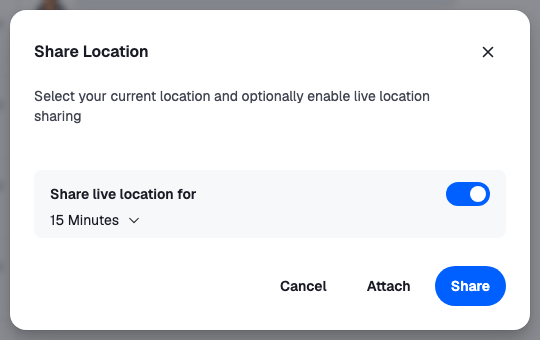
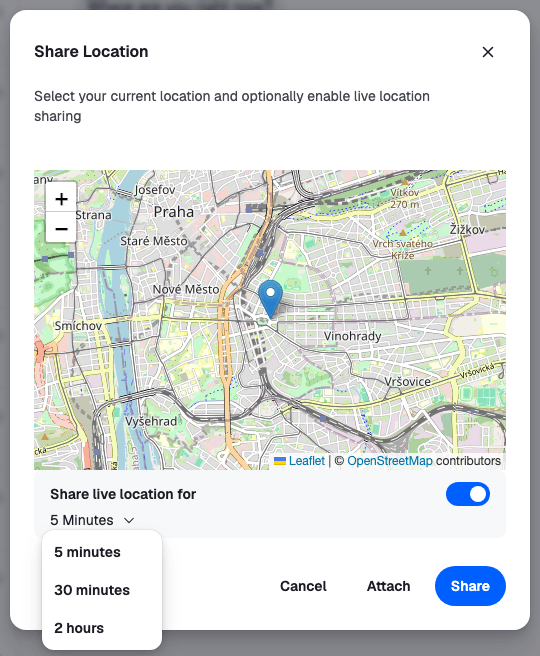
The user opens the attachment menu and picks Location. The Share Location dialog finds their position. They can share it as it is now, or turn on "Share live location for" and pick 15 minutes, 1 hour or 8 hours. Share sends the location as a message of its own. Attach adds it to the message they're writing instead; it shows above the input, and goes out with their text when they send.
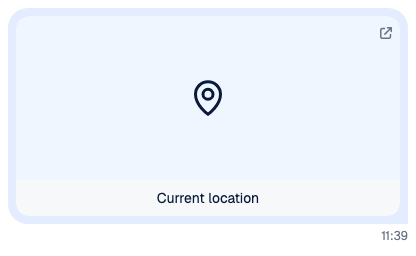
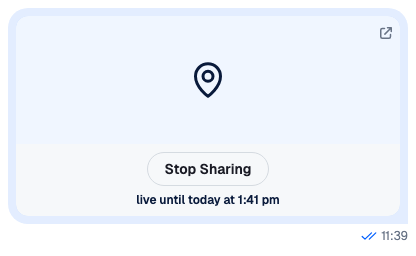
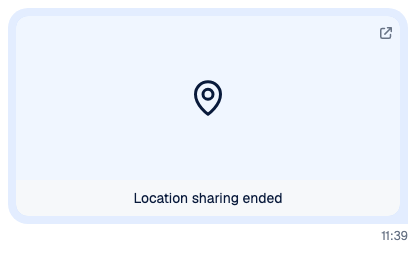
In the message list, a location shows as a card that opens the position in a map. A static location reads "Current location". A live one reads "Live until" and the end time, and the user's own has a Stop sharing button. When the time is up or they stop, it reads "Location sharing ended". While their live share runs, their app keeps sending their position, so the card stays current for everyone in the channel. In the channel list, a channel whose latest message is a location shows "Location" as its preview.
How it works across the layers
- State. The composer's
locationComposerholds the location being shared. A shared location is stored with its message asmessage.shared_location, not inmessage.attachments.LiveLocationManagerkeeps the user's live shares updated. - UI.
AttachmentSelectoropensShareLocationDialog. The composer shows an attached location above the input, andAttachmentrendersmessage.shared_locationwithGeolocation. - Layout. Not involved.
Sharing a location
ShareLocationDialogwatches the browser's position withnavigator.geolocationwhile it's open.- Attach and Share both call
LocationComposer.setData({ latitude, longitude, durationMs }).durationMsis set for a live location only. - Share then calls
MessageComposer.sendLocation(), which sends a message carrying only the location, throughChannel.sendSharedLocation(). Attach leaves the location in the composer, and the nextMessageComposer.send()puts it on the message. - When the share fails,
MessageComposer.sendLocation()publishes anapi:location:create:failednotification and throws. The dialog then publishesapi:location:share:failedtoo, and stays open.
A live location is valid only for at least location.minShareDurationMs, one minute by default. Sharing works in channels only. Message composer explains locationComposer.
Keeping a live location current
LiveLocationManager sends new positions for every live location the user is sharing. The React SDK creates one with useLiveLocationSharingManager:
- On start, the manager loads the user's active live locations with
client.getUserLiveLocations(). - When the user starts a new live share, the
live_location_sharing.startedevent adds it. Stopping it or deleting its message removes it. - While at least one share is active, the manager calls your
watchLocationfunction. Each position it reports is sent to every active share withclient.updateLiveLocation(), at most once everyliveLocationManager.minUpdateThrottleMs(3 seconds by default). - Each share is dropped when its end time passes. Stop sharing on the card calls
Channel.stopLiveLocationSharing().
The other clients see the new position on the message's message.updated event, and the card re-renders.
Turning it on or off
Location sharing is on by default. Two sides decide:
- The client:
messageComposer.location.enabled,trueby default. - The server: the channel type's
shared_locationssetting.
To turn it off in every composer:
client.config.set({
  messageComposer: { location: { enabled: false } },
});
The attachment menu offers Location only in channels, not in threads. Configuration lists every setting both sides decide.
Live locations need the manager
Without a LiveLocationManager, live shares are created, but their position never changes. Call useLiveLocationSharingManager once, in a component that stays mounted while the user is signed in, and pass it how to watch the position:
import type { StreamChat, WatchLocation } from "stream-chat";
import { useLiveLocationSharingManager } from "stream-chat-react";

// Declared once: a new function on every render would create a new manager.
const watchLocation: WatchLocation = (handler) => {
  const watchId = navigator.geolocation.watchPosition((position) => {
    handler({
      latitude: position.coords.latitude,
      longitude: position.coords.longitude,
    });
  });

  return () => navigator.geolocation.clearWatch(watchId);
};

export const LiveLocationReporter = ({ client }: { client: StreamChat }) => {
  useLiveLocationSharingManager({ client, watchLocation });
  return null;
};
watchLocation receives a handler to call with each position, and returns a function that stops watching. To report less often, report on a timer instead, for example with navigator.geolocation.getCurrentPosition() every 30 seconds. The hook also takes getDeviceId, which sets the manager's deviceId; by default it's built from the browser and the user id. The device id stored on a new share comes from messageComposer.location.getDeviceId instead, a random id by default.
Customizing
Show a map in the dialog
The dialog has no map by default. Pass a GeolocationMap to it, and change the live durations with shareDurations, in milliseconds. This one uses react-leaflet:
import "leaflet/dist/leaflet.css";
import { MapContainer, Marker, TileLayer } from "react-leaflet";
import type {
ShareGeolocationMapProps,
ShareLocationDialogProps,
} from "stream-chat-react";
import { ShareLocationDialog } from "stream-chat-react";
const DialogMap = ({
geolocationPositionError,
latitude,
loadingLocation,
longitude,
restartLocationWatching,
}: ShareGeolocationMapProps) => {
if (loadingLocation) return <div>Finding your location…</div>;
if (geolocationPositionError || latitude == null || longitude == null) {
return (
<div>
<p>Your location isn't available.</p>
<button onClick={restartLocationWatching} type="button">
Try again
</button>
</div>
);
}
return (
<MapContainer
center={[latitude, longitude]}
style={{ height: 300, width: "100%" }}
zoom={13}
>
<TileLayer
attribution='© <a href="https://www.openstreetmap.org/copyright">OpenStreetMap</a> contributors'
url="https://{s}.tile.openstreetmap.org/{z}/{x}/{y}.png"
/>
<Marker position={[latitude, longitude]} />
</MapContainer>
);
};
const shareDurations = [5 * 60 * 1000, 30 * 60 * 1000, 2 * 60 * 60 * 1000];
export const ShareLocationDialogWithMap = (props: ShareLocationDialogProps) => (
<ShareLocationDialog
{...props}
GeolocationMap={DialogMap}
shareDurations={shareDurations}
/>
);Register it with <WithComponents overrides={{ ShareLocationDialog: ShareLocationDialogWithMap }}>. Durations shorter than one minute are left out.
Show a map in the message
Geolocation shows a placeholder that links to a map. Give it a GeolocationMap, which receives latitude and longitude, and pass it to Attachment:
import { MapContainer, Marker, TileLayer } from "react-leaflet";
import type {
AttachmentProps,
GeolocationMapProps,
GeolocationProps,
} from "stream-chat-react";
import { Attachment, Geolocation } from "stream-chat-react";
const MessageMap = ({ latitude, longitude }: GeolocationMapProps) => (
<MapContainer
center={[latitude, longitude]}
style={{ height: 200, width: "100%" }}
zoom={13}
>
<TileLayer
attribution='© <a href="https://www.openstreetmap.org/copyright">OpenStreetMap</a> contributors'
url="https://{s}.tile.openstreetmap.org/{z}/{x}/{y}.png"
/>
<Marker position={[latitude, longitude]} />
</MapContainer>
);
const GeolocationWithMap = (props: GeolocationProps) => (
<Geolocation {...props} GeolocationMap={MessageMap} />
);
export const AttachmentWithMaps = (props: AttachmentProps) => (
<Attachment {...props} Geolocation={GeolocationWithMap} />
);Register it as the Attachment override. A live card re-renders with each new position, so the map follows. Geolocation also takes GeolocationAttachmentMapPlaceholder, the component shown when there's no map.
The location preview above the input has no override key. To change it, replace the whole composer UI, as the Custom composer recipe does.
Reference
- Attachments: the
Attachmentprops, includingGeolocation. - Attachment Selector: the menu that opens the dialog.
- Location hooks:
useLiveLocationSharingManager. - MessageComposer API:
locationComposerandsendLocation(). - Configuration tree:
messageComposer.locationandliveLocationManager.