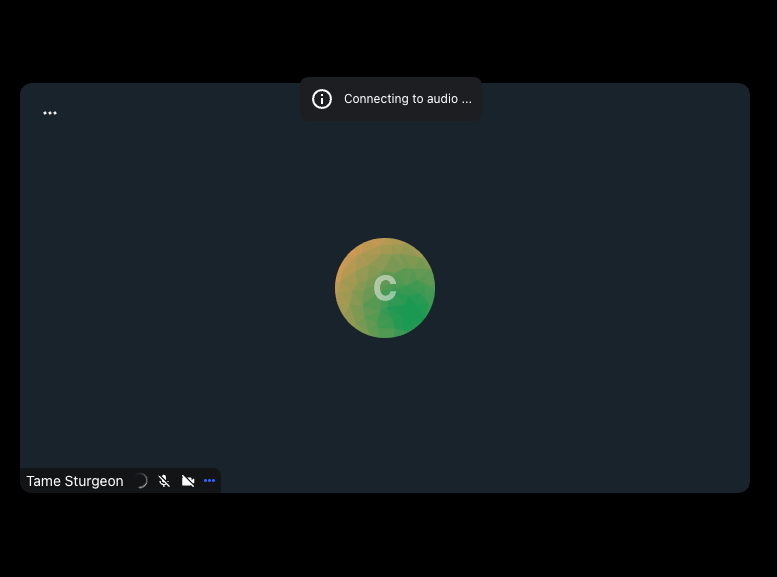


Media Connecting Indicator
Detect when a participant's audio or video track is published but not yet producing data, and show a loading indicator until the connection is ready.
The default ParticipantView UI already shows a small connecting indicator out of the box. This guide is for cases where you build a custom participant label and want to keep the same behavior.
Some browsers may fire the unmute event earlier than expected, before actual media data arrives. This makes the event best suited for informational UI like loading indicators rather than as a precise signal for media readiness.
Best Practices
- Show the indicator only when the participant has the corresponding track. Don't confuse "connecting" with "muted by choice."
- Use a subtle loading indicator rather than an intrusive banner.
- Dismiss the notification automatically once the track starts producing media.
Detecting the connecting state
The SDK ships useIsAudioConnecting and useIsVideoConnecting hooks. Each returns true when the participant has the corresponding track that has not yet fired its unmute event, and false otherwise (no such track, or the track is already producing data).
import {
  useIsAudioConnecting,
  useIsVideoConnecting,
} from "@stream-io/video-react-sdk";
Internally the hooks subscribe to mute and unmute events on the participant's MediaStreamTrack, so your UI updates automatically as the connection progresses.
Enhancing the participant label
In the Custom Label cookbook we showed how to create a custom ParticipantDetails component. We can enhance it by calling the hook to render a connecting indicator next to the participant's name.
import {
  useIsAudioConnecting,
  useIsVideoConnecting,
  useParticipantViewContext,
} from "@stream-io/video-react-sdk";

const ParticipantDetails = () => {
  const { participant } = useParticipantViewContext();
  const isAudioConnecting = useIsAudioConnecting(participant);
  const isVideoConnecting = useIsVideoConnecting(participant);

  return (
    <div title={participant.name}>
      <span>{participant.name}</span>
      {isAudioConnecting && <span>Connecting to audio...</span>}
      {isVideoConnecting && <span>Connecting to video...</span>}
    </div>
  );
};
Now we can pass this custom ParticipantViewUI component down to our call layout components or directly to ParticipantView as described in the ParticipantView customizations guide.