







Media Connecting Indicator
Detect when a participant's audio or video track is published but not yet producing data, and show a loading indicator until the connection is ready.
Best Practices
- Use a subtle loading indicator rather than an intrusive banner.
- Dismiss the notification automatically once the track starts producing media.
Default behavior
The SDK's default ParticipantLabel already renders a small ActivityIndicator next to the participant's name while the audio or video track is connecting. No setup is required to get this behavior.
Detecting the connecting state
The SDK ships useIsAudioConnecting and useIsVideoConnecting hooks. Each returns true when the participant has the corresponding track that has not yet fired its unmute event, and false otherwise (no such track, or the track is already producing data).
import {
  useIsAudioConnecting,
  useIsVideoConnecting,
} from "@stream-io/video-react-native-sdk";
Internally the hooks subscribe to mute and unmute events on the participant's MediaStreamTrack, so your UI updates automatically as the connection progresses.
Custom connecting indicator
The hook returns a plain boolean, so you can drive any UI you like with it: a different icon, a tooltip, an inline badge, a toast, an animated overlay, and so on.
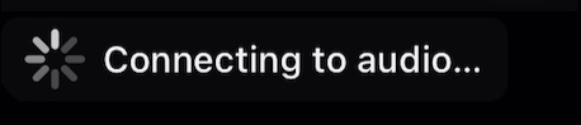
The example below is just one possibility. It wraps the default ParticipantLabel in a small component and renders a connecting badge underneath while the audio or video track is connecting. Treat it as a starting point and adapt the UI to your own design system.
import React from "react";
import { ActivityIndicator, StyleSheet, Text, View } from "react-native";
import {
  useIsAudioConnecting,
  useIsVideoConnecting,
  ParticipantLabel,
  type ParticipantLabelProps,
  useTheme,
} from "@stream-io/video-react-native-sdk";

export const ConnectingParticipantLabel = (props: ParticipantLabelProps) => {
  const { participant, trackType } = props;
  const { theme } = useTheme();
  const isScreenShare = trackType === "screenShareTrack";
  const isAudioConnecting = useIsAudioConnecting(participant) && !isScreenShare;
  const isVideoConnecting = useIsVideoConnecting(participant) && !isScreenShare;

  let connectingText: string | undefined;
  if (isAudioConnecting && isVideoConnecting) {
    connectingText = "Connecting...";
  } else if (isAudioConnecting) {
    connectingText = "Connecting to audio...";
  } else if (isVideoConnecting) {
    connectingText = "Connecting to video...";
  }

  return (
    <View>
      <ParticipantLabel {...props} />
      {connectingText && (
        <View
          style={[styles.badge, { backgroundColor: theme.colors.sheetOverlay }]}
        >
          <ActivityIndicator size="small" color={theme.colors.iconPrimary} />
          <Text style={[styles.text, { color: theme.colors.textPrimary }]}>
            {connectingText}
          </Text>
        </View>
      )}
    </View>
  );
};

const styles = StyleSheet.create({
  badge: {
    flexDirection: "row",
    alignItems: "center",
    alignSelf: "flex-start",
    paddingHorizontal: 8,
    paddingVertical: 4,
    marginTop: 4,
    borderRadius: 6,
  },
  text: { marginLeft: 6, fontSize: 12, fontWeight: "500" },
});
The trackType !== 'screenShareTrack' check skips the extra badge on screen share tiles, where the connecting state is not relevant.
Final Steps
Pass the custom component to the ParticipantLabel prop of CallContent:
import {
  Call,
  CallContent,
  StreamCall,
} from "@stream-io/video-react-native-sdk";
import { ConnectingParticipantLabel } from "./ConnectingParticipantLabel";

const VideoCallUI = () => {
  let call: Call;
  // your logic to create a new call or get an existing call

  return (
    <StreamCall call={call}>
      <CallContent ParticipantLabel={ConnectingParticipantLabel} />
    </StreamCall>
  );
};