








Camera & Microphone
The SDK simplifies working with MediaStream, MediaDeviceInfo, and WebRTC APIs through utility functions and state hooks.
Best Practices
- Await toggle calls - Always await
enable(),disable(), andtoggle()methods - Use optimistic state - Show
optimisticIsMutefor instant UI feedback while toggling - Call callManager.start before join - Configure audio role and device before joining
- Use listener role for livestreams - Set
audioRole: "listener"when users won't publish audio - Handle race conditions - The SDK resolves race conditions; the last call always wins
Camera management
Access the camera object on the call:
const call = useCall();
const camera = call.camera;
Call settings
Default camera state comes from call settings:
import { useCallStateHooks } from "@stream-io/video-react-native-sdk";

const { useCallSettings } = useCallStateHooks();
const settings = useCallSettings();

console.log(settings?.video.camera_default_on);Make sure, call.get() is called at least once in the application, after the call is created.
Start-Stop Camera
Control video stream publishing with camera.enable(), camera.disable(), or camera.toggle().
import { useCall, useCallStateHooks } from "@stream-io/video-react-native-sdk";

const call = useCall();

const { useCameraState } = useCallStateHooks();
const { camera, isMute } = useCameraState();

console.log(`Camera is ${isMute ? "off" : "on"}`);
await camera.toggle();

// or, alternatively
await camera.enable();
await camera.disable();
Always await these calls. The SDK resolves race conditions (last call wins), making them safe in event handlers.
The status updates after the camera actually enables/disables. Use optimisticIsMute for immediate UI feedback.
Manage Camera Facing Mode
Get camera facing mode:
import { useCallStateHooks } from "@stream-io/video-react-native-sdk";

const { useCameraState } = useCallStateHooks();
const { direction } = useCameraState(); // direction returns 'front' or 'back'.
Toggle between front and back cameras with camera.flip():
import { useCallStateHooks } from "@stream-io/video-react-native-sdk";

const { useCameraState } = useCallStateHooks();
const { camera } = useCameraState();

camera.flip();
Video mute status
Check video mute state via the status from useCameraState:
import { useCallStateHooks } from "@stream-io/video-react-native-sdk";

const { useCameraState } = useCallStateHooks();
const { status } = useCameraState(); // status returns enabled, disabled or undefined
Show Video Preview
Display camera preview using RTCView from @stream-io/react-native-webrtc:
import { useCallStateHooks } from "@stream-io/video-react-native-sdk";
import { RTCView } from "@stream-io/react-native-webrtc";

const { useCameraState } = useCallStateHooks();
const { camera } = useCameraState();

const localVideoStream = camera.state.mediaStream;

return <RTCView streamURL={localVideoStream?.toURL()} />;
Access to the Camera's MediaStream
Access the mediaStream for custom needs (e.g., local recording):
import { useCallStateHooks } from "@stream-io/video-react-native-sdk";

const { useCameraState } = useCallStateHooks();
const { mediaStream } = useCameraState();

const [videoTrack] = mediaStream.getVideoTracks();
Microphone management
Access the microphone object on the call:
const call = useCall();
const microphone = call.microphone;
Call settings
Default microphone state comes from call settings:
import { useCallStateHooks } from "@stream-io/video-react-native-sdk";

const { useCallSettings } = useCallStateHooks();
const settings = useCallSettings();

console.log(settings?.audio.mic_default_on);Make sure, call.get() is called at least once in the application, after the call is created.
Start-Stop Microphone
Control audio stream publishing with microphone.enable(), microphone.disable(), or microphone.toggle().
import { useCallStateHooks } from "@stream-io/video-react-native-sdk";

const { useMicrophoneState } = useCallStateHooks();
const { microphone, isMute } = useMicrophoneState();

console.log(`Microphone is ${isMute ? "off" : "on"}`);
await microphone.toggle();

// or, alternatively
await microphone.enable();
await microphone.disable();
Always await these calls. The SDK resolves race conditions (last call wins), making them safe in event handlers.
The status updates after the microphone actually enables/disables. Use optimisticIsMute for immediate UI feedback.
Audio mute status
Check audio mute state via the status from useMicrophoneState:
import { useCallStateHooks } from "@stream-io/video-react-native-sdk";

const { useMicrophoneState } = useCallStateHooks();
const { status } = useMicrophoneState(); // status returns enabled, disabled or undefined
Speaking while muted detection
The SDK detects when users speak while muted, enabling notification display or custom logic.
Enabled by default unless the user lacks audio permission or explicitly disables it.
import { useCallStateHooks } from "@stream-io/video-react-native-sdk";

const { useMicrophoneState } = useCallStateHooks();
const { isSpeakingWhileMuted, microphone } = useMicrophoneState();

if (isSpeakingWhileMuted) {
  // your custom logic comes here
  console.log("You are speaking while muted!");
}

// to disable this feature completely:
await microphone.disableSpeakingWhileMutedNotification();

// to enable it back:
await microphone.enableSpeakingWhileMutedNotification();
Access to the Microphone's MediaStream
Access the mediaStream for custom needs (e.g., local recording):
import { useCallStateHooks } from "@stream-io/video-react-native-sdk";

const { useMicrophoneState } = useCallStateHooks();
const { mediaStream } = useMicrophoneState();

const [audioTrack] = mediaStream.getAudioTracks();
Speaker management
The SDK applies the audio.default_device call type setting (speaker or earpiece) for the default audio output automatically.
The output audio device is selected based on the following priority:
- Bluetooth Headset or Wired Headset
- Speakerphone or Earpiece.
Overriding default behaviour
Override audio.default_device using callManager.start() before call.join(). Useful for livestream scenarios.
import { callManager } from "@stream-io/video-react-native-sdk";

const call = client.call(callType, callId);
// To be called before joining a call
callManager.start({
  audioRole: "communicator", // or "listener"
  deviceEndpointType: "speaker", // or "earpiece"
});
await call.join();- audioRole -
communicator(default) for publishing audio,listenerfor listen-only (livestream audience). Thelistenerrole also enables stereo audio playout automatically. - deviceEndpointType -
speakerorearpiece(only withcommunicatorrole). Useearpiecefor phone-call scenarios
As platform-specific methods are necessary to handle audio output, we do not support the useSpeakerState() hook.
Ringing calls (CallKit and Telecom)
For ringing calls the audio session is owned by the OS call frameworks — iOS CallKit and Android Telecom, integrated via @stream-io/react-native-callingx — and set up before your JavaScript runs. callManager.start() is therefore not the way to set the default output for these calls. Configure it through the setPushConfig method instead, so the default is in place before the call is answered:
StreamVideoRN.setPushConfig({
  ios: {
    // ... rest
    defaultDeviceEndpointType: "speaker", // or "earpiece"
  },
  android: {
    // ... rest
    defaultDeviceEndpointType: "speaker", // or "earpiece"
  },
  // ... rest
});
Switching the output device during the call still works through the same callManager.audioDevices API described in Switching audio output device below — no platform or call-type branching needed.
Livestream or listener-only audio management
Default communicator role prioritizes low latency with manual device switching. For listen-only calls (livestreams), set audioRole: "listener" to prioritize high-quality audio.
The listener role also enables stereo audio playout automatically — no extra configuration is required.
import { callManager } from "@stream-io/video-react-native-sdk";

const call = client.call("livestream", callId);
// To be called before joining a call
callManager.start({
  audioRole: "listener",
});
await call.join();
Android audio mode stability
On Android 11+, the OS resets an app's audio mode a few seconds after it is set unless audio is actively playing or recording — for example while you are muted and no remote audio has arrived yet. Routing then falls back to the media path and echo cancellation switches off, causing audio on the wrong device or echo (Android issue).
The SDK handles this automatically by keeping a silent voice-communication stream open for the duration of communicator role calls. It is not needed on iOS, Android 10 and below, listener role calls, or ringing calls via Android Telecom.
To opt out, call StreamVideoRN.setDisableCommunicationModeWorkaround(true) at app start, alongside StreamVideoRN.setPushConfig(). The setting is process-wide and cannot be changed once a call has started.
Switching audio output device
The SDK exposes a single, cross-platform API to build your own audio output picker. It works on Android, iOS, and iOS with CallKit (@stream-io/react-native-callingx) — there is no need to branch on platform or call type.
- useAudioDeviceStatus() - hook returning the live
AudioDevicesState(available devices + the selected one) - callManager.audioDevices.select(deviceId) - switch the output to a device by its stable
id - callManager.audioDevices.getStatus() / callManager.audioDevices.addChangeListener() - imperative equivalents of the hook
Each device is described by an AudioDevice:
- id - a stable, unique identifier. Use it as the list key and pass it to
select(). Because it is stable (and not the display name), two devices that share a name — e.g. two "AirPods Pro" — never collide. - name - a human-readable label for display.
- type -
"Speaker" | "Earpiece" | "Wired Headset" | "Bluetooth Device", handy for choosing an icon.
import {
  callManager,
  useAudioDeviceStatus,
} from "@stream-io/video-react-native-sdk";

const status = useAudioDeviceStatus();

const {
  devices, // [{ id, name: "AirPods Pro", type: "Bluetooth Device" }, { id, name: "Speaker", type: "Speaker" }, ...]
  selectedDeviceId,
  currentEndpointType, // "Speaker" | "Earpiece" | "Wired Headset" | "Bluetooth Device"
} = status ?? {};

// switch to a specific audio device
callManager.audioDevices.select(devices[0].id);
Build a custom modal audio picker with these APIs:
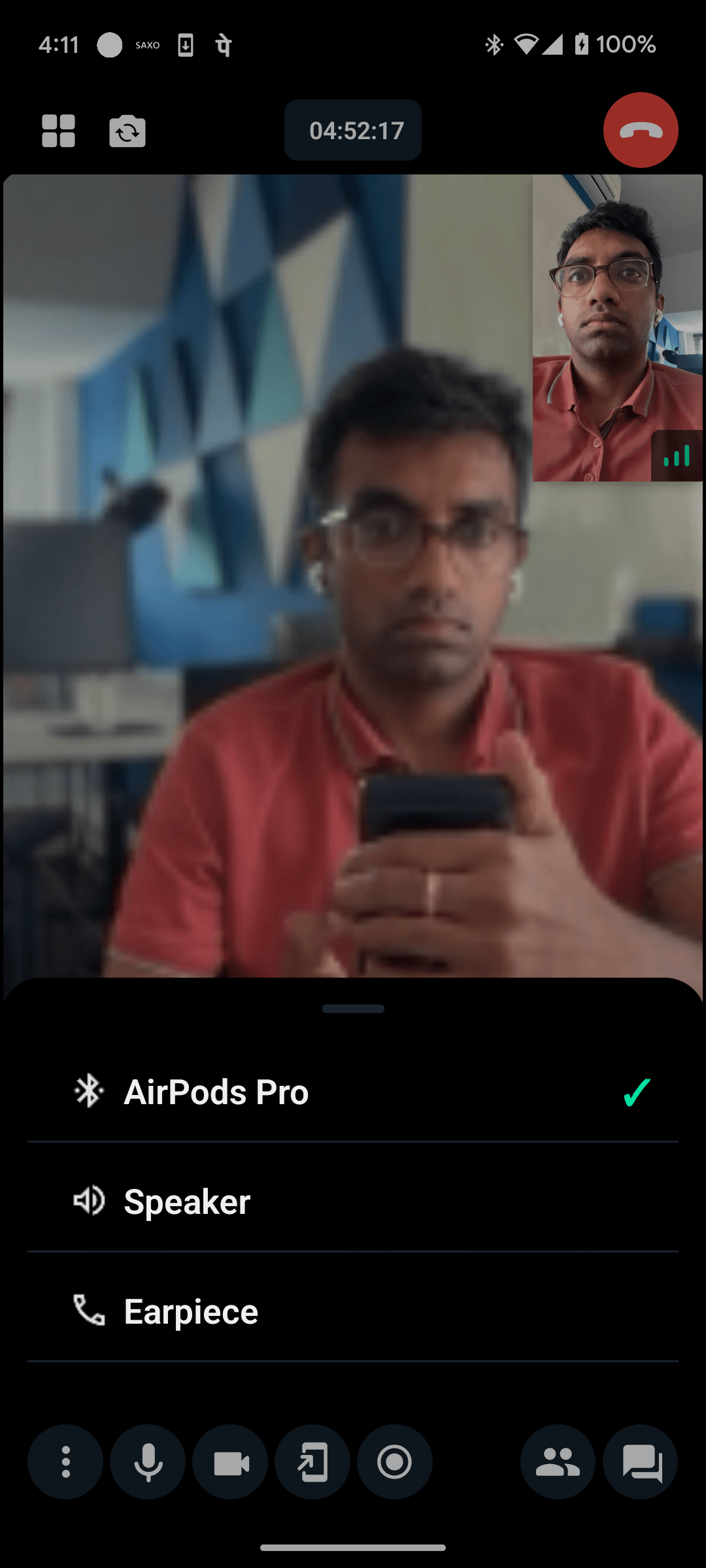
iOS CallKit calls: switching the output to the speaker routes audio to the loudspeaker correctly, but iOS's own in-call UI (the lock screen and the green status-bar call controls) may not update to reflect it. This is a platform limitation of CallKit's route indicator, not a routing bug — it does not affect where the audio actually plays.
On iOS you can alternatively open the built-in system AVRoutePickerView popover (useful for AirPlay and also makes the callkit UI to synchronise reliably):
import { callManager } from "@stream-io/video-react-native-sdk";

callManager.ios.showDeviceSelector();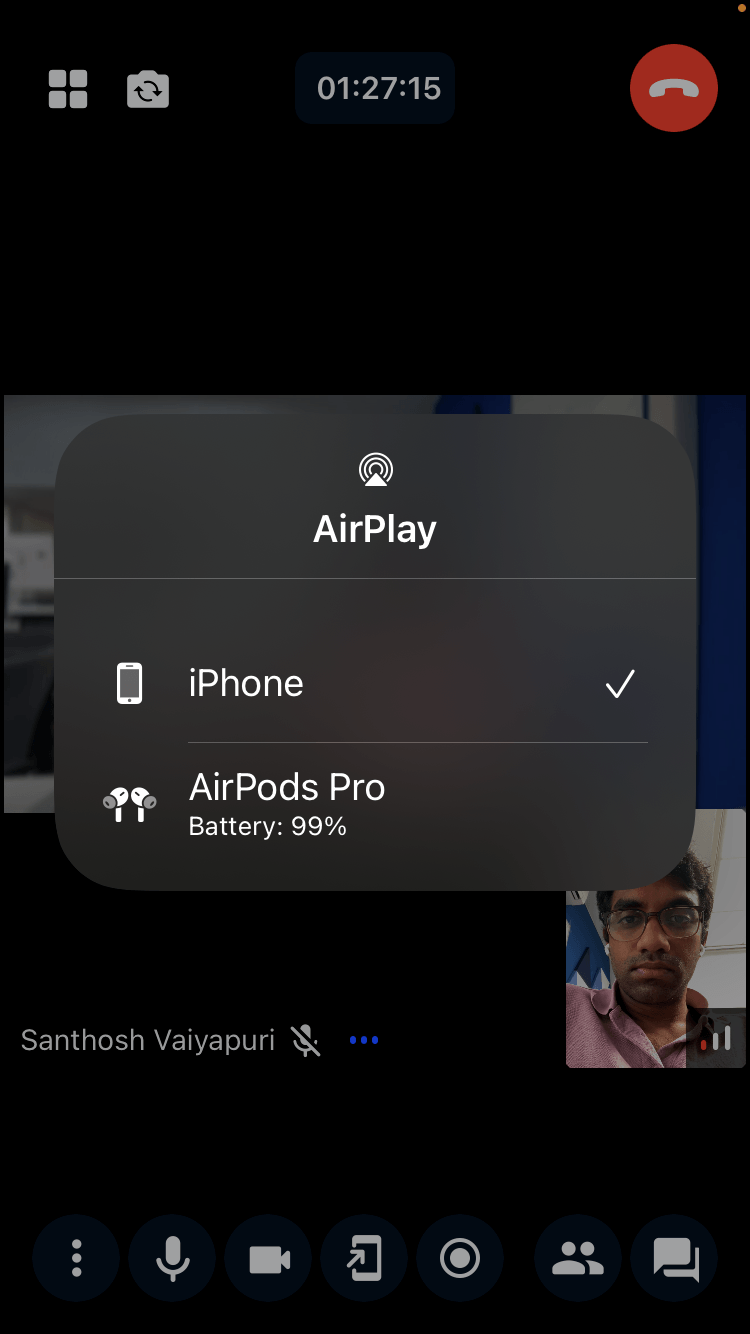
Force audio through the loudspeaker
Toggle between loudspeaker and earpiece on both iOS and Android:
import { callManager } from "@stream-io/video-react-native-sdk";

// route audio through loud speaker immediately (audio outputs here until a new external device is connected)
callManager.speaker.setForceSpeakerphoneOn(true);

// stop forcing the speaker: release the override and preferred input,
// returning to the call's default output device
callManager.speaker.setForceSpeakerphoneOn(false);
Audio volume control
Control system-wide volume and individual participant volume.
System wide mute and unmute
import { callManager } from "@stream-io/video-react-native-sdk";

// to mute audio
callManager.speaker.setMute(true);

// to unmute audio
callManager.speaker.setMute(false);
Participant volume control
Set individual participant volume (e.g., 50%):
import {
  StreamVideoParticipant,
  Call,
} from "@stream-io/video-react-native-sdk";

let participant: StreamVideoParticipant; // the intended participant
let call: Call; // the call instance
call.speaker.setParticipantVolume(participant.sessionId, 0.5);