








Screen Sharing Overview
The Stream Video React Native SDK supports displaying and sharing screens from iOS and Android devices.
Best Practices
- Configure permissions - Users need the
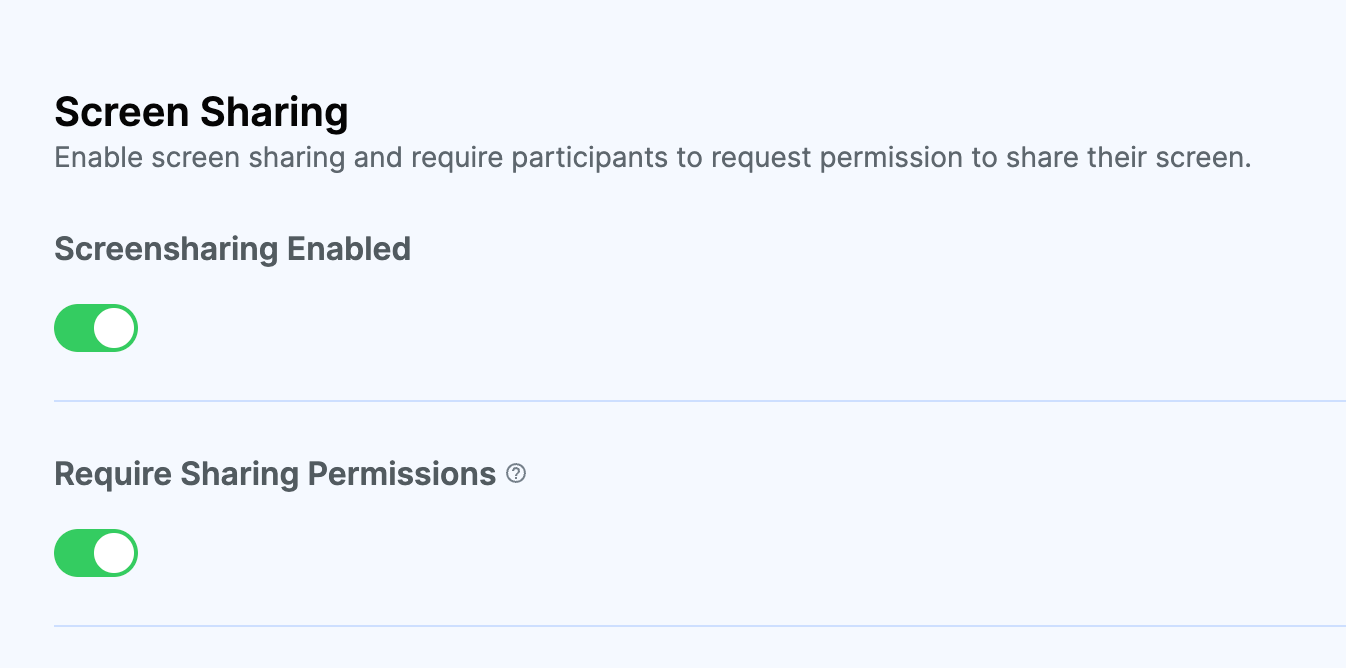
screensharecapability (Screenshare permission) for their call type - Enable in dashboard - Screen sharing must be enabled for your call type in the Stream dashboard
- Complete native setup - Platform-specific configuration is required before screen sharing works
- Use built-in button - The
ScreenShareToggleButtonhandles start/stop logic automatically
Setup
Complete native setup for your platform:
Screen sharing button
Use the ScreenShareToggleButton component to manage screen sharing. Add it independently or to custom call controls. For custom implementations, reference the source code.
Props
The ScreenShareToggleButton accepts an optional screenShareOptions prop to control screen share behavior:
<ScreenShareToggleButton
  screenShareOptions={{
    type: "broadcast", // or 'inApp' (iOS only, default: 'broadcast')
    includeAudio: true, // mix screen audio into mic (default: false)
  }}
/>| Prop | Type | Default | Description |
|---|---|---|---|
screenShareOptions.type |
'broadcast' | 'inApp' |
'broadcast' |
iOS only. 'broadcast' uses a Broadcast Upload Extension to capture the entire device screen (works across all apps). 'inApp' uses RPScreenRecorder to capture the current app only — no extension setup required. Ignored on Android. |
screenShareOptions.includeAudio |
boolean |
false |
When true, system/app audio (e.g. music, game audio) is captured and mixed into the microphone audio track so remote participants can hear it. See Screen Share with Audio. |
onScreenShareStartedHandler |
() => void |
— | Called when screen sharing starts. |
onScreenShareStoppedHandler |
() => void |
— | Called when screen sharing stops. |
iOS screen share types
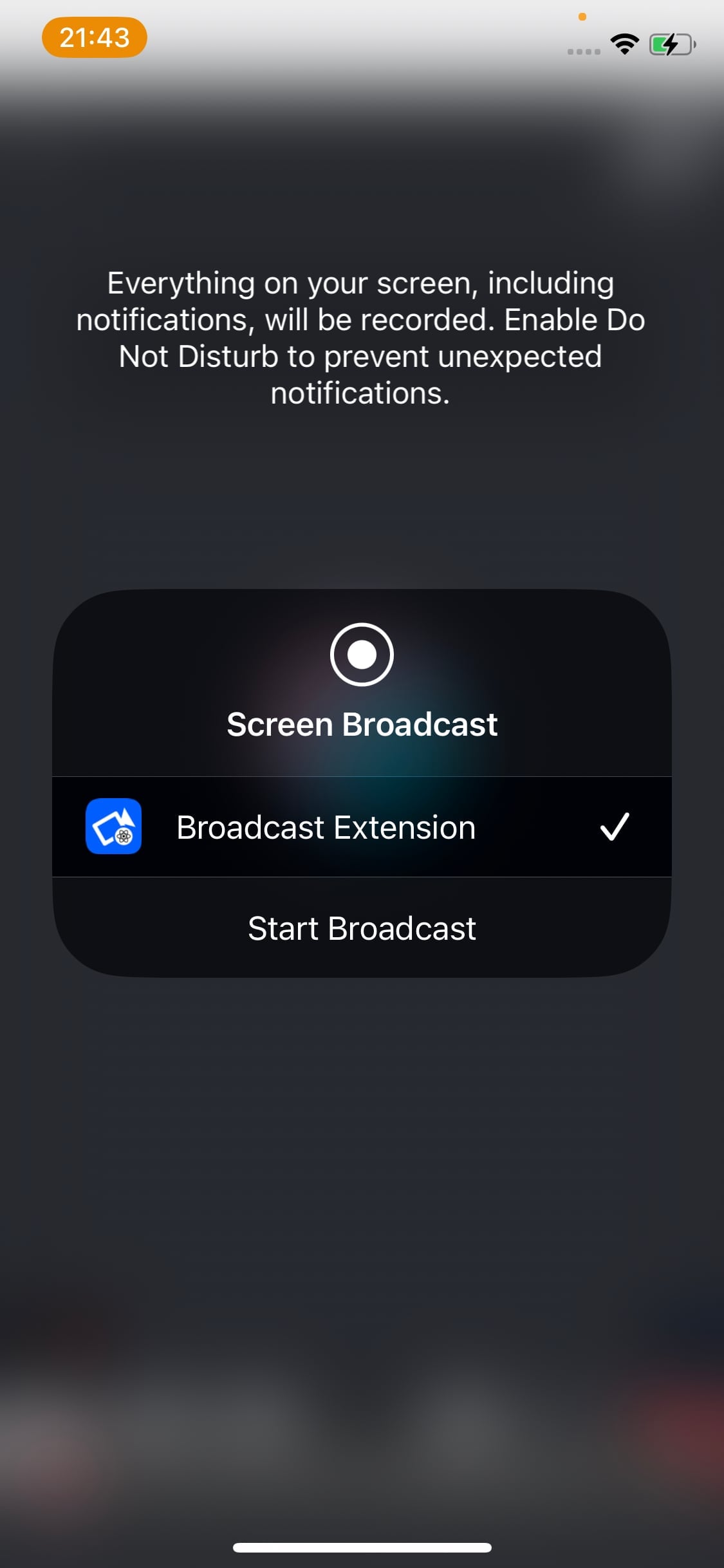
Broadcast (default) — captures the entire device screen, even when the user switches to other apps. Requires a Broadcast Upload Extension. Best for sharing content across apps.
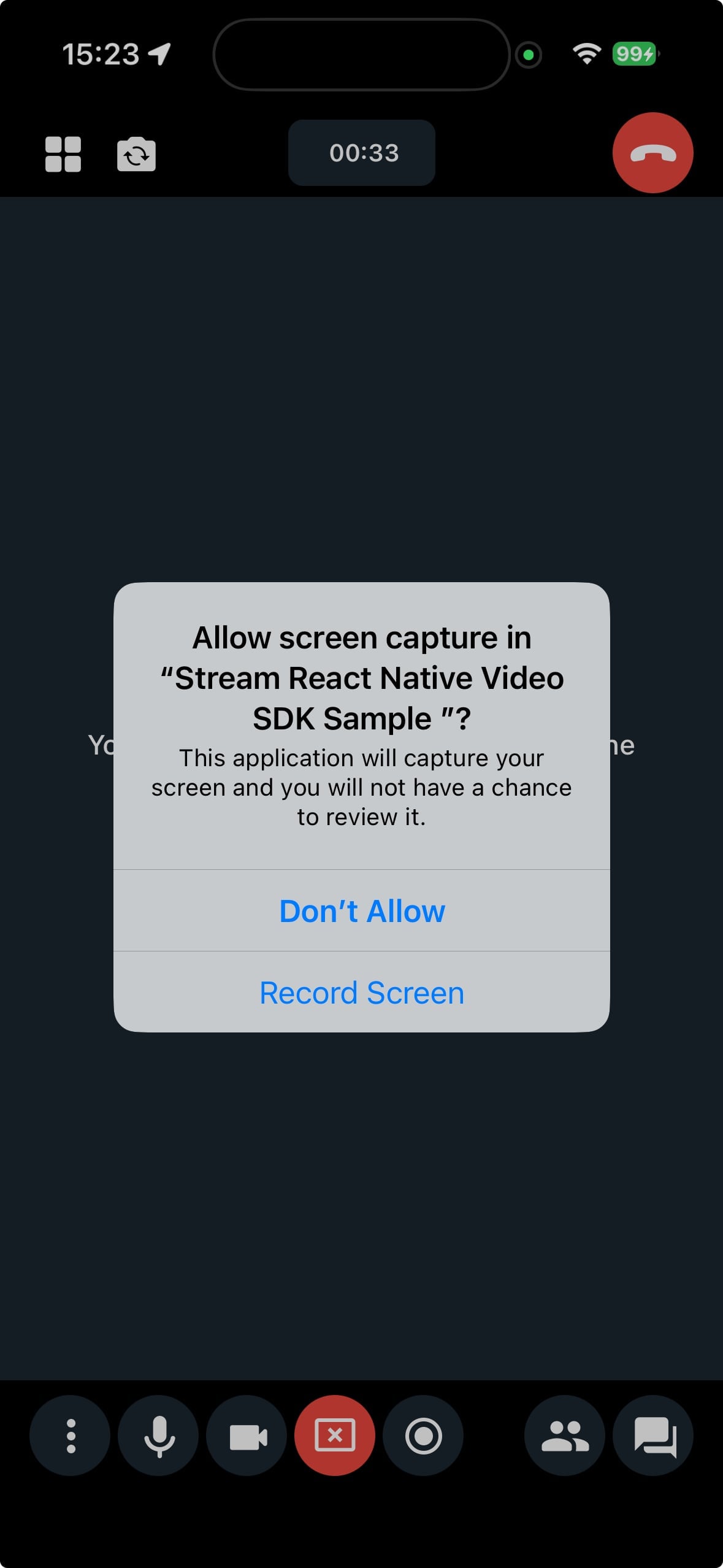
In-App — captures only the current app's screen using RPScreenRecorder. No extension setup is needed, making it simpler to configure. However, capture stops when the app is backgrounded.
Screen share with audio
When includeAudio is set to true, the SDK captures system/app audio and mixes it into the microphone audio track. Remote participants hear both the user's voice and the shared audio.
How it works:
- Android (API 29+): Uses
AudioPlaybackCaptureConfigurationto capture media audio. Only media sounds are captured — notifications and system sounds are excluded. No additional permissions are needed beyond the standard screen share setup.
On Android, AudioPlaybackCaptureConfiguration captures playback audio only when playback-capture requirements are met. In practice, audio is capturable only for eligible usage types and when capture is allowed by app/player capture policy (for example playback capture not disabled in manifest or AudioAttributes). Currently, the SDK matches these usage types:
USAGE_MEDIAUSAGE_GAMEUSAGE_UNKNOWN
Audio outside these usage types or with capture disallowed by policy, will not be included.
- iOS in-app mode: Audio is captured directly from
RPScreenRecorderand mixed into the WebRTC capture pipeline. - iOS broadcast mode: Audio is captured inside the Broadcast Upload Extension and streamed to your app over a dedicated socket, then mixed into the audio track. This requires your broadcast extension to include the audio capture files (the Expo config plugin adds them automatically; see the setup guide if you configured the extension manually).
iOS: some apps mute their own audio during screen recording. System and app audio is captured and mixed into your track. The exception is an app that mutes or pauses its own audio while the screen is being recorded — iOS lets apps detect screen capture, and an app may use that to protect its content. When it does, the audio is silenced at the source, so it can't be captured or worked around.
Screen share audio mixes into your microphone's capture stream, so your microphone must be enabled while sharing for remote participants to hear the shared audio.
While screen share audio mixing is active, the SDK automatically disables noise cancellation (if using @stream-io/noise-cancellation-react-native) so that non-speech audio like music passes through. Noise cancellation is restored automatically when screen sharing stops. No manual configuration is needed.
On iOS, screen audio is mixed into the capture pipeline after voice processing (echo cancellation, auto gain control, noise suppression), so these filters do not affect the mixed audio.
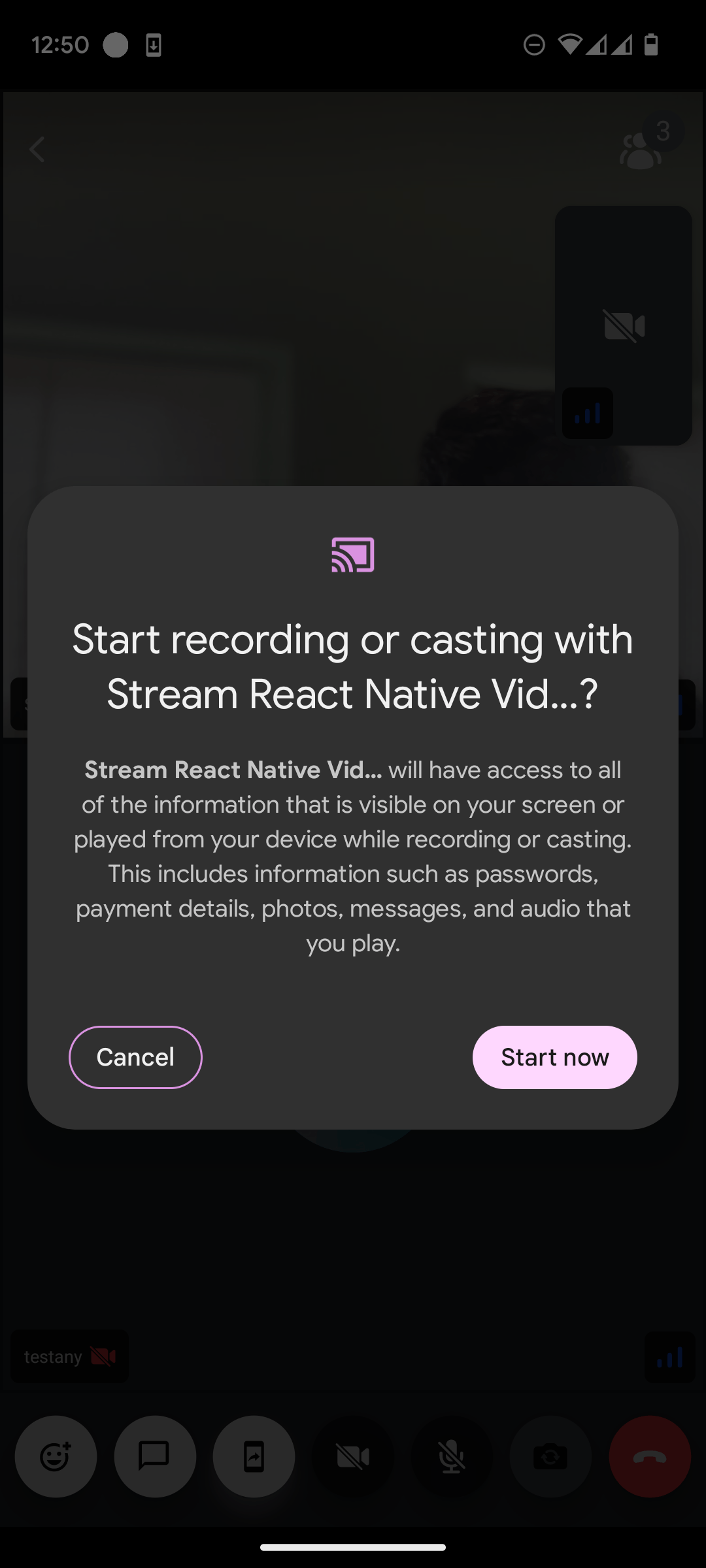
When starting screen share, users see this permission prompt:
| Android preview |
|---|
 |
| iOS broadcast extension preview | iOS in-app preview |
|---|---|
 |
 |