


Low Camera Frame Rate
When a camera delivers too few frames per second, other participants see choppy video even when the network is healthy. Low-end webcams, dim lighting and other apps competing for the camera are the usual causes. Neither the network nor the SDK can make up for frames the camera never produced, so the most helpful thing your app can do is tell the user.
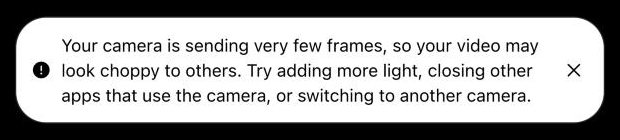
Read the camera frame rate
The call stats report includes what the camera itself captures, before any video filters, in publisherStats.cameraCapture:
import { useCallStateHooks } from "@stream-io/video-react-sdk";

export const CameraFrameRate = () => {
  const { useCallStatsReport } = useCallStateHooks();
  const report = useCallStatsReport();
  const camera = report?.publisherStats.cameraCapture;
  if (!camera?.frameRate) return null;

  return (
    <span>
      Camera: {camera.frameWidth}x{camera.frameHeight} @ {camera.frameRate} fps
    </span>
  );
};
Compare it with publisherStats.highestFramesPerSecond, the frame rate actually being sent:
- Both are low: the camera is the bottleneck.
- Only the sent frame rate is low: the device or the network is limiting quality, and
publisherStats.qualityLimitationReasonstells you which.
publisherStats.camera holds the same fields for the video handed to the encoder, after any video filters. Without filters, the two match. With a background filter on, comparing them shows whether the camera or the filter is lowering the frame rate. In that case, cameraCapture.frameRate is only available in Chromium-based browsers.
Custom implementation
The component below reads the stats report with useCallStatsReport() and shows a warning once the camera stays below 15 fps for several reports in a row. Waiting for consecutive readings keeps the warning quiet while the camera warms up or the user switches devices. The warning hides on its own as soon as the frame rate recovers.
import { useState } from "react";
import { useCallStateHooks } from "@stream-io/video-react-sdk";

const LOW_FRAME_RATE = 15;
const LOW_REPORTS_BEFORE_WARNING = 5;

export const LowCameraFrameRateNotification = () => {
  const { useCallStatsReport } = useCallStateHooks();
  const callStatsReport = useCallStatsReport();
  const [lastReport, setLastReport] = useState(callStatsReport);
  const [lowReports, setLowReports] = useState(0);
  const [isDismissed, setIsDismissed] = useState(false);

  // count once per new stats report, not on every render
  if (callStatsReport !== lastReport) {
    setLastReport(callStatsReport);
    const frameRate = callStatsReport?.publisherStats.cameraCapture?.frameRate;
    // cameraCapture is undefined while the camera is off
    const isLow = frameRate != null && frameRate < LOW_FRAME_RATE;
    setLowReports(isLow ? lowReports + 1 : 0);
    if (!isLow) setIsDismissed(false);
  }

  if (lowReports < LOW_REPORTS_BEFORE_WARNING || isDismissed) return null;

  return (
    <div className="camera-frame-rate-warning">
      <span>
        Your camera is sending very few frames, so your video may look choppy to
        others. Try adding more light, closing other apps that use the camera,
        or switching to another camera.
      </span>
      <button onClick={() => setIsDismissed(true)}>Dismiss</button>
    </div>
  );
};
Render it anywhere inside <StreamCall>, for example next to your call controls:
<StreamCall call={call}>
  <SpeakerLayout />
  <LowCameraFrameRateNotification />
  <CallControls />
</StreamCall>
Tips
- Pick a threshold that fits your use case. 15 fps is a reasonable floor for conversation. A product where motion matters, like fitness or sports coaching, may want a higher one.
- Keep camera and filter problems apart.
cameraCapturedescribes the camera even with background blur on, so this warning stays accurate. Ifcamera.frameRateis much lower thancameraCapture.frameRate, the filter is the bottleneck, and the user should turn it off instead. - Suggest concrete fixes. Most low frame rates go away with more light, a different camera, or closing other apps that use the camera. Restarting the browser helps when the camera driver is stuck.