
 React
React iOS
iOS Android
 Flutter
 JavaScript
 Unity
Unity ESP32
ESP32 Platform
 Vision Agents
function App() {
// Client and call setup skipped for brevity
const [pipWindow, setPipWindow] = useState(null);
const handlePictureInPicture = useCallback(async () => {
// Check browser support first
if ("documentPictureInPicture" in window) {
const pw = await window.documentPictureInPicture.requestWindow();
setPipWindow(pw);
}
}, []);
return (
<StreamVideo client={client}>
<StreamCall call={call}>
<StreamTheme>
<SpeakerLayout />
<CallControls />
<button type="button" onClick={handlePictureInPicture}>
PiP
</button>
</StreamTheme>
</StreamCall>
</StreamVideo>
);
}Document Picture-in-Picture
Document Picture-in-Picture API enables rich, always-on-top call windows with full UI controls. Unlike Video PiP (single video element only), Document PiP supports multiple participants and custom controls.
Best Practices
- Check browser support with
'documentPictureInPicture' in windowbefore showing PiP button. - Copy stylesheets from parent window to PiP window for proper rendering.
- Keep audio elements in the parent window to avoid autoplay restrictions.
- Handle
pagehideevent to sync state when PiP window closes. - Use
ParticipantsAudiocomponent in parent window when UI is in PiP.
This API is [only supported in Chrome-based browsers](https://caniuse.com/mdn-api_documentpictureinpicture).
Getting Started
Using the Document Picture-in-Picture API is simple: the
documentPictureInPicture.requestWindow() method gives you a new window
instance that you can populate with content. Let's start by adding a button
somewhere in your call UI that does this:
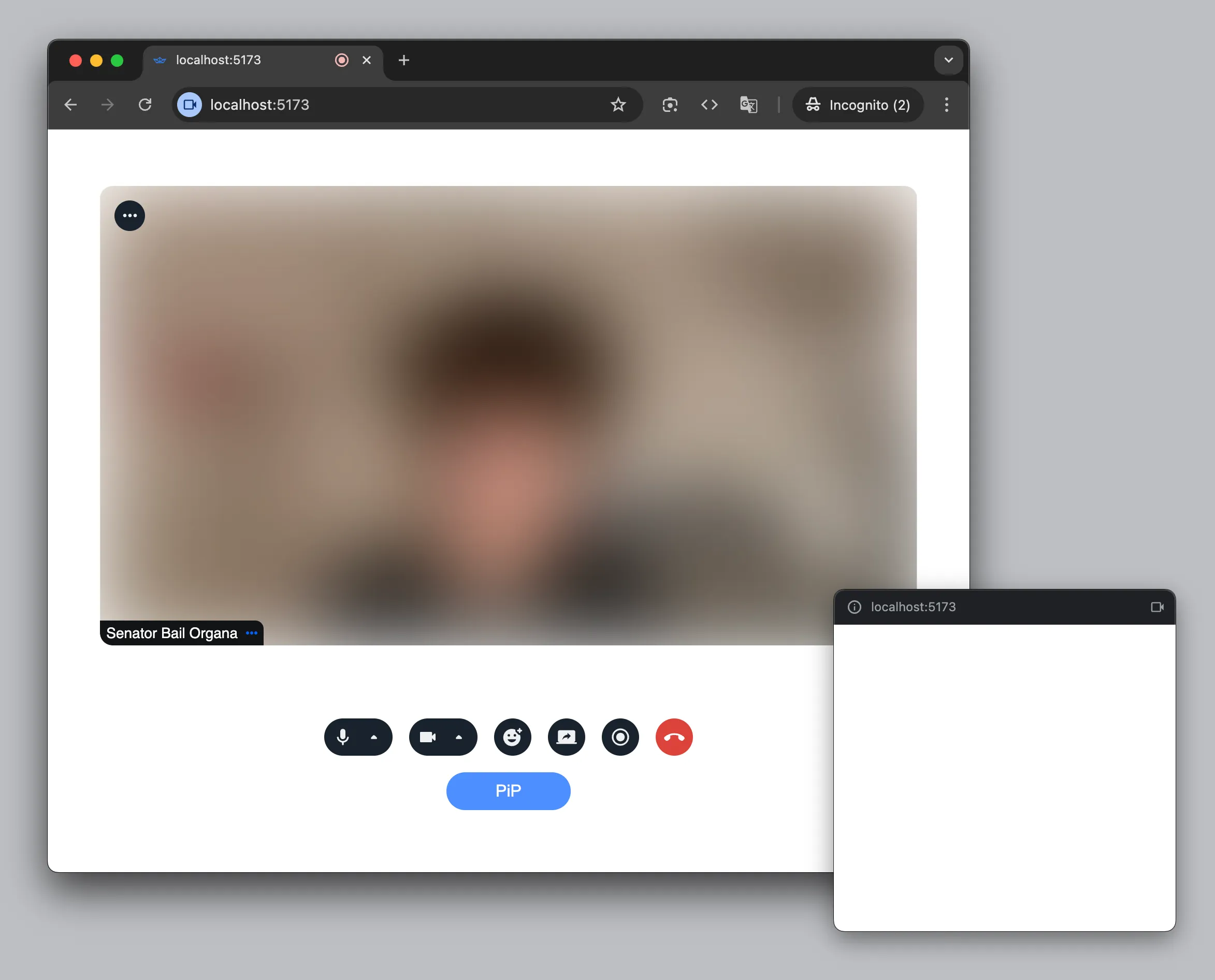
Once you click on the button, you should see a small empty always-on-top window.
Rendering Call UI
Now let's populate this window with call UI. To do this, simply create a React portal into the body element of the PiP window:
import { createPortal } from "react";

<StreamVideo client={client}>
  <StreamCall call={call}>
    <StreamTheme>
      <SpeakerLayout />
      <CallControls />
      {pipWindow &&
        createPortal(
          <StreamTheme>
            <SpeakerLayout muted />
            <CallControls />
          </StreamTheme>,
          pipWindow.document.body,
        )}
      <button type="button" onClick={handlePictureInPicture}>
        PiP
      </button>
    </StreamTheme>
  </StreamCall>
</StreamVideo>;
You'll notice something strange, though: the layout inside the PiP window seems
to be broken. This is because it's a brand new window that has no stylesheets
attached! You can attach a stylesheet to the PiP window's head element manually
(by creating and appending <style> or <link> elements), but we find it's
much easier to just copy all stylesheets from the parent window:
const handlePictureInPicture = useCallback(async () => {
  if ("documentPictureInPicture" in window) {
    const pw = await window.documentPictureInPicture.requestWindow();
    window.document.head
      .querySelectorAll('link[rel="stylesheet"], style')
      .forEach((node) => {
        pw.document.head.appendChild(node.cloneNode(true));
      });
    setPipWindow(pw);
  }
}, []);
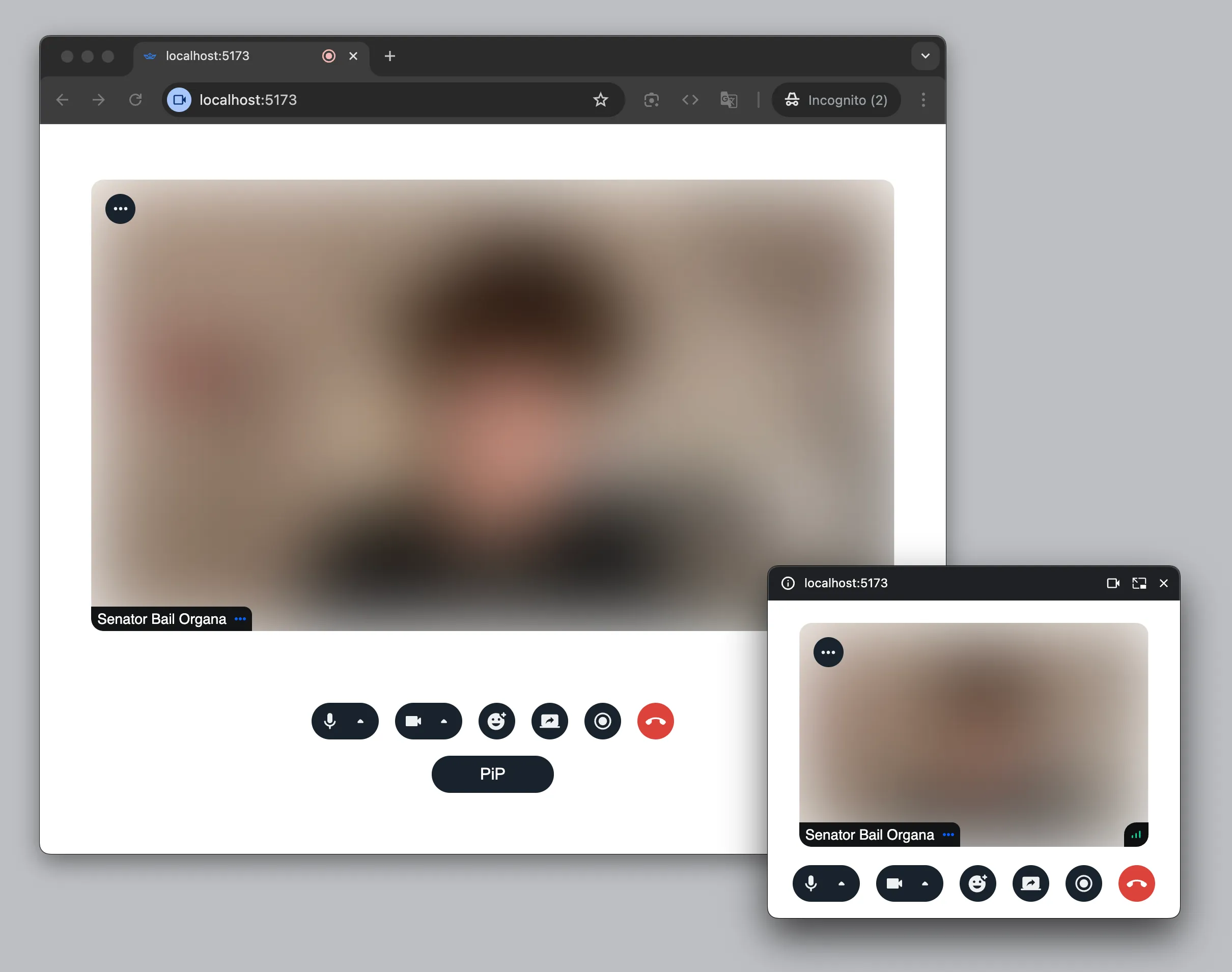
Now you should see an almost exact copy of the call UI in the PiP window.
Handling Picture-in-Picture Window Events
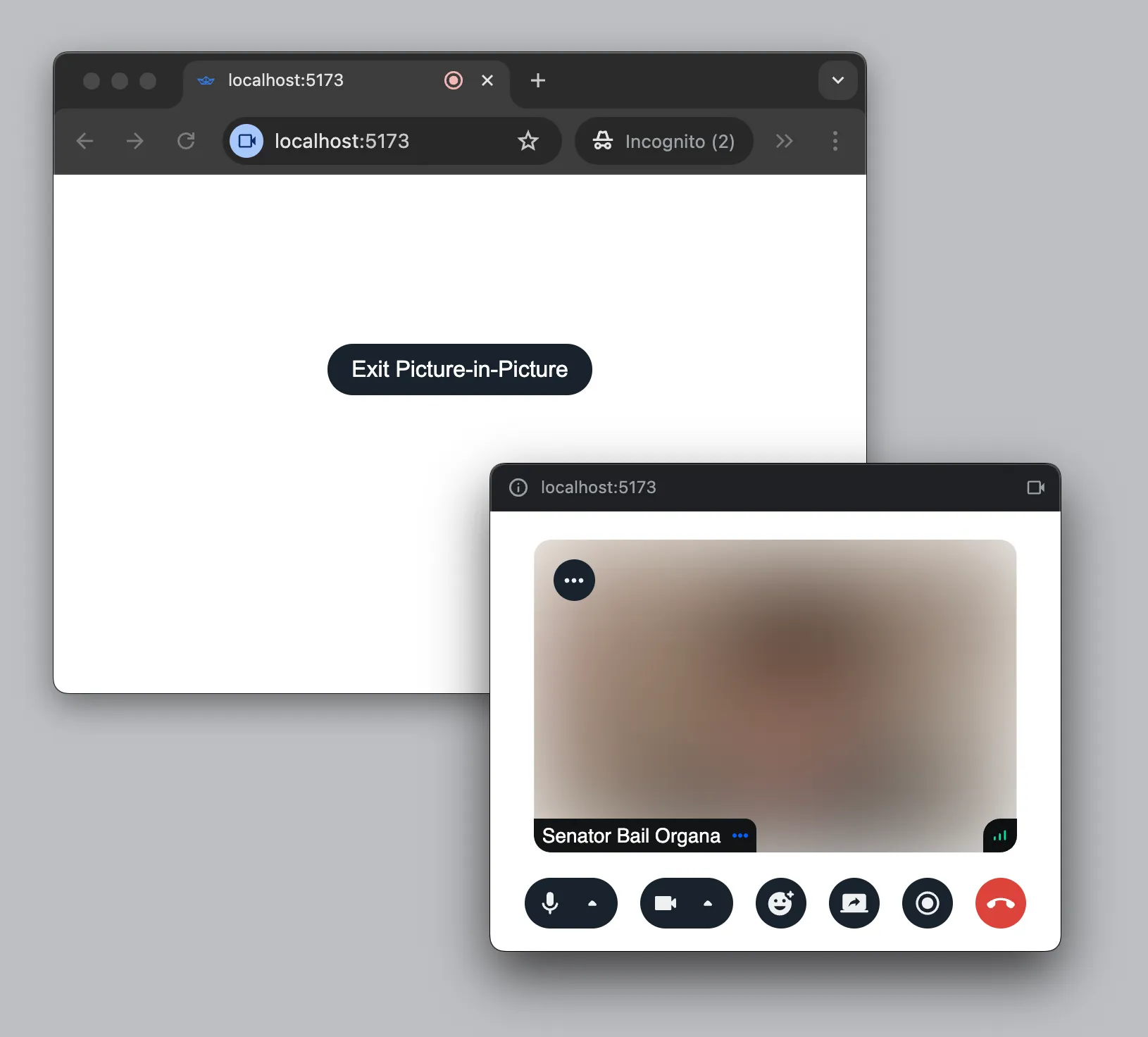
It makes little sense to keep displaying UI in the parent window while PiP is
active. Let's hide it until the PiP window is closed. To do that we need to
handle the pagehide event on the PiP window. We can also close it from our
code by calling pipWindow.close().
function App() {
  // Client and call setup skipped for brevity

  const { useRemoteParticipants } = useCallStateHooks();
  const remoteParticipants = useRemoteParticipants();
  const [pipWindow, setPipWindow] = useState(null);

  const handlePictureInPicture = useCallback(async () => {
    if ("documentPictureInPicture" in window) {
      const pw = await window.documentPictureInPicture.requestWindow();

      window.document.head
        .querySelectorAll('link[rel="stylesheet"], style')
        .forEach((node) => {
          pw.document.head.appendChild(node.cloneNode(true));
        });

      // Handling "pagehide" event 👇
      pw.addEventListener("pagehide", () => setPipWindow(null));
      setPipWindow(pw);
    }
  }, []);

  return (
    <StreamVideo client={client}>
      <StreamCall call={call}>
        <StreamTheme>
          {/* Conditionally rendering call UI 👇 */}
          {pipWindow ? (
            <>
              {createPortal(
                <StreamTheme>
                  <SpeakerLayout muted />
                  <CallControls />
                </StreamTheme>,
                pipWindow.document.body,
              )}
              <ParticipantsAudio participants={remoteParticipants} />
              {/* Force close PiP window 👇 */}
              <button type="button" onClick={() => pipWindow.close()}>
                Exit Picture-in-Picture
              </button>
            </>
          ) : (
            <>
              <SpeakerLayout participantsBarPosition="bottom" />
              <CallControls />
              <button type="button" onClick={handlePictureInPicture}>
                PiP
              </button>
            </>
          )}
        </StreamTheme>
      </StreamCall>
    </StreamVideo>
  );
}
You've probably also noticed that the participant's audio elements are still mounted in the parent window while the layout in the PiP window is muted. We do this because autoplaying audio without user interaction is usually not allowed by browsers. And since we get a brand new window every time we request PiP, it may have no user interaction and no audio. Keeping the audio in the parent window avoids this problem.
Going Picture-in-Picture Automatically
It's also possible to automatically enable PiP every time the user leaves the
tab of your application using the Media Session API. To do this, we need to
register an action handler for the enterpictureinpicture action.
Note that this API only works if the page is actively using a camera or
microphone and is served over HTTPS. This last part makes local testing a bit
tricky. If you're using Vite, consider
@vitejs/plugin-basic-ssl.
If you're using Next.js, try the
--experimental-https
option.
The great thing is that when the PiP window is created by the
enterpictureinpicture action handler, it's automatically closed when the user
returns to your app's tab. So there really isn't much code to add:
useEffect(() => {
  navigator.mediaSession.setActionHandler(
    "enterpictureinpicture",
    handlePictureInPicture,
  );
  return () => {
    navigator.mediaSession.setActionHandler("enterpictureinpicture", null);
  };
}, []);
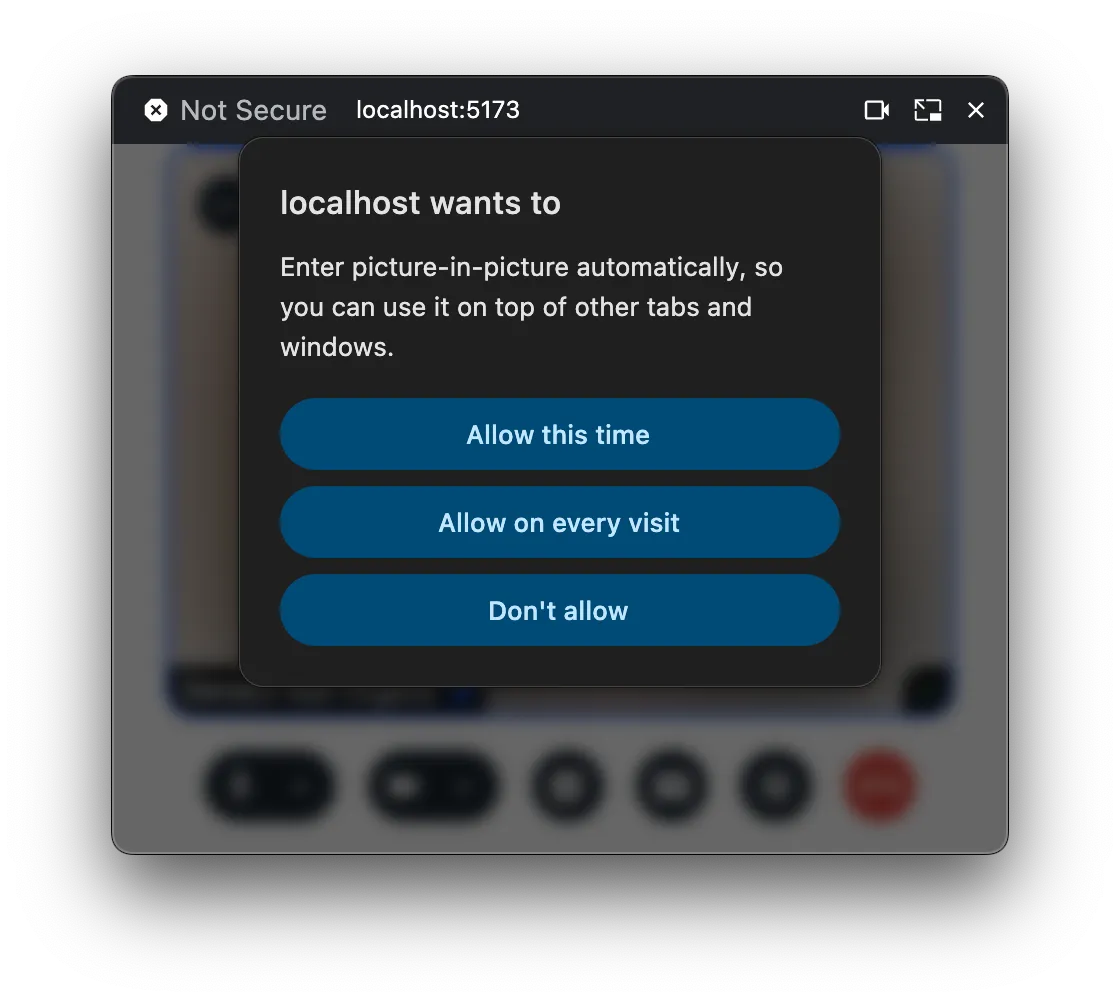
The first time you switch to another tab or window, you'll see a prompt asking if you want to enable automatic picture-in-picture.
Final Thoughts
We've implemented the picture-in-picture UI using the new Document Picture-in-Picture API. Keep in mind that this API is still in early stages and only supported by Chrome-based browsers. But as long as you don't forget about support detection, this API gives you much more flexibility in building a PiP experience, so it's worth experimenting with.