
 React
React iOS
iOS Android
 Flutter
 JavaScript
 Unity
Unity ESP32
ESP32 Platform
 Vision Agents
import {
MicCaptureErrorNotification,
ToggleAudioPublishingButton,
} from "@stream-io/video-react-sdk";
<MicCaptureErrorNotification>
<ToggleAudioPublishingButton />
</MicCaptureErrorNotification>;Broken Microphone Setup
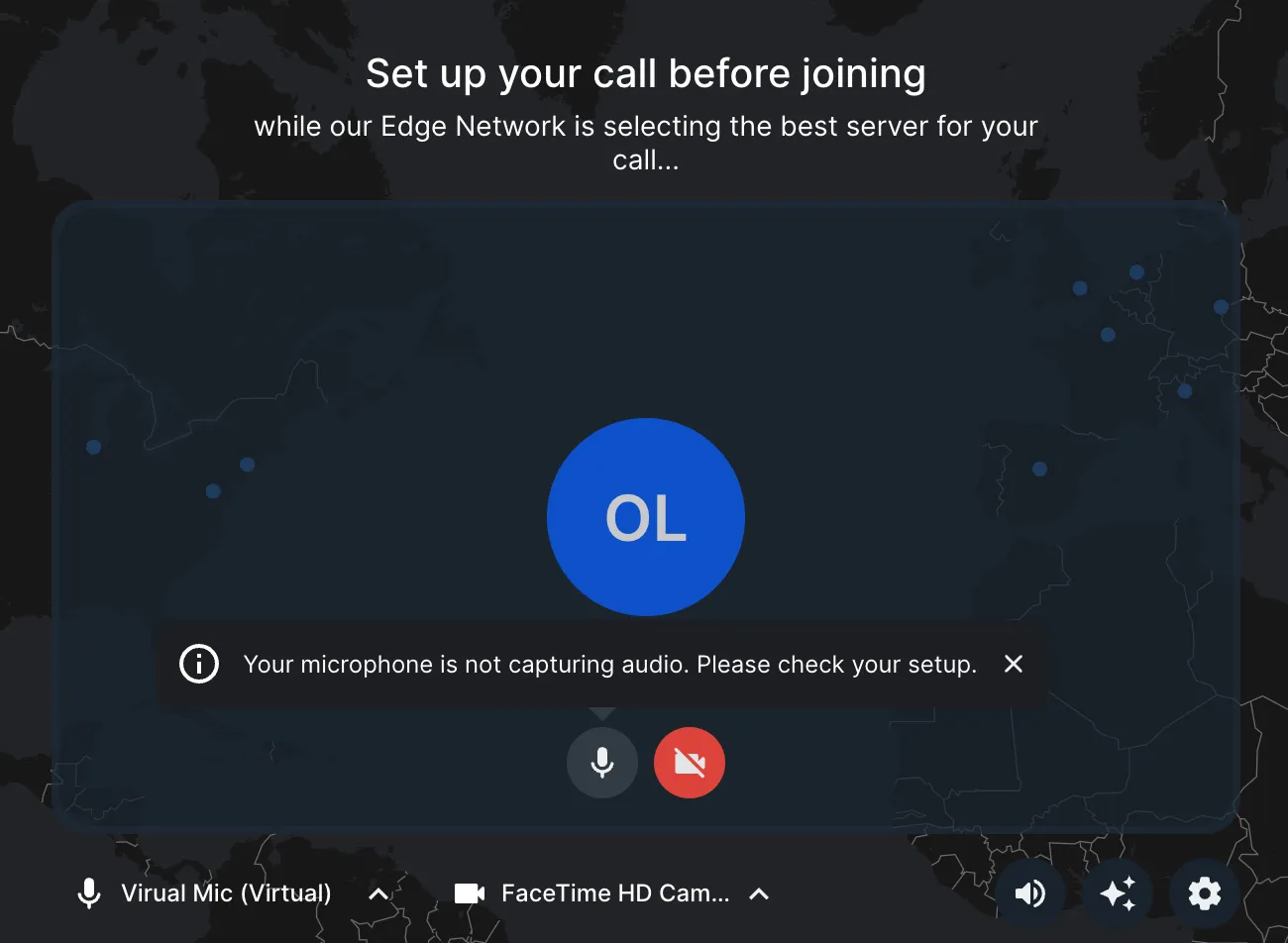
This cookbook shows how to detect when a microphone is not capturing audio and guide users to fix it.
For most apps, use the built-in MicCaptureErrorNotification. If you need custom UX, you can listen to the same capture events yourself.
Microphone capture detection
The SDK emits mic.capture_report events and includes event.capturesAudio to indicate whether microphone input is being detected.
This can help users identify issues with:
- Microphone hardware problems
- Incorrect microphone selection
- System-level audio permissions
- Cable or connection issues
Microphone capture detection is heuristic and based on environmental input. In some setups, false positives are possible, for example when hardware noise cancellation suppresses low-volume or steady sounds.
Quick start: built-in notification
Wrap your mic button with MicCaptureErrorNotification:
You can customize the message and placement:
<MicCaptureErrorNotification
  text="Microphone issue detected. Please check your device."
  placement="bottom"
>
  <ToggleAudioPublishingButton />
</MicCaptureErrorNotification>
Build a custom notification
If you need custom behavior or styling, subscribe to mic.capture_report directly:
import { useEffect, useState } from "react";
import { useCall } from "@stream-io/video-react-sdk";

export const BrokenMicNotification = () => {
  const call = useCall();
  const [showWarning, setShowWarning] = useState(false);
  useEffect(() => {
    if (!call) return;
    return call.on("mic.capture_report", (event) => {
      setShowWarning(!event.capturesAudio);
    });
  }, [call]);

  if (!showWarning) return null;

  return (
    <div className="mic-warning">
      <span>
        ⚠️ Your microphone is not capturing audio. Please check your setup.
      </span>
      <button onClick={() => setShowWarning(false)}>Dismiss</button>
    </div>
  );
};
On-demand microphone test
Use performTest to check a specific selected device:
import { useState } from "react";
import { useCallStateHooks } from "@stream-io/video-react-sdk";

type MicTestStatus = "idle" | "ok" | "fail" | "error";

export const TestMicrophoneButton = () => {
  const { useMicrophoneState } = useCallStateHooks();
  const { microphone, selectedDevice } = useMicrophoneState();

  const [status, setStatus] = useState<MicTestStatus>("idle");

  const runTest = async () => {
    try {
      const capturesAudio = await microphone.performTest(selectedDevice);
      setStatus(capturesAudio ? "ok" : "fail");
    } catch {
      setStatus("error");
    }
  };

  return (
    <div>
      <button onClick={runTest}>Test microphone</button>
      {status === "ok" && <span>✅ Microphone is ready</span>}
      {status === "fail" && (
        <span>⚠️ No audio detected. Check your device.</span>
      )}
      {status === "error" && (
        <span>⚠️ Unable to run test. Select a microphone and try again.</span>
      )}
    </div>
  );
};